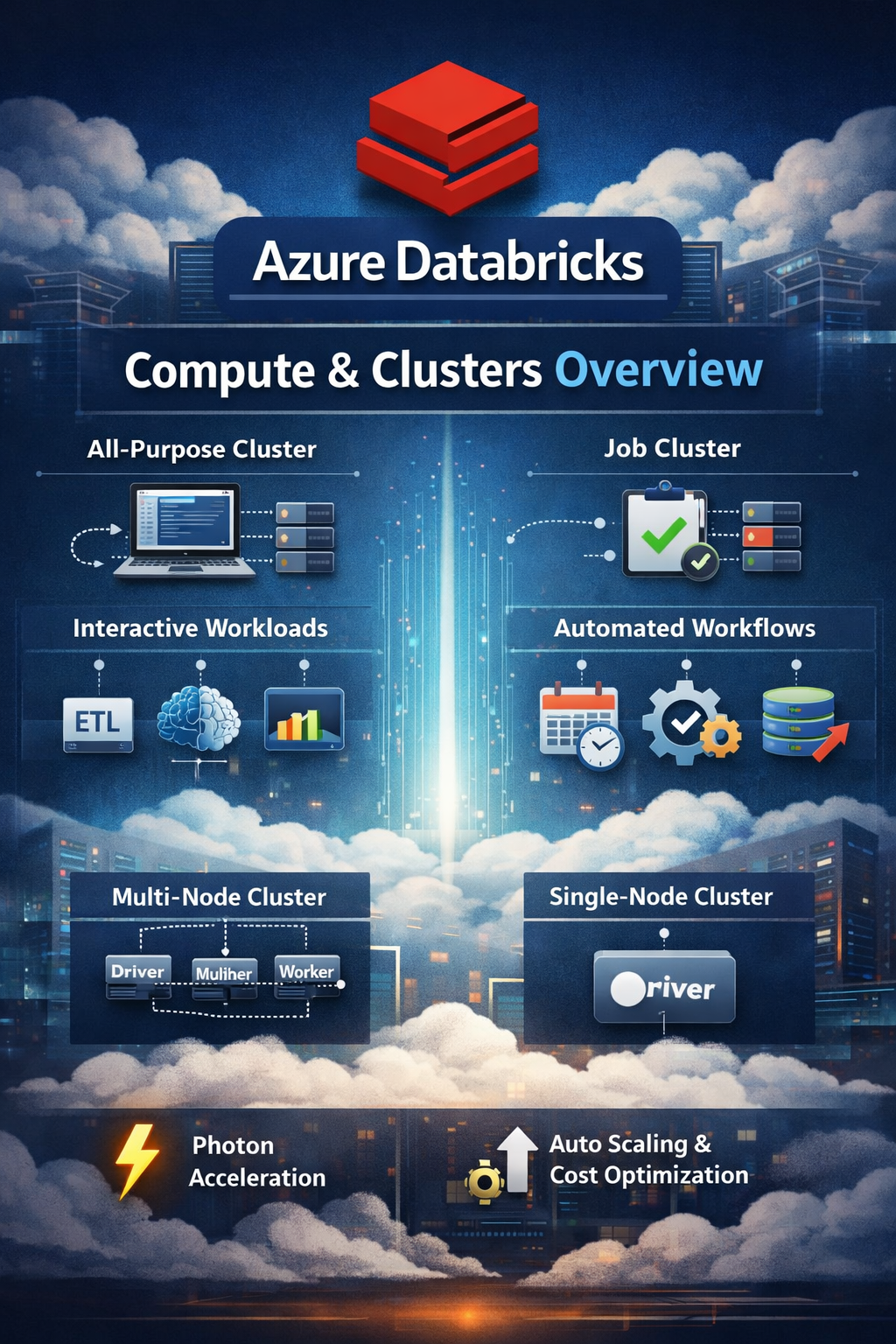
Orchestrating Databricks Notebooks: Running and Parameterizing Workflows with dbutils
Introduction
Orchestrating Databricks Notebooks: Running and Parameterizing Workflows with dbutils
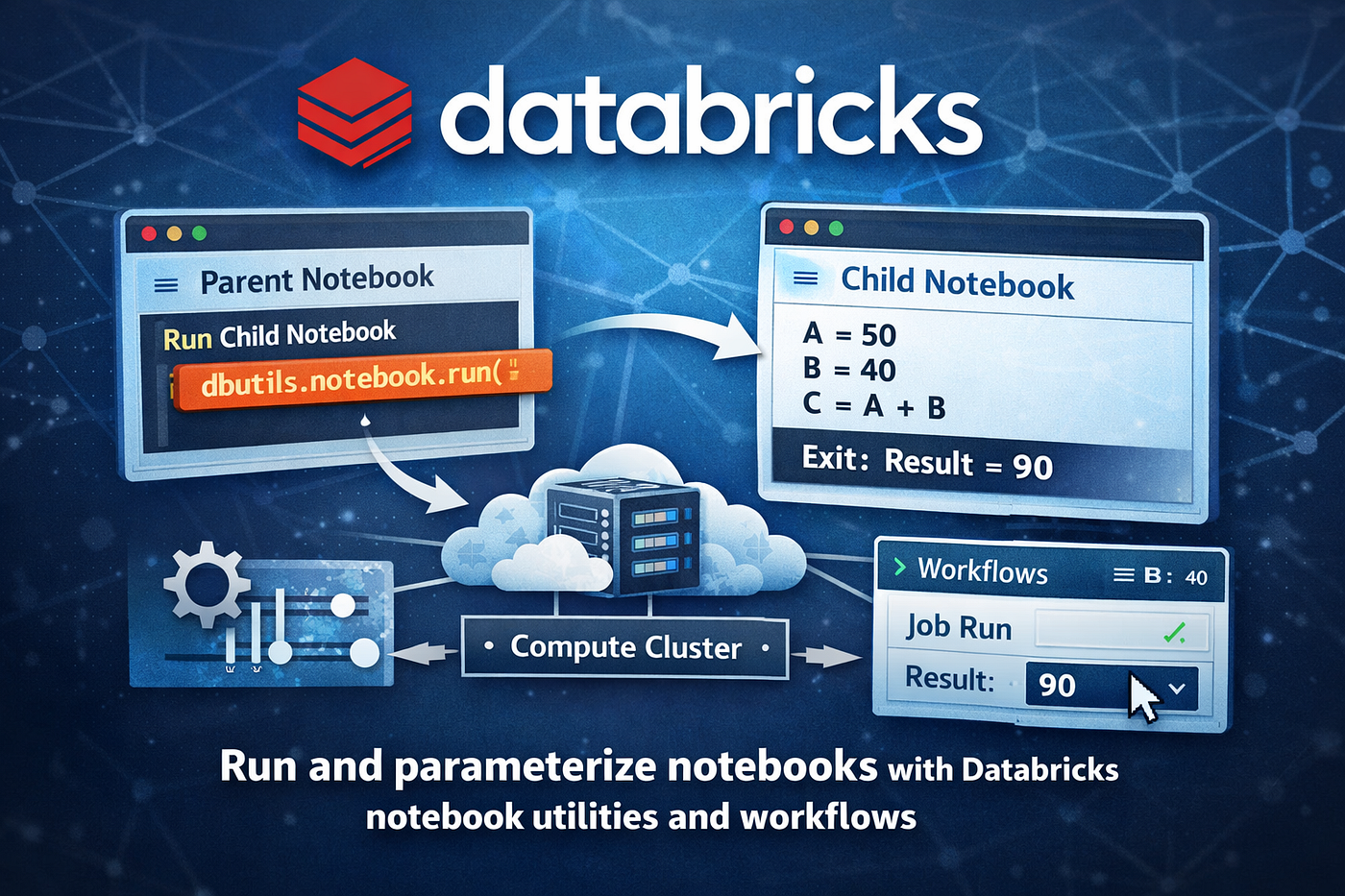
Illustration of Databricks notebook utilities showing how a parent notebook triggers a child notebook using dbutils.notebook.run, executes calculations on a compute cluster, and returns results through a workflow job in Databricks.
Introduction
One of the most powerful capabilities of Azure Databricks is the ability to orchestrate workflows by running one notebook from another. This feature allows engineers to build modular data pipelines where notebooks act as reusable components.
Using Databricks notebook utilities (dbutils), you can:
- Execute notebooks programmatically
- Pass parameters between notebooks
- Capture results returned by downstream tasks
- Automize multi-step workflows
In this article, we will explore how to:
- Run a notebook from another notebook
- Return results between notebooks
- Pass parameters dynamically using widgets
- Understand how Databricks executes notebooks as jobs
This approach is widely used in production-grade Spark pipelines, where different notebooks handle ingestion, transformation, and data validation.
Preparing the Environment: Creating a Compute Cluster
Before running notebooks programmatically, you must create a compute cluster in Azure Databricks. Notebook utilities require compute resources to execute jobs.
Basic Cluster Configuration
To create a test-friendly and cost-efficient cluster:
- Navigate to Compute in the Databricks workspace.
- Create a Single Node Cluster.
- Disable Photon Acceleration for testing.
- Choose a node with approximately:
- 14 GB memory
- 4 cores
5. Enable Auto Termination (20 minutes) to prevent unnecessary charges.
Why These Settings Matter
- Single node clusters reduce cost.
- Auto termination prevents idle resource consumption.
- Minimal configuration is ideal for learning and testing notebook utilities
Creating a Child Notebook
The child notebook performs a simple computation and returns the result to the calling notebook.
Example notebook name:
db_utils_notebook_utilities_childLogic Implemented
The notebook performs the following steps:
- Define two variables:
AB
- Perform a calculation:
C = A + B- Print the result.
- Exit the notebook using:
dbutils.notebook.exit()Example Implementation
A = 10
B = 20
C = A + Bprint(C)dbutils.notebook.exit(str(C))Important Behavior of exit()
- Executes all cells before the exit command.
- Stops execution at the exit statement.
- Skips any cells after the exit command.
- Returns the specified value to the calling notebook.
In this example:
10 + 20 = 30The value 30 is returned to the parent notebook.
Running One Notebook from Another
To orchestrate workflows, you create a parent notebook that triggers the child notebook.
Example parent notebook name:
db_notebook_utils_parentThe parent notebook uses the following function:
dbutils.notebook.run()Required Parameters
This function accepts three arguments:
- Notebook path — the notebook to run
- Timeout — maximum execution time in seconds
- Arguments (optional) — parameters passed to the notebook
Example
result = dbutils.notebook.run("child_notebook_path", 60)
print(result)
Execution Flow
When this command runs:
- Databricks starts a notebook job.
- The child notebook executes.
- The value returned by
dbutils.notebook.exit()is captured. - The parent notebook receives the result.
Example result:
30Understanding Notebook Jobs and Workflows
Every time dbutils.notebook.run() executes, Databricks creates a job run.
You can monitor this in:
Workflows → RunsKey Observations
- The notebook runs as a job cluster execution.
- Execution details appear in the Workflows dashboard.
- Parameters and results are visible in the run logs.
Two Types of Databricks Clusters
1. Interactive Clusters
Used for:
- Development
- Exploration
- Debugging
2. Job Clusters
Used for:
- Scheduled workflows
- Automated pipelines
- Production workloads
⚠️ Important Limitation
The Databricks Community Edition does not support workflows or job runs, which is why this demonstration uses Azure Databricks.
Parameterizing Notebooks with Widgets
Hardcoding values inside notebooks is not ideal for production pipelines. Instead, you can use Databricks widgets to accept dynamic inputs.
Creating Widgets
Example:
dbutils.widgets.text("A", "")
dbutils.widgets.text("B", "")
This creates input fields where users can provide values.
Reading Widget Values
A = dbutils.widgets.get("A")
B = dbutils.widgets.get("B")
However, widgets return strings, not integers.
Converting Values
To perform arithmetic operations:
A = int(dbutils.widgets.get("A"))
B = int(dbutils.widgets.get("B"))
This ensures calculations behave correctly.
Passing Parameters from a Parent Notebook
The parent notebook can send parameters using key-value pairs.
Example
dbutils.notebook.run(
"child_notebook_para",
60,
{"A": "50", "B": "40"}
)
Execution Flow
- Parent notebook triggers the child notebook.
- Parameters are passed:
A = 50B = 40
- Child notebook reads values from widgets.
- The notebook performs the calculation.
50 + 40 = 90- The result is returned using
dbutils.notebook.exit().
Why This Approach Matters in Data Engineering
Notebook orchestration is fundamental in modern data pipelines.
Typical pipeline structure:
Notebook 1 → Data Ingestion
Notebook 2 → Data Transformation
Notebook 3 → Data Validation
Notebook 4 → Data Publishing
A master orchestration notebook triggers each step sequentially using:
dbutils.notebook.run()Benefits include:
- Modular pipeline design
- Reusable notebook components
- Parameterized workflows
- Easy debugging and monitoring
Important Notes
dbutils.notebook.exit()
- Stops notebook execution.
- Returns a value to the calling notebook.
- Typically placed at the end of a notebook.
dbutils.notebook.run()
- Executes another notebook.
- Returns the exit value from the called notebook.
Parameters Required for run()
- Notebook path
- Timeout value
- Optional parameter dictionary
Widgets
- Enable dynamic notebook inputs.
- Useful for workflow automation.
- Widget values are always returned as strings.
Type Casting
Always convert widget values when performing calculations:
int()
float()
Notebook Jobs
- Triggered when notebooks call other notebooks.
- Visible under Workflows → Runs.
Community Edition Limitation
- Does not support workflows or job orchestration.
Note : After reading this article, take time to explore the concepts listed below. More in-depth content on each will be added progressively.
To practice notebook orchestration in Azure Databricks:
- Create a compute cluster.
- Build a child notebook that performs a calculation.
- Use
**dbutils.notebook.exit()** to return results. - Create a parent notebook.
- Execute the child notebook using
**dbutils.notebook.run()**. - Check execution in Databricks Workflows → Runs.
- Add widgets to the child notebook.
- Convert widget values using
**int()**. - Pass parameters from the parent notebook.
- Test multiple parameter values to validate dynamic execution
메타데이터
- post_id
- 4cb6a4ea583e
- slug
- orchestrating-databricks-notebooks-running-and-parameterizing-workflows-with-dbutils-4cb6a4ea583e
- url
- https://medium.com/@singhanuj2803/orchestrating-databricks-notebooks-running-and-parameterizing-workflows-with-dbutils-4cb6a4ea583e
- canonical_url
- https://medium.com/@singhanuj2803/orchestrating-databricks-notebooks-running-and-parameterizing-workflows-with-dbutils-4cb6a4ea583e
- author_url
- https://medium.com/@singhanuj2803
- status
- ok
- fetched_at
- 2026-07-14 15:10:18