Convert Excel to XML in Python: Beginner Friendly Guide
If you’re new to Python and need to convert Excel data to XML (for systems, APIs, or tools that require it), this guide is for you. We’ll…
Convert Excel to XML in Python: Beginner Friendly Guide
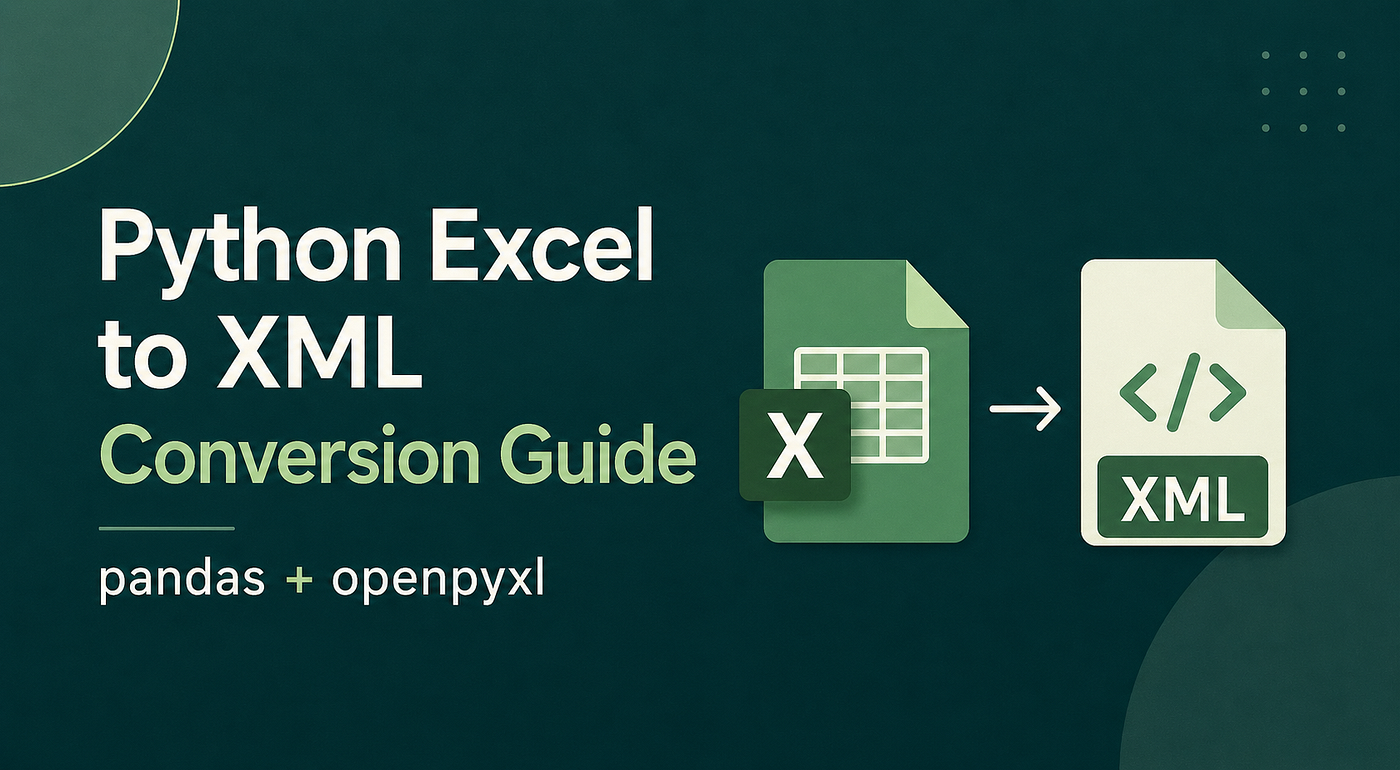
If you’re new to Python and need to convert Excel data to XML (for systems, APIs, or tools that require it), this guide is for you. We’ll cover two simple, beginner-friendly methods: Auto Conversion (quick, no extra work) and Custom Conversion (full control over XML structure). No prior XML or advanced Python experience needed — just copy-paste code and follow along.
1. Why Convert Excel to XML?
Excel is great for human editing, but XML is universal for system-to-system data exchange. Key reasons to convert:
- Cross-Platform Compatibility : XML works with any software/API, no Excel formatting issues.
- Structured Data : XML supports hierarchical relationships (e.g., nested nodes) that Excel can’t represent clearly.
- System Integration : Many enterprise tools and web services require XML for data import/export.
- Data Integrity : XML tags (e.g., John) eliminate ambiguity about data meaning.
2. Prerequisites
We’ll use two Python libraries — don’t worry, installing them is easy:
pandas: A beginner-friendly library for reading Excel files (it turns Excel data into a easy-to-work-with “DataFrame”).openpyxl+xlrd: Help pandas read .xlsx (modern Excel) and .xls (old Excel) files.
Install them with one command in your terminal/command prompt:
pip install pandas openpyxl xlrdThat’s it! You’re ready to start converting.
3. Method 1: Auto Conversion (No-Fuss, Full Data Export)
The auto conversion method is perfect for when you want to export all Excel data to XML with zero extra work . It takes every column and row from your Excel file and turns it into a simple XML structure — no need to define tags or structure yourself.
3.1 Example Excel Data
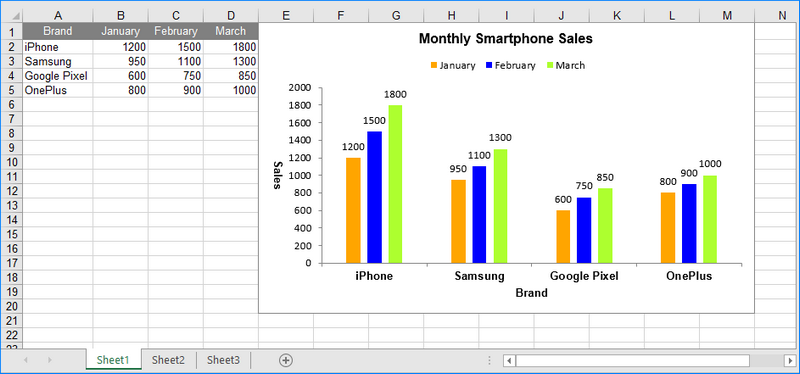
Let’s use a simple Excel file (nameddata.xlsx) with customer information. Here’s what it looks like (rows = customers, columns = details):

data.xlsx
3.2 Auto Conversion Code
This code reads your Excel file, converts all data to XML, and saves it as output_auto.xml. I’ve added detailed comments to explain every line—so you know exactly what’s happening:
import pandas as pd
import xml.etree.ElementTree as ET

def excel_to_xml_auto(excel_path, xml_save_path, sheet_name=0):
    # 1. Read the Excel file (pandas automatically detects headers)
    # fillna("") replaces empty cells with empty strings (avoids "NaN" in XML)
    df = pd.read_excel(excel_path, sheet_name=sheet_name).fillna("")

    # 2. Create the root XML node (the top-level tag in XML)
    root = ET.Element("customers")  # Name this whatever makes sense for your data

    # 3. Loop through each row in the Excel file
    for _, row in df.iterrows():
        # Create a "customer" node for each row (one per Excel row)
        customer = ET.SubElement(root, "customer")

        # 4. Loop through each column in the row (one per Excel column)
        for col_name in df.columns:
            # Create a tag for each column (uses Excel header as tag name)
            # Replace spaces in column names with underscores (XML tags can't have spaces)
            field = ET.SubElement(customer, col_name.replace(" ", "_"))
            # Add the cell value to the XML tag
            field.text = str(row[col_name])

    # 5. Save the XML file (formatted for readability)
    tree = ET.ElementTree(root)
    with open(xml_save_path, "wb") as f:
        tree.write(f, encoding="utf-8", xml_declaration=True, method="xml")

    print(f"✅ Auto conversion done! XML saved to: {xml_save_path}")

# ------------------- USE THE FUNCTION -------------------
if __name__ == "__main__":
    excel_to_xml_auto(
        excel_path="data.xlsx",       # Path to YOUR Excel file
        xml_save_path="output_auto.xml",  # Where to save the XML
        sheet_name=0                  # Use 0 for the first sheet (or "Sheet1" by name)
    )
When you run the code, it will generate output_auto.xml with this structure. Notice how every Excel column becomes a tag, and every row becomes a <customer> node:
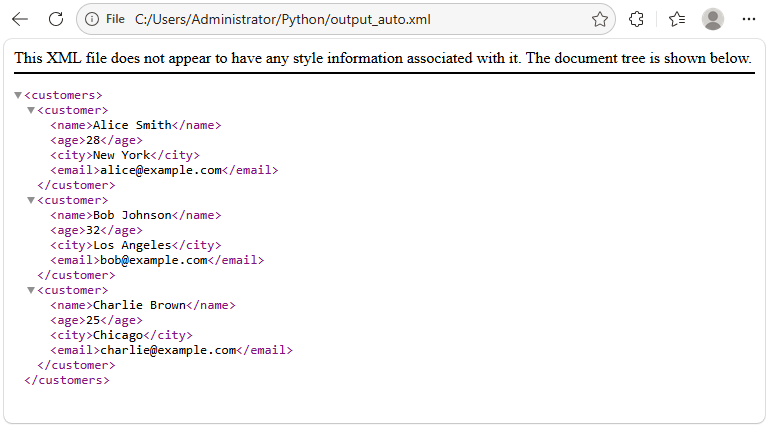
output_auto.xml
3.3 When to Use Auto Conversion
Auto conversion is ideal if:
- You need a quick way to export all Excel data to XML.
- You don’t care about customizing the XML structure (e.g., tag names, nested nodes).
- You’re testing or need a temporary XML file.
4. Method 2: Custom Conversion (Full Control Over XML Structure)
Auto conversion is great for speed, but sometimes you need XML to follow a specific structure (e.g., for an API, a client’s requirement, or enterprise system integration). This is where custom conversion comes in — it lets you:
- Only export the columns you need (ignore unnecessary data).
- Rename tags (e.g., use
<full_name>instead of Excel’sname). - Add nested nodes (e.g., put
nameandemailinside a<contact_info>node). - Add attributes (e.g.,
<customer id="1">).
4.1 Same Excel Data (Reuse the Example)
We’ll use the same data.xlsx file as before—no need to change anything.
4.2 Custom Conversion Code
Let’s say we need the XML to:
- Only include
name,age, andemail(ignorecity). - Rename
nametofull_nameandemailtocontact_email. - Add an
idattribute to each<customer>(e.g.,<customer id="1">). - Nest
full_nameandcontact_emailinside a<contact_details>node.
Here’s the code to do that — again, with detailed comments:
import pandas as pd
import xml.etree.ElementTree as ET

def excel_to_xml_custom(excel_path, xml_save_path, sheet_name=0):
    # 1. Read Excel file (same as auto conversion)
    df = pd.read_excel(excel_path, sheet_name=sheet_name).fillna("")

    # 2. Create root node (custom name: "customer_list")
    root = ET.Element("customer_list")

    # 3. Loop through rows (add an index for the "id" attribute)
    for index, row in df.iterrows():
        # Create "customer" node with an id attribute (index + 1 to start at 1, not 0)
        customer = ET.SubElement(root, "customer", id=str(index + 1))

        # 4. Add nested node: <contact_details>
        contact_details = ET.SubElement(customer, "contact_details")

        # 5. Add custom tags (only the columns we need, with custom names)
        ET.SubElement(contact_details, "full_name").text = str(row["name"])
        ET.SubElement(contact_details, "contact_email").text = str(row["email"])

        # 6. Add age as a direct child of "customer" (not nested)
        ET.SubElement(customer, "age").text = str(row["age"])

    # 7. Save the XML file (same as auto conversion)
    tree = ET.ElementTree(root)
    with open(xml_save_path, "wb") as f:
        tree.write(f, encoding="utf-8", xml_declaration=True, method="xml")

    print(f"✅ Custom conversion done! XML saved to: {xml_save_path}")

# ------------------- USE THE FUNCTION -------------------
if __name__ == "__main__":
    excel_to_xml_custom(
        excel_path="data.xlsx",
        xml_save_path="output_custom.xml"
    )
Run the code, and you’ll get output_custom.xml with the exact structure we wanted—notice the nested nodes, custom tags, and id attribute:

output_custom.xml
4.3 When to Use Custom Conversion
Custom conversion is necessary if:
- You need XML to match a specific format (e.g., for an API or client).
- You want to exclude unnecessary columns.
- You need nested nodes or attributes.
- You’re using the XML for production (not just testing).
5. Important Notes for Beginners (Avoid Common Mistakes!)
As a beginner, there are a few pitfalls to watch out for — these will save you time and frustration:
- Handle Empty Cells
Excel files often have empty cells, which pandas reads as NaN (Not a Number). If you don’t handle this, your XML will have NaN values, which are invalid in most systems. That’s why we use .fillna("") to replace empty cells with empty strings.
- XML Tags Can’t Have Spaces
Excel column headers often have spaces (e.g., “Full Name”), but XML tags can’t contain spaces. In the auto conversion code, we use col_name.replace(" ", "_") to fix this (e.g., “Full Name” becomes Full_Name).
- Convert All Values to Strings
Excel has different data types (numbers, dates, text), but XML only stores text. Using str(row[col_name]) converts all values to strings, ensuring compatibility.
- Use the Right Excel Sheet
If your Excel file has multiple sheets, use sheet_name="Sheet2" (replace with your sheet name) instead of sheet_name=0 (which is the first sheet).
- File Paths Matter
If your Excel file isn’t in the same folder as your Python script, use the full path (e.g., excel_path="C:/Users/YourName/Documents/data.xlsx" on Windows or "/Users/YourName/Documents/data.xlsx" on Mac/Linux).
6. Key Insights for Beginners
Here are a few extra tips to help you master Excel-to-XML conversion:
- Start Simple : Use the auto conversion method first to get comfortable with the process. Once you understand how Excel and XML map to each other, move to custom conversion.
- Test with Small Data : Don’t start with a huge Excel file — use a small sample (like our 3-row example) to test your code. This makes it easier to fix errors.
- Read the XML Output : Always open the generated XML file to check if it looks right. You can use any text editor (Notepad, VS Code) or an XML viewer for better readability.
- Customize Further : You can add more advanced features to the custom code, like:
- Adding a schema (XSD) to validate the XML.
- Formatting dates (e.g., converting Excel dates to ISO 8601 format).
- Filtering rows (e.g., only export customers over 30 years old).
7. Final Recap
Converting Excel to XML in Python is a valuable skill for any beginner working with data. To recap:
- Auto Conversion : Quick, easy, exports all data — perfect for testing or temporary files.
- Custom Conversion : Full control over XML structure — necessary for production or system integration.
The code we used is beginner-friendly, copy-paste ready, and works for most Excel files. With a little practice, you’ll be able to customize the XML to fit any requirement.
One quick note: The methods we covered generate standard XML for general data exchange. If you specifically need to convert Excel to XML that follows the Open XML specification (the Microsoft-defined open document format for Office files), check out this tutorial for a step-by-step guide using Spire.XLS for Python.
메타데이터
- post_id
- 4d2faffb38e2
- slug
- convert-excel-to-xml-in-python-beginner-friendly-guide-4d2faffb38e2
- url
- https://medium.com/@alexaae9/convert-excel-to-xml-in-python-beginner-friendly-guide-4d2faffb38e2
- canonical_url
- https://medium.com/@alexaae9/convert-excel-to-xml-in-python-beginner-friendly-guide-4d2faffb38e2
- author_url
- https://medium.com/@alexaae9
- status
- ok
- fetched_at
- 2026-06-17 19:05:49