Laravel 11 Dropzone Image Upload with Sortable
In this tutorial, I’m going to show you how to integrate Dropzone.js and jQuery UI’s Sortable in Laravel 11, to create a fully functional…
Laravel 11 Dropzone Image Upload with Sortable
In this tutorial, I’m going to show you how to integrate Dropzone.js and jQuery UI’s Sortable in Laravel 11, to create a fully functional drag’n’drop image upload interface, where the user can reorder the images manually, then finally save them to the storage & the database.
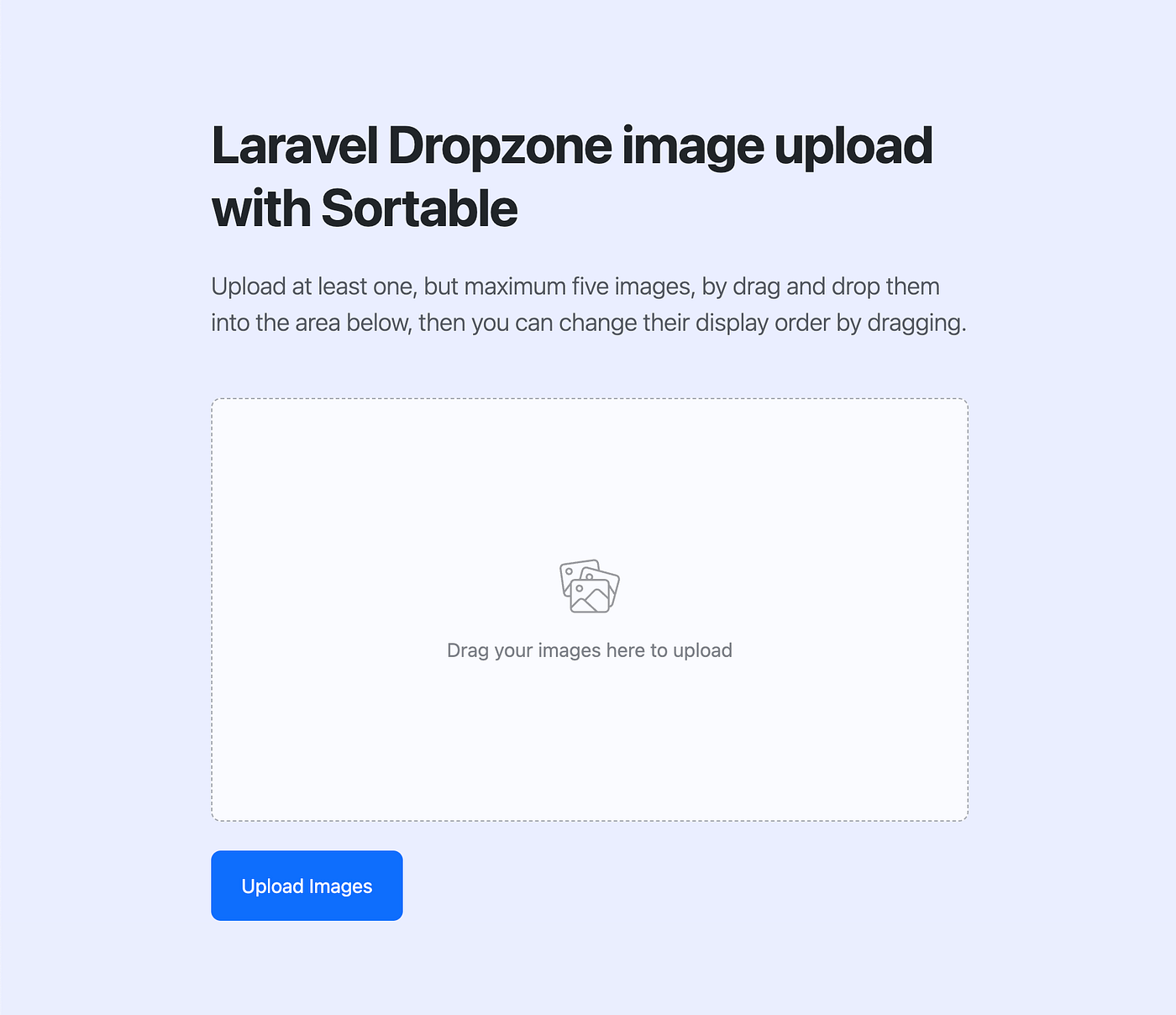
Main features
- Drag and drop images upload function
- Reorder uploaded images by dragging
- Validate uploads and display error & success messages
- Save the images in the Laravel storage folder
- Create database entries with the customized order
- Sleek Airbnb inspired upload layout & progress
Get started
This tutorial is starting from ground zero, and lead you step by step, until you get the final, functional result. If you don’t want to follow the steps, just need the working code, feel free to clone the GitHub repo.
Project Setup
In this section, we will go through each step of setting up the project bases, including install the dependencies (Bootstrap, Sass, jQuery, Sortable, Dropzone) and configure Laravel 11 to work with the database.
Create a new Laravel project, running this from the Terminal:
composer create-project laravel/laravel LaravelDropzoneSortableCreate a new database, and set it up in the .env file:
DB_CONNECTION=mysql
DB_HOST=127.0.0.1
DB_PORT=3306
DB_DATABASE=your_db_name
DB_USERNAME=your_db_user
DB_PASSWORD=your_db_passwor
Install dependencies for this project with node:
npm install bootstrap sass jquery jquery-ui dropzoneConfigure Vite in the vite.config.js file from the project root to compile the javascript and scss files:
import { defineConfig } from 'vite';
import laravel from 'laravel-vite-plugin';

export default defineConfig({
    plugins: [
        laravel({
            input: [
                'resources/sass/app.scss',
                'resources/js/app.js'
            ],
            refresh: true,
        }),
    ],
});
Change css folder name and main css file to sass:
mv resources/css resources/sass &&
mv resources/sass/app.css resources/sass/app.scss
Link the storage with the public folder (needed to display the images):
php artisan storage:linkCreate model & migration
We will need an Image model, what will contain the uploaded image paths and customized orders in the database.
Create the Image eloquent model and migration with this command:
php artisan make:model Image -mReplace the content of database/migrations/xxx_create_images_table.php file with the following, to define columns in the database:
<?php

use Illuminate\Database\Migrations\Migration;
use Illuminate\Database\Schema\Blueprint;
use Illuminate\Support\Facades\Schema;

return new class extends Migration
{
    /**
     * Run the migrations.
     */
    public function up(): void
    {
        Schema::create('images', function (Blueprint $table) {
            $table->id();
            $table->string('path');
            $table->integer('order');
            $table->timestamps();
        });
    }

    /**
     * Reverse the migrations.
     */
    public function down(): void
    {
        Schema::dropIfExists('images');
    }
};
Edit App/Models/Image according to this to make columns mass alignable:
<?php

namespace App\Models;

use Illuminate\Database\Eloquent\Model;

class Image extends Model
{
    protected $fillable = ['path', 'order'];
}
Now run the migrations to create the database columns:
php artisan migrateCreate View
In this step, we are going to create the html source of the homepage. Replace the content of resources/views/welcome.blade.php with this:
<!DOCTYPE html>
<html>
<head>
    <title>Laravel Dropzone Sortable</title>
    <meta charset="utf-8">
    <meta name="csrf-token" content="{{ csrf_token() }}">
    <meta name="viewport" content="width=device-width, initial-scale=1">

    @vite(['resources/sass/app.scss', 'resources/js/app.js'])
</head>
<body>

    <!-- Upload section -->
    <section class="py-5">
        <div class="container py-5">
            <header class="mb-5">
                <h1 class="display-5 fw-bold mb-4">Laravel Dropzone image upload with Sortable</h1>
                <p class="lead text-muted mb-0">Upload at least one, but maximum five images, by drag and drop them into the area below, then you can change their display order by dragging.</p>
            </header>
            <form id="dzImageUploadForm" action="/upload" method="post" enctype="multipart/form-data">
                @csrf
                <div class="position-relative">
                    <div class="form-group mb-3">
                        <div class="main-drag-area form-control p-0" id="dzDropzone">
                            <div class="dz-message rounded-3 text-muted opacity-75" id="dzPlaceholder">
                                <svg class="opacity-50 mb-3" width="50px" height="50px" viewBox="0 0 64 64" xmlns="http://www.w3.org/2000/svg" aria-hidden="true" focusable="false">
                                    <path d="M41.636 8.404l1.017 7.237 17.579 4.71a5 5 0 0 1 3.587 5.914l-.051.21-6.73 25.114A5.002 5.002 0 0 1 53 55.233V56a5 5 0 0 1-4.783 4.995L48 61H16a5 5 0 0 1-4.995-4.783L11 56V44.013l-1.69.239a5 5 0 0 1-5.612-4.042l-.034-.214L.045 14.25a5 5 0 0 1 4.041-5.612l.215-.035 31.688-4.454a5 5 0 0 1 5.647 4.256zm-20.49 39.373l-.14.131L13 55.914V56a3 3 0 0 0 2.824 2.995L16 59h21.42L25.149 47.812a3 3 0 0 0-4.004-.035zm16.501-9.903l-.139.136-9.417 9.778L40.387 59H48a3 3 0 0 0 2.995-2.824L51 56v-9.561l-9.3-8.556a3 3 0 0 0-4.053-.009zM53 34.614V53.19a3.003 3.003 0 0 0 2.054-1.944l.052-.174 2.475-9.235L53 34.614zM48 27H31.991c-.283.031-.571.032-.862 0H16a3 3 0 0 0-2.995 2.824L13 30v23.084l6.592-6.59a5 5 0 0 1 6.722-.318l.182.159.117.105 9.455-9.817a5 5 0 0 1 6.802-.374l.184.162L51 43.721V30a3 3 0 0 0-2.824-2.995L48 27zm-37 5.548l-5.363 7.118.007.052a3 3 0 0 0 3.388 2.553L11 41.994v-9.446zM25.18 15.954l-.05.169-2.38 8.876h5.336a4 4 0 1 1 6.955 0L48 25.001a5 5 0 0 1 4.995 4.783L53 30v.88l5.284 8.331 3.552-13.253a3 3 0 0 0-1.953-3.624l-.169-.05L28.804 14a3 3 0 0 0-3.623 1.953zM21 31a4 4 0 1 1 0 8 4 4 0 0 1 0-8zm0 2a2 2 0 1 0 0 4 2 2 0 0 0 0-4zM36.443 6.11l-.175.019-31.69 4.453a3 3 0 0 0-2.572 3.214l.02.175 3.217 22.894 5.833-7.74a5.002 5.002 0 0 1 4.707-4.12L16 25h4.68l2.519-9.395a5 5 0 0 1 5.913-3.587l.21.051 11.232 3.01-.898-6.397a3 3 0 0 0-3.213-2.573zm-6.811 16.395a2 2 0 0 0 1.64 2.496h.593a2 2 0 1 0-2.233-2.496zM10 13a4 4 0 1 1 0 8 4 4 0 0 1 0-8zm0 2a2 2 0 1 0 0 4 2 2 0 0 0 0-4z"></path>
                                </svg>
                                <span>Drag your images here to upload</span>
                            </div>
                            <div class="dz-previews-container" id="dzPreviews"></div>
                        </div>
                    </div>
                </div>
                <div class="invalid-feedback fw-bold mb-3" id="dzErrorMessage"></div>
                <button class="btn btn-lg btn-primary fs-6 py-3 px-4 mt-2" id="dzSubmitButton">Upload Images</button>
            </form>
        </div>
    </section>

    <!-- Display section -->
    <section class="bg-white display-none py-5" id="uploadedImagesSection">
        <div class="container py-5">
            <header class="mb-5">
                <h1 class="display-5 fw-bold mb-4">Uploaded images in order</h1>
                <p class="lead text-muted mb-0">Below you can see the previously uploaded images, in your manually sorted ascending display order.</p>
            </header>
            <div id="previewsContainer"></div>
        </div>
    </section>

    <!-- Templates -->
    <script id="dzImageTemplate" type="text/template">
        <div class="dz-image-preview" data-id="">
            <div class="dz-image position-relative rounded-3 overflow-hidden h-100" >
                <img class="w-100 h-100 object-fit-cover" data-dz-thumbnail>
                <svg class="dz-remove-button m-2" type="button" xmlns="http://www.w3.org/2000/svg" width="16" height="16" viewBox="0 0 24 24" fill="none" stroke="white" stroke-width="2.5" stroke-linecap="round" stroke-linejoin="round">
                    <path stroke="none" d="M0 0h24v24H0z" fill="none"/><path d="M18 6l-12 12" /><path d="M6 6l12 12" />
                </svg>
            </div>
        </div>
    </script>
    <script id="dzAdditionalTemplate" type="text/template">
        <div class="dz-additional-area text-muted position-relative form-control d-flex align-items-center justify-content-center">
            <svg class="dz-photo-icon opacity-75" xmlns="http://www.w3.org/2000/svg" width="30" height="30" viewBox="0 0 24 24" fill="none" stroke="currentColor" stroke-width="1" stroke-linecap="round" stroke-linejoin="round"><path stroke="none" d="M0 0h24v24H0z" fill="none"/>
                <path d="M15 8h.01" /><path d="M3 6a3 3 0 0 1 3 -3h12a3 3 0 0 1 3 3v12a3 3 0 0 1 -3 3h-12a3 3 0 0 1 -3 -3v-12z" /><path d="M3 16l5 -5c.928 -.893 2.072 -.893 3 0l5 5" /><path d="M14 14l1 -1c.928 -.893 2.072 -.893 3 0l3 3" />
            </svg>
        </div>
    </script>
    <script id="dzLoadingOverlay" type="text/template">
        <div class="dz-loading-div">
            <div class="position-absolute w-100 h-100 start-0 top-0 d-flex align-items-center justify-content-center bg-white rounded-3 z-3">
                <div class="spinner-border text-primary" role="status">
                    <span class="visually-hidden">Loading...</span>
                </div>
            </div>
        </div>
    </script>
    <script id="dzSuccessMessage" type="text/template">
        <div class="alert alert-success d-flex align-items-center">
            <svg xmlns="http://www.w3.org/2000/svg" width="24" height="24" viewBox="0 0 24 24" fill="none" stroke="currentColor" stroke-width="2" stroke-linecap="round" stroke-linejoin="round">
                <path stroke="none" d="M0 0h24v24H0z" fill="none"/><path d="M12 12m-9 0a9 9 0 1 0 18 0a9 9 0 1 0 -18 0" /><path d="M9 12l2 2l4 -4" />
            </svg>
            <span class="ms-2">Images successfully uploaded.</span>
        </div>
    </script>

</body>
</html>
Create Controller
In this step, we will create the controller what will handle the file uploads at the server side.
Create a new controller with this command:
php artisan make:controller ImageUploadControllerNow go to app/Http/Controllers/ImageUploadController.php and add this:
<?php

namespace App\Http\Controllers;

use App\Models\Image;
use Illuminate\Http\Request;
use Illuminate\Support\Facades\Storage;

class ImageUploadController extends Controller
{
    /**
     * Display the homepage
     */
    public function index()
    {
        return view('welcome');
    }

    /**
     * Upload images (with Dropzone)
     */
    public function upload(Request $request)
    {
        $images = $request->file('file');

        foreach ($images as $index => $image) {
            $path = $image->store('images', 'public');
            Image::create([
                'path' => $path,
                'order' => $index + 1,
            ]);
        }

        return response()->json(['success' => true]);
    }

    /**
     * Display uploaded images
     */
    public function preview()
    {
        $images = Image::orderBy('order', 'asc')->get();

        return response()->json($images);
    }
}
Here we have three functions:
- index() — for showing the home page
- upload() — for handling the upload process
- preview()— for displaying the images from the database
Create Routes
Now we have to create the routes to connect the site with the controller functions. Open up routes/web.php and replace the content with this:
<?php

use Illuminate\Support\Facades\Route;
use App\Http\Controllers\ImageUploadController;

Route::controller(ImageUploadController::class)->group(function () {
    Route::get('/', 'index');
    Route::get('/previews', 'preview');
    Route::post('/upload', 'upload');
});
Create Styles
Open your resources/sass/app.scss file, and add this content:
@import 'bootstrap/scss/bootstrap';

// Variables --------------------------------------------------

$coverImageHeight: 350px;
$additionalImageHeight: 220px;

// Page styles ------------------------------------------------

body {
    background: #eaeeff;
}

h1 {
    letter-spacing: -1px;
}

.container {
    max-width: 650px;
}

.display-none {
    display: none;
}

.preview-img {
    height: 300px;
    width: 100%;
    margin-bottom: 30px;
    object-fit: cover;
    border-radius: 12px;
}

// Dropzone styles ------------------------------------------------

.dz-message {
    height: 100%;
    display: flex;
    flex-direction: column;
    align-items: center;
    justify-content: center;
    position: absolute;
    top: 0;
    left: 0;
    width: 100%;
    background: #FFF;
    border: 1px dashed #8B8F93;
}

.main-drag-area {
    min-height: $coverImageHeight;
    background: transparent;
    border: 0;
    &.dz-drag-hover {
        background: $primary;
        .dz-message {
            display: flex !important;
        }
        .dz-previews-container {
            opacity: 0.1;
        }
    }
    &:hover {
        .dz-message {
            border-style: solid;
            cursor: pointer;
        }
    }
}

.dz-additional-area {
    height: $additionalImageHeight;
    border: 1px dashed #8B8F93;
    &:hover {
        border-style: solid;
        cursor: pointer;
    }
}

.dz-remove-button {
    background: rgba(0,0,0,0.5);
    width: 24px;
    height: 24px;
    border-radius: 100px;
    padding: 5px;
    transition: all 0.3s ease;
    position: absolute;
    top: 0;
    right: 0;
    &:hover {
        background: rgba(0,0,0,0.75)
    }
}

// Sortable styles ------------------------------------------------

.dz-previews-container {
    transition: all 0.25s;
    display: grid;
    grid-template-columns: 1fr 1fr;
    grid-auto-rows: auto;
    gap: 22px;
    .dz-image-preview {
        height: $additionalImageHeight;
        border: 1px solid transparent;
        &:first-child {
            grid-column: 1 / -1;
            height: $coverImageHeight;
            position: relative;
            &:after {
                content: 'Cover';
                position: absolute;
                top: 0;
                left: 0;
                background-color: rgba(0,0,0,0.5);
                color: #FFF;
                padding: 8px 10px;
                border-radius: 6px;
                margin: 8px;
                line-height: 0.9;
            }
        }
    }
}

.sortable-placeholder {
    background: #FFF;
    border: 1px dashed #8B8F93;
    @extend .rounded-3;
    &.cover-placeholder {
        height: $coverImageHeight !important;
        width: 100% !important;
        grid-column: 1 / -1 !important;
    }
}
Create Scripts
First edit the content of resources/js/bootstrap.js to read the npm installed jQuery package:
import axios from 'axios';
window.axios = axios;

window.axios.defaults.headers.common['X-Requested-With'] = 'XMLHttpRequest';

import $ from 'jquery';
window.jQuery = window.$ = $;
Next, create an resources/js/app.js file if isn’t already exists:
/**
 * ------------------------------------------------------------------------------------
 * PROJECT SETUP
 * ------------------------------------------------------------------------------------
 */

// imports
import './bootstrap.js';
import 'jquery-ui/dist/jquery-ui';
import { Dropzone } from 'dropzone';

// ajax csrf setup
$.ajaxSetup({
    headers: {
        'X-CSRF-TOKEN': $('meta[name="csrf-token"]').attr('content')
    }
});

// set global variables
const errorMessage = $('#dzErrorMessage');
const placeHolder = $('#dzPlaceholder');

/**
 * ------------------------------------------------------------------------------------
 * DROPZONE SETUP
 * ------------------------------------------------------------------------------------
 */

Dropzone.autoDiscover = false;

/**
 * Dropzone initial setup
 */
const myDropzone = new Dropzone('#dzDropzone', {
    url: '/upload',
    autoProcessQueue: false,
    uploadMultiple: true,
    parallelUploads: 5,
    maxFiles: 5,
    thumbnailWidth: 800,
    thumbnailHeight: 500,
    previewTemplate: $('#dzImageTemplate').html(),
    previewsContainer: '#dzPreviews',
    acceptedFiles: 'image/*',
});

/**
 * If files dragged into dropzone
 */
myDropzone.on('addedfile', function(file) {

    // hide placeholder and error messages
    errorMessage.hide();
    placeHolder.hide();

    // Generate a temporary identifier for each file (data-id)
    file.tempId = 'temp_' + file.name + '_' + file.size + '_' + file.lastModified;
    file.previewElement.setAttribute('data-id', file.tempId);

    // add additional upload areas
    updateAdditionalAreas();
});

/**
 * If dropzone has validation errors
 */
myDropzone.on('error', function(file, response) {
    errorMessage.show().text(response);
    this.removeFile(file);

    // add additional upload areas
    updateAdditionalAreas();
});

/**
 * On sending images to request
 */
myDropzone.on('sendingmultiple', function(file, xhr, formData) {
    const loadingDiv = $('#dzLoadingOverlay').html();

    // show loading div
    $('#dzDropzone').append(loadingDiv);

    // attach csrf token
    formData.append('_token', $('meta[name="csrf-token"]').attr('content'));
});

/**
 * Adjust additional upload areas
 */
function updateAdditionalAreas() {
    let additionalTemplate = $('#dzAdditionalTemplate').html();
    let filesCount = myDropzone.files.length;
    let additionalAreas = 0;

    // remove all additional areas first
    $('.dz-additional-area').remove();

    // count how many additional areas needed
    additionalAreas = 5 - filesCount;

    // render the needed additional areas
    for (let i = 0; i < additionalAreas; i++) {
        $(myDropzone.previewsContainer).append(additionalTemplate);
    }
}

/**
 * If an additional area is clicked
 */
$(document).on('click', '.dz-additional-area', function() {
    if (myDropzone.hiddenFileInput) {

        // open the file browser
        myDropzone.hiddenFileInput.click();
    }
});

/**
 * Remove image function
 */
$(document).on('click', '.dz-remove-button', function(event) {
    event.preventDefault();
    event.stopPropagation();

    // find the corresponding dropzone object
    const filePreview = $(this).closest('.dz-image-preview');
    const tempId = filePreview.data('id');
    const fileToRemove = myDropzone.files.find(function(file) {
        return file.tempId === tempId;
    });

    if (fileToRemove) {

        // remove the file
        myDropzone.removeFile(fileToRemove);

        // delay the execution of the layout adjustment
        setTimeout(() => {

            // if there are no more files, show the upload prompt again
            if (myDropzone.files.length === 0) {

                placeHolder.show();
                $('.dz-additional-area').remove();

            } else {

                // update the additional areas in case the count needs adjusting
                updateAdditionalAreas();
            }
        }, 10);
    }

    // hide error messages
    errorMessage.hide();
});

/**
 * ------------------------------------------------------------------------------------
 * SORTABLE SETUP
 * ------------------------------------------------------------------------------------
 */

/**
 * Sortable initial setup
 */
$('#dzPreviews').sortable({
    items: '.dz-image-preview',
    cancel: '.dz-image-preview:first-child',
    placeholder: 'sortable-placeholder',
    tolerance: 'pointer',
    start: function(event, ui) {

        // nitial placeholder setup to match the dragged item's size
        ui.placeholder.width(ui.item.width()).height(ui.item.height());
    },
    change: function(event, ui) {
        var isPlaceholderFirst = ui.placeholder.index() === 0;

        // show the first cover image's placeholder if dragged into it
        if (isPlaceholderFirst) {
            ui.placeholder.addClass('cover-placeholder');
        } else {
            ui.placeholder.removeClass('cover-placeholder');
        }
    },
    stop: function() {

        // update the files array based on new order
        const files = myDropzone.files;
        const sortedFiles = [];

        $('.dz-image-preview').each(function() {

            // find the file unique data-id
            const fileId = $(this).data('id');
            const file = myDropzone.files.find(file => file.tempId === fileId);

            // if file found, push to order array
            if (file) {
                sortedFiles.push(file);
            }
        });

        myDropzone.files = sortedFiles;
    }
});

/**
 * Prevent the first cover image from being dragged
 */
$(document).on('mousedown', '.dz-image-preview:first-child', function(event) {
    event.preventDefault();
    return false;
});

/**
 * ------------------------------------------------------------------------------------
 * SUBMIT IMAGES
 * ------------------------------------------------------------------------------------
 */

/**
 * On successful upload
 */
myDropzone.on('successmultiple', function(response) {
    const successMessage = $('#dzSuccessMessage').html();

    // remove files from dropzone & hide form
    myDropzone.removeAllFiles();
    $('#dzImageUploadForm').fadeOut(500)

    // hide loading div & show success message
    setTimeout(function() {
        $('.dz-loading-div').fadeOut();
        $(successMessage).insertBefore('#dzImageUploadForm').slideDown();
    }, 500);

    // show display uploaded images section
    setTimeout(function() {
        getUploadedImages();
        $('#uploadedImagesSection').slideDown();
    }, 600);
});

/**
 * Submit images upload
 */
$('#dzSubmitButton').on('click', function(event) {
    event.preventDefault();

    // show error messages if not have enough images
    if (myDropzone.files.length === 0) {
        errorMessage.show().text('You have to upload at least 1 image.');
    } else {

        // process the queue
        myDropzone.processQueue();
    }
});

/**
 * ------------------------------------------------------------------------------------
 * DISPLAY PREVIEWS
 * ------------------------------------------------------------------------------------
 */

function getUploadedImages() {
    $.ajax({
        url: '/previews',
        type: 'GET',
        dataType: 'json',
        success: function(data) {
            $.each(data, function(index, image) {
                $('#previewsContainer').append('<img class="preview-img" src="/storage/'+image.path+'">');
            });
        },
        error: function(xhr, status, error) {
            console.error("Error: " + status + " " + error);
        }
    });
}
It covers five parts of the progress:
- Project Setup
- Dropzone Setup
- Sortable Setup
- Submit Images
- Display Previews
Compile & Test
Now it’s time to compile the previously created javascript and scss assets:
npm run devThen start serving your project to localhost:
php artisan serveNow if you go to http://localhost:8000 (typically), you will see the fully functional, working example of this project. Feel free to play around with it a little:
- Drag 1–5 images in the dropbox area
- Check out the validation (eg. by trying to upload non image file)
- Do some order changing function by dragging the images
- Try to remove an image then upload a new one by clicking on areas
- Finally hit Upload Images button and check your uploads in the appearing section below
메타데이터
- post_id
- 4d4d4dd26fbe
- slug
- laravel-11-dropzone-image-upload-with-sortable-4d4d4dd26fbe
- url
- https://medium.com/@eriktailor/laravel-11-dropzone-image-upload-with-sortable-4d4d4dd26fbe
- canonical_url
- https://medium.com/@eriktailor/laravel-11-dropzone-image-upload-with-sortable-4d4d4dd26fbe
- author_url
- https://medium.com/@eriktailor
- status
- ok
- fetched_at
- 2026-07-15 07:20:45