What is VividNode & How to Use It
VividNode is a software that allows you to directly experience LLM(such as GPT, Claude, Gemini, Llama) chatbot and image generation…
What is VividNode & How to Use It
VividNode Logo
VividNode is a software that allows you to directly experience LLM(such as GPT, Claude, Gemini, Llama) chatbot and image generation features on your desktop without needing a browser. It was made with PySide6, so it is originally named pyqt-openai. (It is still used as a GitHub package name.)
It is not limited to any specific operating system (Windows, Mac, Linux, etc.), and your chat history is stored locally in a database.
1. Chat
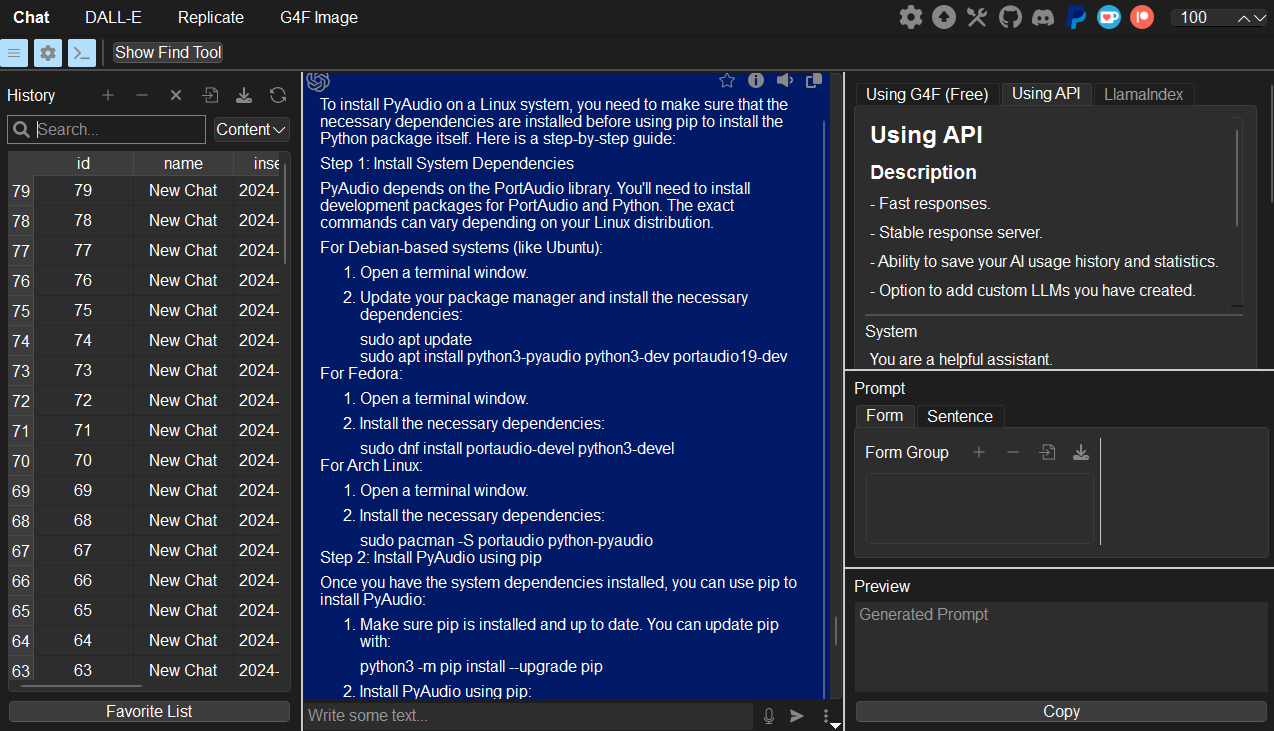
It is the main page where you can enjoy chatting. The details of each element are explained below.

Left side bar
In the left section of the main chat screen, there are several buttons including “Add New Thread,” “Remove,” and “Remove All.” There are also features to import and export chat histories from elsewhere, which will be explained later.
You can search thread titles, dates, etc., in the search box, and also search message lists within threads. When you search for messages, the thread including the message will appear in the results. Since it’s managed purely in a database format, the search speed is very fast.
In the table below the buttons, you can view the thread history. It can be sorted by title order, creation date, modification date, and other criteria.
Additionally, you can view specific messages from threads you have favorited in the Favorite List. The history is entirely managed in a database format.
Now, let’s dive right into right side bar. (No pun intended)
Using G4F (Free)
“Free” is good for everyone. You can use various models for free using gpt4free, a Python library that allows you to use various llm including gpt for free.
gpt4free has a function that provides the llm you want to use among several providers that provide llm services for free or partially paid. VividNode has implemented this function in the GUI.
You can use various models for free like this. However, free is not always good.
- Slightly slow response
- May be more unstable than servers such as OpenAI or Google
- Certain providers may have token restrictions
- In the case of partially paid providers, there may be cases where a fee is required
Therefore, if you get an error message while chatting for free, this is what you must do!
- Change provider
- If there is no more provider to change, restart the application
It’s very easy. However, it is really hard to break the flow during chatting. So, there are also the following options.
Using API
You can enjoy chatting through a much faster and more stable server by using the API key issued by each provider, including OpenAI and Google.
First, set up your OpenAI API key.

The system determines the basic way of conversation when you talk with the model. For example, if you ask the chatbot to “respond like a teenage girl,” it will answer accordingly.
Below is the section where you can select the model.
Click “Set API Key” to write any api keys of yours.
Also, did i say you can use other LLMs not only from openai?
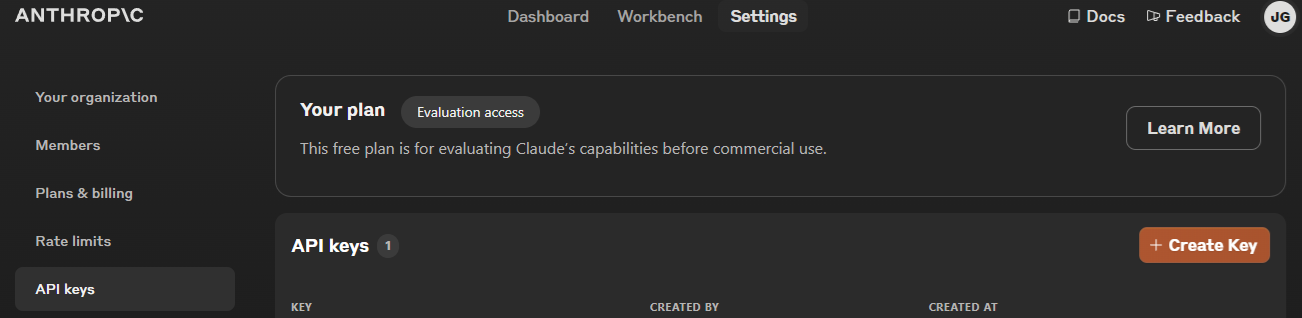
You can use other models such as Gemini model in Google, Claude model in anthropic, and a lot of models powered by GPT4Free(Free) and LiteLLM(API key of each providers needed). As a representative example, here’s the related links about how to obtain API keys from the Claude and Google.
You can also enable the Json Mode to receive responses in JSON format by checking the box. I will describe llamaindex later. Mouse over each section in Advanced Settings to see brief explanations. Personally, using default settings causes no issues as they are all recommended values.

You can have conversation like this.
You can have a conversation like this. Once you set your API key, you can converse with the chatbot naturally. VividNode provides features similar to all other chatbots. It also supports image recognition, allowing you to copy & paste or drag and drop images to include them in your conversation.
Prompt Manager

Prompt Manager
Prompt Manager For those who are familiar with prompt engineering or want to manage and store specific phrases (e.g., “Translate this into German so that a 7-year-old German child can understand”), there is a Prompt Manager window. You can import prompts configured in an appropriate json file format or add them manually here.
Prompts are categorized into Form and Sentence formats. Form format prompts are organized as follows:
- Tone
- Syntax
- Audience
- And many other elements…
Sentence format prompts consist of a single sentence. A phrase like “Translate this into German so that a 7-year-old German child can understand” is an example of a Sentence format prompt.
Although you can add these prompts one by one, typically, the Import Prompt Group feature is used when importing a large number of prompts from an external source. This feature is generally used when you want to import and use thousands of commands from a dataset like awesome_chatgpt_prompt at once.

Import Prompt Group Dialog
The example above uses Alex Brogan’s prompt example.

Prompt feature
Once imported, you can enter saved commands in the Command List. Use the autocomplete feature for prompt commands to input commands quickly and easily. For Form formats, you enter the group name, and for Sentence formats, you enter the property names within the group. For Sentence formats, it also displays which group it belongs to as Sentence (Group Name). Thus, you can execute, modify, and test various prompts.
Many of you might not use prompts individually but attach them before or after specific content. For this, VividNode provides Beginning and Ending prompt input fields. This allows you to create prompts separated into several paragraphs to receive higher quality responses!
To use the prompt feature more strategically, you can move between prompt input fields using the Ctrl+Up and Ctrl+Down keys.
Call me “Promptcraft”
Once you get used to this, you can open the Beginning and Ending input fields with Ctrl+B and Ctrl+E, move between them with the specified keys, enter each prompt, activate JSON Mode with Ctrl+J to write your desired JSON response template, and submit it along with the main text by pressing Ctrl+Enter. This allows you to write a prompt and get a response within seconds.

Import from ChatGPT
You can not only converse with VividNode, but you can also import conversation history from ChatGPT. You can see the ChatGPT conversation export method here and use the Import feature if you want to continue conversations with GPT in VividNode and enjoy more colorful chats using VividNode’s features.
Additionally, you can share your conversation history with other VividNode users, and you can export VividNode chat history for import on another PC.
The biggest drawback of a browser is accessibility. You know that a browser consumes a lot of resources and has minimal interaction with the operating system. As a native desktop software, VividNode provides solutions to these issues. You can experience functions such as:
- Focus Mode
- “Always on Top” Mode
- Transparency Adjustment Mode
- Notification when chat or image response is complete while VividNode window is inactive (For instance, if you ask VividNode a question and then watch YouTube, a notification will appear at the bottom right when VividNode finishes responding)
- Running in the background

Focus Mode
To activate a small and compact focus mode as shown above, simply press the F10 shortcut key. Using “Always on Top” and transparency features, you can place it at the bottom right for a complete desktop chatbot.

List of shortcuts (v1.0.0)
In the menu bar, you can find the shortcut keys menu. Knowing and using these shortcuts will enable much faster operation.

Settings
Settings In the settings dialog, the following features are provided. First, you can change the language. The language is set by default according to your location. VividNode is available in more than ten languages. Additionally, basic settings by your preferences are possible.
※ Maximum Messages in Parameter determines how many previous messages the chatbot will remember. It’s set to 20 by default, but you can change it. Set it lower when context is not essential, and higher when context is important.
2. Image
VividNode provides not only chatbot functionality but also image generation features. You can use various image generation models via OpenAI’s DALL-E 3 model and APIs provided by Replicate. How to get the api key from Replicate?
The DALL-E 3 model is immediately available if you have registered the OpenAI API Key in the chat section. For Replicate, you can use it by entering the API key in the top part of the General group box as shown below.

Replicate main page
Afterward, you can set the model name, appropriate width, height, and enter your preferred prompt and negative prompt to generate various images. You can generate as many images as you want, not just a single one.

This image generation feature can also be used while chatting with VividNode. Therefore, you can keep generating various images while conversing with VividNode. Automatic saving functionality is also provided.
Images are also managed in a database format. Moreover, since VividNode manages images created by both DALL-E 3 and various models from Replicate in an integrated way, you can view all images created by DALL-E 3 and those created by models provided by Replicate in the same table!
You can generate images for free without an API key through G4F. G4F offers various image models such as Flux. By clicking on the G4F Image tab, you can provide specific parameters, similar to Replicate, and create the images you want.
You can generate image with G4F in VividNode. Example is Linux GUI.
Feel free to contact me if you have any questions.
메타데이터
- post_id
- 4d8a9269a3c0
- slug
- what-is-vividnode-how-to-use-it-4d8a9269a3c0
- url
- https://medium.com/@yjg30737/what-is-vividnode-how-to-use-it-4d8a9269a3c0
- canonical_url
- https://medium.com/@yjg30737/what-is-vividnode-how-to-use-it-4d8a9269a3c0
- author_url
- https://medium.com/@yjg30737
- status
- ok
- fetched_at
- 2026-07-23 00:21:48