How I fixed slow boot on Mac
I finally figured out why my Mac took 10 minutes to start up.
How I fixed slow boot on Mac
I finally figured out why my Mac took 10 minutes to start up.
I bought my Mac in 2023.
At first, it felt super fast. Just opened the lid and started working.
But over time, the startup got slower. Some mornings, I pressed the power button, made a coffee, checked my phone, and when I returned, the Apple logo was still there.
For a MacBook Pro not even three years old? That’s ridiculous.
Here’s exactly what I did to fix it.
3 things I tried to fix slow Mac startup
The first tip people usually advise on Reddit is simple: make sure macOS is up to date.
I ran straight to system settings, hoping for an easy fix.
But I was already on the latest version.
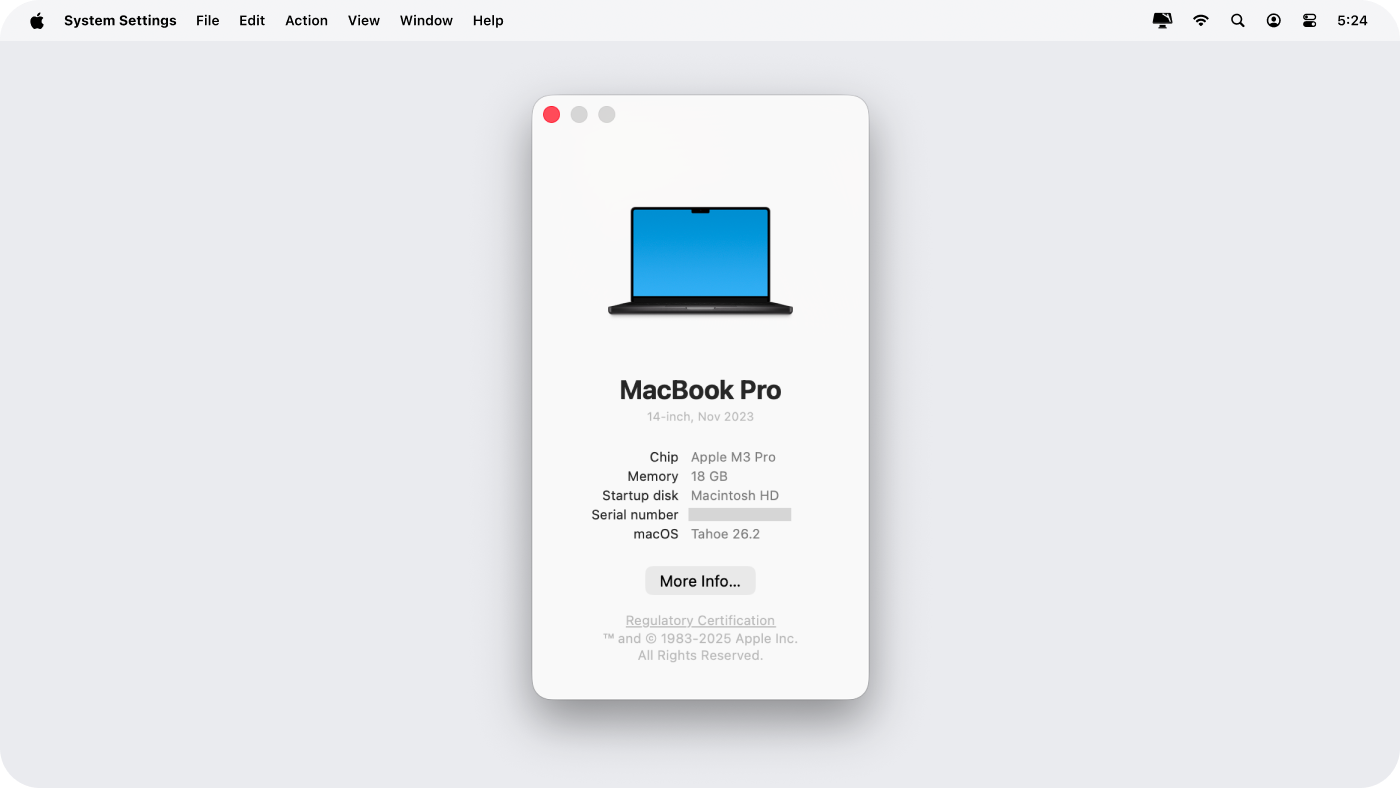
No quick fix this time, so I had to dig a little deeper.
1. See how fast startup should be (Safe Mode)
This tip actually came from a habit I picked up years ago: when something seems slow, start fresh and see what happens.
Safe Mode does exactly that.
It starts up your Mac without loading extra system extensions or background items.
Here’s what I did:
- Shut down my Mac and waited about 10 seconds
- Pressed and held the power button, then released it when startup options appeared
- Selected my startup disk and held down the Shift key
- Clicked Continue in Safe Mode
- Released Shift and logged in
I really felt the difference:
- Startup was much faster
- No long pause at the Apple logo
- The system appeared lighter before login
👉That showed me everything I needed to know:
My Mac wasn’t slow because of the hardware.
Something I’d installed was slowing startup down.
2. Review what launches at startup
Next step: I went straight to System Settings > General > Login Items.
I looked at “Open at Login” and “App Background Activity.”
I was surprised to see a lot of tools I didn’t even recognize…
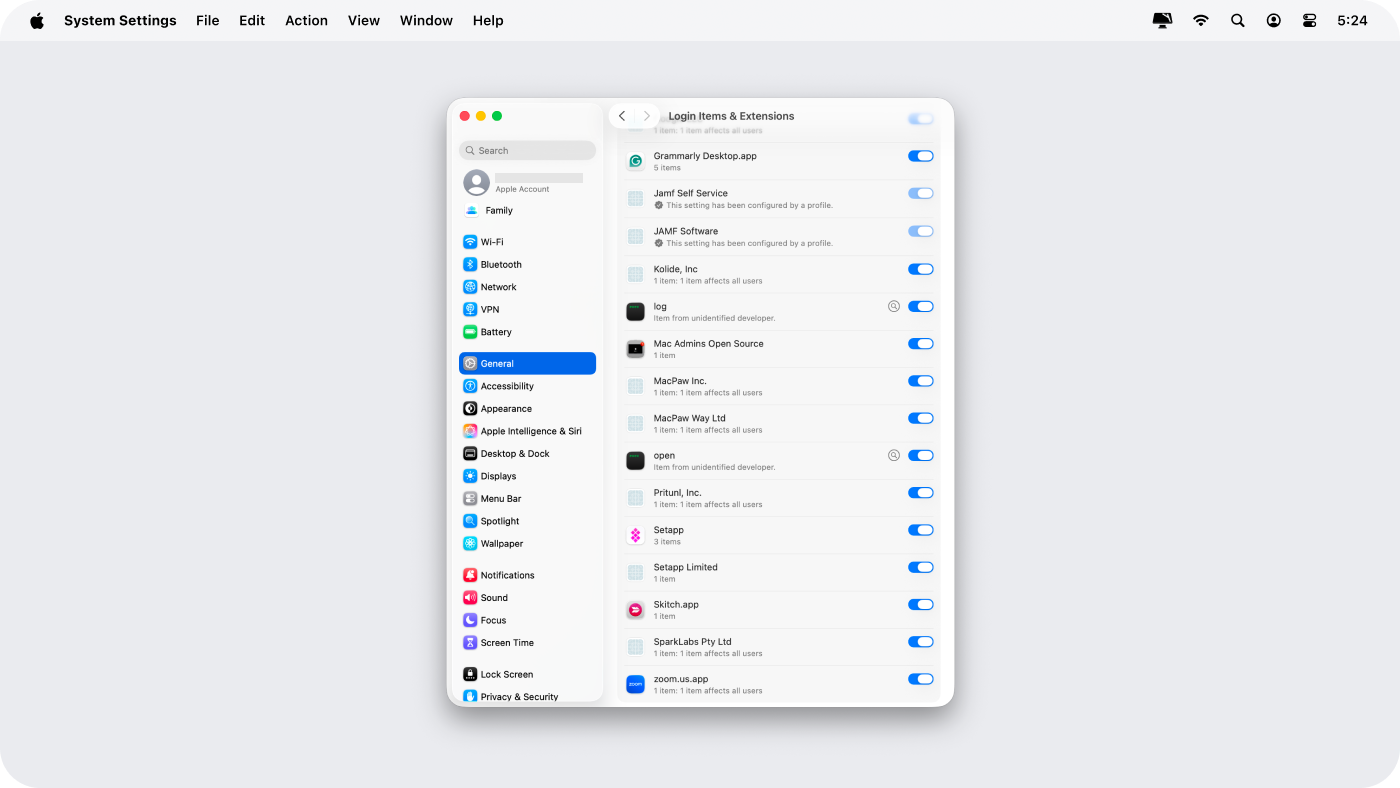
But what was actually safe to disable?
To get a clearer picture, I run CleanMyMac.
It took 3 seconds to scan my system and reveal 35 background items.
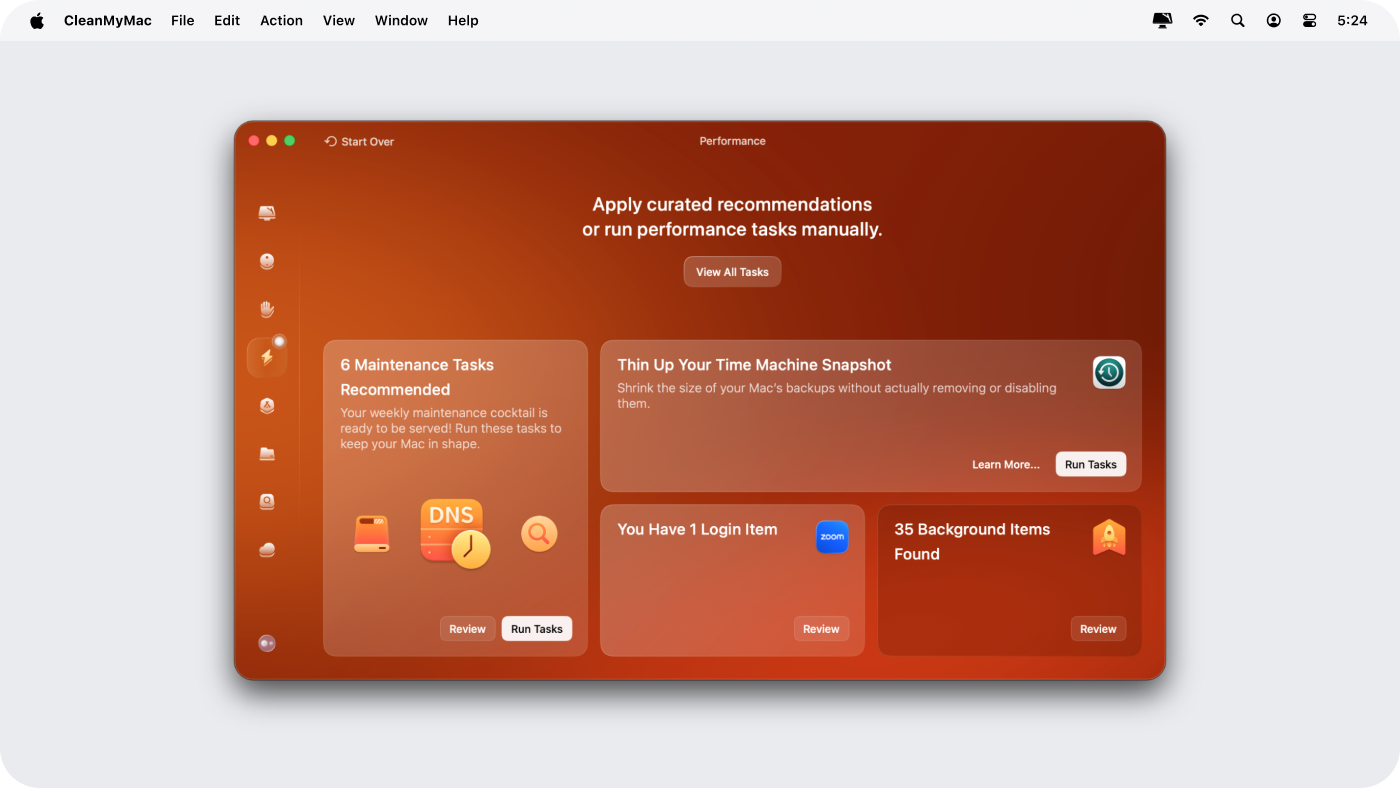
No wonder my Mac took 10 minutes to start up — too many things were loading at once.
I reviewed the items and removed more than half of the list.
3. Check storage pressure
Finally, I checked my storage.
I opened System Settings > General > Storage and took a closer look.
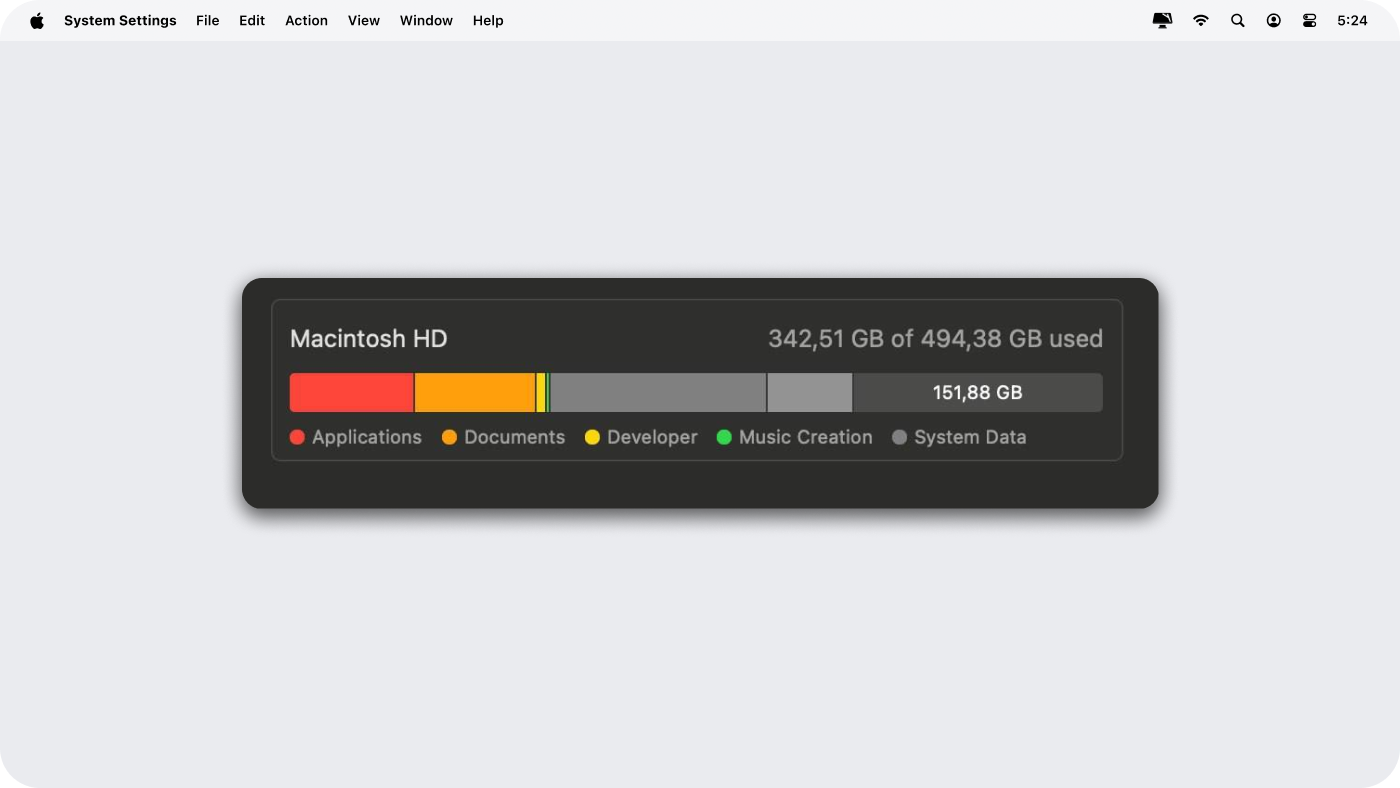
My disk wasn’t full, but it was tight enough to affect performance. macOS needs free space to breathe freely, especially during startup.
To make cleanup easier, I used CleanMyMac to quickly see what was actually taking up space and safely remove files I no longer needed.
I cleared out:
- system clutter, like caches and language files
- duplicate files
- old downloads and unused apps
It wasn’t a dramatic fix by itself — but combined with fewer background operations, it made startup much smoother.
Quick fix checklist
If your Mac startup is slow, here’s what I’d do right now:
✅Check startup speed in Safe Mode
✅Cut down login items and background tasks
✅Free up storage → aim for at least 15% free space
After all that, my Mac starts up in seconds again. Hopefully yours will too.

Till next time.
메타데이터
- post_id
- 4df9bb97dea5
- slug
- performance-how-i-fixed-slow-boot-on-mac-4df9bb97dea5
- url
- https://medium.com/@anastasiabugrim/performance-how-i-fixed-slow-boot-on-mac-4df9bb97dea5
- canonical_url
- https://medium.com/@anastasiabugrim/performance-how-i-fixed-slow-boot-on-mac-4df9bb97dea5
- author_url
- https://medium.com/@anastasiabugrim
- status
- ok
- fetched_at
- 2026-06-09 14:34:10