🚀 Mastering SFCC B2C CLI: Activate Code Without Business Manager
As an SFCC (Salesforce Commerce Cloud) Developer, we often log in to Business Manager just to:
🚀 Mastering SFCC B2C CLI: Activate Code Without Business Manager
As an SFCC (Salesforce Commerce Cloud) Developer, we often log in to Business Manager just to:
- Check code versions
- Activate a new code version
- Verify deployments
But what if I tell you, you can do all this without opening Business Manager? 😎
Thanks to the SFCC B2C CLI, you can manage code versions directly from your terminal.
In this article, I’ll share the exact setup and daily commands I use.
🛠 Step 1: Configure Commerce API Settings in Business Manager
Before using CLI commands, you must configure API access.
Go to:
Administration → Site Development → Open Commerce API Settings
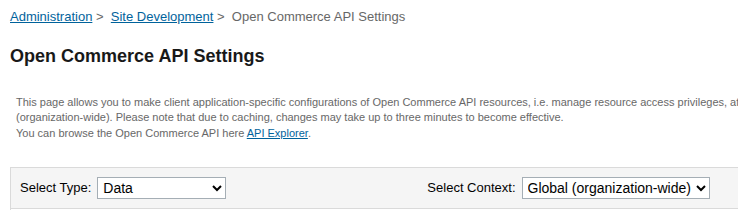
Add the following configuration:
Select type must be Data
{
  "client_id": "YOUR_CLIENT_ID",
  "resources": [
    {
      "resource_id": "/code_versions",
      "methods": ["get"],
      "read_attributes": "(**)",
      "write_attributes": "(**)"
    },
    {
      "resource_id": "/code_versions/*",
      "methods": ["get", "patch", "put"],
      "read_attributes": "(**)",
      "write_attributes": "(**)"
    }
  ]
}
✅ This allows:
- Listing code versions
- Activating code versions
- Updating code versions
🔐 Step 2: Set Environment Variables
Instead of logging in repeatedly, export credentials in your terminal:
export SFCC_SERVER=your-instance.demandware.net
export SFCC_CLIENT_ID=your-client-id
export SFCC_CLIENT_SECRET=your-client-secret
Example from my daily workflow:
export SFCC_SERVER=bhgx-005.dx.commercecloud.salesforce.com/on/demandware.store
export SFCC_CLIENT_ID=xxxxxxxx-xxxx-xxxx-xxxx-xxxxxxxxxxxx
export SFCC_CLIENT_SECRET=***************
Now your CLI is authenticated 🚀
📋 Step 3: List Available Code Versions
To check all available code versions:
b2c code listThis command shows:
- All uploaded code versions
- Active version
- Version details
No Business Manager needed!
⚡ Step 4: Activate Code Version from CLI
To activate a code version:
b2c code activate --code-version "verKumar"I want to activate the code version named ‘verKumar’.
That’s it.
Within seconds, your code version is active directly from terminal.
💡 Why Use CLI Instead of Business Manager?
✅ Faster deployments ✅ Automation friendly ✅ CI/CD integration ✅ No UI dependency ✅ Great for DevOps workflows
👉 For full CLI documentation, visit: 🔗https://salesforcecommercecloud.github.io/b2c-developer-tooling/cli/code.html
If this helped you, connect with me and follow for more SFCC development tips 🚀
SFCC #SalesforceCommerceCloud #B2CCommerce #EcommerceDevelopment #CLI #DevOps
메타데이터
- post_id
- 4e968a1dfdbe
- slug
- mastering-sfcc-b2c-cli-activate-code-without-business-manager-4e968a1dfdbe
- url
- https://medium.com/@imunesh.kumar5/mastering-sfcc-b2c-cli-activate-code-without-business-manager-4e968a1dfdbe
- canonical_url
- https://medium.com/@imunesh.kumar5/mastering-sfcc-b2c-cli-activate-code-without-business-manager-4e968a1dfdbe
- author_url
- https://medium.com/@imunesh.kumar5
- status
- ok
- fetched_at
- 2026-06-21 15:33:18