Fixed Sims 4 Error Code 135:f620ebc:30831aec.
Sims 4 Error 135: Crashing Your Game? Here’s the Complete Fix (2025)
Fixed Sims 4 Error Code 135:f620ebc:30831aec.
Sims 4 Error 135: Crashing Your Game? Here’s the Complete Fix (2025)
Stuck on the map screen? Seeing the dreaded **Error Code 135:f620ebc:30831aec** every time you try to load a family? Don’t panic! This is a classic (and completely fixable) error almost every Simmer with mods eventually faces. It’s your game’s way of saying one of your mods is clashing with a recent game update.
This guide will walk you through everything, from quick checks to deep repairs, to get you back to playing in no time.
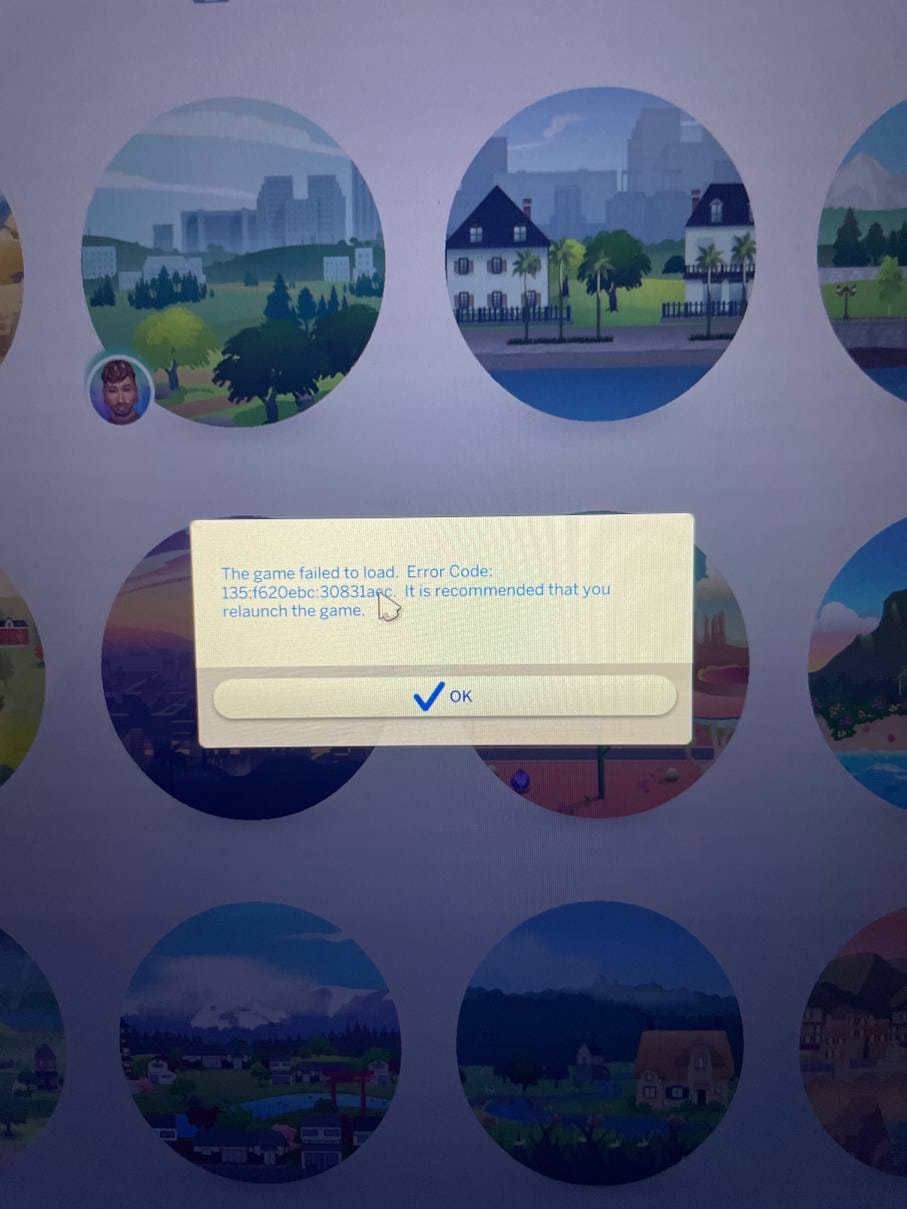
Sims 4 Error 135
First, What Is Error Code 135 and Why Is It Happening?
Think of this error as a major disagreement between your game files and your Custom Content (CC). It almost always happens after an official game patch from EA, because the update changes game code that your mods rely on.
The Usual Suspects:
- Broken Script Mods (The #1 Cause): This is the culprit over 92% of the time. Mods that change gameplay, like MCCC, UI Cheats Extension, WonderfulWhims, or BetterBuildBuy, need to be updated by their creators after a patch. Using an old version will trigger this error.
- Corrupted Custom Content (CC): Less common, but broken CAS items (clothing, hair) or Build/Buy objects with faulty code can also cause this crash.
- Damaged Game Files (Rare): In rare cases, the game itself didn’t update correctly.
You’ll know it’s Error 135 if you load a household and get instantly kicked back to the map screen.
Your Step-by-Step Game Plan to Fix Error 135
Follow these steps in order. Don’t skip any!
Step 1: The “Clean Slate” Test (Checking if Mods Are the Problem)
First, we need to confirm mods are the cause. This is a simple test that won’t harm your saves.
- Backup Your Saves: Go to
Documents > Electronic Arts > The Sims 4and copy the entire Saves folder to your desktop. Your progress is now safe! - Move Your Mods: Cut (Ctrl+X) the entire Mods folder from the same directory and paste it onto your desktop.
- Delete Cache Files: In the
The Sims 4folder, find and delete these files. They will regenerate safely later.
localthumbcache.packagelastcrash.txt(and any other crash files)avatarcache.package
- Launch the Game: Start The Sims 4 and try to load a household.
If the household loads without crashing, congratulations! You’ve confirmed the problem is in your Mods folder. If it still crashes, skip to the “Advanced File Repair” section below.
Step 2: Finding the Broken Mod (The 50/50 Method)
Now it’s time to play detective. We’ll add your mods back in small batches to pinpoint the exact one causing the crash.
- Divide and Conquer: Take about half of the mods from your desktop folder and move them back into the
The Sims 4 > Modsfolder. - Test the Game: Launch the game and see if the error returns.
- If it works fine, that batch of mods is okay. Close the game, and add another small batch of mods from your desktop.
- If it crashes, the broken mod is in the batch you just added.
- Narrow It Down: Remove the last batch you added, and now add back only half of that batch. Repeat the process of dividing the crashing batch in half until you are testing one mod at a time.
- The Culprit: Once you find the single mod that causes the crash, delete it. Check the mod creator’s Patreon, Tumblr, or Discord for an updated version compatible with the latest game patch.
Pro-Tip: Make this process instant by using TwistedMexi’s Better Exceptions Mod. It automatically scans your game on startup and generates a report telling you which mod is broken.
Step 3: Repairing Your Game Files
If your game crashed even with an empty mods folder, or if you just want to be thorough, a game repair is your next step.
- For the EA App: Open the EA App, go to your Library, find The Sims 4, click the three dots, and select Repair.
- For Steam: Open your Steam Library, right-click on The Sims 4, go to Properties > Local Files, and click “Verify integrity of game files.”
Step 4: The “Last Resort” Clean Reinstall
If nothing else has worked, a fresh installation will solve the deepest issues.
- Backup Saves & Mods: Make sure your Saves, Mods, and Tray folders are safely copied to your desktop.
- Uninstall The Sims 4 via the EA App or Steam.
- Manually Delete Folders: Go to
Program FilesandDocumentsand delete any remaining "The Sims 4" folders to ensure no corrupt files are left behind. - Reinstall the Game and then slowly add back your (now updated!) mods.
How to Prevent Error 135 From Ever Happening Again
Be proactive! A few good habits can save you hours of troubleshooting.
- Pause Auto-Updates: After a new game patch is released, turn off automatic updates for 24–48 hours. This gives mod creators time to release updated versions of their mods.
- Use a Mod Manager: Tools like GameTimeDev’s Sims 4 Mod Manager or CURSEFORGE help you easily enable, disable, and update mods.
- Check for Updates Weekly: Bookmark Scarlet’s Realm Mod List or similar sites that track which mods are compatible with the latest patch.
- Join Creator Discords: Follow creators like TwistedMexi and Deaderpool (MCCC) on Discord for real-time alerts about broken mods and new updates.
Frequently Asked Questions (FAQ)
- Can CC furniture cause this error? Yes! Any object with custom script (like functional beds or appliances) is a risk. Always check for updates after a patch.
- Are script mods riskier than CAS CC (hair/clothes)? Absolutely. Script mods are about 5 times more likely to cause this specific error because they directly interact with game code.
- Should I delete my cache files regularly? Yes! It’s a great habit to delete
localthumbcache.packageevery time you play to prevent minor glitches.
메타데이터
- post_id
- 4eba8f986285
- slug
- fixed-sims-4-error-code-135-f620ebc-30831aec-4eba8f986285
- url
- https://medium.com/@axee-tech/fixed-sims-4-error-code-135-f620ebc-30831aec-4eba8f986285
- canonical_url
- https://medium.com/@axee-tech/fixed-sims-4-error-code-135-f620ebc-30831aec-4eba8f986285
- author_url
- https://medium.com/@axee-tech
- status
- ok
- fetched_at
- 2026-06-27 07:40:21