Mipmaps lies: How to Catch Your Textures in the Act
Mipmaps are like responsible adults of the texture world — they downscale themselves to save memory. Unfortunately, most of them are…
Mipmaps lies: How to Catch Your Textures in the Act
v1.0
Required: Direct3D 10/Shader Model 4.0
[Mipmaps](https://en.wikipedia.org/wiki/Mipmap#:~:text=In%20computer%20graphics%2C%20mipmaps%20(also,smaller%20than%20the%20previous%20level.) are like responsible adults of the texture world — they downscale themselves to save memory. Unfortunately, most of them are terrible at it.
🧠 Why You Should Care About Mipmaps
Your GPU is quietly making decisions behind your back. Sometimes, those decisions are fine — sometimes, it’s chewing through 8K textures to render something the size of a pixel.
Sure, your engine has a “mip preview” mode — a psychedelic overlay that looks like the result of giving LSD to a color wheel — but what you really need is hard data: which mip levels are actually being used in gameplay.
This post will show you how to spy on your mipmaps in real time using a bit of shader sorcery.
Step 1 — Asking the GPU Nicely
If you ever wanted your shader to confess its mipmap crimes, you can use:
CalculateLevelOfDetailUnclamped(sampler, uv);Think of it as the shader equivalent of:
“Tell me what resolution you really used, and don’t lie to me this time.” (Believe me, most mipmaps preview are pretty lies)
Here’s the minimalist setup:
half4 frag(v2f i) : SV_Target
{
    float mip = _MipmapTex.CalculateLevelOfDetailUnclamped(sampler_MipmapTex, i.uv);

    if (mip > 0)  return float4(1, 0, 0, 1); // Red = downscaled (lazy)
    if (mip < 0)  return float4(0, 1, 0, 1); // Green = upscaled (try-hard)
    return float4(0, 0, 1, 1);               // Blue = perfect (unicorn)
}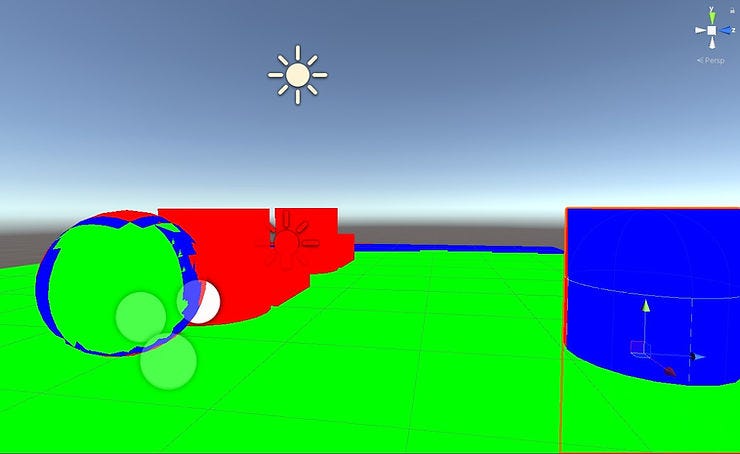
Now your screen looks like a boring 90s rave, but congratulations — you’re seeing reality.
🌈 Step 2 — Turning Chaos Into Gradient Zen
Let’s turn that rave into something readable. Assuming textures are Power of Two (because chaos has limits):
float mip = _MipmapTex.CalculateLevelOfDetailUnclamped(sampler_MipmapTex, i.uv);
float textureSize = max(_MipmapTex_TexelSize.z, _MipmapTex_TexelSize.w);
float mipTextureSize = _MipmapTex_TexelSize.z / pow(2, mip);
float maxPossibleSize = 8192;

float gradientBelow = mipTextureSize / textureSize;
float gradientAbove = (maxPossibleSize - mipTextureSize) / (maxPossibleSize - textureSize);

if (mip > 0)  return float4(gradientBelow, 0, 0, 1);
if (mip < 0)  return float4(0, gradientAbove, 0, 1);
return float4(0, 0, 1, 1);
Now you get gradients instead of flashing colors. It’s calmer — like your GPU finally started meditating.
🧮 Step 3 — Teaching Your Shader to Keep a Journal
Let’s get serious. Instead of pretty colors, let’s log how textures really behave.
float mip = _MipmapTex.CalculateLevelOfDetailUnclamped(sampler_MipmapTex, i.uv);
float textureSize = max(_MipmapTex_TexelSize.z, _MipmapTex_TexelSize.w);
float mipTextureSize = _MipmapTex_TexelSize.z / pow(2, mip);
float textureIndex = log2(textureSize);
float mipIndex = log2(mipTextureSize);
return mipIndex / textureIndex;
Each pixel now whispers:
“Here’s the mip I used. Don’t judge me.”
We’ll store those confessions in a RWStructuredBuffer, because even GPUs need therapy sometimes.
💾 Step 4 — Building the Mipmap Accountability Table
Now you can actually see which textures are freeloaders and which are pulling their weight.

You might discover that your hero character’s belt buckle is hogging more VRAM than the terrain.
🧠 Step 5 — What This Tells You
This system lets you:
.Find textures that never hit full resolution (downgrade candidates).
.Spot upscaled offenders causing shimmering and aliasing.
.Measure real mip distribution over time (not just snapshots).
.Build per-texture heatmaps and graphs for your art team.
Essentially, it’s a texture audit — and you’re the auditor with a magnifying glass and a God complex.
💬 Closing Thoughts
With just a few lines of shader code, you can turn your mipmaps from mysterious freeloaders into measurable entities. You’ll sleep better knowing which 8K textures are secretly being rendered as postage stamps.
And remember:
“With great texture resolution comes great responsibility.”
메타데이터
- post_id
- 4f5bc04a7f43
- slug
- mipmaps-lies-how-to-catch-your-textures-in-the-act-4f5bc04a7f43
- url
- https://medium.com/@yves.albuquerque/mipmaps-lies-how-to-catch-your-textures-in-the-act-4f5bc04a7f43
- canonical_url
- https://medium.com/@yves.albuquerque/mipmaps-lies-how-to-catch-your-textures-in-the-act-4f5bc04a7f43
- author_url
- https://medium.com/@yves.albuquerque
- status
- ok
- fetched_at
- 2026-07-16 23:03:51




