Network Request Override with Chrome DevTools
If you’ve ever wished you could change an API response without touching your backend, spinning up a mock server, or editing your frontend…
Network Request Override with Chrome DevTools
If you’ve ever wished you could change an API response without touching your backend, spinning up a mock server, or editing your frontend code, Chrome DevTools has a feature you’ll probably love.
Buried inside the Network panel are two incredibly useful options:
- Override Content
- Override Headers
These let you intercept individual network requests and replace their responses directly from your browser.
For frontend development, they’re absolute game changers.
The Problem
Imagine your frontend depends on an endpoint like:
GET /api/profileNormally it returns:
{
  "name": "Alice",
  "isPremium": false
}
But you want to test for example:
- User Roles
- Error responses
- Missing fields
- New backend features that aren’t deployed yet
- Edge cases your backend rarely returns
Traditionally you might need to:
- modify your backend
- create a mock server
- use some sort of proxy service
- use some browser extensions
All of these add friction.
Sometimes you just want:
“Pretend this one request returned different data.”
Chrome DevTools can do exactly that.
Why This Is Even More Valuable on Large Projects
This feature becomes especially valuable when you’re working on a large engineering project.
In a small application, changing the backend or adding a temporary mock endpoint is usually straightforward. But in enterprise applications, that’s often far from reality.
You may be working in a codebase with millions of lines of code where:
- the frontend and backend live in separate repositories
- backend services are owned by different teams
- spinning up the backend locally takes several minutes — or isn’t even possible
- making a backend change requires navigating an unfamiliar codebase
- rebuilding or redeploying services is slow
Sometimes you don’t even have permission to modify the backend.
When all you want to do is verify that a new UI state works correctly, digging through a massive backend just to change a single JSON response becomes a huge context switch.
Chrome DevTools’ network overrides eliminate that friction.
Instead of hunting down where a response is generated, you simply intercept the request, edit the JSON, refresh the page, and continue building your frontend.
You stay focused on the UI without needing to understand — or even touch — the backend implementation.
For developers working in large, service-oriented codebases, this can easily save dozens of minutes every day.
Override Content
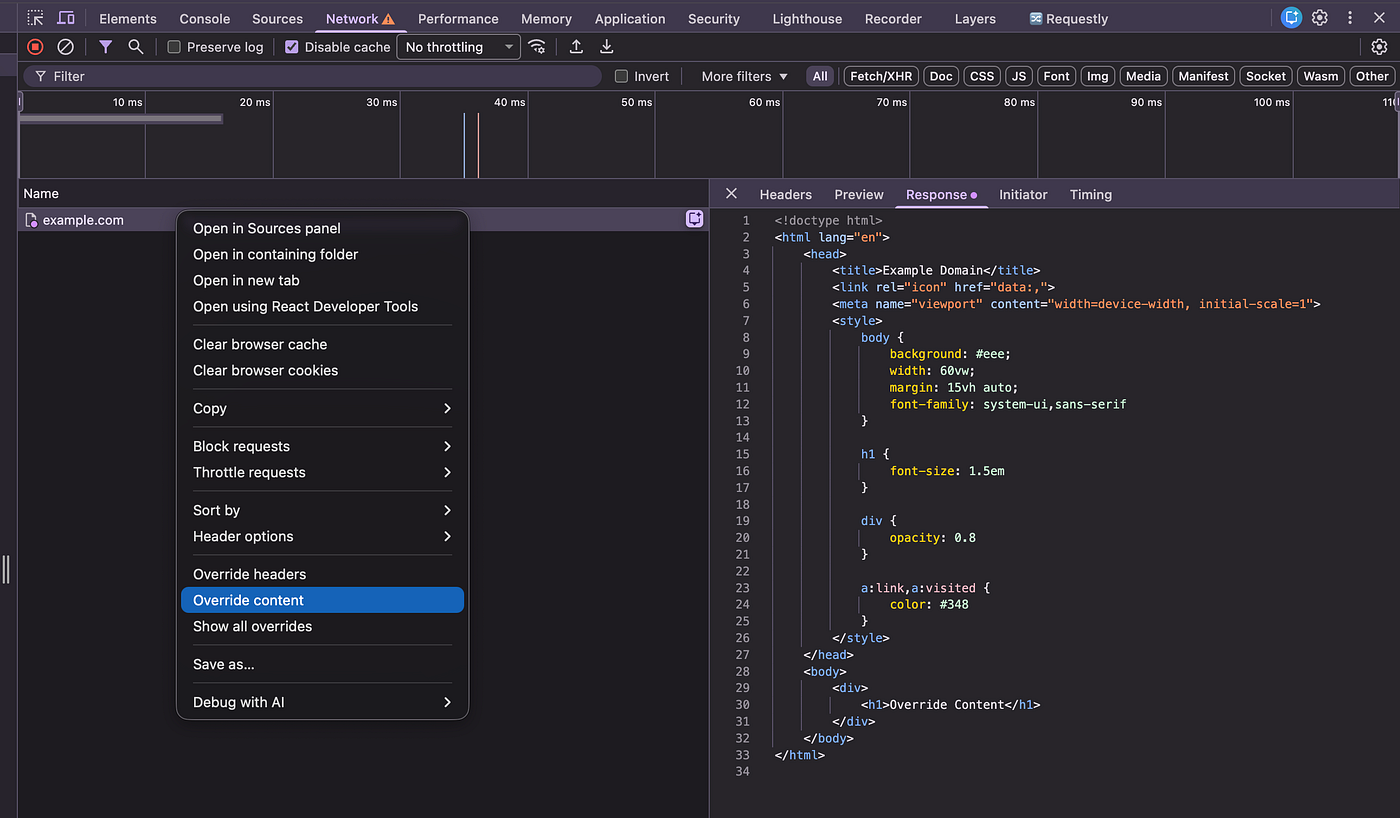
Open Chrome DevTools and navigate to the network tab:

Find the request you want to modify.
Right-click it and select:

The first time you do this, Chrome will ask you to choose a local folder where it stores overridden responses.
Once enabled, Chrome creates a local copy of that response.
For example, in the case from example.com:
<!doctype html>
<html lang="en">
    <head>
        <title>Example Domain</title>
        <link rel="icon" href="data:,">
        <meta name="viewport" content="width=device-width, initial-scale=1">
        <style>
            body {
                background: #eee;
                width: 60vw;
                margin: 15vh auto;
                font-family: system-ui,sans-serif
            }

            h1 {
                font-size: 1.5em
            }

            div {
                opacity: 0.8
            }

            a:link,a:visited {
                color: #348
            }
        </style>
    </head>
    <body>
        <div>
            <h1>Example Domain</h1>
            <p>This domain is for use in documentation examples without needing permission. Avoid use in operations.</p>
            <p>
                <a href="https://iana.org/domains/example">Learn more</a>
            </p>
        </div>
    </body>
</html>
And with that you can freely change the content of the response to whatever you would like:
<!doctype html>
<html lang="en">
    <head>
        <title>Example Domain</title>
        <link rel="icon" href="data:,">
        <meta name="viewport" content="width=device-width, initial-scale=1">
        <style>
            body {
                background: #eee;
                width: 60vw;
                margin: 15vh auto;
                font-family: system-ui,sans-serif
            }

            h1 {
                font-size: 1.5em
            }

            div {
                opacity: 0.8
            }

            a:link,a:visited {
                color: #348
            }
        </style>
    </head>
    <body>
        <div>
            <h1>Override Content</h1>
        </div>
    </body>
</html>
Refresh the page.
Your frontend now receives your modified response instead of what the server actually returned.

And of course this can be applied to any network response from html javascript to json or other types of data.
Override Response Headers
There’s another useful option nearby.

Right-click the request and choose:
Override HeadersThis allows you to modify HTTP response headers without changing the server.
Some useful examples include:
Adding CORS headers:
Access-Control-Allow-Origin: *Changing cache behavior:
Cache-Control: no-storeTesting Content Security Policies:
Content-Security-PolicyChanging content types:
Content-Type: application/jsonOr experimenting with custom headers that your frontend depends on.
Things to Know
A few extra notes:
-
Overrides are local to your machine (They don’t affect teammates.)
-
They can be enabled and disabled whenever you need them (toggle the checkbox here under “show override” when right click a network request).

Think of them as temporary local patches for network traffic.
- Overridden network requests have a purple indicator as shown below:

- When any network requests are overridden, there will be a warning sign next to your network tab as shown above
Final Thoughts
The Override Content and Override Headers features are some of the most underrated capabilities in Chrome DevTools.
They’re especially valuable when you’re working on large applications where the frontend and backend are developed independently or the backend codebase is simply too large and complex to navigate for a small UI change.
Instead of waiting for backend changes, creating mock servers, or sprinkling temporary test code throughout your application, you can edit a single network response and immediately see how your UI behaves.
Whether you’re:
- building new features
- testing edge cases
- simulating backend bugs
- or simply trying to unblock yourself while another team finishes an API
Network overrides are an incredibly powerful tool to have in your workflow.
The next time you think, “I just need this endpoint to return something different,” don’t reach for a mock server first.
Open the Network tab, right-click the request, and let Chrome DevTools do the work.
메타데이터
- post_id
- 4fad776fc2ca
- slug
- network-request-override-with-chrome-devtools-4fad776fc2ca
- url
- https://medium.com/@yu.cao20041208/network-request-override-with-chrome-devtools-4fad776fc2ca
- canonical_url
- https://medium.com/@yu.cao20041208/network-request-override-with-chrome-devtools-4fad776fc2ca
- author_url
- https://medium.com/@yu.cao20041208
- status
- ok
- fetched_at
- 2026-07-08 18:29:56