One iPhone setting, zero more spam calls
Your iPhone can screen calls for you. Here’s how.
One iPhone setting, zero more spam calls
Your iPhone can screen calls for you. Here’s how.
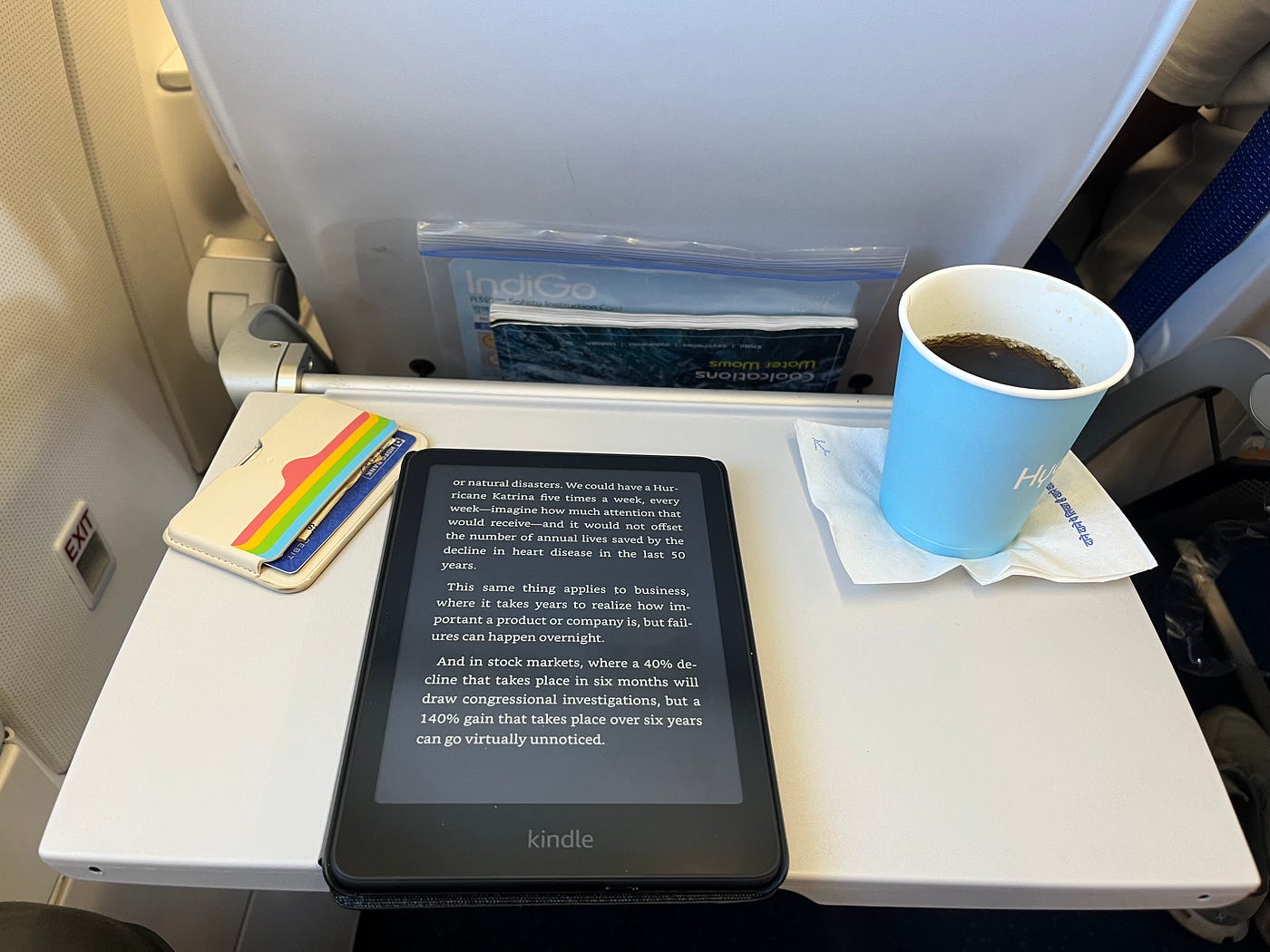
Photo by Luan de Oliveira Silva on Unsplash
You know the feeling: your phone rings, no familiar number, no name.
Just that quiet gut check — answer or not?
I don’t know how much this bugs you in daily life, but for me, calls from blocked numbers or spam calls from abroad seem to increase every single week. If these calls interrupt your day too, there’s a setting on your iPhone you should change right now.
Go to Settings, scroll all the way down to Apps and open it. Then select the Phone app and scroll down to the section called Silence Unknown Callers.
You have a few options here:
You can choose Silence Unknown Callers. This automatically silences calls from numbers not saved in your contacts and sends them straight to voicemail. With this setting, you’ll definitely get peace from unknown callers — but you’re also forcing everyone to leave a voicemail, spam or not.
The better option, in my opinion, is Reply with Reason for Call.
When you turn this on, calls from unknown numbers aren’t sent straight through to you. Instead, your iPhone answers the call automatically first. A computer voice asks the caller to say their name and reason for calling. That information then shows up directly on your screen, similar to a live voicemail.
You can either ignore the call (the caller is then asked to leave a voicemail) or pick up right away and talk to them directly.
One caveat: people who expect you to pick up directly will get a computer voice instead — including work contacts or friends calling from an unknown number.
It’s a balancing act between politeness and staying focused.
My best tip: create a dedicated Focus mode for this and pair it with an automation for unknown calls.
That way, you can switch this feature on and off with ease whenever you need it.
Drop a comment if that’s interesting, and I’ll cover it then.
Thanks for reading,
Georg
PS: If you’d like more tips like this in the future, feel free to sign up for my iProductivity newsletter. Every Friday, I share my best tricks straight to your inbox.
메타데이터
- post_id
- 4fdf43e2d3b6
- slug
- one-iphone-setting-zero-more-spam-calls-4fdf43e2d3b6
- url
- https://medium.com/macoclock/one-iphone-setting-zero-more-spam-calls-4fdf43e2d3b6
- canonical_url
- https://medium.com/macoclock/one-iphone-setting-zero-more-spam-calls-4fdf43e2d3b6
- author_url
- https://medium.com/@georg.plankl
- status
- ok
- fetched_at
- 2026-07-13 06:23:13