Building a Custom System Service in Android 15 (AOSP)
Part 1: Architecture and the Interface (The Blueprint)
Building a Custom System Service in Android 15 (AOSP)
Part 1: Architecture and the Interface (The Blueprint)
Building a system service in Android 15 (AOSP) isn’t just about writing code; it’s about understanding how the “Grand Librarian” of Android (the ServiceManager) keeps track of every capability the OS offers. When you're working on a Raspberry Pi 5, you're not just an app developer—you're a platform engineer.
1. The Starting Point: The Local Manifest
Before a single line of Java was written, we had to ensure our environment was correct. We used the android-15.0.0_r4 branch. For the Raspberry Pi 5, this required a specific set of local manifests to pull in the Broadcom drivers, kernel headers, and firmware necessary for the Pi’s hardware.
- Repository:
[https://github.com/raspberry-vanilla/android_local_manifest/](https://github.com/raspberry-vanilla/android_local_manifest/) - Target:
aosp_rpi5-ap3a-userdebug(The 'userdebug' build is critical because it gives us root access and theservicecommand tools we need for testing).
2. Understanding the “System Server”
In Android, the System Server is the heart of the OS. It is a single process that hosts dozens of services (Battery, WiFi, Power, etc.). Our calculatorService will live inside this process.
To make this work, we need three distinct layers:
- The Interface (AIDL): The “contract” that defines what the service can do.
- The Implementation: The Java class that actually does the math.
- The Registration: The line of code that tells the OS, “Hey, I’m here!”
3. Step 1: Defining the Interface (AIDL)
We started by defining our capabilities in AIDL (Android Interface Definition Language). This file is used by the AOSP build system (Soong) to generate the “Stub” and “Proxy” classes that handle the low-level Binder IPC.
File Location: frameworks/base/core/java/android/os/ICalculatorService.aidl
package android.os;

/** * Interface for the Calculator System Service.
 * @hide
 */
interface ICalculatorService {
    /** Basic Math operations */
    int add(int a, int b);
    int sub(int a, int b);
    int multiply(int a, int b);

    /** Metadata operations for the service */
    void initServiceName(String name);
    String getServiceName();
}
Why this file is special:
**@hide**: This tag is vital. It tells the build system that this is an internal system API. Without it, the build would fail because you haven't added the methods to the official public Android SDK (thecurrent.txtfile).- Package: Placing it in
android.osis standard for core OS services.
4. Step 2: Registering the AIDL in the Build System
AOSP is massive. If you just drop a file into a folder, the compiler will ignore it. We had to tell the build system to “look” at our new AIDL file.
The File to Modify: frameworks/base/core/java/Android.bp
We searched for the filegroup named framework-core-sources and added our new path:
filegroup {
    name: "framework-core-sources",
    srcs: [
        "android/os/ICalculatorService.aidl", // <-- Our new "Contract"
        "android/accessibilityservice/IAccessibilityServiceConnection.aidl",
        // ... thousands of other files
    ],
}
The “Permission” Exception
Because Android 15 introduced stricter enforcement for AIDL permissions, we also had to update the main frameworks/base/Android.bp file. We added :framework-core-sources to the enforce_permissions_exceptions list. This allowed us to build the service without immediately implementing complex Manifest-based permissions (like android.permission.CALCULATE).
File: frameworks/base/Android.bp
// ... inside framework-minus-apex-defaults -> aidl -> enforce_permissions_exceptions [cite: 36]
enforce_permissions_exceptions: [
    ":framework-annotations",
    // ...
    ":framework-core-sources", // Ensure this is present
    // ...
],
Part 2: The Heart of the Machine (Implementation & Registration)
Now that we have our “contract” defined via AIDL, we need to build the actual engine. In Part 1, we set the stage; now, we’re going deep into the System Server to breathe life into our calculatorService.
1. Implementing the Logic: The Stub
In the world of Binder IPC, your service implementation doesn’t just “implement an interface.” It extends a Stub. The Stub is a static abstract inner class generated by the AIDL tool that handles the heavy lifting: unmarshalling data from the Binder kernel driver and passing it to your Java methods.
File Location: frameworks/base/services/core/java/com/android/server/calculator/CalculatorService.java
package com.android.server.calculator;

import android.os.ICalculatorService;
import android.util.Slog;

/**
 * The actual implementation of our Calculator.
 * Extends ICalculatorService.Stub to handle Binder transactions.
 */
public class CalculatorService extends ICalculatorService.Stub {
    private static final String TAG = "CalculatorService";
    private String mName = "RaspberryPi-Calc-v15";

    @Override
    public int add(int a, int b) {
        Slog.d(TAG, "Adding " + a + " + " + b);
        return a + b;
    }

    @Override
    public int sub(int a, int b) {
        return a - b;
    }

    @Override
    public int multiply(int a, int b) {
        return a * b;
    }

    @Override
    public void initServiceName(String name) {
        this.mName = name;
        Slog.i(TAG, "Service name re-initialized to: " + name);
    }

    @Override
    public String getServiceName() {
        return mName;
    }
}
Key Technical Details:
**Slog(System Log):** We don't useLog.dhere. In the system process, we useandroid.util.Slog. These logs are prioritized and can be filtered specifically usingadb logcat -b system.- Thread Safety: Binder calls are executed on a thread pool maintained by the system. If our service held shared state (like a running total), we would need to use
synchronizedblocks orAtomicvariables.
2. The Integration: Wiring into SystemServer.java
Your code could be perfect, but it’s a “ghost” until the Android boot sequence recognizes it. The SystemServer is a massive Java process that starts shortly after the Zygote process. It is responsible for starting every major service in the OS.
File to Modify: frameworks/base/services/java/com/android/server/SystemServer.java
We need to tell SystemServer to instantiate our service and register it with the ServiceManager.
import com.android.server.calculator.CalculatorService; [cite_start]// [cite: 1]

// Inside the startOtherServices() method
private void startOtherServices(@NonNull TimingsTraceAndSlog t) {
    // ... around line 3400+ in Android 15

    t.traceBegin("StartCalculatorService");
    try {
        Slog.i(TAG, "Calculator Service");
        // This line places our service in the global registry
        ServiceManager.addService("calculatorService", new CalculatorService());
    } catch (Throwable e) {
        Slog.e(TAG, "Failure starting Calculator Service", e);
    }
    t.traceEnd();
}
3. The “Missing Symbol” Trap
This is the moment of frustration for many AOSP newcomers. You run m (make), and the compiler screams: error: cannot find symbol: class CalculatorService.
As we discovered during the build, the services.jar is built using its own Android.bp. Because we created a new package (com.android.server.calculator), We have to ensure two things:
- The Import: You must manually add the
importstatement inSystemServer.java. - The Directory Structure: AOSP’s build system expects the folder structure to exactly match the package name. If your package is
com.android.server.calculator, your file must be in.../com/android/server/calculator/.
4. Why We Didn’t Use a “Manager” Yet
You’ll notice we are calling ServiceManager.addService directly. In a standard Android app, you’d expect to call context.getSystemService(Context.CALCULATOR_SERVICE).
To get to that point, we would need to:
- Define a
CalculatorManagerclass. - Register a “Service Fetcher” in
SystemServiceRegistry.java. - Update the
Contextclass with a new constant.
For now, we kept it “Lean and Mean.” By skipping the Manager for this phase, we ensured that our core Binder logic was 100% solid before adding the complexity of the App Layer.
Part 3: The Silent Guard (SELinux & Verification)
In Parts 1 and 2, we built the engine and wired it to the ignition. But if you try to start a modern Android 15 system on a Raspberry Pi 5 without Part 3, the engine won’t even turn over. Why? Because of SELinux (Security-Enhanced Linux).
1. The Gatekeeper: Understanding SEPolicy
Android 15 is “Secure by Default.” Even though your code is part of the system_server process, the OS doesn't inherently trust your new calculatorService. If you don't explicitly label it, the ServiceManager will block the registration, and any attempt to call it will result in a "Permission Denied" error in logcat.
To fix this, we have to modify the SEPolicy (Security Policy) files. Since we are working on a Raspberry Pi 5, these files are usually found in your device-specific tree (e.g., device/brcm/rpi5/sepolicy/ or the vendor equivalent).
Step 1: Define the Service Type
First, we tell the system that a new type of service exists.
File: service.te
type calculator_service, system_server_service, service_manager_type;**system_server_service**: This tells Android that the service is hosted inside thesystem_serverprocess.**service_manager_type**: This allows theServiceManagerto index it.
Step 2: Map the Name to the Type
Next, we link the string name we used in SystemServer.java ("calculatorService") to the security label we just created.
File: service_contexts
calculatorService u:object_r:calculator_service:s02. The Final Build: m -j$(nproc)
With the code, the registration, the build configuration, and the security policies in place, it’s time for the final compilation.
From the root of your AOSP directory:
. build/envsetup.sh
lunch aosp_rpi5-ap3a-userdebug
make bootimage systemimage vendorimage -j$(nproc)
./rpi5-mkimg.sh
Why eng build? The eng (engineering) build flavor is vital for this stage. It leaves the shell unconfined, allowing us to use powerful debugging tools and making the service command accessible without strict production restrictions.
3. The Moment of Truth: Terminal Verification
Once the Pi 5 boots up and you’ve connected via USB or Ethernet, you don’t need a custom app to see if your work paid off. We use the Binder Debugging Tools built into the Android shell.
Action A: The Presence Check
Ask the ServiceManager if it actually has the service in its registry.
adb shell service check calculatorServiceSuccess Response: Service calculatorService: found
adb shell service list | grep calculatorServiceSuccess Response: 75 calculatorService: [android.os.ICalculatorService]
Action B: The Logic Check (Transaction 1)
This is where the magic happens. We call the add(int a, int b) method. Since add was the first method defined in our AIDL, its transaction ID is 1.
# We send '10' and '20' as 32-bit integers (i32)
adb shell service call calculatorService 1 i32 10 i32 20- The Result:
Result: Parcel(00000000 0000001e '........') - Translation: The hex value
1eis 30. The math is being done inside the system process and sent back to your terminal via Binder!
Action C: The Metadata Check (Transaction 5)
Verify the custom name we initialized in the implementation.
adb shell service call calculatorService 5- The Result: You will see the hex representation of the string
"RaspberryPi-Calc-v15".
4. Final Thoughts: Why This Matters
You have just successfully bypassed the entire Android SDK to build a native feature of the operating system. You’ve touched the AIDL layer, the SystemServer, the Build System, and the Security Policy.
This foundation is exactly what top-tier platform engineers at companies like Mercedes-Benz use to integrate vehicle-specific hardware (like climate control or sensors) into the Android Automotive OS.
Part 3: CalculatorManager
To move from raw terminal commands to a proper Android API, we need to implement the Manager Pattern. This pattern acts as a bridge, allowing any application process to communicate with our system service using a clean, object-oriented API rather than low-level Binder calls.
Here is the implementation to complete the “Control Room” of your project.
1. Create the CalculatorManager.java
The Manager is a client-side proxy. When an app calls manager.add(5, 10), the Manager uses the ICalculatorService interface to send that request across the Binder boundary to your CalculatorService in the system_server.
File Location: frameworks/base/core/java/android/app/CalculatorManager.java
package android.app;

import android.annotation.SuppressLint; // Add this
import android.annotation.NonNull;      // Add this
import android.annotation.SystemService;
import android.content.Context;
import android.os.ICalculatorService;
import android.os.RemoteException;
import android.os.ServiceManager;
import android.util.Log;

/**
 * Provides access to the system calculator service.
 * Apps can obtain an instance via Context.getSystemService("calculator").
 */
@SystemService(Context.CALCULATOR_SERVICE)
@SuppressLint("UnflaggedApi")
public class CalculatorManager {
    private static final String TAG = "CalculatorManager";
    private final ICalculatorService mService;

    /** @hide */
    public CalculatorManager(Context context, ICalculatorService service) {
        mService = service;
    }

    @SuppressLint("UnflaggedApi")
    public int add(int a, int b) {
        try {
            return mService.add(a, b);
        } catch (RemoteException e) {
            throw e.rethrowFromSystemServer();
        }
    }

    @SuppressLint("UnflaggedApi")
    public int sub(int a, int b) {
        try {
            return mService.sub(a, b);
        } catch (RemoteException e) {
            throw e.rethrowFromSystemServer();
        }
    }

    @SuppressLint("UnflaggedApi")
    public int multiply(int a, int b) {
        try {
            return mService.multiply(a, b);
        } catch (RemoteException e) {
            throw e.rethrowFromSystemServer();
        }
    }

    @SuppressLint("UnflaggedApi")
    @NonNull
    public String getServiceName() {
        try {
            return mService.getServiceName();
        } catch (RemoteException e) {
            throw e.rethrowFromSystemServer();
        }
    }
}
2. Register the Service Constant
To call context.getSystemService("calculator"), the string "calculator" must be defined as a constant in the Context class.
File: frameworks/base/core/java/android/content/Context.java Search for CALCULATOR_SERVICE (or add it among other service constants):
    /** @hide */
    public static final String CALCULATOR_SERVICE = "calculatorService";
3. Map the Manager in SystemServiceRegistry
This is the final “glue.” The registry tells the Android framework how to create the CalculatorManager instance when an app requests it.
File: frameworks/base/core/java/android/app/SystemServiceRegistry.java
- Import your Manager:
import android.app.CalculatorManager;
import android.os.ICalculatorService;
2. Register the Service Fetcher: Find the static block where other services are registered and add:
registerService(Context.CALCULATOR_SERVICE, CalculatorManager.class,
        new CachedServiceFetcher<CalculatorManager>() {
    @Override
    public CalculatorManager createService(ContextImpl ctx) throws ServiceNotFoundException {
        IBinder b = ServiceManager.getServiceOrThrow(Context.CALCULATOR_SERVICE);
        ICalculatorService service = ICalculatorService.Stub.asInterface(b);
        return new CalculatorManager(ctx, service);
}});- You need to add the
CalculatorManager.javafile to theframework-core-sourcesfilegroup. This ensures the Java compiler includes your Manager when building theframework.jar.
The File to Modify: frameworks/base/core/java/Android.bp
We searched for the filegroup named framework-core-sources and added our new path:
Final block:
filegroup {
    name: "framework-core-sources",
    srcs: [
        "**/*.java",
        "**/*.aidl",
        ":systemfeatures-gen-srcs",
        ":framework-nfc-non-updatable-sources",
        ":messagequeue-gen",
        ":ranging_stack_mock_initializer",
        "android/os/ICalculatorService.aidl", // Add this line (relative to frameworks/base/core/java/)
        // ... other files
        "android/app/CalculatorManager.java", // <--- ADD THIS LINE HERE
    ],
    // Exactly one MessageQueue.java will be added to srcs by messagequeue-gen
    exclude_srcs: [
        "android/os/*MessageQueue/**/*.java",
        "android/ranging/**/*.java",
        ":dynamic_instrumentation_manager_aidl_sources",
    ],
    visibility: ["//frameworks/base"],
}
Why here?
By adding it to framework-core-sources, you are telling the build system that this file is a "non-updatable" core part of the Android OS. This allows other parts of the system (like SystemServiceRegistry) to see the class during compilation.
Here are the specific adb commands and techniques to verify that your CalculatorManager is correctly wired and accessible.
1. Verify Manager Registration via dumpsys
The dumpsys command is the most powerful tool for checking if the Framework has correctly initialized your manager and service.
# This checks if the system recognizes "calculator" as a valid service name
adb shell dumpsys -l | grep calculator
Expected Output: calculator
If you want to see if the system_server has initialized your service properly during the boot sequence:
adb shell dumpsys calculatorNote: Since we haven’t implemented a custom
dump()method in ourCalculatorService.javayet, this might return nothing or a default message, but it confirms the service is reachable.
Testing the Manager via service call (Advanced)
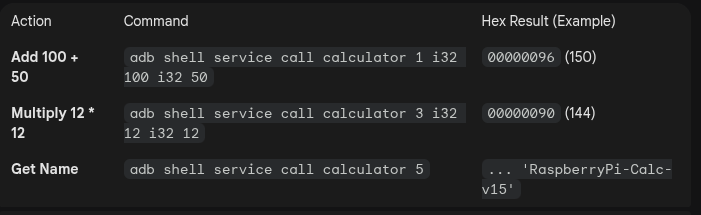
Even though we have a Manager, the service call command remains your best friend for testing the low-level Binder transactions. Now that you've added the Manager, the method indices in your AIDL still apply.
3. Verification through cmd (The Modern Way)
In newer Android versions like Android 15, many services use the cmd utility. While this requires implementing an onShellCommand in your service, you can verify if the service is "command-aware" by running:
adb shell cmd calculatorIf you haven’t implemented shell commands, it will likely return a help message or “Unknown command”.
4. Real-time “Manager-to-Service” Log Monitoring
We know that logs are the ultimate source of truth. Open two terminal windows to watch the communication happen:
Terminal 1 (The Listener):
# Filter for both the Service implementation and the Manager
adb logcat -s CalculatorService CalculatorManager
Terminal 2 (The Trigger):
adb shell service call calculator 1 i32 10 i32 20output:
arun@arun-Z790-EAGLE-AX:~/aosp-rpi$ adb shell service call calculatorService 1 i32 10 i32 20
Result: Parcel( 00000000 0000001e   '........')
arun@arun-Z790-EAGLE-AX:~/aosp-rpi$
5. Checking the “Service Fetcher” Cache
Because we used CachedServiceFetcher in SystemServiceRegistry.java, the system should only create the Manager once per process. To verify the service is "found" by the registry:
adb shell logcat | grep -i "Calculator"output:
arun@arun-Z790-EAGLE-AX:~/aosp-rpi$ adb shell logcat | grep -i "Calculator"
03-01 07:39:02.087   671   671 D SystemServerTiming: StartCalculatorService
03-01 07:39:02.088   671   671 V SystemServerTiming: StartCalculatorService took to complete: 1ms
03-01 07:39:41.365  2083  2083 D nativeloader: Configuring clns-shared-7 for other apk /system/system_ext/priv-app/CalculatorTestApp/CalculatorTestApp.apk. target_sdk_version=35, uses_libraries=, library_path=/system/system_ext/priv-app/CalculatorTestApp/lib/arm64:/system/system_ext/priv-app/CalculatorTestApp/CalculatorTestApp.apk!/lib/arm64-v8a:/system/lib64, permitted_path=/data:/mnt/expand:/data/user/0/com.example.picalctest:/system/system_ext/priv-app/CalculatorTestApp:/system/lib64
03-01 07:40:05.170     0     0 E SELinux : avc:  denied  { find } for pid=2083 uid=1000 name=calculatorService scontext=u:r:system_app:s0 tcontext=u:object_r:default_android_service:s0 tclass=service_manager permissive=1
03-01 08:38:40.622  2359  2359 W cmd     : Can't find service calculator
03-01 08:38:41.062     0     0 E SELinux : avc:  denied  { find } for pid=2359 uid=2000 name=calculator scontext=u:r:shell:s0 tcontext=u:object_r:default_android_service:s0 tclass=service_manager permissive
During boot-up, look for any “Failure starting Calculator Service” logs which would indicate an issue in your SystemServer.java registration.
Error: You’ve added new capabilities to the Android SDK that weren’t there before.
In Android, any change to the public API (the android.* packages) must be recorded in a text file called current.txt. This ensures that developers don't accidentally break the SDK.
1. Syncing the API
To tell Android, “Yes, I intentionally added CalculatorManager to the OS," you need to run the specific update command shown in your error log.
Run this command from your AOSP root:
m api-stubs-docs-non-updatable-update-current-apiWhat this does:
- It takes the “diff” you see in your terminal (the
+ public class CalculatorManagerpart). - It writes that information into
frameworks/base/core/api/current.txt. - This “approves” the API for the rest of the build process.
2. Resume the Build
Once that command finishes (it should be very quick), you can resume your main build. Since you are working on a Raspberry Pi 5, I recommend building the framework and services together to ensure everything is linked:
m framework services3. Verification of the Build
After this build finishes, your framework.jar will officially contain the CalculatorManager. You can verify this without even flashing the Pi yet by checking the generated current.txt file:
grep -A 5 "public class CalculatorManager" frameworks/base/core/api/current.txtExpected Output:
arun@arun-Z790-EAGLE-AX:~/aosp-rpi$ grep -A 5 "public class CalculatorManager" frameworks/base/core/api/current.txt
  public class CalculatorManager {
    method public int add(int, int);
    method @NonNull public String getServiceName();
    method public int multiply(int, int);
    method public int sub(int, int);
  }
arun@arun-Z790-EAGLE-AX:~/aosp-rpi$
Note: The
frameworks/base/core/api/current.txtfile in the Android Open Source Project (AOSP) contains a machine-readable, plain-text description of every public API and protected API class, method, and field provided by the Android framework. This file serves as the API specification for the current version of the Android source code.
m api-stubs-docs-non-updatable-update-current-api
Gemini said
In the AOSP (Android Open Source Project) ecosystem, these commands are part of the Soong build system, which is the successor to the traditional Make system. Since you are working on Android 15 (API 35), these commands are essential for managing the strict API governance and the massive framework structure.
1. m api-stubs-docs-non-updatable-update-current-api
This command is the “official approval” for changes to the Android SDK.
In Part 3, you saw that Metalava (the API auditing tool) detected a difference between your code and the “approved” API files. Every time you add a public class like CalculatorManager or a public method, the build system checks it against text files located in frameworks/base/core/api/current.txt.
What happens when you run this?
- Documentation Generation: It runs
Metalavato scan your source code and generate "stubs" (headers of your classes without the implementation logic). - Signature Extraction: It extracts the signature of your new classes (e.g.,
public class CalculatorManager { method public int add(int, int); }). - Text File Sync: It compares this new signature to the existing
current.txt. Since yours is new, it updatescurrent.txtto include yourCalculatorManager. - Validation: It ensures that your changes follow Android’s naming conventions and nullability rules (which is why it previously failed when you missed
@NonNull).
1. Use this manager inside a normal Android app
Since you have successfully updated the API and compiled the framework, your Raspberry Pi 5 now officially “knows” what a CalculatorManager is. Now, we shift from being an OS Developer to an Application Developer to consume that new service.
1. The “SDK Problem” and the Workaround
Standard Android Studio uses the public Android SDK. Since CalculatorManager is a custom addition to your OS, the standard SDK won't recognize it. To fix this, you have two options:
- The Professional Way: Export your custom framework as a
JARand add it as a library to your project. - The “Hacker” Way (Reflection): Use Java Reflection to call the service by its string name.
For this test, we will use Reflection because it allows you to test immediately without reconfiguring your entire Android Studio SDK.
2. Creating the Android Studio Project
- Open Android Studio and create a New Project -> Empty Views Activity.
- Set the Language to Java (to match our framework code).
- Set the Minimum SDK to API 35 (Android 15).
4. Deploying to the Raspberry Pi 5
- Flash your build: Ensure you have flashed the
system.img(which contains yourframework.jarandservices.jar) to your SD card. - Connect via ADB: Make sure your Pi 5 is visible using
adb devices. - Run the App: Click the “Run” button in Android Studio.
5. What to look for
When you click the button, several things happen in the background:
- Your App process calls the
system_serverprocess via the Binder driver. - The
CalculatorServiceimplementation on the Pi 5 performs the math. - The result is “parcelled” and sent back to your app.
Troubleshooting with Logcat
If the app crashes or returns an error, run this in your terminal:
adb logcat -s CalculatorService CalculatorManager SystemServerYou should see the Slog.d messages you added to your service logic earlier!
3. Why Reflection is Necessary (The “Developer Context”)
Even though you are an expert in Jetpack Compose and Koin, your Android Studio environment uses a pre-compiled android.jar from Google's servers. Since that JAR doesn't contain your CalculatorManager, code like val calc = getSystemService(CalculatorManager::class.java) will fail to compile in the IDE.
Reflection bypasses the compile-time check and looks for the class at runtime on the Raspberry Pi 5 hardware, where your custom framework.jar resides.
4. Professional Way
5. Make the system app
create the calculatorTestApp directory inside the packages
/home/arun/aosp-rpi/packages/apps/CalculatorTestAppcreate an empty res directory inside calculatorTestApp
/home/arun/aosp-rpi/packages/apps/CalculatorTestApp/resres directory is not needed in compose app as ui will also be in MainActivity not like xml
create MainActivity.kt
/home/arun/aosp-rpi/packages/apps/CalculatorTestApp/src/com/example/picalctest/MainActivity.ktMainActivity.kt
package com.example.picalctest

import android.os.Bundle
import androidx.activity.ComponentActivity
import androidx.activity.compose.setContent
import androidx.compose.foundation.layout.*
import androidx.compose.foundation.rememberScrollState
import androidx.compose.foundation.text.KeyboardOptions
import androidx.compose.foundation.verticalScroll
import androidx.compose.material3.*
import androidx.compose.runtime.*
import androidx.compose.ui.Modifier
import androidx.compose.ui.text.input.KeyboardType
import androidx.compose.ui.unit.dp
import java.lang.reflect.Method

class MainActivity : ComponentActivity() {
    override fun onCreate(savedInstanceState: Bundle?) {
        super.onCreate(savedInstanceState)
        setContent {
            MaterialTheme {
                Surface(modifier = Modifier.fillMaxSize(), color = MaterialTheme.colorScheme.background) {
                    CalculatorTestScreen()
                }
            }
        }
    }

@Composable
fun CalculatorTestScreen() {
    var num1 by remember { mutableStateOf("") }
    var num2 by remember { mutableStateOf("") }
    var resultText by remember { mutableStateOf("Ready to test...") }
    var serviceName by remember { mutableStateOf("Unknown") }

    Column(
        modifier = Modifier
            .padding(24.dp)
            .fillMaxSize()
            .verticalScroll(rememberScrollState()),
        verticalArrangement = Arrangement.spacedBy(16.dp)
    ) {
        Text(text = "AOSP System Service Test", style = MaterialTheme.typography.headlineMedium)
        Text(text = "Target Service: $serviceName", style = MaterialTheme.typography.bodyLarge)

        HorizontalDivider()

        // Input Fields
        Row(modifier = Modifier.fillMaxWidth(), horizontalArrangement = Arrangement.spacedBy(8.dp)) {
            OutlinedTextField(
                value = num1,
                onValueChange = { num1 = it },
                label = { Text("Num 1") },
                modifier = Modifier.weight(1f),
                keyboardOptions = KeyboardOptions(keyboardType = KeyboardType.Number)
            )
            OutlinedTextField(
                value = num2,
                onValueChange = { num2 = it },
                label = { Text("Num 2") },
                modifier = Modifier.weight(1f),
                keyboardOptions = KeyboardOptions(keyboardType = KeyboardType.Number)
            )
        }

        // Action Buttons Grid
        val a = num1.toIntOrNull() ?: 0
        val b = num2.toIntOrNull() ?: 0

        Column(verticalArrangement = Arrangement.spacedBy(8.dp)) {
            Row(modifier = Modifier.fillMaxWidth(), horizontalArrangement = Arrangement.spacedBy(8.dp)) {
                Button(modifier = Modifier.weight(1f), onClick = { performOperation("add", a, b) { name, res ->
                    serviceName = name
                    resultText = "Sum: $res"
                }}) { Text("Add") }

                Button(modifier = Modifier.weight(1f), onClick = { performOperation("sub", a, b) { name, res ->
                    serviceName = name
                    resultText = "Difference: $res"
                }}) { Text("Subtract") }
            }
            Row(modifier = Modifier.fillMaxWidth(), horizontalArrangement = Arrangement.spacedBy(8.dp)) {
                Button(modifier = Modifier.weight(1f), onClick = { performOperation("multiply", a, b) { name, res ->
                    serviceName = name
                    resultText = "Product: $res"
                }}) { Text("Multiply") }

                Button(modifier = Modifier.weight(1f), onClick = { performOperation("getServiceName", 0, 0) { name, _ ->
                    serviceName = name
                    resultText = "Service Info: $name"
                }}) { Text("Get Info") }
            }
        }

        // Result Display
        Card(
            modifier = Modifier.fillMaxWidth(),
            colors = CardDefaults.cardColors(containerColor = MaterialTheme.colorScheme.secondaryContainer)
        ) {
            Text(
                text = resultText,
                modifier = Modifier.padding(16.dp),
                style = MaterialTheme.typography.titleLarge
            )
        }
    }
}

private fun performOperation(methodName: String, a: Int, b: Int, onResult: (String, Any) -> Unit) {
    try {
        val calcManager = getSystemService("calculatorService")
        if (calcManager != null) {
            val clazz = calcManager.javaClass

            // Get Service Name for every call to keep UI updated
            val getNameMethod = clazz.getMethod("getServiceName")
            val name = getNameMethod.invoke(calcManager) as String

            // Call the specific math method
            val result = if (methodName == "getServiceName") {
                name
            } else {
                val mathMethod = clazz.getMethod(methodName, Int::class.java, Int::class.java)
                mathMethod.invoke(calcManager, a, b)
            }

            onResult(name, result)
        } else {
            onResult("Not Found", "Error: Manager is null")
        }
    } catch (e: Exception) {
        onResult("Error", e.message ?: "Unknown Error")
    }
}
/*
    @Composable
    fun CalculatorTestScreen() {
        var resultText by remember { mutableStateOf("Ready to test...") }
        var serviceName by remember { mutableStateOf("Unknown") }

        Column(
            modifier = Modifier.padding(24.dp),
            verticalArrangement = Arrangement.spacedBy(16.dp)
        ) {
            Text(text = "AOSP System Service Test", style = MaterialTheme.typography.headlineMedium)
            Text(text = "Target Service: $serviceName", style = MaterialTheme.typography.bodyLarge)

            Divider()

            Button(
                modifier = Modifier.fillMaxWidth(),
                onClick = {
                    val (name, sum) = callSystemCalculator(10, 20)
                    serviceName = name
                    resultText = "10 + 20 = $sum"
                }
            ) {
                Text("Test Add (10 + 20)")
            }

            Card(
                modifier = Modifier.fillMaxWidth(),
                colors = CardDefaults.cardColors(containerColor = MaterialTheme.colorScheme.secondaryContainer)
            ) {
                Text(
                    text = resultText,
                    modifier = Modifier.padding(16.dp),
                    style = MaterialTheme.typography.titleLarge
                )
            }
        }
    }
*/
    /**
     * Uses Reflection to talk to the custom CalculatorManager
     */
     /*
    private fun callSystemCalculator(a: Int, b: Int): Pair<String, Int> {
        return try {
            // 1. Fetch the Manager using the string constant defined in Context.java
            val calcManager = getSystemService("calculatorService")

            if (calcManager != null) {
                // 2. Reflectively find the methods
                val addMethod: Method = calcManager.javaClass.getMethod("add", Int::class.java, Int::class.java)
                val getNameMethod: Method = calcManager.javaClass.getMethod("getServiceName")

                // 3. Invoke
                val sum = addMethod.invoke(calcManager, a, b) as Int
                val name = getNameMethod.invoke(calcManager) as String

                name to sum
            } else {
                "Not Found" to 0
            }
        } catch (e: Exception) {
            e.printStackTrace()
            "Error: ${e.message}" to -1
        }
    }
        */
}
create Android.bp file
/home/arun/aosp-rpi/packages/apps/CalculatorTestApp/Android.bpAndroid.bp
android_app {
    name: "CalculatorTestApp",
    srcs: ["src/**/*.kt"],
    resource_dirs: ["res"],
    manifest: "AndroidManifest.xml",

    // Essential for System Apps
    platform_apis: true,        // Allows access to @hide and internal APIs
    certificate: "platform",    // Signs the app with the system's private key
    privileged: true,           // Places the app in /system/priv-app/ instead of /system/app/
    system_ext_specific: true,  // Recommended for modern AOSP (Android 15)
    min_sdk_version: "35",
    target_sdk_version: "35",

    static_libs: [
        // **Kotlin and AndroidX Core**
        "kotlinx-coroutines-android",
        "androidx.lifecycle_lifecycle-runtime-ktx",
        "androidx.activity_activity-compose",

        // **Compose UI and Foundation (REQUIRED FOR Column)**
        "androidx.compose.ui_ui",
        "androidx.compose.ui_ui-tooling",
        "androidx.compose.ui_ui-tooling-preview",
        "androidx.compose.runtime_runtime", // Crucial: Runtime dependency
        "androidx.compose.foundation_foundation", // Crucial: Contains Column/Row

        // **Compose Material (Used for Button, Text, MaterialTheme)**
        "androidx.compose.material3_material3",
    ],

    optimize: {
        enabled: false,         // Useful during debugging to see clear logs
    },
}
create AndroidManifest.xml
/home/arun/aosp-rpi/packages/apps/CalculatorTestApp/AndroidManifest.xmlAndroidManifest.xml
<manifest xmlns:android="http://schemas.android.com/apk/res/android"
    package="com.example.picalctest"
    android:sharedUserId="android.uid.system">
    <application
        android:label="Calculator Test App"
        android:theme="@android:style/Theme.DeviceDefault.NoActionBar">
        <activity
            android:name=".MainActivity"
            android:exported="true">
            <intent-filter>
                <action android:name="android.intent.action.MAIN" />
                <category android:name="android.intent.category.LAUNCHER" />
            </intent-filter>
        </activity>
    </application>
</manifest>
modify device.mk
/home/arun/aosp-rpi/device/brcm/rpi5/device.mkdevice.mk
PRODUCT_PACKAGES += CalculatorTestApp메타데이터
- post_id
- 4ff26fcb1dbb
- slug
- building-a-custom-system-service-in-android-15-aosp-4ff26fcb1dbb
- url
- https://medium.com/@aruncse2k20/building-a-custom-system-service-in-android-15-aosp-4ff26fcb1dbb
- canonical_url
- https://medium.com/@aruncse2k20/building-a-custom-system-service-in-android-15-aosp-4ff26fcb1dbb
- author_url
- https://medium.com/@aruncse2k20
- status
- ok
- fetched_at
- 2026-06-29 01:02:39