How to Add Waze Navigation App on Android Auto
If you drive regularly, you already know how important a reliable navigation app can be. Getting stuck in traffic, missing a turn, or…
How to Add Waze Navigation App on Android Auto
If you drive regularly, you already know how important a reliable navigation app can be. Getting stuck in traffic, missing a turn, or driving into a road closure can quickly turn a simple trip into a frustrating experience.
That is one reason why so many Android Auto users choose Waze.
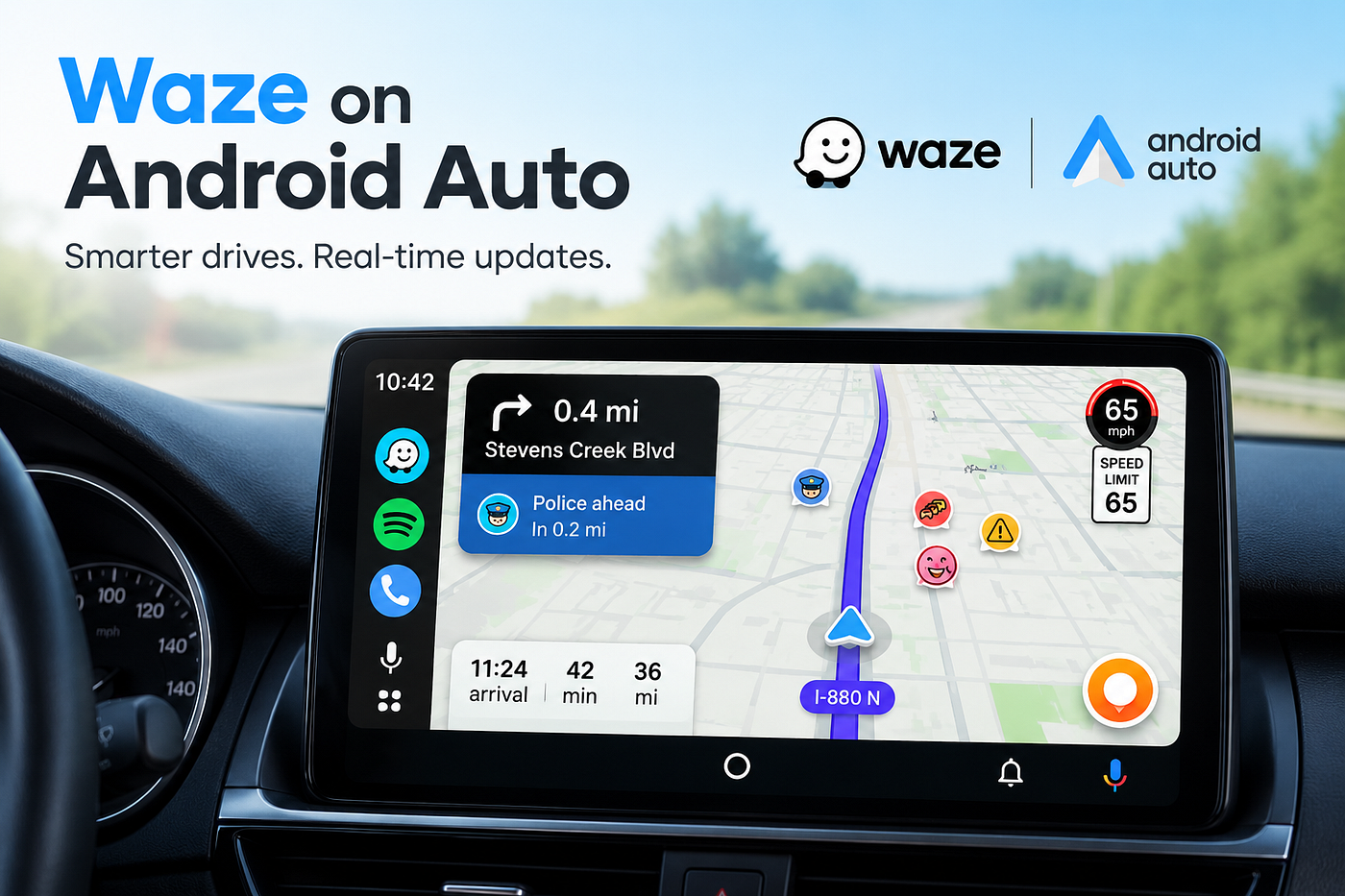
Unlike traditional GPS apps that only show directions, Waze relies on real-time reports from millions of drivers. It can warn you about accidents, traffic jams, police alerts, road hazards, construction work, and even objects on the road before you reach them.
The good news is that using Waze on Android Auto is simple. Once it is connected properly, you can access navigation directly from your car’s display without touching your phone while driving.
This guide explains everything you need to know about adding Waze to Android Auto, setting it as your default navigation app, troubleshooting common issues, and getting the best experience while driving.
What is Waze?
Waze is a free navigation application available for Android and iPhone devices.
The app uses live data shared by drivers to provide up-to-date traffic information. Instead of simply calculating the shortest route, Waze constantly adjusts routes based on current road conditions.
Many drivers prefer Waze for Android because it offers the following:
- Real-time traffic updates
- Road hazard alerts
- Police reports
- Accident notifications
- Speed camera warnings
- Route optimization
- Voice-guided navigation
- Community based reporting
When combined with Android Auto, Waze becomes even more convenient because everything appears directly on your vehicle’s infotainment screen.
Why Use Waze on Android Auto?
Many people wonder whether they should use Google Maps or Waze.
Both are excellent navigation apps, but Waze has a few advantages that make it attractive for daily drivers.
Faster Traffic Detection
Because drivers actively report incidents, Waze often identifies traffic problems very quickly.
If a road becomes congested, Waze can automatically suggest a faster route.
Better Community Alerts
Waze users frequently report:
- Traffic accidents
- Police locations
- Road closures
- Construction zones
- Disabled vehicles
These reports can help you avoid delays and drive more efficiently.
Hands-Free Driving Experience
When using Android Auto and Waze, you can launch navigation through your car’s touchscreen or voice commands.
This helps reduce distractions while driving.
Smart Route Changes
Waze constantly analyzes traffic conditions.
If a faster route becomes available during your trip, the app may recommend switching to save time.
Requirements Before Adding Waze to Android Auto
Before you start, make sure you have the following:
Android Phone
Your device should be running a recent version of Android.
Android Auto
Install the latest Android Auto updates from the Google Play Store.
Waze App
Download and install Waze from the Play Store.
Compatible Vehicle
Your car should support Android Auto through either:
- USB connection
- Wireless Android Auto
Internet Connection
Waze depends on live traffic data.
A stable mobile data connection is important for accurate navigation.
How to Add Waze to Android Auto
Now let’s go through the complete process.
Step 1: Install Waze
Open the Google Play Store on your Android device.
Search for “Waze.”
Download and install the application.
After installation, open the app and complete the initial setup process.
You may be asked to:
- Sign in
- Allow location access
- Enable notifications
- Accept permissions
Make sure all required permissions are granted.
Step 2: Update Android Auto
Outdated Android Auto versions can sometimes prevent apps from appearing.
Open Google Play Store.
Search for Android Auto.
If an update is available, install it.
Keeping Android Auto updated helps ensure compatibility with newer Waze features.
Step 3: Connect Your Phone
Connect your phone to your vehicle.
You can use:
- USB cable
- Wireless Android Auto
The method depends on your vehicle’s capabilities.
Once connected, Android Auto should launch automatically on the vehicle display.
Step 4: Open the App Launcher
After Android Auto loads, open the app drawer or launcher menu.
You should see Waze listed among your available applications.
Tap the Waze icon.
The navigation interface will open on your car screen.
Congratulations. You have successfully completed adding Waze to Android Auto.
How to Set Waze as the Default Navigation App
Many users want Waze to open automatically instead of Google Maps.
Here’s how.
Open Android Auto settings on your phone.
Find the navigation app preferences section.
Select Waze as your preferred navigation application if the option is available.
You can also launch Waze using voice commands.
For example:
“Navigate home using Waze.”
“Open Waze.”
“Drive to Colombo using Waze.”
Google Assistant typically understands these commands without any issues.
How to Use Waze Android Auto While Driving
Once everything is connected, using Waze becomes very easy.
The interface is designed specifically for larger vehicle screens.
Search for Destinations
Tap the search icon.
Enter:
- Home address
- Office address
- Business names
- Landmarks
- Street addresses
Waze will suggest routes immediately.
Use Voice Commands
Voice commands make navigation safer.
Try commands such as:
- Navigate home
- Find nearest fuel station
- Take me to the airport
- Avoid toll roads
This allows you to keep your hands on the steering wheel.
View Live Traffic Information
One of the biggest advantages of Waze on Android Auto is live traffic awareness.
The app constantly updates route conditions.
If traffic becomes heavy ahead, Waze may recommend a faster alternative.
Receive Hazard Alerts
Drivers frequently report road hazards.
You may receive warnings for:
- Accidents
- Police presence
- Broken-down vehicles
- Construction areas
- Objects on the road
These alerts appear directly on the Android Auto display.
Waze Not Showing on Android Auto?
This is one of the most common questions among Android Auto users.
If Waze does not appear, try the following solutions.
Check App Permissions
Open Android settings.
Go to:
Apps → Waze → Permissions
Ensure location access is enabled.
Update Both Apps
Install the latest versions of:
- Android Auto
- Waze
Older versions can sometimes create compatibility issues.
Restart Your Phone
A simple restart often fixes temporary software problems.
Reconnect Android Auto
Disconnect the USB cable.
Close both apps.
Reconnect and try again.
Check Launcher Settings
Open Android Auto settings.
Look for Customize Launcher.
Ensure Waze is enabled.
If it is disabled, the app will not appear on the Android Auto screen.
Does Waze Work With Wireless Android Auto?
Yes.
Most modern Android Auto systems support Waze through wireless connections.
The setup process is nearly identical.
Simply pair your phone with the vehicle and launch Android Auto wirelessly.
Many users prefer this option because they do not need to connect a cable every time they enter the vehicle.
Wireless Android Auto provides the same navigation features including:
- Live traffic updates
- Voice navigation
- Route changes
- Community alerts
Can You Use Waze and Music Apps Together?
Absolutely.
One of the best things about Android Auto is multitasking.
You can run Waze while listening to:
- Spotify
- YouTube Music
- Amazon Music
- Pandora
Many drivers enjoy using Pandora with Fermata Auto because it allows additional media flexibility while keeping navigation active on the screen.
For example:
You can use Waze for navigation while Pandora streams music in the background.
Navigation instructions will continue to play over your music whenever a turn is approaching.
This creates a smooth driving experience without constantly switching apps.
Benefits of Using Waze Instead of Traditional GPS
Traditional GPS devices were useful years ago, but modern navigation has evolved significantly.
Waze offers several advantages.
Real-Time Information
Traffic conditions update continuously.
Community Reports
Millions of users contribute useful information every day.
Faster Route Calculations
Routes adjust automatically when conditions change.
Free Updates
No subscription is required.
Better Urban Navigation
Waze excels in busy cities where traffic conditions change rapidly.
The result is often a faster and less stressful journey.
메타데이터
- post_id
- 50a131ea76a7
- slug
- how-to-add-waze-navigation-app-on-android-auto-50a131ea76a7
- url
- https://medium.com/@elizafaithh1/how-to-add-waze-navigation-app-on-android-auto-50a131ea76a7
- canonical_url
- https://medium.com/@elizafaithh1/how-to-add-waze-navigation-app-on-android-auto-50a131ea76a7
- author_url
- https://medium.com/@elizafaithh1
- status
- ok
- fetched_at
- 2026-06-21 23:24:37