#5 The Mac Automation Layer Apple Buried and the Four-Way Bridge That Connects All of It
There is a command-line tool for running Shortcuts, a scripting target that runs them invisibly, and a way to make Shortcuts, AppleScript…
#5 The Mac Automation Layer Apple Buried and the Four-Way Bridge That Connects All of It
There is a command-line tool for running Shortcuts, a scripting target that runs them invisibly, and a way to make Shortcuts, AppleScript, the shell, and the scheduler all call each other. Wire them together and your Mac does things you thought required a paid app.
🔍 THE HIDDEN MAC #5 — a series about what Apple’s interface is hiding from you.
The moment this clicked for me, I was trying to do something stupid and small. I wanted a keyboard trigger that took whatever text I had copied, ran it through a Shortcut I had built, and pasted the result back. The kind of thing a $30 app would advertise on its landing page.
Then I found out my Mac already had every piece required, sitting in plain sight, unconnected. There is a command that runs Shortcuts from the Terminal. There is a scripting language that can drive almost any app. There is the shell, which can call both. And there is a scheduler that can fire any of them on a timer or a trigger. Four automation layers, all shipping in macOS, and the secret almost nobody is told is that every one of them can call every other one.
Apple did not bury these on purpose, exactly. They built each layer for a different decade, documented each one separately for developers, and never sat a normal user down and said “by the way, these connect.”
So most people use none of them, a few people use one, and almost nobody wires them together. This article is about wiring them together.
The buried command: shortcuts
Start with the one most Mac users do not know exists. Open Terminal and run this:
shortcuts listThat prints every Shortcut you own. There has been a command-line tool for Shortcuts since macOS Monterey, and it is exactly as powerful as it sounds. You run a Shortcut by name:
shortcuts run "Combine Images"If the name has spaces, quote it or escape the space with a backslash. You can open one in the editor with shortcuts view "Name", and list folders with shortcuts list --folders.
This single fact changes what Shortcuts is. In the GUI, a Shortcut is something you click. From the command line, a Shortcut becomes a function you can call from any script, any other Shortcut, any scheduled job. The visual editor you built it in was just the front end. The command line is the API.
The Mesh: four layers, any-to-any
Here is the mental model that makes all of this usable. I call it the Mesh. There are four automation layers in macOS, and the rule is that any layer can invoke any other layer. That rule is the whole game.
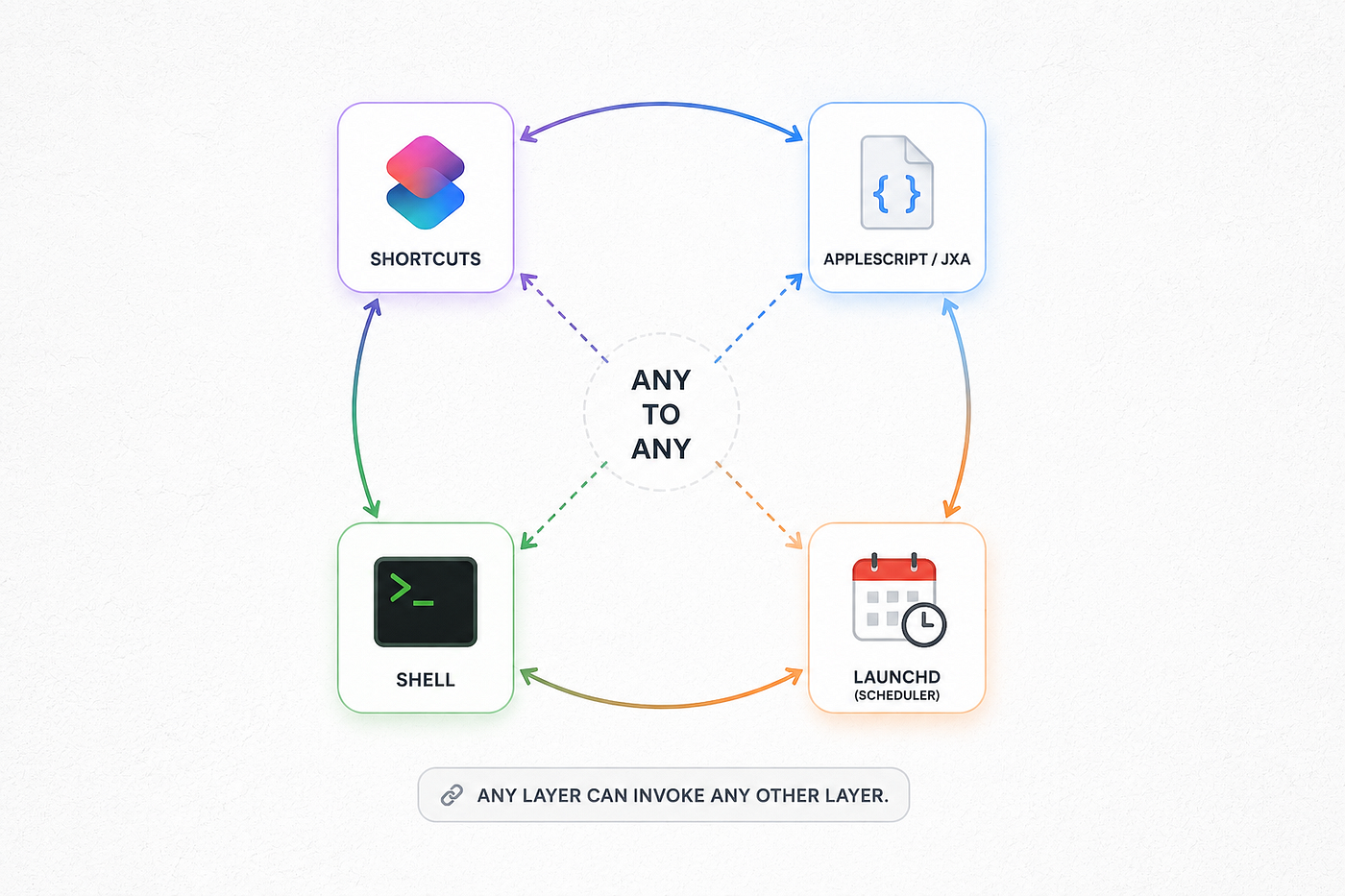
The four layers:
- Shortcuts — visual, easy to build, great at app integrations and Apple services. Driven from the shell by the
shortcutscommand. - AppleScript and JavaScript for Automation (JXA) — runs from the shell via
osascript. Can drive almost any app that ships a scripting dictionary, and can reach deep into app internals that Shortcuts cannot. - The shell — every command-line tool on your Mac, plus pipes, redirection, and the entire Unix toolbox.
- launchd — the scheduler and trigger layer. Runs anything on a timer, at login, or when a folder changes. (This one gets its own article next, so I will keep it light here.)
And the bridges, which are the part nobody draws out:
- The shell calls Shortcuts with
shortcuts run. - The shell calls AppleScript and JXA with
osascript. - AppleScript calls the shell with
do shell script "...". - Shortcuts calls the shell with its “Run Shell Script” action, and calls AppleScript with its “Run AppleScript” action.
- AppleScript calls Shortcuts through a special scripting target (more on this in a moment).
- launchd calls any of the above.
As Jason Snell once put it, no matter what you are trying to do, there are many paths. As long as there is some way to run something, you can probably reach everything. A roadblock in one layer is just a detour through another. That is the Mesh, and once you see it, automation stops being “which app supports this” and becomes “which layer can reach it, and how do I bridge in.”
Layer 2 up close: osascript
The osascript command runs AppleScript from the shell, which means the entire AppleScript automation surface is available to any script you write. A few that I now use constantly, every one a single line:
# Set system volume to 30%
osascript -e 'set volume output volume 30'

# Toggle dark mode
osascript -e 'tell application "System Events" to tell appearance preferences to set dark mode to not dark mode'

# Post a real notification from a script
osascript -e 'display notification "Build finished" with title "Xcode"'

# Get the URL of the front Safari tab
osascript -e 'tell application "Safari" to return URL of current tab of front window'

# Find out which app is frontmost right now
osascript -e 'tell application "System Events" to get name of first application process whose frontmost is true'
That same command runs JavaScript for Automation instead of AppleScript if you ask for it:
osascript -l JavaScript -e 'Application("System Events").currentDate()'The reason this matters for the Mesh: AppleScript can reach app features that have no Shortcuts action and no command-line tool. When you hit something Shortcuts cannot do, osascript is very often the bridge that can, and you can call it from the same shell script where everything else lives.
The bridge most people miss: text into Shortcuts
Now the genuinely hidden part, the one that trips up everybody who tries to drive Shortcuts from the command line and then gives up.
You would expect to pass input to a Shortcut like this:
shortcuts run "Summarize" -i "some text to summarize"It fails. The -i (or --input-path) flag only accepts file paths, not text. Apple's own documentation says so: when you pass something through a pipe, the path is treated as text, and -i is specifically for files. So the obvious way to hand a Shortcut a string does not work, and this is where most people conclude the CLI is broken and walk away.
There are two ways through, and knowing both is what separates people who use this from people who abandon it.
Option one, the here-string. As Jason Snell documented, you can feed text to the shortcuts command using the <<< operator:
shortcuts run "Summarize" <<< "some text to summarize"The shortcut receives the text as input. (It appends a newline, so a well-built shortcut trims trailing whitespace.) This is the single most useful piece of shortcuts trivia in existence, and it is in almost no tutorial.
Option two, the AppleScript bridge. This is the more powerful path, and it reveals a second secret. Shortcuts ships its own AppleScript scripting dictionary, catalogued in detail by Matthew Cassinelli, and there is a dedicated background helper called Shortcuts Events. Watch the difference:
# Runs the shortcut, opening the Shortcuts app window
osascript -e 'tell application "Shortcuts" to run shortcut "Summarize"'

# Runs the shortcut silently in the background, no window
osascript -e 'tell application "Shortcuts Events" to run the shortcut named "Summarize" with input "some text"'
Two things just happened. First, telling Shortcuts Events instead of Shortcuts runs the shortcut without the app flashing open, which is what you want for any automation. Second, and this is the part that solves the CLI's biggest limitation, the AppleScript with input parameter accepts text directly. The command line cannot hand a Shortcut a string. The AppleScript bridge can. So when you need to pass text into a background Shortcut from a script, you do not fight the shortcuts command, you route through osascript and Shortcuts Events. That is the Mesh in one move: a wall in one layer, a doorway in the next.
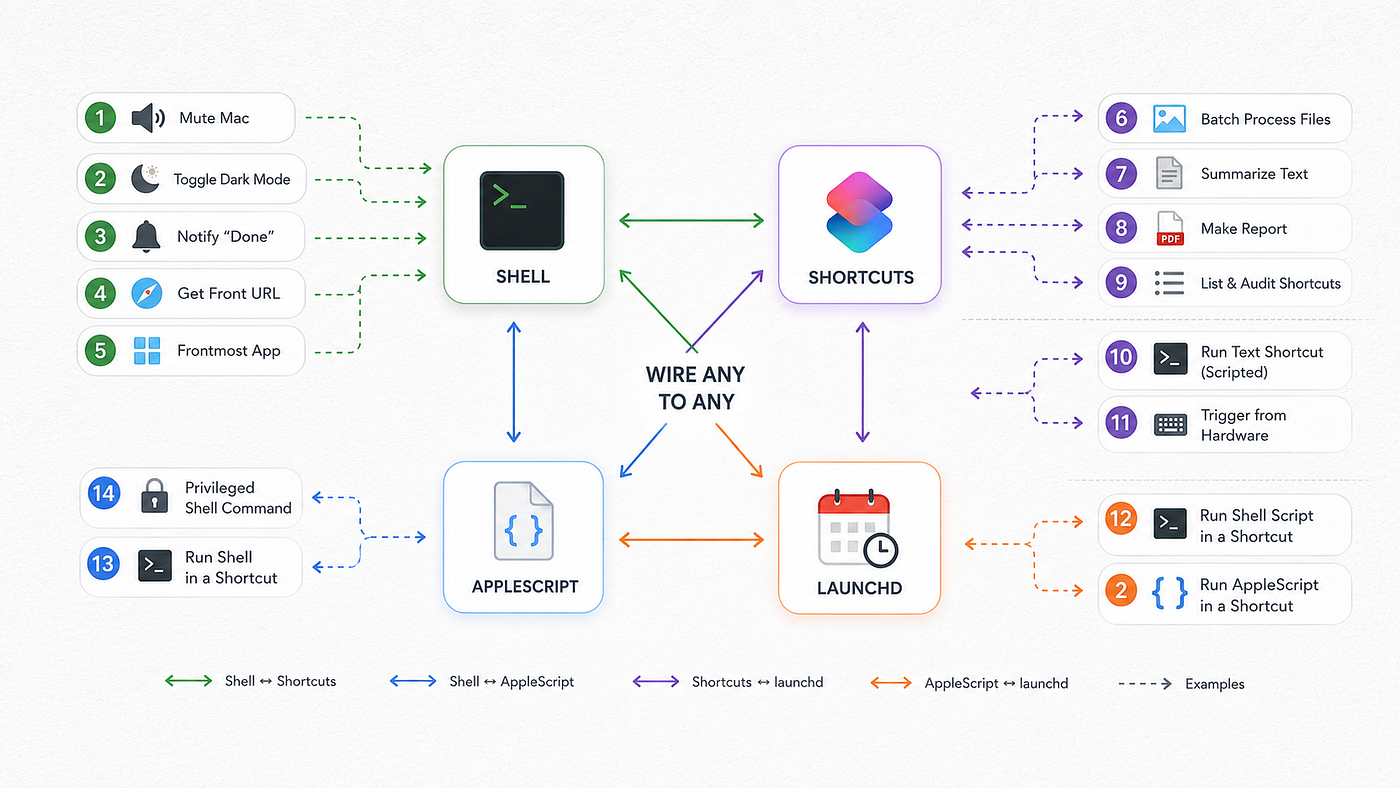
Fourteen real things to wire together
Here is a working catalogue. Each one is small. The point is not any single task, it is that they are all the same shape, and they all compose.
**Pure shell-to-system, via osascript:
-
**Mute the Mac instantly:
osascript -e 'set volume with output muted' -
Toggle dark mode on a schedule (pair with launchd for sunset switching).
-
Fire a desktop notification at the end of any long terminal command:
make build; osascript -e 'display notification "done"' -
Capture the front Safari URL into your clipboard for a script to use.
-
Detect the frontmost app and branch your script’s behavior on it.
Shell-to-Shortcuts, via the shortcuts command:
6. Batch-process every PNG on the Desktop through a Shortcut: shortcuts run "Resize" -i ~/Desktop/*.png
-
Summarize piped text through a Shortcut:
pbpaste | ...thenshortcuts run "Summarize" <<< "$(pbpaste)" -
Generate a file and write a Shortcut’s output to disk:
shortcuts run "Make Report" -o ~/report.pdf -
List and audit every Shortcut you own with
shortcuts list, to rediscover automations you forgot you built.
Shell-to-background-Shortcuts, via Shortcuts Events: 10. Run a text-input Shortcut silently from a script, the workaround above.
- Trigger a “log this note” Shortcut from a Stream Deck or hardware key by pointing it at a one-line AppleScript.
Shortcuts-to-shell and Shortcuts-to-AppleScript, closing the loop:
12. Inside a Shortcut, use the “Run Shell Script” action to call du, git, ffmpeg, or any CLI tool, so your visual automation can use Unix power.
- Inside a Shortcut, use "Run AppleScript" to reach an app feature Shortcuts has no action for.
AppleScript-to-shell:
14. From an AppleScript, run a privileged shell command with do shell script "..." with administrator privileges, so an Automator or Shortcut entry point can perform a task that needs elevation, with a single auth prompt.
Notice that 1 through 14 are not fourteen separate skills. They are one skill, the Mesh, pointed in fourteen directions.
Making it run by itself
Everything above is manual: you type a command, or click a Shortcut. The last layer removes you from the loop. launchd, the macOS scheduler, can run any of these automatically: every morning, every fifteen minutes, at login, or whenever a specific folder changes. A one-line shortcuts run "Morning Brief" becomes a Shortcut that fires on its own at 7am and leaves the result waiting for you.
launchd is deep enough, and misunderstood enough, that it gets its own article next. For now, the thing to hold onto is that it is the fourth node in the Mesh, and it can pull the trigger on any of the other three. Build the automation today with the bridges above; schedule it next time.
The gotchas nobody warns you about
The Mesh is powerful, and it has sharp edges. These are the ones that cost me time.
- Permission prompts on first run. The first time a script uses
osascriptto control another app, macOS shows an Automation permission prompt, and the script pauses until you approve it. This is the privacy system doing its job, and it is exactly why a script that worked yesterday can stall today after an app update. (That permission system is its own hidden database, and its own article later in this series.) Approve deliberately, and know that a "frozen" automation is often just an unanswered permission dialog hiding behind a window. - CLI-run Shortcuts must not ask for input. When you run a Shortcut from the command line and it hits an action that shows an alert or asks the user to choose something, the process hangs forever, waiting on input that will never come. Apple’s guidance is correct here: build automation Shortcuts to receive input and, if none is provided, fail or use a default, rather than stopping to ask. A Shortcut designed for a human and a Shortcut designed for a script are different objects.
- Background result quirks. Running through
Shortcuts Eventsis the right call for silent execution, but returning a result back to AppleScript has historically been inconsistent across macOS versions. If you need the output, test that the result actually comes back on your version before you depend on it, and fall back to writing to a file with-oif it does not. - Not everything is scriptable. Some apps ship no AppleScript dictionary and expose no Shortcuts actions. For those, the Mesh has no clean bridge, and you are into UI scripting through System Events, which is fragile and breaks when layouts change. Reach for it last, not first.
What surprised me
I went in thinking I would learn a couple of commands. I came out with a different definition of what my Mac is.
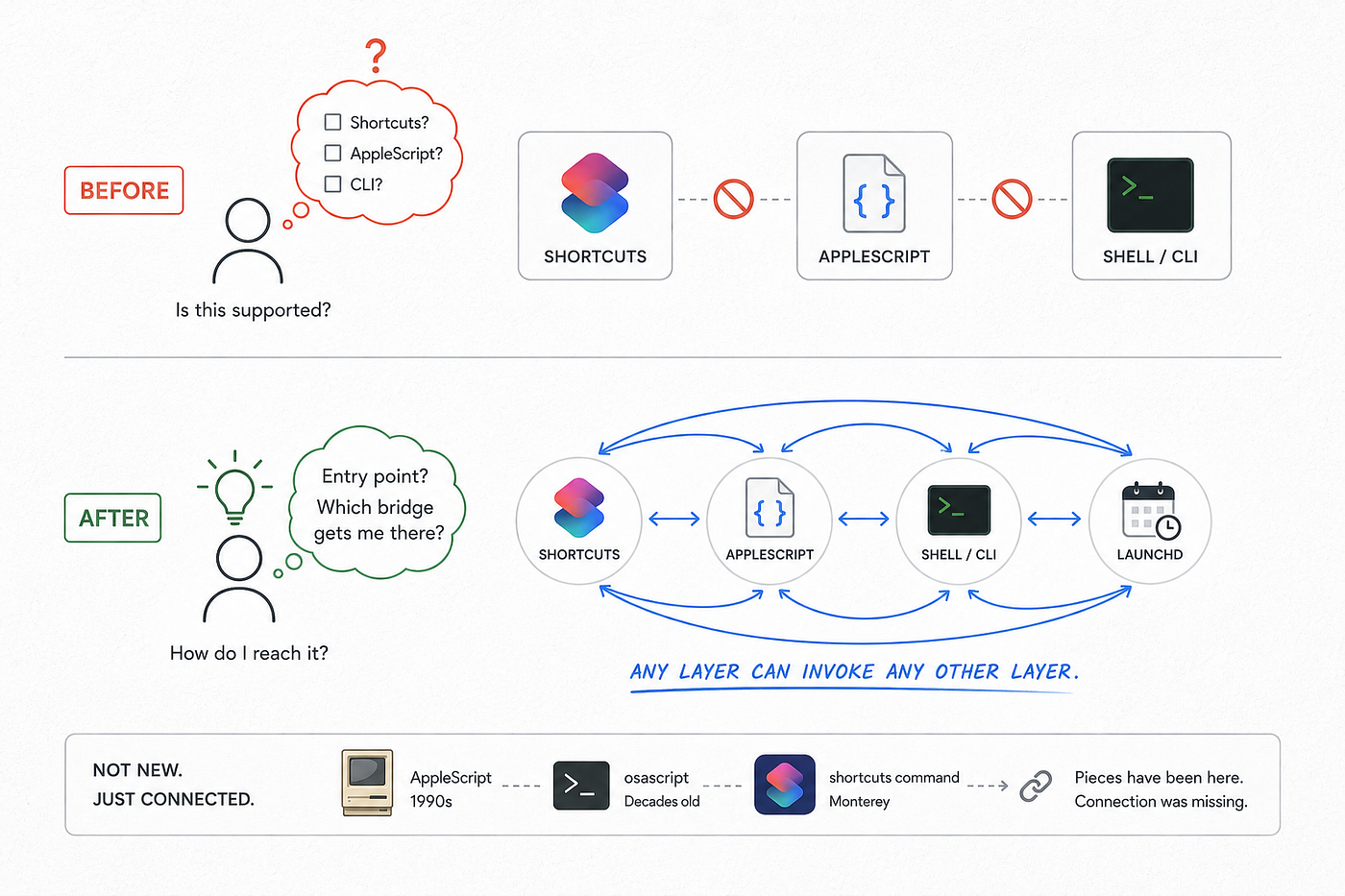
Before this, I saw automation as a feature checklist: does this app support Shortcuts, does that one have an AppleScript dictionary, is there a CLI. After, I stopped asking whether a given app supports a given automation tool, because it almost never matters. If I can reach a task from any of the four layers, I can reach it from all of them. The question changed from “is this supported” to “what is my entry point, and which bridge gets me the rest of the way.” That reframing is worth more than any single command in this article.
The other surprise was how old all of this is. None of it is new. AppleScript is from the nineties. osascript has been around for decades. The shortcuts command landed in Monterey. The pieces have been sitting in macOS for years, fully documented, completely disconnected in the minds of the people who own them. The capability was never hidden. The connection was.
What this will not do
To stay honest, the limits.
It will not make unscriptable apps scriptable. If an app exposes nothing, the Mesh cannot conjure a bridge, and brittle UI scripting is the only path left.
It will not bypass permissions. Every cross-app automation is gated by the macOS privacy system, and that is a good thing. You will approve prompts, and you should read them.
It will not replace a real programming environment for complex logic. The Mesh is glue, and glue is exactly the right tool for connecting things that already work. For heavy logic, write a real script in a real language and let the Mesh trigger it.
And it does not eliminate testing. Background execution, input passing, and result return all have version-specific quirks. Build it, then actually run it the way it will run in production, before you trust it with anything that matters.
Run it yourself
Two commands, right now. First, see what you already own:
shortcuts listThen run one of them from the command line, the thing you have only ever clicked:
shortcuts run "One Of Your Shortcuts"Watch a thing you thought of as a button behave like a function. That is the entire mental shift. Once a Shortcut is a function, it can live inside a script, a schedule, or another Shortcut, and your Mac becomes programmable in a way the polished interface never advertises.
Next, inside the hidden Mac
Everything in this article still waits for you to pull the trigger. The fourth layer pulls it for you. Your Mac runs dozens of background jobs on a schedule you never wrote, and the scheduler doing it is not cron. cron has been effectively dead on macOS for years. Next in the series: launchd, the real scheduler, how to read every job on it, and how to add your own so the automations you just built run without you.
I write about operator-grade tools, Apple Silicon performance, and the systems behind modern engineering work. Free Mac developer tools and templates at wowhow.cloud/tools.
메타데이터
- post_id
- 52c1222bf3c5
- slug
- 5-the-mac-automation-layer-apple-buried-and-the-four-way-bridge-that-connects-all-of-it-52c1222bf3c5
- url
- https://medium.com/macoclock/5-the-mac-automation-layer-apple-buried-and-the-four-way-bridge-that-connects-all-of-it-52c1222bf3c5
- canonical_url
- https://medium.com/macoclock/5-the-mac-automation-layer-apple-buried-and-the-four-way-bridge-that-connects-all-of-it-52c1222bf3c5
- author_url
- https://medium.com/@anup.karanjkar08
- status
- ok
- fetched_at
- 2026-07-30 23:41:35