Instagram Video Lagging: Causes and Practical Fixes
Learn why Instagram videos lag and discover practical solutions, including app updates, network tips, and AI video repair.
Instagram Video Lagging: Causes and Practical Fixes
Instagram videos often lag after uploading, causing frustration among users and content creators. Whether it’s a high-resolution clip or a casual story, stuttering, freezing, or choppy playback can disrupt the viewing experience. A Reddit user described: “Stuttering slow-mo and weird playback issues when uploading to Instagram.”
Even the latest smartphones are not immune; video lag can affect scrolling, live streams, and regular playback. This article explores the root causes and provides actionable steps to fix Instagram video lag, including AI-based video repair options.

Fix Instagram Video Lag
Part 1: Why Instagram Videos Freeze
Video playback relies on network stability, app functionality, device performance, and file integrity. Common issues include:
● Weak Internet: Slow Wi-Fi or mobile data triggers buffering and stuttering.
● Outdated App: Older Instagram versions may have bugs affecting playback.
● Corrupted Video Files: Damaged or unsupported formats freeze or skip.
● Device Limitations: Low RAM, full storage, or heavy background apps degrade playback.
● Old OS: Incompatibility with new Instagram features can cause lag.
Part 2. A 7-Step Troubleshooting Checklist for Instagram Video Lagging
Let’s dive into the practical, step-by-step fixes to ensure your video content is always performing at its best.
I. Essential Quick Fixes
1. Prioritize Network Stability: Video playback demands bandwidth.
● Switch to Wi-Fi if mobile data is weak.
● Close bandwidth-hogging apps running in the background.
● Restart your router occasionally to resolve connection issues.
2. Immediate App Update:
Always run the latest version. Head to the Google Play Store or App Store and tap “Update” for Instagram to access the newest performance enhancements and bug fixes.
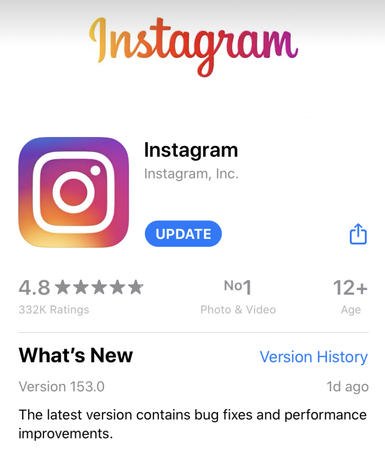
Update Instagram App
3. Simple Device Reboot
This clears temporary RAM and fixes minor system glitches that can manifest as video lag.
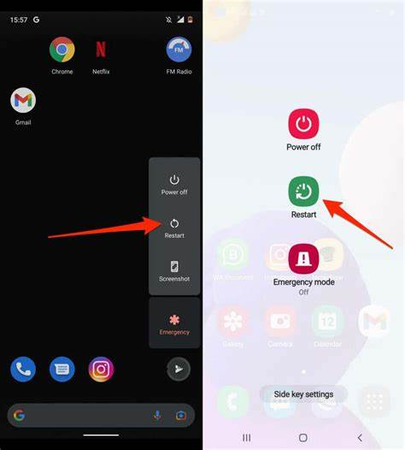
Clear temporary RAM
II. App and System Optimization
4. Clear Instagram Cache and Data:
This removes temporary glitches and frees up storage. (Path: Instagram App > Storage & Cache> Clear Cache/Clear Data).
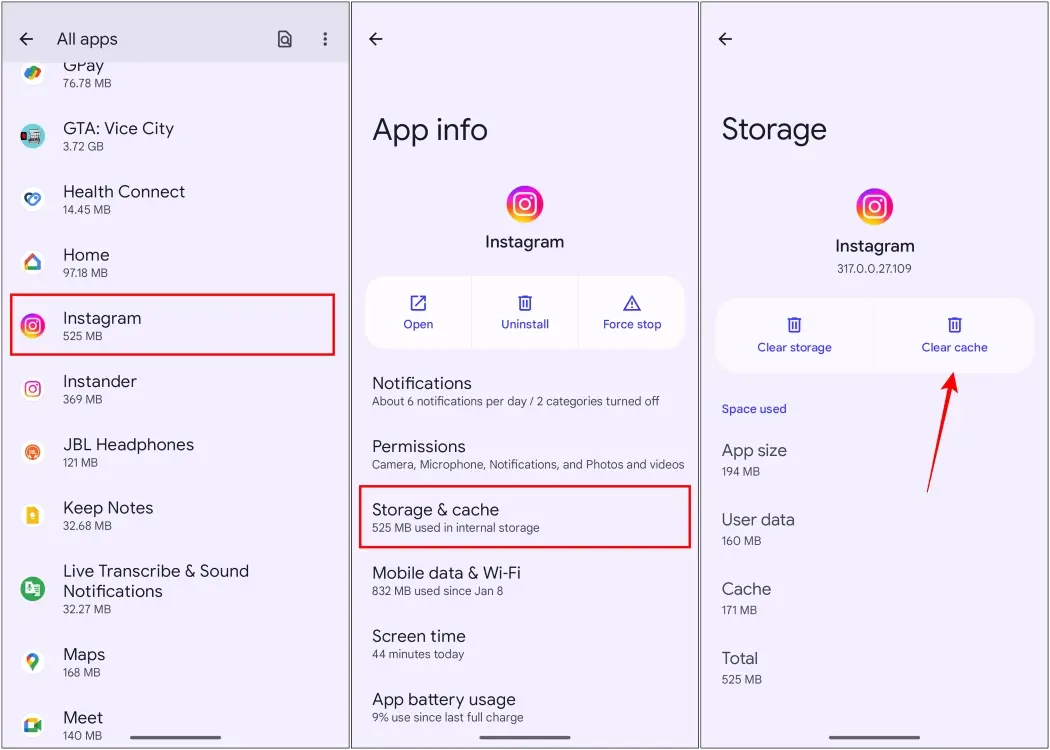
Clear Instagram Cache
5. Disable High-Quality Uploads (Performance Trade-off):
High-quality uploads increase processing time and strain playback. Turn this off for faster uploads and smoother streaming. (Path: Settings and Privacy > Data Usage and Media Quality > Toggle ‘Upload at the Highest Quality’ off).
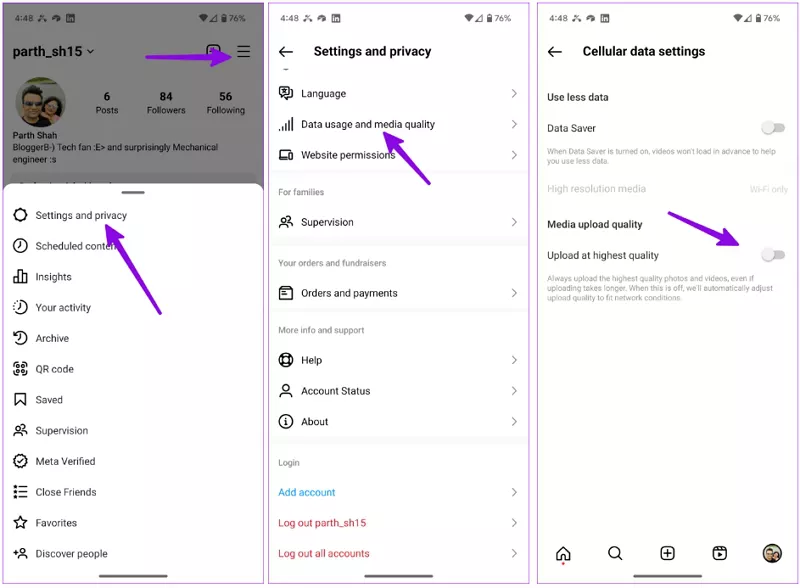
Disable High-Quality Uploads
6. Deactivate Data Saver:
This feature limits video preloading, which causes stuttering. Turn it off to allow videos to load fully in advance. (Path: Settings and Privacy > Data Usage and Media Quality > Toggle ‘Data Saver’ off).
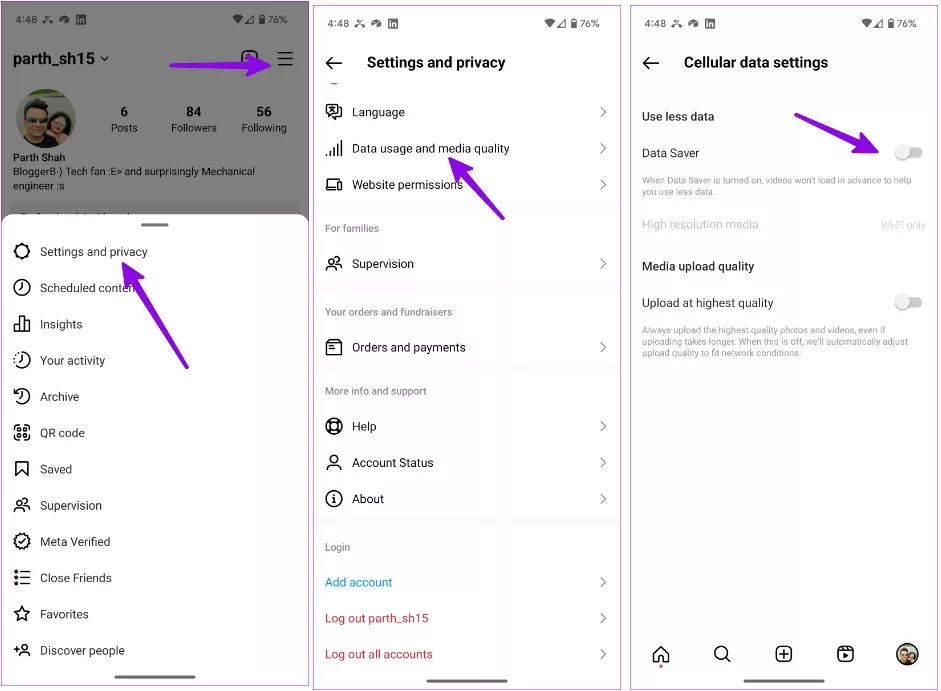
Deactivate Data Saver
III. Network Reset
7. Reset Network Settings:
This is a comprehensive fix for deep-seated network configuration issues. (Note: This will erase all saved Wi-Fi passwords).
● iPhone: Settings > General > Reset > Reset Network Settings.
● Android: Settings > System > Reset Wi-Fi, mobile & Bluetooth > Reset Settings.
Part 3. Fix Instagram Video Playback with HitPaw VikPea
If your lag persists, the issue is likely file corruption — broken frames or unsupported codecs. This is where a dedicated tool is essential.HitPaw VikPea AI Repair provides a powerful solution:
● AI Repair: Automatically detects and fixes corrupted video segments.
● 8K Upscaling: Enhances resolution for crisp output.
● Broad Format Compatibility: Supports MP4, MOV, AVI, MKV, WMV, and more.
● Batch Processing: Repair multiple files simultaneously.
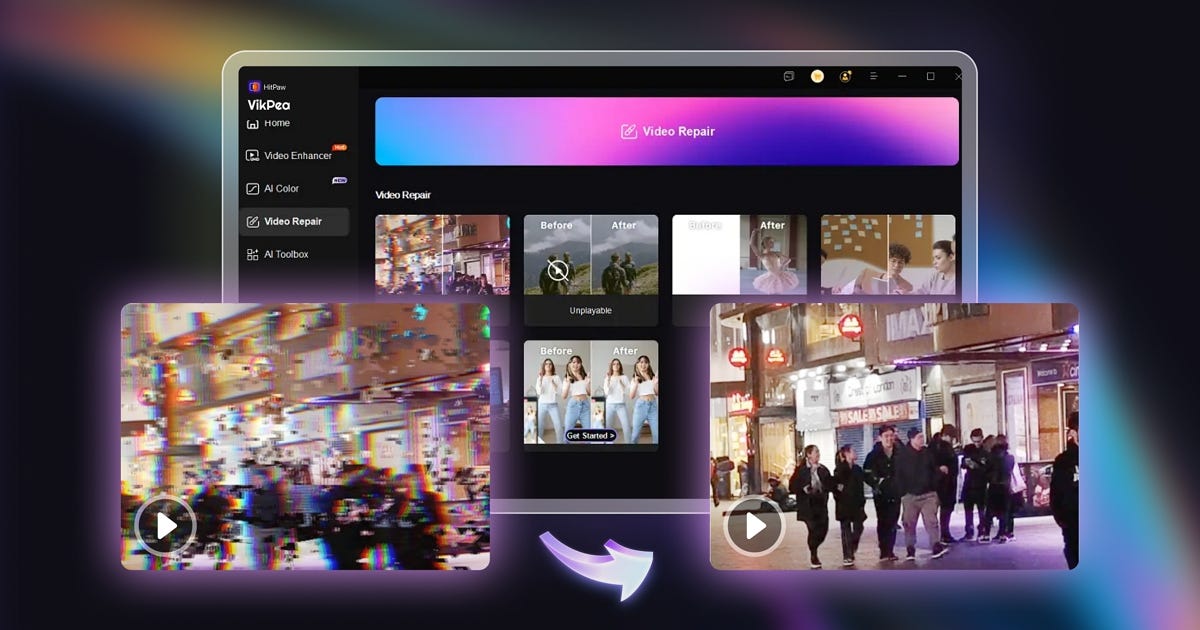
Fix Video Playback issue with VikPea
How to Use HitPaw VikPea for Video Integrity:
-
Download and install HitPaw VikPea (Windows/Mac).
-
Open the app and select the Video Repair feature.
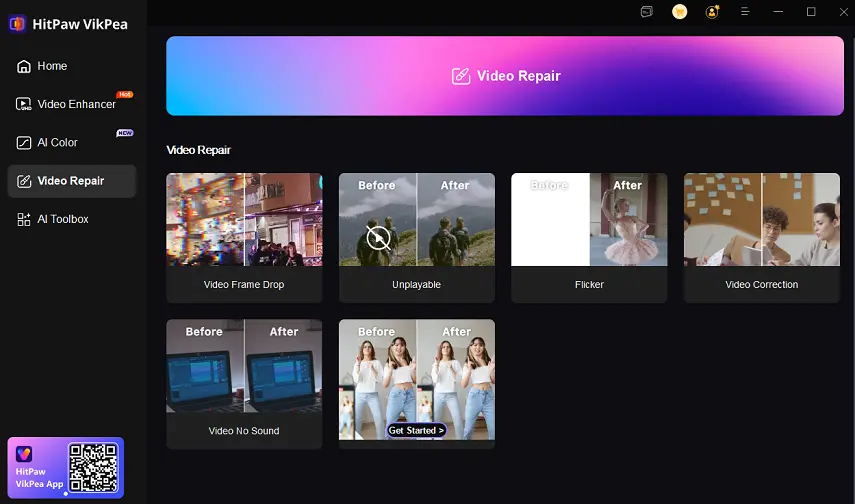
HitPaw VikPea Video Repair
- Drag and drop your lagging video(s) into the program.
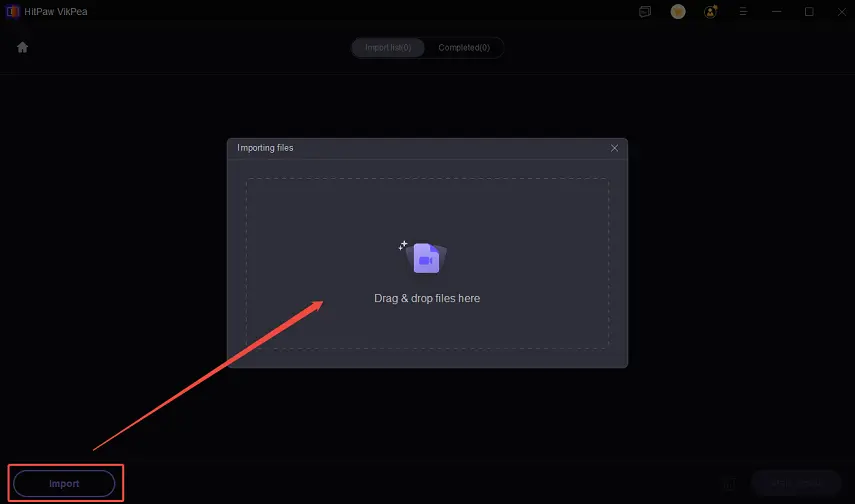
Import Video for Repair
- Click ‘Start Repair.’
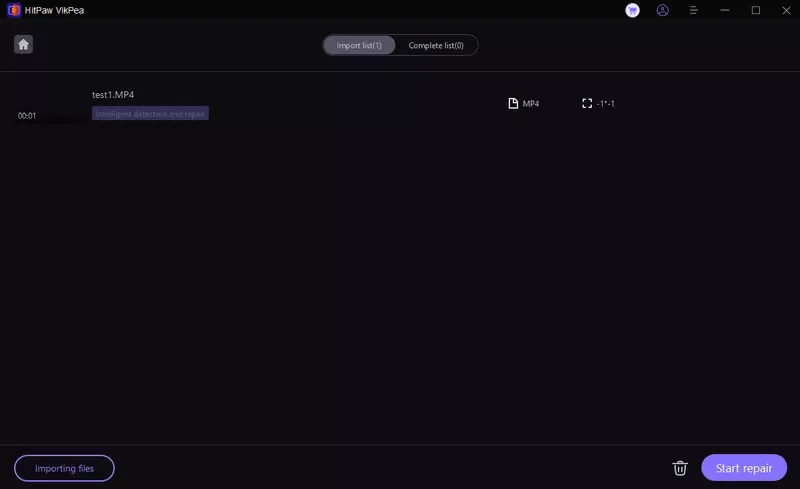
Video Repair Process
- Preview the repaired, non-lagging video and click ‘Download.’

Repair video in VikPea
Conclusion
Systematically checking the connection, app, and device resolves most lag issues. For corrupted files, HitPaw AI Repair restores smooth, high-quality playback efficiently.
메타데이터
- post_id
- 52f24fa3675d
- slug
- instagram-video-lagging-causes-and-practical-fixes-52f24fa3675d
- url
- https://medium.com/@carolzz/instagram-video-lagging-causes-and-practical-fixes-52f24fa3675d
- canonical_url
- https://medium.com/@carolzz/instagram-video-lagging-causes-and-practical-fixes-52f24fa3675d
- author_url
- https://medium.com/@carolzz
- status
- ok
- fetched_at
- 2026-06-13 00:08:42






