The Best MacOS Tips and Tricks Nobody Shows You
Your Mac has been able to do all of this the whole time.
The Best MacOS Tips and Tricks Nobody Shows You
Your Mac has been able to do all of this the whole time.
author’s image
Most people use maybe 30% of what their Mac can do, and not because the rest is hard.
Apple just never tells anyone it exists and most people never bother looking. You find out about one of these tips from a coworker asking “wait, you don’t know about that?”
Here are some of my most useful tips, which I have collected over the years. Most take seconds to learn, and you won’t need to install anything.
#1: Spotlight is a Calculator, Converter, and Launcher

author’s image
Stop opening the Calculator app.
Press ⌘ + Space and type your math straight into Spotlight: 1499*0.8, 230 usd to eur, 72f to c, 9pm PST in NYC. The answer appears instantly, and ⌘ + C copies it.
It also launches apps faster than the Dock ever will. Type two or three letters, hit Return, done.
Currency, time, unit and any math becomes instant.
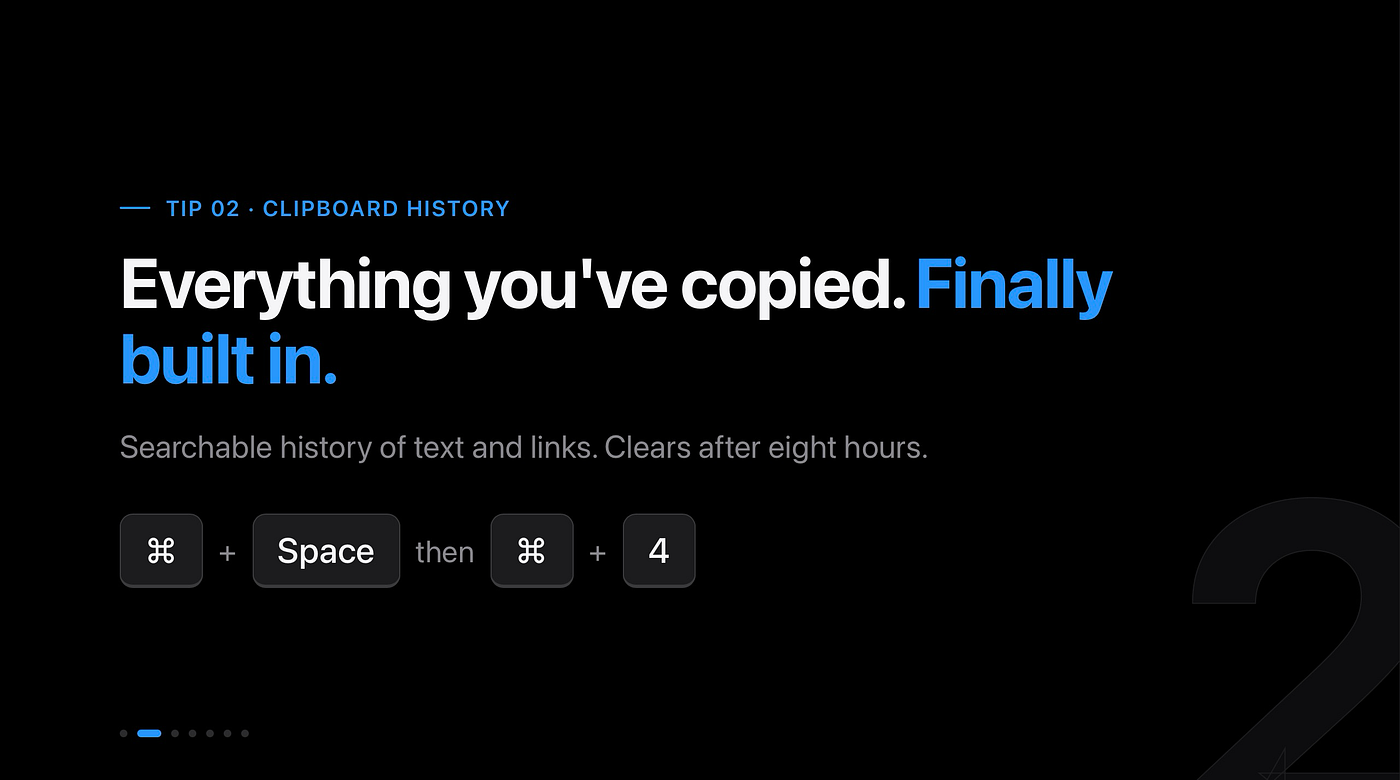
#2: Your Mac finally Has Clipboard History
author’s image
The biggest quality-of-life upgrade in Tahoe, and Apple barely mentioned it.
Press ⌘ + Space, then ⌘ + 4, and there's everything you've copied recently: text, links, all of it, searchable.
Copy three things from a webpage, then paste all three into your document without bouncing back and forth. Third-party clipboard managers charged money for this for a decade.
The history clears after eight hours, so sensitive items don’t linger. Once you’ve written an email by pulling four snippets from four different sources in one pass, you won’t go back.
#3: Spacebar Previews Everything

author’s image
Click any file in Finder and tap Space.
You get an instant full-size preview of PDFs, videos, images, even spreadsheets, without opening a single app. Arrow keys move to the next file while the preview stays open, so sorting a folder of photos or scanned documents goes very fast.
A few things people miss: select several files first and you can flick through just those.
Videos play right inside the preview, so checking a clip doesn’t mean launching QuickTime.
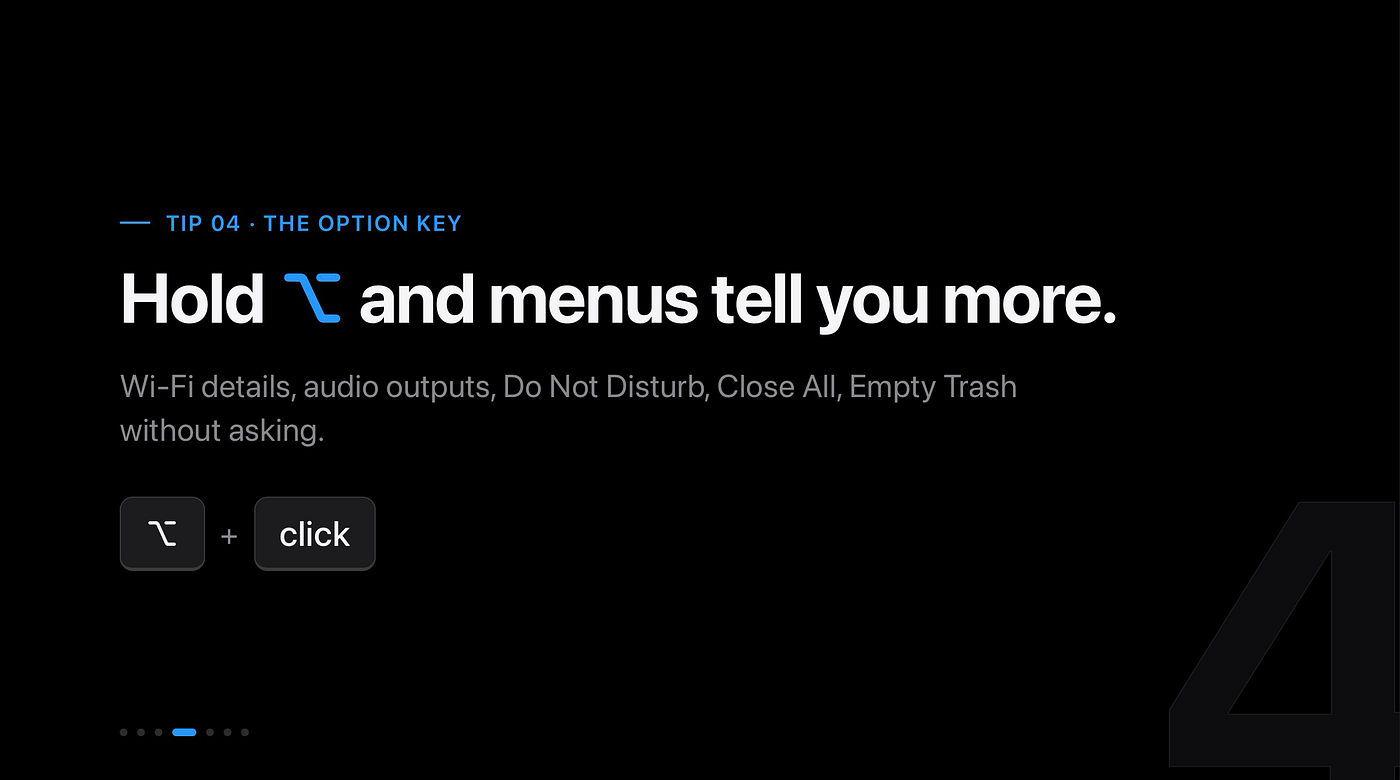
#4: Hold ⌥ and Menus Tell You More
author’s image
The Option key is macOS’s hidden second layer. Hold ⌥ and click the Wi-Fi icon in the menu bar and you get your IP address, channel, and signal strength instead of just a network list. ⌥-click the volume icon to switch audio output devices.
It works inside app menus too. Open any menu in Finder or Safari, hold ⌥, and watch the commands change into more powerful versions.
When you think macOS can't do something, hold Option and check again.
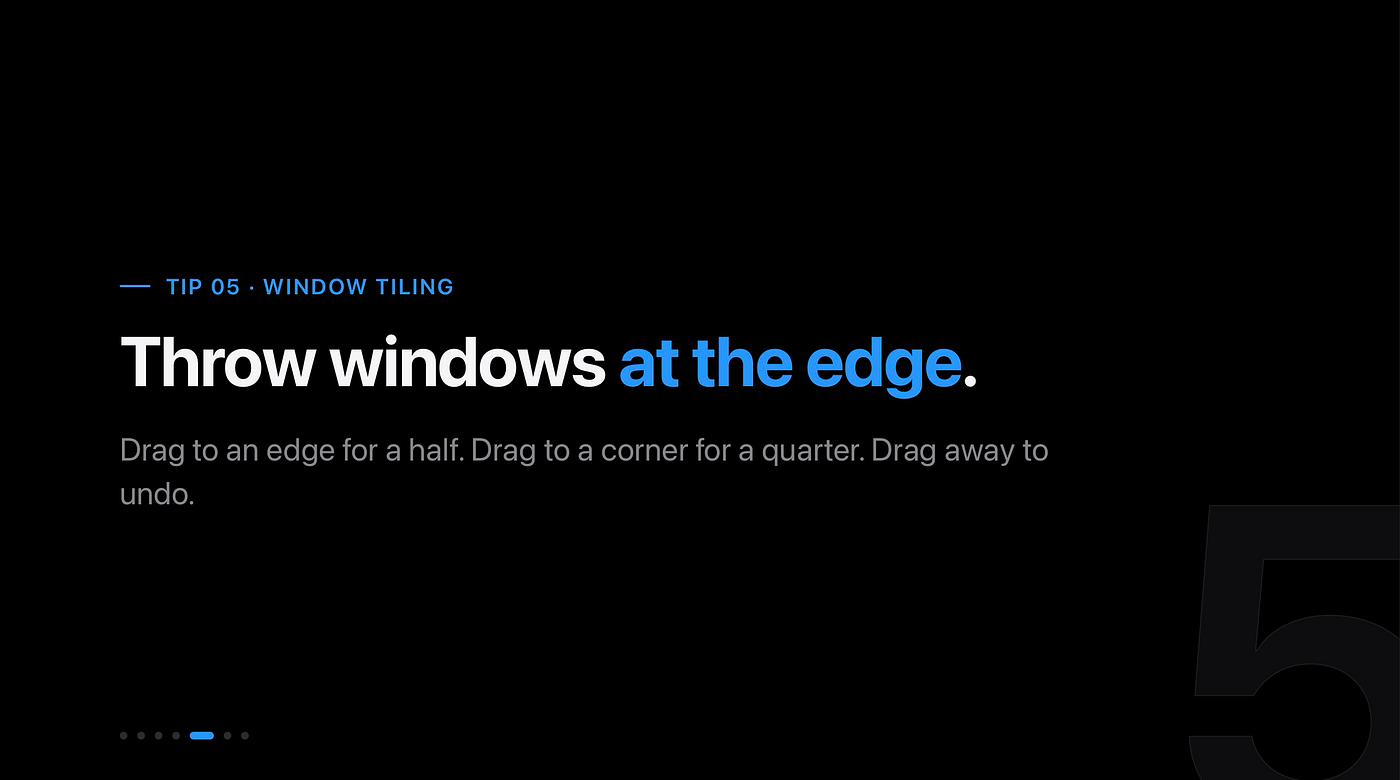
#5: Tile Windows By Throwing Them At The Edge
author’s image
Drag any window hard against the left or right edge of your screen and it snaps to fill that half. Drag to a corner for a quarter.
Two windows side by side (notes and browser, email and calendar) used to mean a third-party app or a lot of fiddly resizing. Now it’s one gesture. There are keyboard shortcuts under the Window menu if you’d rather not drag at all, and pulling a tiled window away from the edge snaps it back to its original size instead of leaving it stuck.
#6: Rename a Hundred Files at Once
author’s image
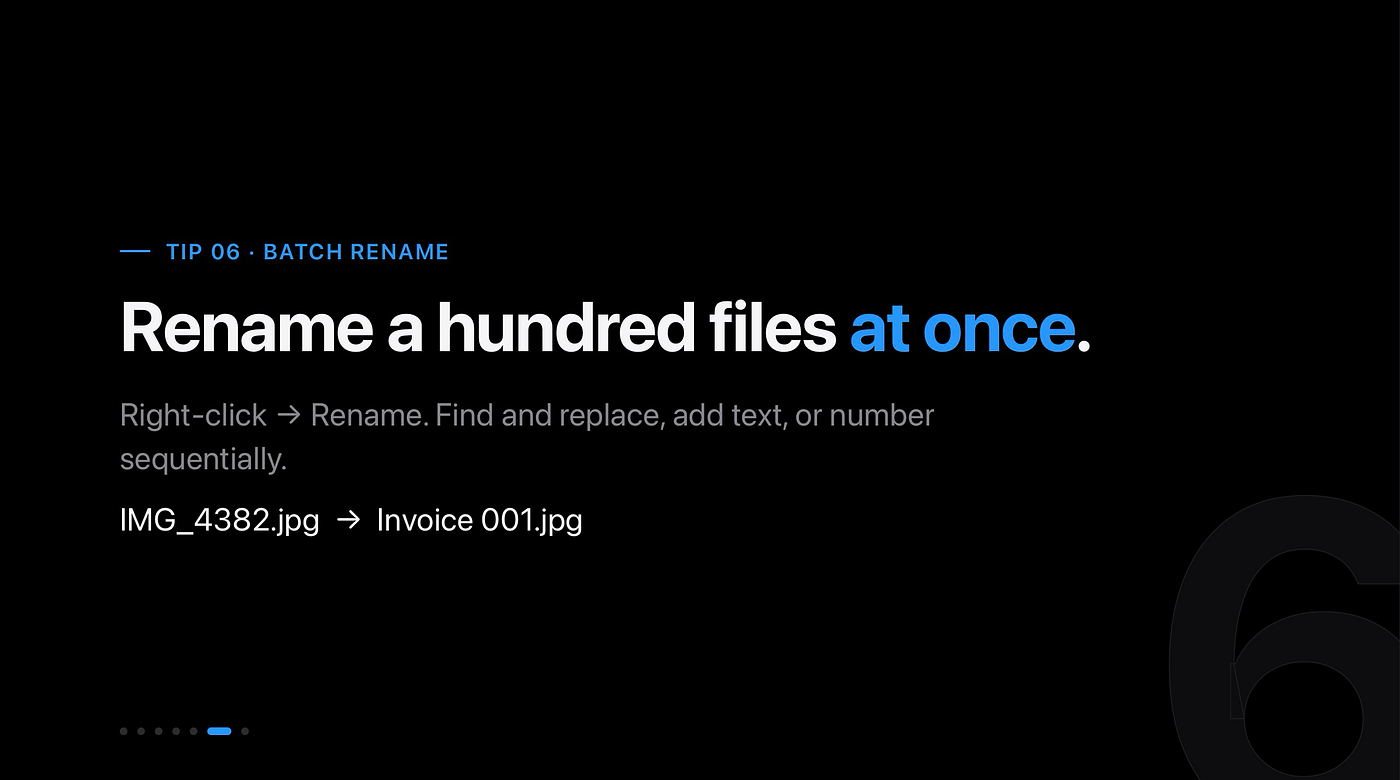
Select a batch of files in Finder, right-click, and choose Rename. You can find-and-replace text across all of them, add a prefix or suffix, or number them sequentially: Invoice 001, Invoice 002, and so on.
Photographers and anyone who deals with client files know this pain: a folder full of IMG_4382.jpg.
You can combine formats, too. Replace the camera prefix first, then run a second pass to number the results. Make a mistake and ⌘ + Z undoes the whole batch. Thirty seconds and you have a clean archive without writing a script or buying an app.
#7. Type on Your Mac, Paste On Your iPhone
author’s image
Copy text on your Mac, then paste it on your iPhone. It just works, in both directions, as long as both devices are on the same Apple account with Bluetooth and Wi-Fi on.
Universal Clipboard needs zero setup, which is exactly why nobody knows it exists.
Pair it with iPhone Mirroring (it’s in your Applications folder) and you can run your entire phone from your Mac’s keyboard: answer messages, check an app that has no Mac version, all without your phone leaving your pocket. You can even drag a file from your Mac straight into a mirrored iPhone app and it lands there, skipping AirDrop entirely.
Hope you liked these tips!
메타데이터
- post_id
- 541884cb1b0a
- slug
- the-best-macos-tips-and-tricks-nobody-shows-you-541884cb1b0a
- url
- https://medium.com/macoclock/the-best-macos-tips-and-tricks-nobody-shows-you-541884cb1b0a
- canonical_url
- https://medium.com/macoclock/the-best-macos-tips-and-tricks-nobody-shows-you-541884cb1b0a
- author_url
- https://medium.com/@andriizolkin
- status
- ok
- fetched_at
- 2026-07-17 18:01:20