I Used the Terminal Wrong for Years
What senior devs do differently in the terminal
I Used the Terminal Wrong for Years
What senior devs do differently in the terminal
I watched a senior dev fix a deploy issue in under 90 seconds.
Read Free for non-members.
No Googling. No copy-pasting from a cheat sheet. Just flowing through the terminal like it was a conversation.
I thought he had some secret toolset. He didn’t. He just knew the terminal better than me.
I Used the Terminal Wrong for Years
The Problem Most Developers Have
Most developers use the terminal the same way they learned it in their first tutorial: type a command, hit enter, repeat.
That works.
But it’s slow.
And over time, those small delays turn into real friction.
What I didn’t realize was this:
The terminal is not just a tool. It’s an environment.
Once you treat it like that, everything changes.
Here are the tricks I actually use every day.
Not 50 commands.
Just the ones that stick.
Trick #1: Stop Retyping Commands You Already Ran
This one hurt when I learned it.
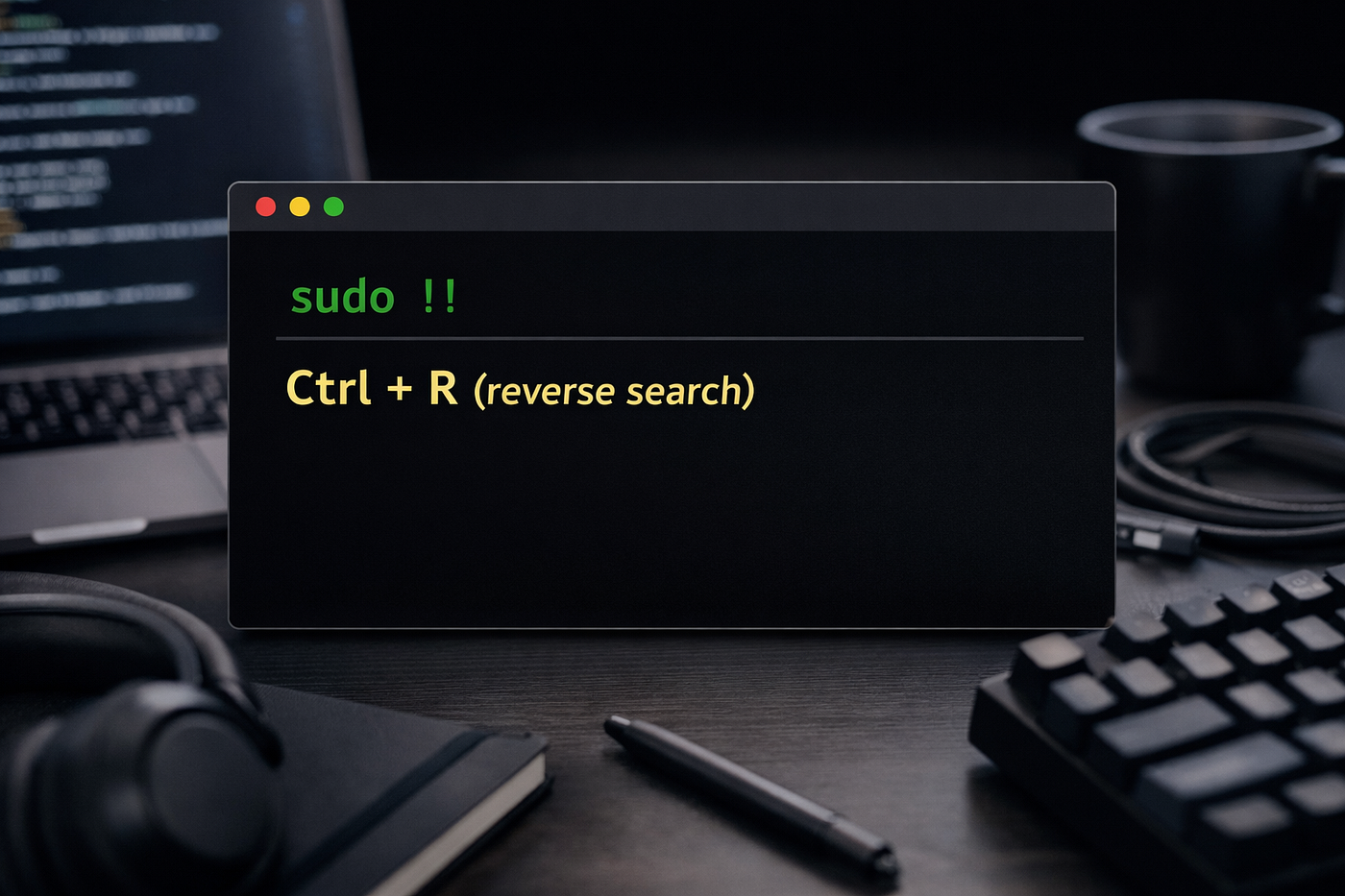
You ran a long command. It failed with a permission error. Now you want to retry it with sudo. Instead of pressing the up arrow and then moving your cursor to the start just run:
sudo !!!! expands to your entire last command. That’s it. Two characters instead of re-typing the whole thing.
And this one is even better:
mkdir my-project
cd !$
!$ gives you the last argument of the previous command. This is incredibly useful when you’re chaining operations.
You just created a folder and jumped into it without typing the folder name twice.
I use !$ probably 20 times a day. It’s small, but the friction it removes is real.
Trick #2: Ctrl+R Is Your Terminal’s Search Engine
Everyone knows the up arrow cycles through history. But that’s linear you have to keep pressing up until you find what you want.
Ctrl+R does a reverse search through your entire history. Start typing any fragment of a command and it’ll find the most recent match.
(reverse-i-search)`docker': docker-compose up -d --buildPress Ctrl+R again to cycle through older matches. Press Enter to run it. Press Esc to edit it first.
This one change alone will save you minutes every single day. If you use long docker, git, or ssh commands repeatedly, you’ll wonder how you survived without it.
Here’s a bonus: increase your history size so you can actually search further back. Add this to your .bashrc or .zshrc:
HISTSIZE=10000
HISTFILESIZE=20000
HISTCONTROL=ignoredups:erasedups
Now your history goes back 10,000 commands and doesn’t clutter up with duplicates. Search becomes actually useful.
Trick #3: Fix Typos Instantly
You just ran a command with a typo. Classic example:
git chekcout mainInstead of pressing up and manually editing it, use the ^old^new substitution trick:
^chekcout^checkoutThis replaces chekcout with checkout in the last command and runs it immediately.
This is one of those tricks where people in your team will stop and ask “wait, how did you do that?” And you’ll feel great explaining it.
Trick #4: Aliases Are Free Productivity — Use Them
Every command you type more than five times a week deserves an alias.
Aliases live in your ~/.bashrc (Linux) or ~/.zshrc (macOS). Here’s a starter pack of the ones I actually use:
# Navigation
alias ..='cd ..'
alias ...='cd ../..'
alias ~='cd ~'
alias -- -='cd -'          # go back to previous directory

# Listing
alias ll='ls -alF'
alias lt='ls -ltr'         # list by time, newest last

# Safety net (ask before overwriting)
alias rm='rm -i'
alias cp='cp -i'
alias mv='mv -i'

# Git shortcuts
alias gs='git status'
alias ga='git add .'
alias gc='git commit -m'
alias gp='git push'
alias gl='git log --oneline --graph --decorate'
alias gco='git checkout'

# Docker shortcuts
alias dps='docker ps'
alias dc='docker-compose'
alias dcu='docker-compose up -d'
alias dcd='docker-compose down'

# Dev shortcuts
alias ni='npm install'
alias nrd='npm run dev'
alias nrb='npm run build'

# Reload shell config after editing
alias reload='source ~/.bashrc'
After adding these, run source ~/.bashrc (or reload once you’ve added that alias) and they’re active immediately.
One underrated one:
alias -- -='cd -'It takes you back to your previous folder.
Like a browser back button. I use this daily.
Trick #5: Keyboard Shortcuts You’re Probably Ignoring
The terminal is full of keyboard shortcuts that most developers never learn because no one ever tells them. Here are the ones I use constantly:
Ctrl + A     →   Jump to beginning of line
Ctrl + E     →   Jump to end of line
Ctrl + W     →   Delete one word backward
Ctrl + U     →   Clear everything before cursor
Ctrl + K     →   Clear everything after cursor
Ctrl + L     →   Clear the screen (same as 'clear')
Ctrl + C     →   Cancel current command
Ctrl + Z     →   Suspend current process (bring back with 'fg')
Alt + F      →   Jump forward one word
Alt + B      →   Jump backward one word
The combo I use most: Ctrl+A to jump to the start of a line, then Ctrl+K to delete the whole thing. Faster than holding backspace.
Alt+F and Alt+B for jumping word-by-word are game changers when editing long commands. No more holding the arrow key.
Trick #6: tmux — Don’t Let Your Work Die With Your Terminal Window
If you work on remote servers, or you just want multiple terminal panes without switching windows tmux is the tool that changes everything.
Here’s why it matters: without tmux, if your SSH connection drops, your process dies. With tmux, it keeps running. You reconnect and pick up exactly where you left off.
Basic tmux workflow:
# Start a named session
tmux new -s myproject

# Detach from session (everything keeps running)
Ctrl + B, then D

# Reattach later
tmux attach -t myproject

# List all sessions
tmux ls
Inside tmux, you can split your terminal into panes:
Ctrl + B, then %      # Split vertically
Ctrl + B, then "      # Split horizontally
Ctrl + B, then arrow  # Switch between panes
This is where it gets interesting. You can have your server running in one pane, logs streaming in another, and your editor in a third all in the same window.
I’ve seen developers run five browser tabs of SSH sessions. Once they see tmux, they never go back.
Trick #7: Run Things in Background
You’re running a long process like a build, a test suite, a server. You don’t want to open a new tab. Just append & to the command:
npm run build &The process runs in the background. Your terminal is free immediately. You’ll see the job ID printed, something like [1] 23456.
To bring it back to the foreground:
fgTo see all background jobs:
jobsAnd if you already started a long process without &, you can suspend it with Ctrl+Z, then resume it in the background:
Ctrl + Z      # suspend
bg            # resume in background
This is the kind of trick that looks mundane written down but becomes second nature quickly and it’s faster than opening a new terminal tab every time.
Trick #8: Make ‘cd + ls’ One Command
This is one of those patterns where you’ll notice how often you type cd somewhere followed immediately by ls.
Instead of two commands, make it one function. Add this to your .bashrc or .zshrc:
function cl() {
  cd "$1" && ls -la
}
Now cl my-project changes into the folder and lists its contents in one shot.
Shell functions are more powerful than aliases because they can take arguments and run logic.
This is a simple example, but it opens the door to building your own mini-tools tailored to your workflow.
Trick #9: fzf — The Tool That Makes Everything Fuzzy-Searchable
If I had to pick one tool from this entire list to install right now, it’s fzf.
fzf is a fuzzy finder for the command line. It can search files, command history, git branches, running processes anything that’s a list.
Install it:
# macOS
brew install fzf

# Ubuntu / Debian
sudo apt install fzf
Once installed, Ctrl+R becomes a supercharged interactive history search instead of a simple reverse search. You’ll see all matches at once, can filter in real time, and arrow through them.
You can also pipe anything into it:
# Fuzzy-search and open a file
vim $(fzf)

# Switch git branches interactively
git checkout $(git branch | fzf)

# Kill a process interactively
kill $(ps aux | fzf | awk '{print $2}')
The branch switching one is what I use daily. No more trying to remember exact branch names.
Trick #10: Pipe Into pbcopy / xclip — Stop Selecting Text Manually
You want to copy command output to your clipboard. The normal way: run the command, manually select the output, right-click, copy.
The terminal way:
# macOS
cat some-file.txt | pbcopy

# Linux
cat some-file.txt | xclip -selection clipboard
Now the output is in your clipboard instantly. No mouse needed.
This is incredibly useful for copying SSH keys, API tokens, build output, or any long string you need to paste somewhere else.
# Copy your SSH public key
cat ~/.ssh/id_rsa.pub | pbcopy
One command. Key in clipboard. Done.
Trick #11: Auto-Correct Your Commands
Sometimes you type wrong commands.
Use:
sudo apt install thefuckThen run:
fuckIt suggests and fixes your last command.
Yes, that’s the actual name.
And yes, it’s useful.
The Real Shift
Here’s what I’ve come to realize: most developers treat the terminal like a vending machine. Type a command, get an output, repeat.
But the developers who look effortless in the terminal have built a relationship with it. They’ve spent time customizing it, learning its shortcuts, and investing in small tools that compound over time.
None of these tricks are hard. They take about 10 minutes to set up. The payoff is months and years of smoother work.
Start with one. Ctrl+R if you’re not using it. Aliases if you haven’t set them up. fzf if you want the single biggest upgrade.
The terminal is a tool. But tools respond to the hands that know them.
Thanks for reading 🙏
Connect with me 👇
[embed]Tushar Kanjariya | Linktree Full Stack Developer who occasionally writeslinktr.ee
메타데이터
- post_id
- 5557b10c0b85
- slug
- i-used-the-terminal-wrong-for-years-5557b10c0b85
- url
- https://medium.com/@TusharKanjariya/i-used-the-terminal-wrong-for-years-5557b10c0b85
- canonical_url
- https://medium.com/@TusharKanjariya/i-used-the-terminal-wrong-for-years-5557b10c0b85
- author_url
- https://medium.com/@TusharKanjariya
- status
- ok
- fetched_at
- 2026-06-09 15:37:30




