AWS Hands-On | S3 Introduction | S3 Bucket Policy
📌 Notice
AWS Hands-On | S3 Introduction | S3 Bucket Policy
📌 Notice
This is a hands-on tutorial accompanying the blog post:
🔹 Focus: Practical implementation of Amazon S3. 🔹 For theoretical concepts and exam-style questions, please refer to the main blog post (link to parent blog).
This guide will walk you through making an S3 bucket object (e.g., image.jpg) publicly accessible via a URL by configuring bucket policies.
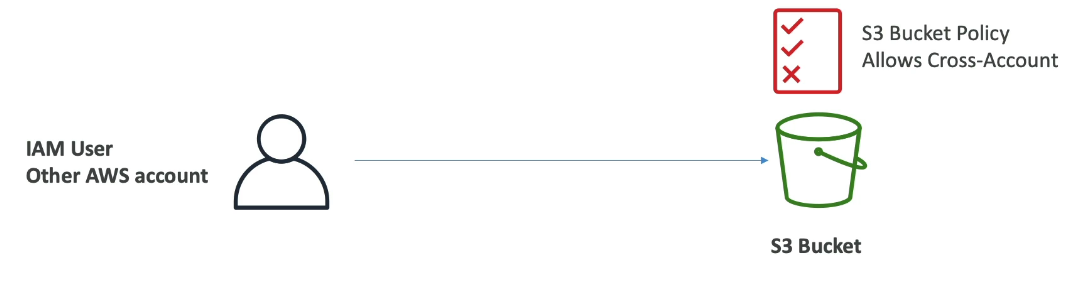
Step 1: Enable Public Access on the Bucket
- Go to the AWS S3 Console and select your bucket.
- Navigate to the Permissions tab.
- Under Block Public Access (bucket settings), click Edit.
- Uncheck “Block all public access” (Warning: Only do this if you intend to make objects public).
- Confirm by selecting “Yes, I understand the risks” and save.

Step 2: Create a Bucket Policy
- In the Permissions tab, scroll down to Bucket Policy and click Edit.
- Use the AWS Policy Generator (or manually write a policy).
- Policy Type: S3 Bucket Policy
- Principal:
*(allows public access) - Action:
s3:GetObject(allows reading objects) - Amazon Resource Name (ARN):
arn:aws:s3:::your-bucket-name/*
Note: Replace your-bucket-name with your actual bucket name.
- The
/*ensures the policy applies to all objects inside.
-
Click Add Statement, then Generate Policy.
-
Copy the generated JSON policy.


Step 3: Apply the Bucket Policy
- Paste the policy into the Bucket Policy Editor.
- Remove any extra spaces or formatting errors.
- Click Save Changes.

Step 4: Verify Public Access
- Go to your bucket, select an object (e.g.,
image.jpg). - Copy the Object URL (found under Object overview).
- Open the URL in a browser — the object should now be publicly accessible.

https://issack-demo-s3-v1.s3.ap-southeast-1.amazonaws.com/Control+Devices(Approved).jpg
- Hope you enjoyed It..
To stay informed on the latest technical insights and tutorials, connect with me on Medium and LinkedIn. For professional inquiries or technical discussions, please contact me via email. I welcome the opportunity to engage with fellow professionals and address any questions you may have.
메타데이터
- post_id
- 56ffa99e83f4
- slug
- aws-hands-on-s3-introduction-s3-bucket-policy-56ffa99e83f4
- url
- https://medium.com/@issackpaul95/aws-hands-on-s3-introduction-s3-bucket-policy-56ffa99e83f4
- canonical_url
- https://medium.com/@issackpaul95/aws-hands-on-s3-introduction-s3-bucket-policy-56ffa99e83f4
- author_url
- https://medium.com/@issackpaul95
- status
- ok
- fetched_at
- 2026-07-16 13:15:27



