Running a MongoDB Replica Set Locally: Docker Desktop & Native Windows Setup
When developing modern applications, a replica set configuration is essential to simulate production environments that leverage MongoDB’s…
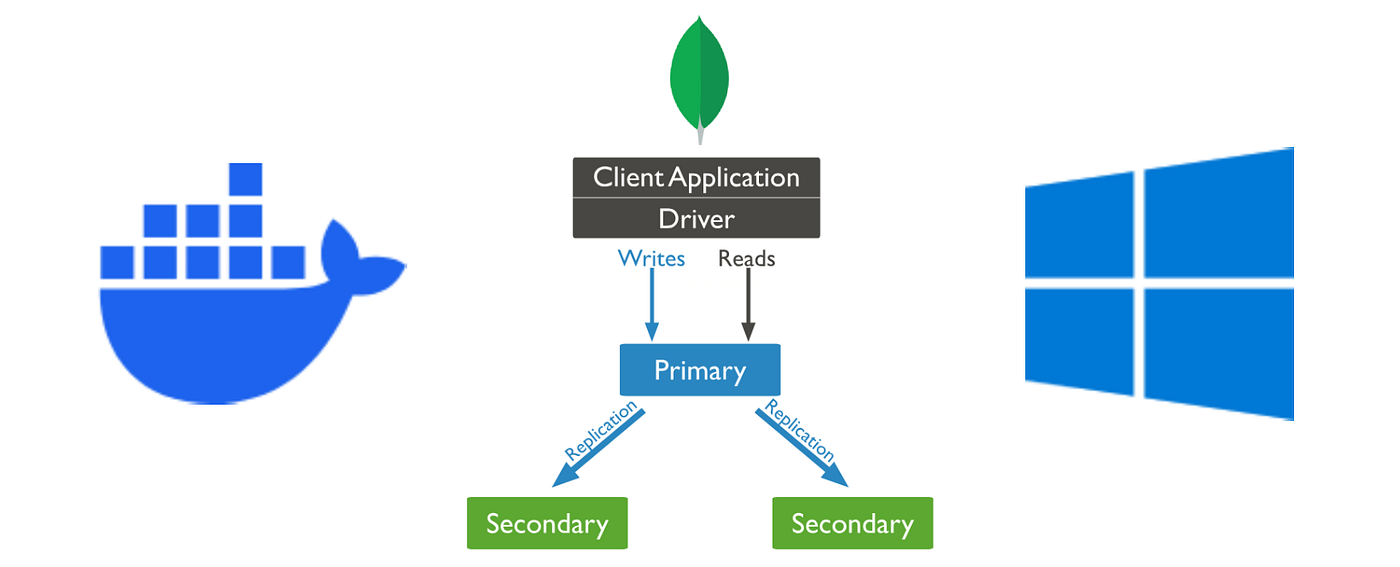
Running a MongoDB Replica Set Locally: Docker Desktop & Native Windows Setup
Running a MongoDB Replica Set Locally: Docker Desktop & Native Windows Setup
When developing modern applications, a replica set configuration is essential to simulate production environments that leverage MongoDB’s high availability and redundancy. In this article, I’ll share two approaches:
- Deploying a MongoDB Replica Set Using Docker Desktop
- Running a MongoDB Replica Set Natively on Windows Without Docker Desktop
Each method has its merits depending on your environment and constraints.
1. Deploying a MongoDB Replica Set with Docker Desktop
Docker is a great way to quickly spin up isolated environments. In this section, we’ll create a replica set using a custom Docker network and a Docker Compose file.
Step 1: Create a Docker Network
First, create an external Docker network that all MongoDB containers will share. Open your terminal and run:
docker network create mongo-cluster
Step 2: Prepare the docker-compose.yml File
Create a docker-compose.yml file with the following configuration. This file defines three services — one primary and two secondaries. Each service is configured to run with the replica set parameter ( — replSet rs0) and bind to all IP addresses:
version: ‘3.8’
services:
mongo-primary:
image: mongo:latest
container_name: mongo-primary
restart: always
command: mongod — replSet rs0 — bind_ip_all
ports:
- 27017:27017
volumes:
- E:/Program Files/MongoDB/primary/data:/data/db
networks:
- mongo-cluster
mongo-secondary1:
image: mongo:latest
container_name: mongo-secondary1
restart: always
command: mongod — replSet rs0 — bind_ip_all
ports:
- 27018:27017
volumes:
- E:/Program Files/MongoDB/secondary1/data:/data/db
networks:
- mongo-cluster
mongo-secondary2:
image: mongo:latest
container_name: mongo-secondary2
restart: always
command: mongod — replSet rs0 — bind_ip_all
ports:
- 27019:27017
volumes:
- E:/Program Files/MongoDB/secondary2/data:/data/db
networks:
- mongo-cluster
networks:
mongo-cluster:
external: true
Note: Adjust the volume paths (E:/Program Files/MongoDB/…) to your local directories as needed.
Step 3: Start the Containers
In the directory containing your docker-compose.yml file, execute:
docker-compose up -d
This command starts the three containers in detached mode.
Step 4: Initialize the Replica Set
- Connect to the Primary Container: Run the following command to open an interactive Mongo shell (mongosh) session inside the primary container:
docker exec -it mongo-primary mongosh
- Initiate the Replica Set: Within the shell, execute:
rs.initiate({_id: “rs0”,members: [{ _id: 0, host: “host.docker.internal:27017”},{ _id: 1, host: “host.docker.internal:27018” },{ _id: 2, host: “host.docker.internal:27019” }]});
- Verify the Setup: Run:
rs.status();
This command shows the status of your replica set. After the verification Run:
Exit
And go to step 5.
Step 5: Verify Data Persistence
Check your Docker volumes to ensure data is being persisted:
docker volume ls
Connection String
Connect your application using the following connection string:
mongodb://host.docker.internal:27017,host.docker.internal:27018,host.docker.internal:27019/?replicaSet=rs0
Tip: If host.docker.internal fails to resolve on Windows, add the following entry to your hosts file: 127.0.0.1 host.docker.internal
2. Running a MongoDB Replica Set Natively on Windows (Without Docker Desktop)
If you prefer or need to run MongoDB directly on Windows without containerization, follow these steps.
Step 1: Download and Install mongosh
Make sure you have mongosh installed. This shell will help you manage and interact with your replica set.
Step 2: Configure MongoDB via mongod.cfg
Prepare separate configuration files for each MongoDB instance. Below is an example configuration (mongod.cfg) for one node:
mongod.conf
Where and how to store data.
storage:
dbPath: C:\Program Files\MongoDB\Server\7.0\data
Where to write logging data.
systemLog:
destination: file
logAppend: true
path: C:\Program Files\MongoDB\Server\7.0\log\mongod.log
Network interfaces
net:
port: 27017
bindIp: 127.0.0.1
Replica set configuration
replication:
replSetName: “rs0”
Note: Create a similar configuration file for each MongoDB instance, ensuring that the port numbers and data directories are unique (e.g., 27017, 27018, 27019).
Step 3: Start the MongoDB Instances
Run each MongoDB server instance as an administrator. You can launch them manually using a command prompt or create a batch file. For example, to run the instance on port 27017, execute:
“C:\Program Files\MongoDB\Server\7.1\bin\mongod” — config “C:\Program Files\MongoDB\Server\7.1\bin\mongod.cfg”
For convenience, you can create a .bat file with the following content:
@echo off
start “MongoDB 7.1” “C:\Program Files\MongoDB\Server\7.1\bin\mongod” — config “C:\Program Files\MongoDB\Server\7.1\bin\mongod.cfg”
start “MongoDB 7.2” “C:\Program Files\MongoDB\Server\7.2\bin\mongod” — config “C:\Program Files\MongoDB\Server\7.2\bin\mongod.cfg”
Run the batch file as an administrator.
Step 4: Manually Initiate the Replica Set
- Launch the Primary Instance: If not already running, start the primary node with:
mongod — port 27017 — dbpath “C:\Program Files\MongoDB\Server\7.0\data” — replSet rs0
- Connect with mongosh: Open mongosh as an administrator and execute:
rs.initiate({_id: “rs0”,members: [{ _id: 0, host: “127.0.0.1:27017” },{ _id: 1,host: “127.0.0.1:27018” },{ _id: 2, host: “127.0.0.1:27019” }]});
Step 5: Optionally Install as Windows Services
For an even smoother development experience, you can install each MongoDB instance as a Windows service. Run the following commands as an administrator:
“C:\Program Files\MongoDB\Server\7.1\bin\mongod.exe” — config “C:\Program Files\MongoDB\Server\7.1\bin\mongod.cfg” — install — serviceName “MongoDB7.1”
“C:\Program Files\MongoDB\Server\7.2\bin\mongod.exe” — config “C:\Program Files\MongoDB\Server\7.2\bin\mongod.cfg” — install — serviceName “MongoDB7.2”
Then, register the services with:
sc.exe create “MongoDB7.1” binPath= “\”C:\Program Files\MongoDB\Server\7.1\bin\mongod.exe\” — service — config=\”C:\Program Files\MongoDB\Server\7.1\bin\mongod.cfg\”” DisplayName= “MongoDB 7.1” start= auto
sc.exe create “MongoDB7.2” binPath= “\”C:\Program Files\MongoDB\Server\7.2\bin\mongod.exe\” — service — config=\”C:\Program Files\MongoDB\Server\7.2\bin\mongod.cfg\”” DisplayName= “MongoDB 7.2” start= auto
Finally, start the services:
net start MongoDB7.1
net start MongoDB7.2
Note: Running MongoDB as a Windows service may present some challenges; evaluate this option based on your project needs.
Conclusion
Both methods enable you to run a MongoDB replica set locally for testing and development:
- Docker Desktop: Provides an isolated, containerized environment that closely mirrors cloud deployments. It’s quick to set up and perfect for multi-node configurations without polluting your host system.
- Native Windows Setup: Offers a more traditional approach, especially when containerization is not an option. This method uses configuration files, command-line instructions, and optional Windows service installation.
By understanding and leveraging these approaches, you can develop and test applications that depend on MongoDB’s replica set features with confidence.
Happy coding!
메타데이터
- post_id
- 59afb73a4e2d
- slug
- running-a-mongodb-replica-set-locally-docker-desktop-native-windows-setup-59afb73a4e2d
- url
- https://medium.com/@arashyazdani/running-a-mongodb-replica-set-locally-docker-desktop-native-windows-setup-59afb73a4e2d
- canonical_url
- https://medium.com/@arashyazdani/running-a-mongodb-replica-set-locally-docker-desktop-native-windows-setup-59afb73a4e2d
- author_url
- https://medium.com/@arashyazdani
- status
- ok
- fetched_at
- 2026-06-11 05:11:55


