Extract Pages from PDF: 2 Easy Ways
Have you ever received a huge digital document, but you only needed one or two pages? Maybe someone sent you a 50-page digital book, but…
Extract Pages from PDF: 2 Easy Ways
Have you ever received a huge digital document, but you only needed one or two pages? Maybe someone sent you a 50-page digital book, but you only want to save the single page with a recipe on it. Sending a giant file to a friend or printing the whole thing is a waste of time, ink, and computer space.
If you are wondering **how to extract pages from a PDF**, you are in luck. “Extracting” pages simply means pulling out the exact pages you want and saving them together as a brand-new, smaller file.
You do not need to be a tech expert or pay for expensive software to do this. In this guide, we will show you two free and easy ways to do it.
Method 1: Use JOPDF (Best for Regular Use)
If you work with documents often, it is helpful to have a dedicated tool on your computer. **JOPDF** is a wonderful, professional program that you can use for free on both Windows and Mac computers. It lets you organize, read, and edit your documents with large, easy-to-understand buttons.
Here is how you can use JOPDF to get the pages you need:
- Download and Open: First, go to the official JOPDF website and download the free program. Install it, and then open the app.
- Go to Organize PDFs: Look at the main menu on the homepage and click on the option that says “Organize PDFs.” Select your document.
- Select Unwanted Pages: Right now, JOPDF helps you get your exact pages by removing the ones you do not need. Click on the little pictures of the pages you do not want to keep.
- Delete: Click the “Delete” button. Do not worry, you are only deleting them from the screen, not from your original file yet.
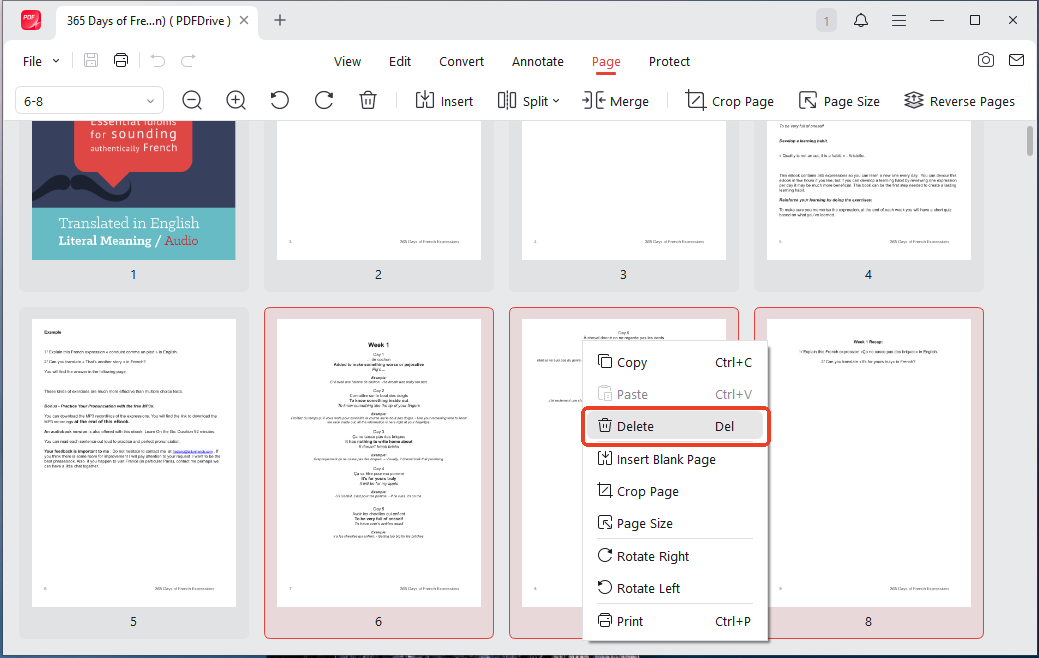
- Save as a New File: Once you only see the pages you want to keep, go to “File” and choose “Save As.” Give your new, smaller file a brand-new name so you do not accidentally overwrite your original large document.
Method 2: Use Your Web Browser (Best for a Quick Fix)
Did you know that the internet browser you already use every day has a hidden trick? Programs like Google Chrome, Microsoft Edge, or Apple Safari can actually create new PDF files using a fake “Print” button.
You do not need to download anything to use this method. It is completely free and very secure because the file never leaves your computer. Here is the secret:
- Open the File: Find your large PDF file on your computer. Click it and drag it into a new, empty tab in your web browser. The document will appear on the screen.
- Open the Print Menu: Look for the little printer icon in the top corner of the screen, or press Ctrl + P on your keyboard (or Cmd + P if you use a Mac). This opens the Print menu.
- Change the Printer: Look for the box that asks you to choose a printer. Click it, but do not choose your real, physical printer. Instead, change the destination to “Save as PDF.”
- Choose Your Pages: Look for the “Pages” section. Change it from “All” to “Custom.” Now, type in the number of the page you want to keep. For example, type “3” if you only want page three. You can also type “5–8” if you want pages five through eight.

- Save the File: Click the “Save” button at the bottom. A box will ask you where you want to keep your new file and what you want to name it. Choose a safe spot, click save, and you are done!
Summary
Knowing how to extract pages from a PDF makes managing your digital paperwork so much easier. You can separate large files into perfect, bite-sized pieces to share with friends, family, or coworkers.
If you only need to do this once in a while, the web browser trick is incredibly fast and completely free. If you want more control and need to organize your files regularly, downloading a free tool like JOPDF is a fantastic choice. Try both methods today and see which one you like best!
메타데이터
- post_id
- 5a72d1411b60
- slug
- extract-pages-from-pdf-2-easy-ways-5a72d1411b60
- url
- https://medium.com/@lenalchris/extract-pages-from-pdf-2-easy-ways-5a72d1411b60
- canonical_url
- https://medium.com/@lenalchris/extract-pages-from-pdf-2-easy-ways-5a72d1411b60
- author_url
- https://medium.com/@lenalchris
- status
- ok
- fetched_at
- 2026-06-24 13:29:15