Build your own offline-first privacy focused Notes app using Turso SQLite in the Browser and React
Harness WebAssembly to build a truly offline notes app. This guide uses React & Turso’s in-browser SQLite for ultimate speed and privacy.
Build your own offline-first privacy focused Notes app using Turso SQLite in the Browser and React
For as long as I remember, I have wanted a notes app that allows me to jot down something in seconds. I want it to not “load” before it opens. I want it to be easy to search. But I also do not like the idea of my private data being inaccessible because a company or organization which was hosting it shut down. When I read about the Turso in the Browser announcement, I knew I had a project I had to build.
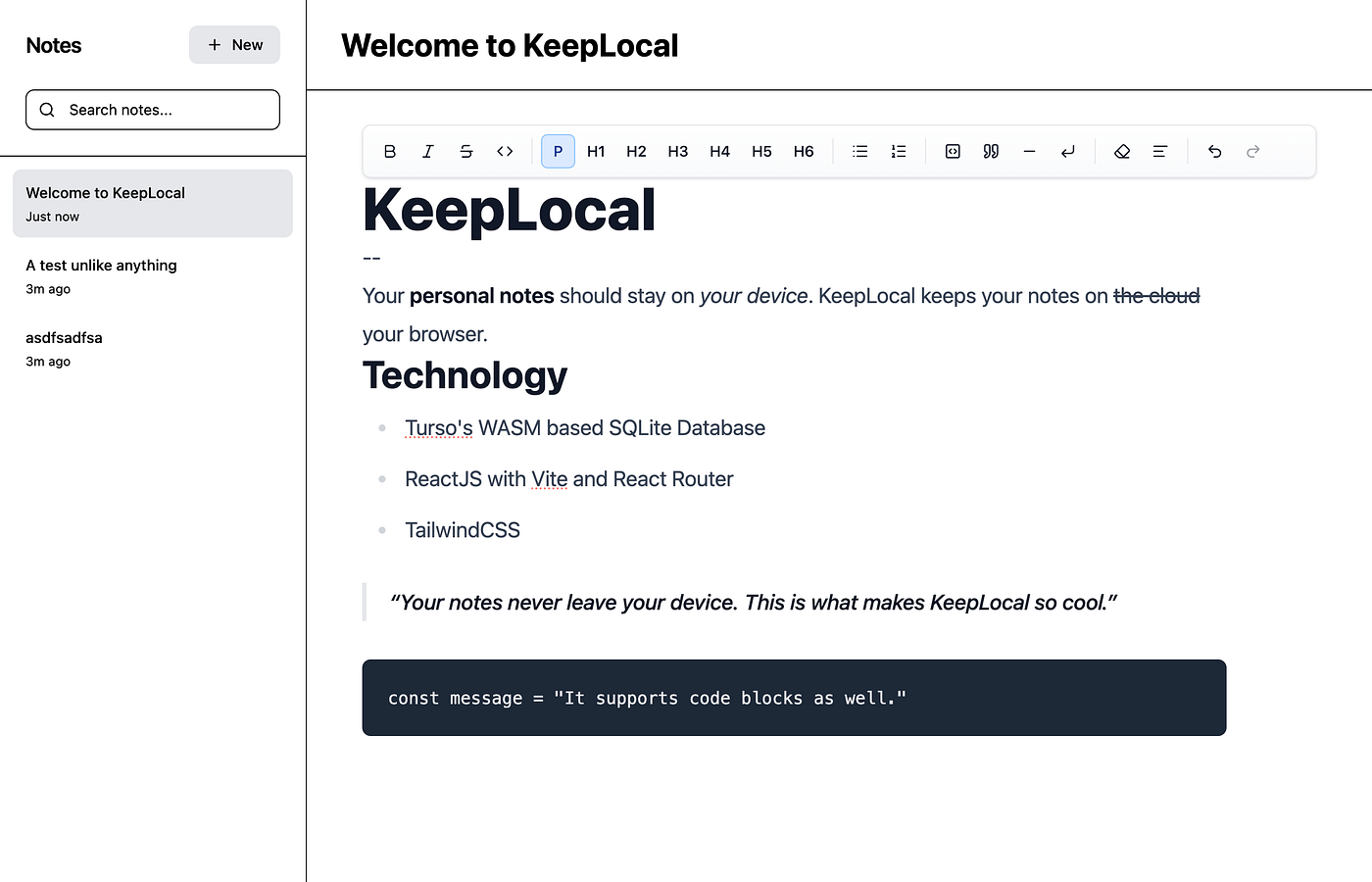
A screenshot of the notes app we are building
- Getting Started
- Setting Up TailwindCSS
- Setting Up React Router
- Creating a Note Taking Interface
- Creating the Turso SQLite WASM connection and vite config for supporting it
- Connecting the database to the app
- Moving Forward
Getting Started
To get started, create a new react app. I will be using vite and react-router-dom. These are battle tested tools that I can trust to be the backbone of the app. To initialize the app, run:
pnpm create vite@latest
Example Initialization
Answer the prompts to create a new React App with Typescript and React Compiler. I named my project localkeep , you can choose any name that you like.
Next, Open up the project in your IDE of choice — I will be using VSCode for this tutorial.

File structure generated by vite
Setting up TailwindCSS
Now that we have our basic app, let us set up TailwindCSS. You can also read the tutorial on doing this here. Install the dependencies using the command:
pnpm install tailwindcss @tailwindcss/viteAfter installing, we need to edit the vite.config.ts file to load the TailwindCSS plugin. Edit the file to look like this:
import { defineConfig } from "vite";
import react from "@vitejs/plugin-react";
import tailwindcss from "@tailwindcss/vite";

// https://vite.dev/config/
export default defineConfig({
  plugins: [
    react({
      babel: {
        plugins: [["babel-plugin-react-compiler"]],
      },
    }),
    tailwindcss(),
  ],
});
The only new thing we have added here is imported the tailwindcss plugin and loaded it. Do not worry if the code looks different to yours, you just need to ensure that tailwindcss() is present in the plugins array.
Finally, we need to remove all the existing CSS from the vite demo and instead load the tailwind styles.
Open App.css and delete all the content.
Replace all the content in index.css with a single line
@import "tailwindcss";This completes the TailwindCSS installation.
Setting Up React Router
To start, install the React Router Package
pnpm install react-routerNext, lets edit main.tsx to create a new BrowserRouter instance for the app. Open main.tsx and add the following content.
import { StrictMode } from "react";
import { createRoot } from "react-dom/client";
import { BrowserRouter, Routes, Route } from "react-router";
import "./index.css";
import App from "./App.tsx";

createRoot(document.getElementById("root")!).render(
  <StrictMode>
    <BrowserRouter>
      <Routes>
        <Route index element={<App />} />
      </Routes>
    </BrowserRouter>
  </StrictMode>
);
This is the basic scaffolding for react router’s declarative router. You may choose to use data or framework modes if you prefer. Read the docs for more information.
Creating a Note Taking Interface
While I could spend the entire article designing and creating the UI for the app, for maintaining brevity, I will simply be providing the component. You can feel free to design your own interface, if you do not understand any of the code, feel free to ask ChatGPT or your favorite AI assistant to explain it in detail.
For editing text, we need an editor — More specifically, a WYSIWYG (What you see is what you get) editor that supports formatting. After a bunch of experimenting, I landed on using tiptap.
To start, install the dependencies
pnpm install @tiptap/react @tiptap/pm @tiptap/starter-kit @tiptap/extension-link @tiptap/extension-text-align @tiptap/extension-highlight @tiptap/extension-code-block-lowlight lowlight
pnpm install @tailwindcss/typography
pnpm install lucide-react
That might seem like a lot of dependencies, that is part of what makes tiptap so nice, you can choose what you want for your own implementation. The second command installs tailwind’s typography plugin to allow the editor to display the various tags like h1, h2, etc with styling. We also include lucide-react which is a well-designed set of icons that we can use.
Create components/Taptap.tsx and add the following content
import { useEditor, EditorContent, EditorContext } from "@tiptap/react";
import StarterKit from "@tiptap/starter-kit";
import Link from "@tiptap/extension-link";
import TextAlign from "@tiptap/extension-text-align";
import Highlight from "@tiptap/extension-highlight";
import CodeBlockLowlight from "@tiptap/extension-code-block-lowlight";
import { createLowlight } from "lowlight";
import { all } from "lowlight";
import MenuBar from "./Menubar";

import { useMemo } from "react";

type Props = {
  content?: string;
  onContentChange?: (content: string) => void;
};

const Tiptap = ({ content = "", onContentChange }: Props) => {
  const lowlight = useMemo(() => createLowlight(all), []);

  const editor = useEditor({
    extensions: [
      StarterKit.configure({
        codeBlock: false,
      }),
      Link.configure({
        autolink: true,
        openOnClick: true,
        linkOnPaste: true,
        protocols: ["http", "https", "mailto"],
      }),
      TextAlign.configure({
        types: ["heading", "paragraph"],
      }),
      Highlight,
      CodeBlockLowlight.configure({
        lowlight,
        defaultLanguage: "javascript",
      }),
    ],
    content,
    onUpdate: ({ editor }) => {
      onContentChange?.(editor.getHTML());
    },
  });

  const providerValue = useMemo(() => ({ editor }), [editor]);

  return (
    <EditorContext.Provider value={providerValue}>
      {editor && <MenuBar editor={editor} />}
      <EditorContent
        className="w-full h-full prose lg:prose-xl flex-1 outline-none overflow-y-auto prose-headings:m-0 prose-p:m-0"
        editor={editor}
      />
    </EditorContext.Provider>
  );
};

export default Tiptap;
Create a components/Menubar.tsx and add the following
import { type Editor, useEditorState } from "@tiptap/react";
import {
  Bold,
  Italic,
  Strikethrough,
  Code,
  List,
  ListOrdered,
  CodeSquare,
  Quote,
  Minus,
  CornerDownLeft,
  Eraser,
  AlignLeft,
  Undo2,
  Redo2,
} from "lucide-react";

function MenuBar({ editor }: { editor: Editor }) {
  const editorState = useEditorState({
    editor,
    selector: (ctx) => ({
      isBold: ctx.editor.isActive("bold") ?? false,
      canBold: ctx.editor.can().chain().toggleBold().run() ?? false,
      isItalic: ctx.editor.isActive("italic") ?? false,
      canItalic: ctx.editor.can().chain().toggleItalic().run() ?? false,
      isStrike: ctx.editor.isActive("strike") ?? false,
      canStrike: ctx.editor.can().chain().toggleStrike().run() ?? false,
      isCode: ctx.editor.isActive("code") ?? false,
      canCode: ctx.editor.can().chain().toggleCode().run() ?? false,
      canClearMarks: ctx.editor.can().chain().unsetAllMarks().run() ?? false,
      isParagraph: ctx.editor.isActive("paragraph") ?? false,
      isHeading1: ctx.editor.isActive("heading", { level: 1 }) ?? false,
      isHeading2: ctx.editor.isActive("heading", { level: 2 }) ?? false,
      isHeading3: ctx.editor.isActive("heading", { level: 3 }) ?? false,
      isHeading4: ctx.editor.isActive("heading", { level: 4 }) ?? false,
      isHeading5: ctx.editor.isActive("heading", { level: 5 }) ?? false,
      isHeading6: ctx.editor.isActive("heading", { level: 6 }) ?? false,
      isBulletList: ctx.editor.isActive("bulletList") ?? false,
      isOrderedList: ctx.editor.isActive("orderedList") ?? false,
      isCodeBlock: ctx.editor.isActive("codeBlock") ?? false,
      isBlockquote: ctx.editor.isActive("blockquote") ?? false,
      canUndo: ctx.editor.can().chain().undo().run() ?? false,
      canRedo: ctx.editor.can().chain().redo().run() ?? false,
    }),
  });

  return (
    <div className="editor-toolbar">
      {/* Text Formatting Group */}
      <div className="editor-btn-group">
        <button
          onClick={() => editor.chain().focus().toggleBold().run()}
          disabled={!editorState.canBold}
          className={`editor-btn ${
            editorState.isBold ? "editor-btn-active" : ""
          }`}
          title="Bold"
        >
          <Bold className="editor-icon" size={16} />
        </button>

        <button
          onClick={() => editor.chain().focus().toggleItalic().run()}
          disabled={!editorState.canItalic}
          className={`editor-btn ${
            editorState.isItalic ? "editor-btn-active" : ""
          }`}
          title="Italic"
        >
          <Italic className="editor-icon" size={16} />
        </button>

        <button
          onClick={() => editor.chain().focus().toggleStrike().run()}
          disabled={!editorState.canStrike}
          className={`editor-btn ${
            editorState.isStrike ? "editor-btn-active" : ""
          }`}
          title="Strikethrough"
        >
          <Strikethrough className="editor-icon" size={16} />
        </button>

        <button
          onClick={() => editor.chain().focus().toggleCode().run()}
          disabled={!editorState.canCode}
          className={`editor-btn ${
            editorState.isCode ? "editor-btn-active" : ""
          }`}
          title="Inline Code"
        >
          <Code className="editor-icon" size={16} />
        </button>
      </div>

      <div className="editor-divider" />

      {/* Headings Group */}
      <div className="editor-btn-group">
        <button
          onClick={() => editor.chain().focus().setParagraph().run()}
          className={`editor-btn ${
            editorState.isParagraph ? "editor-btn-active" : ""
          }`}
          title="Paragraph"
        >
          P
        </button>
        {[1, 2, 3, 4, 5, 6].map((level) => (
          <button
            key={level}
            onClick={() =>
              editor
                .chain()
                .focus()
                .toggleHeading({ level: level as 1 | 2 | 3 | 4 | 5 | 6 })
                .run()
            }
            className={`editor-btn ${
              editorState[`isHeading${level}` as keyof typeof editorState]
                ? "editor-btn-active"
                : ""
            }`}
            title={`Heading ${level}`}
          >
            H{level}
          </button>
        ))}
      </div>

      <div className="editor-divider" />

      {/* Lists Group */}
      <div className="editor-btn-group">
        <button
          onClick={() => editor.chain().focus().toggleBulletList().run()}
          className={`editor-btn ${
            editorState.isBulletList ? "editor-btn-active" : ""
          }`}
          title="Bullet List"
        >
          <List className="editor-icon" size={16} />
        </button>
        <button
          onClick={() => editor.chain().focus().toggleOrderedList().run()}
          className={`editor-btn ${
            editorState.isOrderedList ? "editor-btn-active" : ""
          }`}
          title="Ordered List"
        >
          <ListOrdered className="editor-icon" size={16} />
        </button>
      </div>

      <div className="editor-divider" />

      {/* Block Elements Group */}
      <div className="editor-btn-group">
        <button
          onClick={() => editor.chain().focus().toggleCodeBlock().run()}
          className={`editor-btn ${
            editorState.isCodeBlock ? "editor-btn-active" : ""
          }`}
          title="Code Block"
        >
          <CodeSquare className="editor-icon" size={16} />
        </button>
        <button
          onClick={() => editor.chain().focus().toggleBlockquote().run()}
          className={`editor-btn ${
            editorState.isBlockquote ? "editor-btn-active" : ""
          }`}
          title="Blockquote"
        >
          <Quote className="editor-icon" size={16} />
        </button>
        <button
          onClick={() => editor.chain().focus().setHorizontalRule().run()}
          className="editor-btn"
          title="Horizontal Rule"
        >
          <Minus className="editor-icon" size={16} />
        </button>
        <button
          onClick={() => editor.chain().focus().setHardBreak().run()}
          className="editor-btn"
          title="Line Break"
        >
          <CornerDownLeft className="editor-icon" size={16} />
        </button>
      </div>

      <div className="editor-divider" />

      {/* Clear Formatting Group */}
      <div className="editor-btn-group">
        <button
          onClick={() => editor.chain().focus().unsetAllMarks().run()}
          className="editor-btn"
          title="Clear Marks"
        >
          <Eraser className="editor-icon" size={16} />
        </button>
        <button
          onClick={() => editor.chain().focus().clearNodes().run()}
          className="editor-btn"
          title="Clear Nodes"
        >
          <AlignLeft className="editor-icon" size={16} />
        </button>
      </div>

      <div className="editor-divider" />

      {/* History Group */}
      <div className="editor-btn-group">
        <button
          onClick={() => editor.chain().focus().undo().run()}
          disabled={!editorState.canUndo}
          className="editor-btn"
          title="Undo"
        >
          <Undo2 className="editor-icon" size={16} />
        </button>
        <button
          onClick={() => editor.chain().focus().redo().run()}
          disabled={!editorState.canRedo}
          className="editor-btn"
          title="Redo"
        >
          <Redo2 className="editor-icon" size={16} />
        </button>
      </div>
    </div>
  );
}

export default MenuBar;
Update index.css to look like the following:
@import "tailwindcss";
@plugin "@tailwindcss/typography";

@layer components {
  .editor-btn {
    @apply flex items-center justify-center min-w-8 h-8 px-2;
    @apply bg-transparent border border-transparent rounded-md;
    @apply text-gray-900 text-sm font-medium;
    @apply cursor-pointer transition-all duration-150 select-none;
    @apply hover:enabled:bg-gray-100 hover:enabled:border-gray-300;
    @apply active:enabled:bg-gray-200 active:enabled:scale-[0.97];
    @apply disabled:opacity-40 disabled:cursor-not-allowed;
  }

  .editor-btn-active {
    @apply bg-blue-100 border-blue-300 text-blue-900;
    @apply hover:enabled:bg-blue-200 hover:enabled:border-blue-400;
  }

  .editor-divider {
    @apply w-px h-6 bg-gray-200 mx-1;
  }

  .editor-icon {
    @apply shrink-0;
  }

  .editor-toolbar {
    @apply flex items-center gap-1 p-2;
    @apply bg-gradient-to-b from-white to-gray-50;
    @apply border border-gray-200 rounded-lg shadow-sm;
    @apply flex-wrap;
  }

  .editor-btn-group {
    @apply flex items-center gap-0.5;
  }
}
These 2 components and the CSS render the tiptap editor with a minimal editor and a few formatting options. You can style and add or remove commands as you please.
Next, lets add the main UI and add to the main app. To provide a seamless user experience, we will manage a temporary note in our component’s state. This allows a user to start typing immediately. Once they’ve entered content, we will create a persistent note in the database and transition to it. Edit App.tsx to be this:
import { useState, useEffect } from "react";
import Tiptap from "./components/Tiptap";
import { Plus, X, Search } from "lucide-react";

type Note = {
  id: number;
  title: string;
  lastEdited: string;
  content: string;
};

type TempNote = {
  id: null;
  title: string;
  lastEdited: string;
  content: string;
  isTemp: true;
};

export default function App() {
  const [notes, setNotes] = useState<Note[]>([]);
  const [selected, setSelected] = useState<number | null>(null);
  const [search, setSearch] = useState("");
  const [tempNote, setTempNote] = useState<TempNote | null>(null);
  const [nextId, setNextId] = useState(1);

  // Helper function to format date
  const formatDate = (dateString: string) => {
    const date = new Date(dateString);
    const now = new Date();
    const diffMs = now.getTime() - date.getTime();
    const diffMins = Math.floor(diffMs / (1000 * 60));
    const diffHours = Math.floor(diffMs / (1000 * 60 * 60));
    const diffDays = Math.floor(diffMs / (1000 * 60 * 60 * 24));

    if (diffMins < 1) return "Just now";
    if (diffMins < 60) return `${diffMins}m ago`;
    if (diffHours < 24) return `${diffHours}h ago`;
    if (diffDays < 7) return `${diffDays}d ago`;
    return date.toLocaleDateString();
  };

  useEffect(() => {
    // Create a temporary note on startup
    const newTempNote: TempNote = {
      id: null,
      title: "Untitled Note",
      lastEdited: new Date().toISOString(),
      content: "",
      isTemp: true,
    };
    setTempNote(newTempNote);
    setSelected(null); // Select the temp note
  }, []);

  const createNewNote = () => {
    const newNote: Note = {
      id: nextId,
      title: "Untitled Note",
      lastEdited: new Date().toISOString(),
      content: "Start writing your note here...",
    };
    setNotes((prev) => [newNote, ...prev]);
    setSelected(nextId);
    setNextId(prev => prev + 1);
    setTempNote(null);
    return newNote;
  };

  const deleteNoteClient = (id: number) => {
    setNotes((prev) => prev.filter((note) => note.id !== id));
    if (selected === id) {
      setSelected(null);
      // Create new temp note when deleting selected note
      const newTempNote: TempNote = {
        id: null,
        title: "Untitled Note",
        lastEdited: new Date().toISOString(),
        content: "",
        isTemp: true,
      };
      setTempNote(newTempNote);
    }
  };

  const updateNote = (id: number, title: string, content: string) => {
    setNotes((prev) =>
      prev.map((note) =>
        note.id === id
          ? { ...note, title, content, lastEdited: new Date().toISOString() }
          : note
      )
    );
  };

  const selectedNote = (() => {
    if (selected === null) return tempNote;
    return notes.find((note) => note.id === selected) || tempNote;
  })();

  const handleContentChange = (newContent: string) => {
    // If it's a temp note and content is being added, save it first
    if (tempNote && selected === null && newContent.trim()) {
      const newNote: Note = {
        id: nextId,
        title: tempNote.title,
        lastEdited: new Date().toISOString(),
        content: newContent,
      };
      setNotes((prev) => [newNote, ...prev]);
      setSelected(nextId);
      setNextId(prev => prev + 1);
      setTempNote(null);
      return;
    }

    // Update temp note content
    if (selected === null && tempNote) {
      setTempNote({
        ...tempNote,
        content: newContent,
        lastEdited: new Date().toISOString(),
      });
      return;
    }

    // Update existing note
    if (selected !== null) {
      updateNote(selected, selectedNote?.title || "", newContent);
    }
  };

  const handleTitleChange = (newTitle: string) => {
    // If it's a temp note and title is being changed, save it first
    if (tempNote && selected === null && newTitle.trim()) {
      const newNote: Note = {
        id: nextId,
        title: newTitle,
        lastEdited: new Date().toISOString(),
        content: tempNote.content,
      };
      setNotes((prev) => [newNote, ...prev]);
      setSelected(nextId);
      setNextId(prev => prev + 1);
      setTempNote(null);
      return;
    }

    // Update temp note title
    if (selected === null && tempNote) {
      setTempNote({
        ...tempNote,
        title: newTitle,
        lastEdited: new Date().toISOString(),
      });
      return;
    }

    // Update existing note
    if (selected !== null && selectedNote) {
      updateNote(selected, newTitle, selectedNote.content);
    }
  };

  const filteredNotes = notes.filter((note) =>
    note.title.toLowerCase().includes(search.toLowerCase()) ||
    note.content.toLowerCase().includes(search.toLowerCase())
  );

  return (
    <div className="flex h-screen bg-neutral text-neutral-foreground">
      {/* Sidebar */}
      <aside className="w-72 border-r border-border flex flex-col bg-sidebar">
        {/* Header */}
        <div className="p-6 border-b border-border">
          <div className="flex items-center justify-between mb-6">
            <h1 className="text-xl font-semibold tracking-tight">Notes</h1>
            <button
              onClick={createNewNote}
              className="flex items-center gap-2 px-4 py-2 bg-gray-200 rounded-lg transition-colors font-medium text-sm hover:bg-gray-400 cursor-pointer"
            >
              <Plus size={16} />
              New
            </button>
          </div>

          {/* Search */}
          <div className="relative">
            <Search
              size={16}
              className="absolute left-3 top-1/2 -translate-y-1/2 text-muted-foreground"
            />
            <input
              type="text"
              placeholder="Search notes..."
              value={search}
              onChange={(e) => setSearch(e.target.value)}
              className="w-full pl-10 pr-4 py-2 bg-background border border-border rounded-lg text-sm placeholder:text-muted-foreground focus:outline-none focus:ring-2 focus:ring-accent/50"
            />
          </div>
        </div>

        {/* Notes List */}
        <div className="flex-1 overflow-y-auto p-3">
          <div className="space-y-1">
            {/* Show temp note if it exists and is selected */}
            {tempNote && selected === null && (
              <div
                className="group relative p-3 rounded-lg cursor-pointer transition-all bg-gray-200"
              >
                <div className="flex items-start justify-between gap-2">
                  <div className="flex-1 min-w-0">
                    <h3 className="font-medium text-sm truncate mb-1">
                      {tempNote.title}
                    </h3>
                    <p className="text-xs text-muted-foreground">
                      {formatDate(tempNote.lastEdited)}
                    </p>
                  </div>
                </div>
              </div>
            )}

            {filteredNotes.map((note) => (
              <div
                key={note.id}
                className={`group relative p-3 rounded-lg cursor-pointer transition-all ${
                  selected === note.id ? "bg-gray-200" : "hover:bg-muted"
                }`}
                onClick={() => {
                  setSelected(note.id);
                  setTempNote(null);
                }}
              >
                <div className="flex items-start justify-between gap-2">
                  <div className="flex-1 min-w-0">
                    <h3 className="font-medium text-sm truncate mb-1">
                      {note.title}
                    </h3>
                    <p className="text-xs text-muted-foreground">
                      {formatDate(note.lastEdited)}
                    </p>
                  </div>
                  <button
                    onClick={(e) => {
                      e.stopPropagation();
                      deleteNoteClient(note.id);
                    }}
                    className="opacity-0 group-hover:opacity-100 transition-opacity hover:text-red-500 cursor-pointer"
                  >
                    <X size={14} />
                  </button>
                </div>
              </div>
            ))}
          </div>
        </div>
      </aside>

      {/* Editor */}
      <main className="flex-1 flex flex-col overflow-hidden">
        <div className="px-8 py-6 border-b border-border">
          <input
            type="text"
            value={selectedNote?.title || ""}
            onChange={(e) => handleTitleChange(e.target.value)}
            className="text-3xl font-bold bg-transparent border-none outline-none w-full placeholder:text-muted-foreground"
            placeholder="Untitled"
          />
        </div>

        <div className="flex-1 px-8 py-8">
          <div className="h-full max-w-4xl mx-auto">
            <Tiptap
              content={selectedNote?.content || ""}
              onContentChange={handleContentChange}
            />
          </div>
        </div>
      </main>
    </div>
  );
}
This is a basic UI and functionality implementation, it features a simple sidebar where all notes are listed, a right side that renders the editor with the content and a title that can be edited on top. I have also implemented the basic logic to provide CRUD operations using state in the component. We still need to add the calls to make the changes be stored in a database.
In the above code, we are simply storing the data in a react state. This data will be fetched from the turso DB. For now, we need to understand the type:
{
      id: number;
      title: string;
      lastEdited: string;
      content: string;
}idis a unique number identifying the notetitleis a short string to describe the notelastEditedholds the last edited timestampcontentwill hold HTML from the rich text editor.
Creating the Turso SQLite Database
To start, install Turso’s WASM based sqlite connector
pnpm install @tursodatabase/database-wasmCreate a new file lib/db.ts where we will initialize the database.
import { connect } from "@tursodatabase/database-wasm";

export const db = await connect("local.db");

const createNotesTable = db.prepare(`
  CREATE TABLE IF NOT EXISTS notes (
    id INTEGER PRIMARY KEY,
    title TEXT NOT NULL,
    lastEdited TEXT NOT NULL,
    content TEXT NOT NULL
  )
`);

createNotesTable.run();

export async function getAllNotes() {
  const stmt = db.prepare("SELECT * FROM notes ORDER BY lastEdited DESC");
  return (await stmt.all()) as {
    id: number;
    title: string;
    lastEdited: string;
    content: string;
  }[];
}

export async function getNoteById(id: number) {
  const stmt = db.prepare("SELECT * FROM notes WHERE id = ?");
  return (await stmt.get(id)) as {
    id: number;
    title: string;
    lastEdited: string;
    content: string;
  } | null;
}

export async function createNote(title: string, content: string) {
  const stmt = db.prepare(
    "INSERT INTO notes (title, lastEdited, content) VALUES (?, ?, ?)"
  );
  const result = await stmt.run(title, new Date().toISOString(), content);
  return result.lastInsertRowid as number;
}

export async function updateNote(id: number, title: string, content: string) {
  const stmt = db.prepare(
    "UPDATE notes SET title = ?, lastEdited = ?, content = ? WHERE id = ?"
  );
  await stmt.run(title, new Date().toISOString(), content, id);
}

export async function deleteNote(id: number) {
  const stmt = db.prepare("DELETE FROM notes WHERE id = ?");
  await stmt.run(id);
}
The above code does a bunch of things. Let us unpack them one by one.
- We import the connect function to create and connect to a database from the Turso wasm database package
- Next, we create and export a db object that holds the connection object for Turso. You can read more on how to use it in the docs.
- Before we can query the data, we need to create the table for storing notes. The SQL initializes a table if it does not exist with the same schema as we described above.
- We then await and run this query to create the table.
- We then define 5 functions that implement CRUD operations that we will use in the app. As you can see, the query is written in plain SQL. Making it really intuitive to use and manage. (On a sidenote, since Turso is not an ORM it does not type the returns — this is why we have to write the types)
Before moving ahead, we need to change vite.config.ts to allow the app to use the service worker correctly. Edit vite.config.ts to look like the following:
import { defineConfig } from "vite";
import react from "@vitejs/plugin-react";
import tailwindcss from "@tailwindcss/vite";

// https://vite.dev/config/
export default defineConfig({
  plugins: [
    react({
      babel: {
        plugins: [["babel-plugin-react-compiler"]],
      },
    }),
    tailwindcss(),
  ],
  optimizeDeps: {
    exclude: [
      "@tursodatabase/database-wasm",
      "node_modules/.vite/deps/worker.js?worker_file&type=module",
    ],
  },
  server: {
    headers: {
      "Cross-Origin-Opener-Policy": "same-origin",
      "Cross-Origin-Embedder-Policy": "require-corp",
    },
  },
  preview: {
    headers: {
      "Cross-Origin-Opener-Policy": "same-origin",
      "Cross-Origin-Embedder-Policy": "require-corp",
    },
  },
});
We have added 3 new entries that do the following:
- We disable vite optimization for the worker.js file from turso
- We add the Cross-Opener-Policy and Cross-Origin-Embedder-Policy to allow the server and preview server to load these workers correctly.
Connecting the database to the main app
First, we add a useEffect to fetch the existing notes on first load.
import { createNote, deleteNote, getAllNotes, updateNote } from "./lib/db";

...

useEffect(() => {
    getAllNotes().then((fetchedNotes) => {
      console.log({ fetchedNotes });
      setNotes(fetchedNotes);
      // Create a temporary note on startup
      const newTempNote: TempNote = {
        id: null,
        title: "Untitled Note",
        lastEdited: new Date().toISOString(),
        content: "",
        isTemp: true,
      };
      setTempNote(newTempNote);
      setSelected(null); // Select the temp note
    });
  }, []);

...
This useEffect fetches the notes from the functions defined in the db.ts file and adds them to the state.
Next, edit the createNewNote function to update the database. Here, we handle the temporary note as well. This makes sure that when we open the app, it is ready to accept text.
const createNewNote = async () => {
    const newNoteId = await createNote(
      "Untitled Note",
      "Start writing your note here..."
    );
    const newNote: Note = {
      id: newNoteId,
      title: "Untitled Note",
      lastEdited: new Date().toISOString(),
      content: "Start writing your note here...",
    };
    setNotes((prev) => [newNote, ...prev]);
    setSelected(newNoteId);
    setTempNote(null);
    return newNote;
  };
Edit the handleContentChange to update the database. This function might look complicated, this is because we need to handle the temporary note as well.
const handleContentChange = async (newContent: string) => {
    // If it's a temp note and content is being added, save it first
    if (tempNote && selected === null && newContent.trim()) {
      const newNoteId = await createNote(tempNote.title, newContent);
      const newNote: Note = {
        id: newNoteId,
        title: tempNote.title,
        lastEdited: new Date().toISOString(),
        content: newContent,
      };
      setNotes((prev) => [newNote, ...prev]);
      setSelected(newNoteId);
      setTempNote(null);
      return;
    }

    // Update temp note content
    if (selected === null && tempNote) {
      setTempNote({
        ...tempNote,
        content: newContent,
        lastEdited: new Date().toISOString(),
      });
      return;
    }

    // Update existing note
    if (selected !== null) {
      await updateNote(selected, selectedNote?.title || "", newContent);
      setNotes((prev) =>
        prev.map((n) =>
          n.id === selected
            ? {
                ...n,
                content: newContent,
                lastEdited: new Date().toISOString(),
              }
            : n
        )
      );
    }
  };
Lastly, edit the deleteNoteClient function to also update the database
const deleteNoteClient = async (id: number) => {
    await deleteNote(id);
    setNotes((prev) => prev.filter((note) => note.id !== id));
    if (selected === id) {
      setSelected(null);
      // Create new temp note when deleting selected note
      const newTempNote: TempNote = {
        id: null,
        title: "Untitled Note",
        lastEdited: new Date().toISOString(),
        content: "",
        isTemp: true,
      };
      setTempNote(newTempNote);
    }
  };
We name this function
deleteNoteClientto avoid name collision with the imported name. We could rename the imported function as well.
The final component would look like this:
import { useState, useEffect } from "react";
import Tiptap from "./components/Tiptap";
import { createNote, deleteNote, getAllNotes, updateNote } from "./lib/db";
import { Plus, X, Search } from "lucide-react";

type Note = {
  id: number;
  title: string;
  lastEdited: string;
  content: string;
};

type TempNote = {
  id: null;
  title: string;
  lastEdited: string;
  content: string;
  isTemp: true;
};

export default function App() {
  const [notes, setNotes] = useState<Note[]>([]);
  const [selected, setSelected] = useState<number | null>(null);
  const [search, setSearch] = useState("");
  const [tempNote, setTempNote] = useState<TempNote | null>(null);

  // Helper function to format date
  const formatDate = (dateString: string) => {
    const date = new Date(dateString);
    const now = new Date();
    const diffMs = now.getTime() - date.getTime();
    const diffMins = Math.floor(diffMs / (1000 * 60));
    const diffHours = Math.floor(diffMs / (1000 * 60 * 60));
    const diffDays = Math.floor(diffMs / (1000 * 60 * 60 * 24));

    if (diffMins < 1) return "Just now";
    if (diffMins < 60) return `${diffMins}m ago`;
    if (diffHours < 24) return `${diffHours}h ago`;
    if (diffDays < 7) return `${diffDays}d ago`;
    return date.toLocaleDateString();
  };

  useEffect(() => {
    getAllNotes().then((fetchedNotes) => {
      console.log({ fetchedNotes });
      setNotes(fetchedNotes);
      // Create a temporary note on startup
      const newTempNote: TempNote = {
        id: null,
        title: "Untitled Note",
        lastEdited: new Date().toISOString(),
        content: "",
        isTemp: true,
      };
      setTempNote(newTempNote);
      setSelected(null); // Select the temp note
    });
  }, []);

  const createNewNote = async () => {
    const newNoteId = await createNote(
      "Untitled Note",
      "Start writing your note here..."
    );
    const newNote: Note = {
      id: newNoteId,
      title: "Untitled Note",
      lastEdited: new Date().toISOString(),
      content: "Start writing your note here...",
    };
    setNotes((prev) => [newNote, ...prev]);
    setSelected(newNoteId);
    setTempNote(null);
    return newNote;
  };

  const deleteNoteClient = async (id: number) => {
    await deleteNote(id);
    setNotes((prev) => prev.filter((note) => note.id !== id));
    if (selected === id) {
      setSelected(null);
      // Create new temp note when deleting selected note
      const newTempNote: TempNote = {
        id: null,
        title: "Untitled Note",
        lastEdited: new Date().toISOString(),
        content: "",
        isTemp: true,
      };
      setTempNote(newTempNote);
    }
  };

  const selectedNote = (() => {
    if (selected === null) return tempNote;
    return notes.find((note) => note.id === selected) || tempNote;
  })();

  const handleContentChange = async (newContent: string) => {
    // If it's a temp note and content is being added, save it first
    if (tempNote && selected === null && newContent.trim()) {
      const newNoteId = await createNote(tempNote.title, newContent);
      const newNote: Note = {
        id: newNoteId,
        title: tempNote.title,
        lastEdited: new Date().toISOString(),
        content: newContent,
      };
      setNotes((prev) => [newNote, ...prev]);
      setSelected(newNoteId);
      setTempNote(null);
      return;
    }

    // Update temp note content
    if (selected === null && tempNote) {
      setTempNote({
        ...tempNote,
        content: newContent,
        lastEdited: new Date().toISOString(),
      });
      return;
    }

    // Update existing note
    if (selected !== null) {
      await updateNote(selected, selectedNote?.title || "", newContent);
      setNotes((prev) =>
        prev.map((n) =>
          n.id === selected
            ? {
                ...n,
                content: newContent,
                lastEdited: new Date().toISOString(),
              }
            : n
        )
      );
    }
  };

  const handleTitleChange = async (newTitle: string) => {
    // If it's a temp note and title is being changed, save it first
    if (tempNote && selected === null && newTitle.trim()) {
      const newNoteId = await createNote(newTitle, tempNote.content);
      const newNote: Note = {
        id: newNoteId,
        title: newTitle,
        lastEdited: new Date().toISOString(),
        content: tempNote.content,
      };
      setNotes((prev) => [newNote, ...prev]);
      setSelected(newNoteId);
      setTempNote(null);
      return;
    }

    // Update temp note title
    if (selected === null && tempNote) {
      setTempNote({
        ...tempNote,
        title: newTitle,
        lastEdited: new Date().toISOString(),
      });
      return;
    }

    // Update existing note
    if (selected !== null && selectedNote) {
      await updateNote(selected, newTitle, selectedNote.content);
      setNotes((prev) =>
        prev.map((n) =>
          n.id === selected
            ? {
                ...n,
                title: newTitle,
                lastEdited: new Date().toISOString(),
              }
            : n
        )
      );
    }
  };

  const filteredNotes = notes.filter(
    (note) =>
      note.title.toLowerCase().includes(search.toLowerCase()) ||
      note.content.toLowerCase().includes(search.toLowerCase())
  );

  return (
    <div className="flex h-screen bg-neutral text-neutral-foreground">
      {/* Sidebar */}
      <aside className="w-72 border-r border-border flex flex-col bg-sidebar">
        {/* Header */}
        <div className="p-6 border-b border-border">
          <div className="flex items-center justify-between mb-6">
            <h1 className="text-xl font-semibold tracking-tight">Notes</h1>
            <button
              onClick={createNewNote}
              className="flex items-center gap-2 px-4 py-2 bg-gray-200 rounded-lg transition-colors font-medium text-sm hover:bg-gray-400 cursor-pointer"
            >
              <Plus size={16} />
              New
            </button>
          </div>

          {/* Search */}
          <div className="relative">
            <Search
              size={16}
              className="absolute left-3 top-1/2 -translate-y-1/2 text-muted-foreground"
            />
            <input
              type="text"
              placeholder="Search notes..."
              value={search}
              onChange={(e) => setSearch(e.target.value)}
              className="w-full pl-10 pr-4 py-2 bg-background border border-border rounded-lg text-sm placeholder:text-muted-foreground focus:outline-none focus:ring-2 focus:ring-accent/50"
            />
          </div>
        </div>

        {/* Notes List */}
        <div className="flex-1 overflow-y-auto p-3">
          <div className="space-y-1">
            {/* Show temp note if it exists and is selected */}
            {tempNote && selected === null && (
              <div className="group relative p-3 rounded-lg cursor-pointer transition-all bg-gray-200">
                <div className="flex items-start justify-between gap-2">
                  <div className="flex-1 min-w-0">
                    <h3 className="font-medium text-sm truncate mb-1">
                      {tempNote.title}
                    </h3>
                    <p className="text-xs text-muted-foreground">
                      {formatDate(tempNote.lastEdited)}
                    </p>
                  </div>
                </div>
              </div>
            )}

            {filteredNotes.map((note) => (
              <div
                key={note.id}
                className={`group relative p-3 rounded-lg cursor-pointer transition-all ${
                  selected === note.id ? "bg-gray-200" : "hover:bg-muted"
                }`}
                onClick={() => {
                  setSelected(note.id);
                  setTempNote(null);
                }}
              >
                <div className="flex items-start justify-between gap-2">
                  <div className="flex-1 min-w-0">
                    <h3 className="font-medium text-sm truncate mb-1">
                      {note.title}
                    </h3>
                    <p className="text-xs text-muted-foreground">
                      {formatDate(note.lastEdited)}
                    </p>
                  </div>
                  <button
                    onClick={(e) => {
                      e.stopPropagation();
                      deleteNoteClient(note.id);
                    }}
                    className="opacity-0 group-hover:opacity-100 transition-opacity hover:text-red-500 cursor-pointer"
                  >
                    <X size={14} />
                  </button>
                </div>
              </div>
            ))}
          </div>
        </div>
      </aside>

      {/* Editor */}
      <main className="flex-1 flex flex-col overflow-hidden">
        <div className="px-8 py-6 border-b border-border">
          <input
            type="text"
            value={selectedNote?.title || ""}
            onChange={(e) => handleTitleChange(e.target.value)}
            className="text-3xl font-bold bg-transparent border-none outline-none w-full placeholder:text-muted-foreground"
            placeholder="Untitled"
          />
        </div>

        <div className="flex-1 px-8 py-8">
          <div className="h-full max-w-4xl mx-auto">
            <Tiptap
              content={selectedNote?.content || ""}
              onContentChange={handleContentChange}
            />
          </div>
        </div>
      </main>
    </div>
  );
}
In this version, a few changes are made to work with the database calls. This version saves the notes in the database.
And thats all. You can run the project and use your new notes app that stores state directly on the browser storage. You can reload the page or close and open the page and it will persist the changes.
pnpm devMoving Forward
This is a very simple example of how you can use SQLite in the Browser to build offline-first apps in the browser. Feel free to add more features to this app to make it faster and easier to use.
This project is available on my GitHub if you get stuck.
Here are a few ideas for your implementation
- Add a way to export/import all notes
- Add an online sync using a custom backend to keep your notes synced across devices
- Add a way to export and share the notes in PDF or markdown.
- Allow images and other media to be added.
- Debounce the database save method and call it in regular intervals instead of on every letter typed.
Thank You
I hope this project helped in grasping the usefulness and ease of use of Turso’s SQLite in the browser.
If you want to learn more about me and my projects visit me at https://vachanmn.tech.
메타데이터
- post_id
- 5bf28c801875
- slug
- build-your-own-offline-first-privacy-focused-notes-app-using-turso-sqlite-in-the-browser-and-react-5bf28c801875
- url
- https://medium.com/@vachanmn123/build-your-own-offline-first-privacy-focused-notes-app-using-turso-sqlite-in-the-browser-and-react-5bf28c801875
- canonical_url
- https://medium.com/@vachanmn123/build-your-own-offline-first-privacy-focused-notes-app-using-turso-sqlite-in-the-browser-and-react-5bf28c801875
- author_url
- https://medium.com/@vachanmn123
- status
- ok
- fetched_at
- 2026-07-16 07:02:18


