Fixing ‘Permission Denied’ Errors When Accessing Google Sheets through Cloud Functions
Securely use a Service Account in Cloud Functions to read or edit Google Sheets.
Fixing ‘Permission Denied’ Errors When Accessing Google Sheets through Cloud Functions
Securely use a Service Account in Cloud Functions to read or edit Google Sheets.
Photo by Sanchez Amezcua on Unsplash
When deploying a Google Cloud Function to access a Google Sheet, it’s crucial to avoid hardcoding a service account key file or explicitly setting it as a variable within the function. This approach not only exposes sensitive information but also poses serious security risks. Instead, you should rely on the runtime service account to authenticate and authorize your function.
However, even when you’ve granted the necessary permissions to the service account, you might still encounter the “Permission Denied” error. This often happens because Google Sheets are external resources that are not directly related to the Cloud Function’s project, meaning they require additional OAuth scopes beyond the basic permissions to grant access.
In this article, we will walk through how to configure your runtime service account, set the correct permissions and scopes for Google Sheets access, and use gspread in a Python-based Google Cloud Function to interact with Google Sheets — all without the need to hardcode sensitive keys directly within your code.
Step 1: Assign the Correct Permissions to the Runtime Service Account
By default, Google Cloud Functions run under a specific runtime service account. To ensure that this account has permission to access Google Sheets, you need to assign the correct roles.
- Go to the Google Cloud Console.
- Navigate to IAM & Admin > IAM.
- Find the runtime service account that your function uses (it typically looks like
<service_account_name>@<project_id>.iam.gserviceaccount.com). - Click the pencil icon to edit the permissions of that service account.
- Assign the following roles:
- Viewer or Editor for Google Sheets: This ensures the service account can read or modify Google Sheets. (Note: While the Editor role allows you to modify Google Sheets, it is excessive because it also grants permissions to edit any other resources in the Cloud project. Unfortunately, there is no more granular solution from Google to address this for Sheets access at the moment.)
- Secret Manager Secret Accessor: This enables the service account reads its own credentials.
Note: Please do not forget to share your Google Sheet to this runtime service account like sharing to a collaborator email.
Step 2: Define Scopes for Google Sheets Access
To access Google Sheets, you’ll need to define the correct OAuth 2.0 scopes. The most common scopes are:
https://www.googleapis.com/auth/spreadsheets: Allows read/write access to Google Sheets.https://www.googleapis.com/auth/drive: Allows access to Google Drive, which may be needed if your function needs to work with sheet metadata.
Step 3: Create a Google Cloud Function with gspread and Python
- Create a function and choose the service account in tab Runtime. Specified all the settings as needed.
- Make sure your
requirements.txtincludes the necessary dependencies for gspread and OAuth handling.
functions-framework==3.*
gspread
PyDrive
google-auth
pandas
3. Python Code for Google Cloud Function
Below is a basic Python function in main.py that accesses a Google Sheet using the gspread library. This function will require your selected service account credentials and use them to access the sheet.
import functions_framework
import pandas as pd
import gspread
from google.auth import default

@functions_framework.http
def main(request):

  # Define the scope for Google Sheets and Drive
  scopes = ["https://www.googleapis.com/auth/spreadsheets",
          "https://www.googleapis.com/auth/drive"]

  # Add scopes to the runtime service account
  # Create a credential to authenticate
  credentials, project_id = default(scopes=scopes)

  # Authorize the client with the credentials
  client = gspread.authorize(credentials)

  # Open the Google Sheet by its name or URL or id
  url = 'https://docs.google.com/spreadsheets/d/SHEET_ID/edit#gid=XXX'
  sheet1 = client.open_by_url(url).worksheet('SHEET_NAME')

  # Get all the records from the sheet (returns a list of dictionaries)
  records = sheet1.get_all_records()

  # Convert the records to a DataFrame
  df = pd.DataFrame(records)

  # ... Your own code to do something with the data
  print(len(df))

  return "OK", 200
Explanation of the Code:
- Service Account Credentials: This part reads default credentials from currently running service account.
- Scopes: These scopes allow your Cloud Function to read/write data to Google Sheets and access metadata if needed.
- gspread Authorization: The
gspread.authorize()method uses the credentials to authenticate. - Sheet Access: The
open_by_url()method opens the Google Sheet by its URL, and you can now interact with it.
Step 4: Deploy the Function
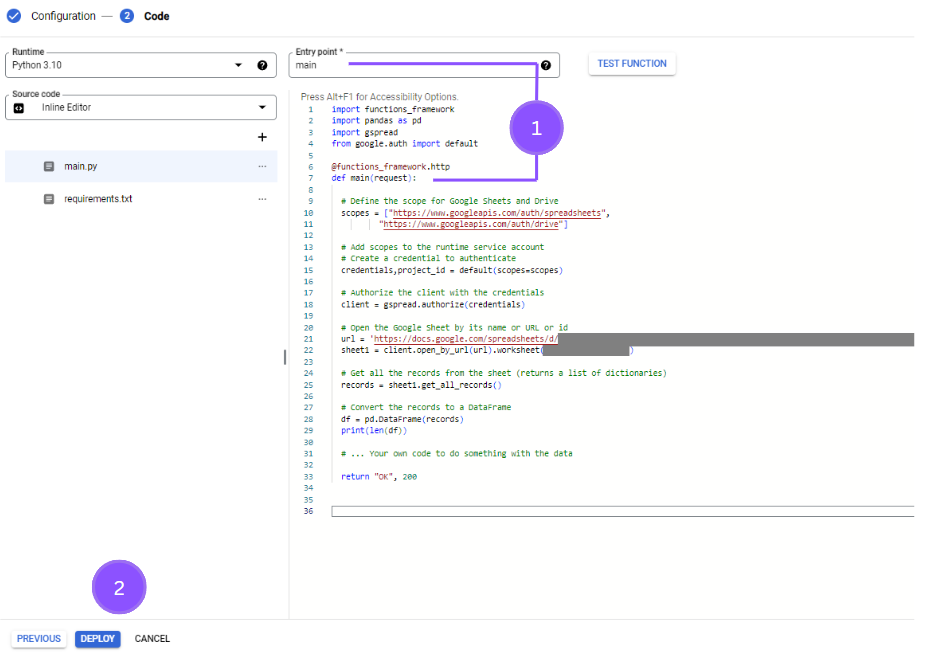
Make sure the entry point name matches your main function’s name. (You can choose any name you prefer for the function.) Once this is set, click ‘Deploy’ to deploy your Cloud Function.
Step 5: Testing the Cloud Function
After the deployment, you can test the function using an HTTP request. The function should should get data from your Google Sheet.
If you still encounter a “Permission Denied” error, ensure that:
- The correct service account is being used.
- The service account has the appropriate roles assigned for reading/editing sheet and other tasks in the code.
- The Google Sheet is shared to the service account.
Conclusion:
In this article, we explored how to resolve the “Permission Denied” error when accessing a Google Sheet from a Google Cloud Function using gspread and Python. By assigning the correct roles to your runtime service account and defining the necessary OAuth scopes, you can securely and seamlessly integrate Google Sheets with your Cloud Functions. This approach ensures a smooth, secure interaction between your Google Cloud infrastructure and Google Sheets, and the same process can be applied to access other resources within Google Drive.
메타데이터
- post_id
- 5ce8987f531e
- slug
- fixing-permission-denied-errors-in-cloud-functions-accessing-google-sheets-with-a-custom-runtime-5ce8987f531e
- url
- https://medium.com/@jb.ranchana/fixing-permission-denied-errors-in-cloud-functions-accessing-google-sheets-with-a-custom-runtime-5ce8987f531e
- canonical_url
- https://medium.com/@jb.ranchana/fixing-permission-denied-errors-in-cloud-functions-accessing-google-sheets-with-a-custom-runtime-5ce8987f531e
- author_url
- https://medium.com/@jb.ranchana
- status
- ok
- fetched_at
- 2026-08-10 23:54:01