🚀 How to Set Up AdGuard Home in Docker on a Raspberry Pi (Ubuntu Server)
I’ve been tinkering with home lab setups on my Raspberry Pi for a while now, from file sharing to automation. But one upgrade I wish I’d…
🚀 How to Set Up AdGuard Home in Docker on a Raspberry Pi (Ubuntu Server)
I’ve been tinkering with home lab setups on my Raspberry Pi for a while now, from file sharing to automation. But one upgrade I wish I’d done sooner was setting up AdGuard Home. If you’re like me and tired of ads, trackers, or just want a bit more control over your network, this is a great weekend project.
In this post, I’ll walk you through how I installed AdGuard Home using Docker on a Raspberry Pi running Ubuntu Server, using just a few simple commands. No bloat, no drama just clean DNS.
🧰 What I Used
Here’s my setup:
- 🖥️ Raspberry Pi 4 (or similar) running Ubuntu Server
- 🐳 Docker (installed via the official script)
- 🌐 Access to your router to update DNS settings
- 💻 Basic comfort with Linux command line
I’ve also got access to my router for setting DNS, but that’s optional you can configure devices individually if needed.
🔧 Step 1: Installing Docker (The Lazy but Safe Way)
I know I could install Docker using apt, but I prefer using the official script it’s clean, fast, and rarely breaks anything:
curl -sSL https://get.docker.com | shOnce that’s done, I added myself to the Docker group:
sudo usermod -aG docker $USERThen I rebooted the Pi (you can also log out and back in, but I like a fresh reboot).
📂 Step 2: Preparing the AdGuard Directory
I like to keep containers organized, so I created a folder in my home directory to hold AdGuard’s configuration and working files:
mkdir -p ~/adguard-home/conf ~/adguard-home/work
cd ~/adguard-home
This makes it easier to back up or wipe configs later without digging through Docker volumes.
🐳 Step 3: Grab the Latest AdGuard Docker Image
Pull the official image from Docker Hub:
docker pull adguard/adguardhome▶️ Step 4: Launch Your AdGuard Home Container
Here’s the command I used to run the container with all the necessary port mappings and volume mounts:
docker run --name adguardhome \
  --restart unless-stopped \
  -v ~/adguard-home/work:/opt/adguardhome/work \
  -v ~/adguard-home/conf:/opt/adguardhome/conf \
  -p 53:53/tcp -p 53:53/udp \
  -p 67:67/udp -p 68:68/udp \
  -p 80:80/tcp -p 443:443/tcp -p 443:443/udp -p 3000:3000/tcp \
  -p 853:853/tcp \
  -p 784:784/udp -p 853:853/udp -p 8853:8853/udp \
  -p 5443:5443/tcp -p 5443:5443/udp \
  -d adguard/adguardhome
Pro tip: Only expose ports you need. For example, DHCP ports (67/68) only if you want AdGuard to handle DHCP, or DNS-over-TLS (853) if you want encrypted DNS.
🌐 Step 5: Set Up via the Web Interface
Open your browser and visit:
http://<your_pi_ip>:3000The setup wizard will guide you through:
- 👤 Creating an admin username and password
- 🌍 Choosing upstream DNS servers
- 🚫 Skipping DHCP if your router already manages it
Once complete, the main dashboard will move to:
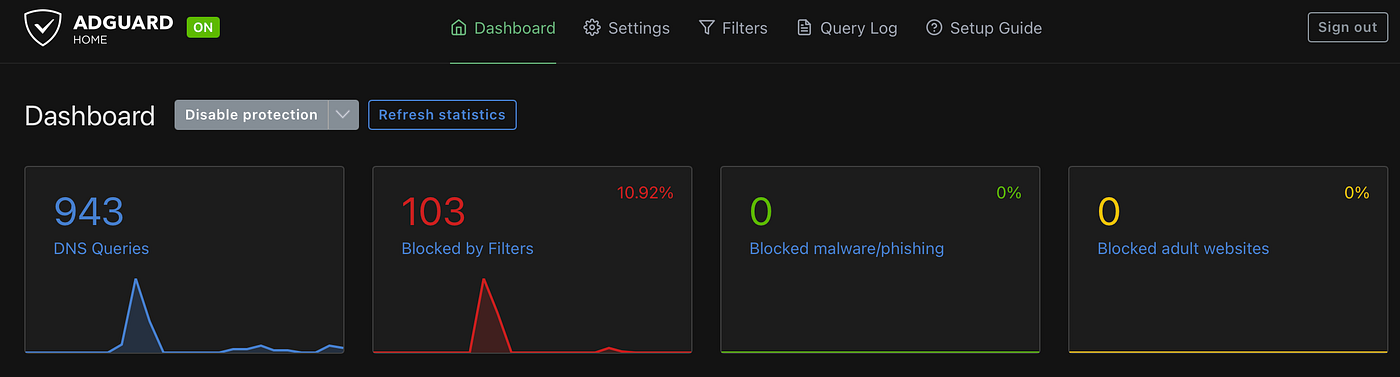
http://<your_pi_ip>Here you can explore filters, blocklists, logs, and stats.
메타데이터
- post_id
- 5fb287032431
- slug
- how-to-set-up-adguard-home-in-docker-on-a-raspberry-pi-ubuntu-server-5fb287032431
- url
- https://medium.com/@r.aswin074/how-to-set-up-adguard-home-in-docker-on-a-raspberry-pi-ubuntu-server-5fb287032431
- canonical_url
- https://medium.com/@r.aswin074/how-to-set-up-adguard-home-in-docker-on-a-raspberry-pi-ubuntu-server-5fb287032431
- author_url
- https://medium.com/@r.aswin074
- status
- ok
- fetched_at
- 2026-06-26 21:52:29


