Mastering Incremental Data Load with Databricks Auto Loader — A Real-World Retail Use Case
From theory to production: everything you need to understand Auto Loader deeply
Mastering Incremental Data Load with Databricks Auto Loader — A Real-World Retail Use Case
From theory to production: everything you need to understand Auto Loader deeply
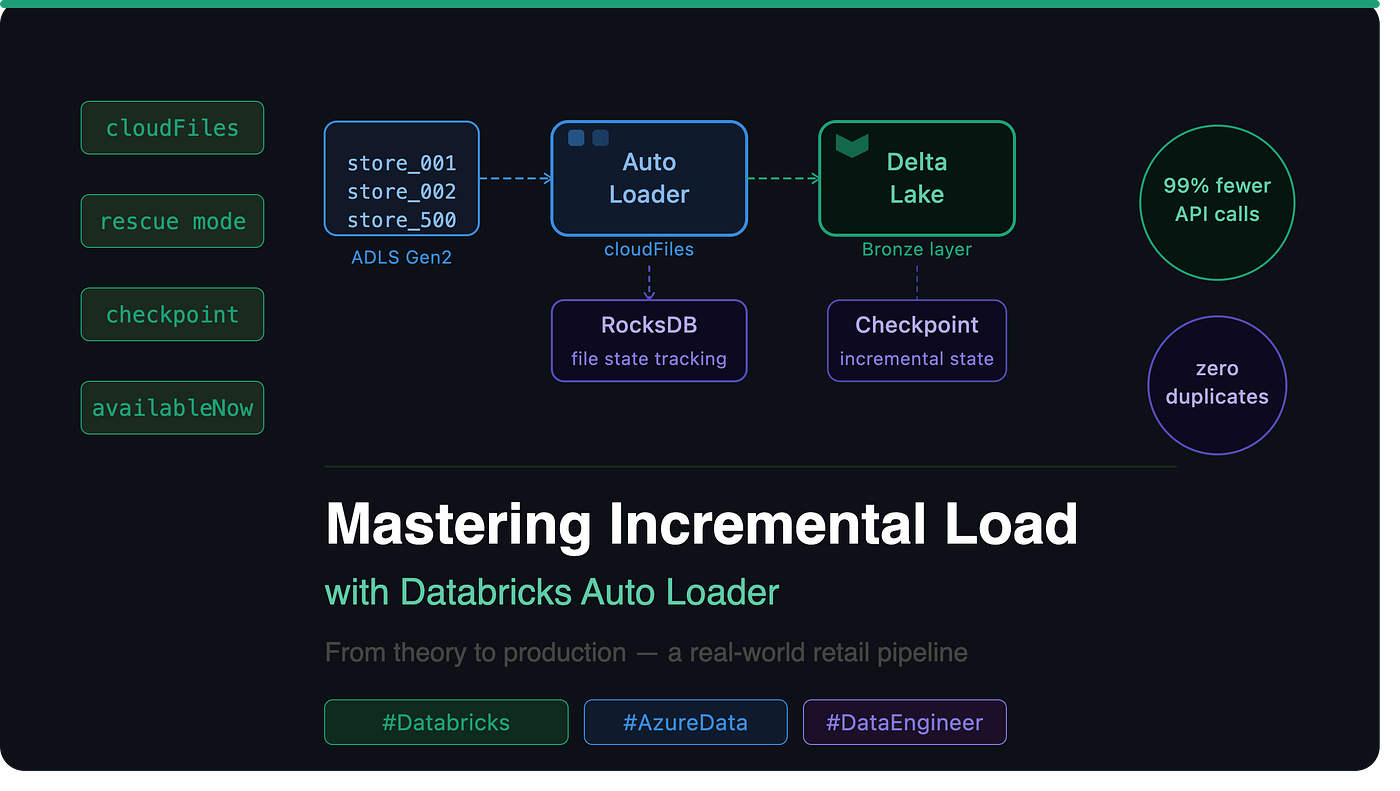
At scale, full loads become a real problem. Compute cost multiplies with every file you add. Processing time grows linearly with data volume. Timeouts and failures become more frequent. And your team starts asking — why is this pipeline taking 3 hours to run when only 200 new files arrived?
The answer is Incremental Load — process only what’s new, only when it arrives.
And in the Databricks + Azure ecosystem, the cleanest, most production-ready way to do that is Auto Loader.
In this blog, I’ll walk you through everything — from what incremental load means, to how Auto Loader works internally, to a real-world retail pipeline I built using it. By the end, you’ll have both the concept and the code to use this in your own projects.
What Is Incremental Data Load?
Incremental data load refers to the process of adding only new or modified data to an existing dataset — without reloading the entire dataset every time.
Simple concept. But complex and challenging to implement correctly at scale.
Key Characteristics of a Good Incremental Load
- Only processes new data files — already processed files are never touched again
- Processes data as soon as new files are detected — no waiting, no manual triggers
- Never misses any new files — even late arriving files are caught in the next run
- Good performance on large directories — does not slow down as file count grows over months
- Repeatable pattern — re-running the pipeline produces the same result. No duplicates.
Common Patterns for Incremental Loading
Pattern 1 — Watermark Method
The most traditional approach. You store a last_processed_timestamp in a control table. Every run, you query the source with:
WHERE updated_at > last_watermarkThen after a successful run, you update the watermark to max(updated_at).
It works well for database sources. But for file-based ingestion from cloud storage — it has a serious problem. The program keeps running and checking even when no new files arrive. Constant polling. Constant cost. And you still need to manually manage the watermark table.
Pattern 2 — Checkpointing (Auto Loader approach)
Auto Loader maintains an internal state of which files have already been processed. On every run, it compares the current file list against its internal state and picks up only what’s new.
No polling. No manual watermark table. No risk of missing files.
This is why Auto Loader is the best solution for file-based incremental ingestion on cloud storage.
What Is Auto Loader?
Auto Loader is a feature provided by Databricks to process incremental data load efficiently and automatically.
It continuously, efficiently, and automatically loads new files as they arrive into cloud storage — without any manual intervention.
In technical terms, Auto Loader uses the cloudFiles format on top of Spark Structured Streaming to detect and ingest only new files on every run.
Auto Loader is NOT a replacement for Spark Structured Streaming. It is built on top of it.
cloudFilesis the source format. The difference is in how it discovers and tracks new files.
Supported Cloud Storage Systems
Auto Loader currently supports only cloud storage systems:
- Azure Data Lake Storage Gen2 (ADLS)
- Amazon S3
- Google Cloud Storage (GCS)
- Databricks File System (DBFS)
Supported File Formats
JSON, CSV, Parquet, Avro, ORC, Text, BinaryFile
Components of Auto Loader
Auto Loader is made up of three core components working together:
1. Cloud Files Data Reader
Reads files from cloud storage using the cloudFiles source format. This is what you interact with directly in your code via spark.readStream.format("cloudFiles").
2. Cloud Notification Services Responsible for detecting new files. Works in two modes — Directory Listing or File Notification. More on this in the next section.
3. Auto Loader Engine (built on Spark Structured Streaming) Processes the files using Spark Structured Streaming under the hood. Tracks which files have already been processed using an internal database called RocksDB.
Why RocksDB Matters
This is the piece most engineers don’t talk about enough.
Auto Loader stores the metadata of every processed file in an internal RocksDB database. RocksDB is an embedded key-value store — fast, lightweight, and persistent.
This is exactly what gives Auto Loader its incremental superpower. On every run, it checks RocksDB — if the file is already there, skip it. If it’s new, process it.
This is also why deleting the checkpoint is dangerous — RocksDB state lives inside the checkpoint. Lose the checkpoint, lose the memory of what was processed.
File Detection Modes
This is where Auto Loader’s real intelligence lives. It has two modes for detecting new files — and choosing the right one for your use case matters.
Mode 1 — Directory Listing Mode (Default)
Auto Loader periodically lists the source directory and compares the result against its internal RocksDB state to identify new files.
Key characteristics:
- Default mode — works out of the box, no extra Azure setup required
- Only needs read access to the storage account
- Flattens the entire folder structure and lists files in batches of 5,000 per ADLS API call
- More optimized and efficient compared to plain Spark file listing
The API Efficiency Problem — Spark vs Auto Loader
This is one of the most asked comparison points in interviews. Let me break it down clearly.
When you use plain spark.readStream with a file source, Spark does a recursive directory listing — one API call per subfolder.
For a deeply partitioned path like:
/transactions/region=south/year=2026/month=06/day=13/hour=10/Every level of that folder tree = one API call. For 87,610 files spread across thousands of folders:
Spark (plain readStream)Auto Loader (Directory Listing)Strategy1 API call per folderFlattens entire structureAPI calls for 87,610 files8,761 hits18 hitsBatch sizePer subfolder5,000 files per ADLS API call
Auto Loader reduces API calls by 99%. At scale, this is the difference between hitting ADLS rate limits daily versus running smoothly for years.
When to use Directory Listing Mode:
- Scheduled batch loads (hourly, daily)
- Moderate file volumes
- No Azure Event Grid setup available
- Getting started quickly
Mode 2 — File Notification Mode
Instead of periodically polling the directory, Auto Loader automatically sets up Azure Event Grid and Queue Storage to subscribe to file arrival events. New files are pushed as events — zero polling, zero unnecessary API calls.
Key characteristics:
- Real-time file detection — files are processed as soon as they land
- Best for huge volumes — millions of files per second
- Zero unnecessary API calls — purely event driven
- Requires additional Azure permissions to set up Event Grid
Azure setup requirements:
- Subscription ID, Tenant ID, Client ID, Client Secret (Service Principal)
- Resource Group name
- Storage Account Contributor role
- Event Grid Event Subscription Contributor role
Code for File Notification Mode:
adls_account = dbutils.secrets.get(scope="kv-scope", key="adls-account")
adls_key = dbutils.secrets.get(scope="kv-scope", key="adls-key")

spark.conf.set(
    f"fs.azure.account.key.{adls_account}.dfs.core.windows.net",
    adls_key
)

cloudFilesConf = {
    "cloudFiles.subscriptionId": dbutils.secrets.get(scope="kv-scope", key="sp-subscriptionId"),
    "cloudFiles.tenantId": dbutils.secrets.get(scope="kv-scope", key="sp-tenantId"),
    "cloudFiles.clientId": dbutils.secrets.get(scope="kv-scope", key="sp-clientId"),
    "cloudFiles.clientSecret": dbutils.secrets.get(scope="kv-scope", key="sp-clientSecret"),
    "cloudFiles.resourceGroup": dbutils.secrets.get(scope="kv-scope", key="sp-rgName"),
    "cloudFiles.useNotifications": "true",
    "cloudFiles.format": "parquet",
    "cloudFiles.includeExistingFiles": "true",
}

df = spark.readStream \
    .format("cloudFiles") \
    .options(**cloudFilesConf) \
    .load(f"abfss://retail@{adls_account}.dfs.core.windows.net/transactions/")
When to use File Notification Mode:
- Real-time or near real-time ingestion requirements
- IoT / event-driven architectures
- Very high file volumes arriving continuously
- When you have Azure Event Grid permissions available

Stay tuned for the next part of the series.
If this article added value to your learning journey, don’t forget to leave a 👏 and share your feedback in the comments.
메타데이터
- post_id
- 5ffd85e935eb
- slug
- mastering-incremental-data-load-with-databricks-auto-loader-a-real-world-retail-use-case-5ffd85e935eb
- url
- https://medium.com/@viveksagar237/mastering-incremental-data-load-with-databricks-auto-loader-a-real-world-retail-use-case-5ffd85e935eb
- canonical_url
- https://medium.com/@viveksagar237/mastering-incremental-data-load-with-databricks-auto-loader-a-real-world-retail-use-case-5ffd85e935eb
- author_url
- https://medium.com/@viveksagar237
- status
- ok
- fetched_at
- 2026-08-11 05:05:13



