Your Mac Is Running 300+ Hidden Programs Before You Even Log In
Open System Information → Extensions on any Mac and you’ll see something unsettling: hundreds of entries, most with cryptic names like…
Your Mac Is Running 300+ Hidden Programs Before You Even Log In
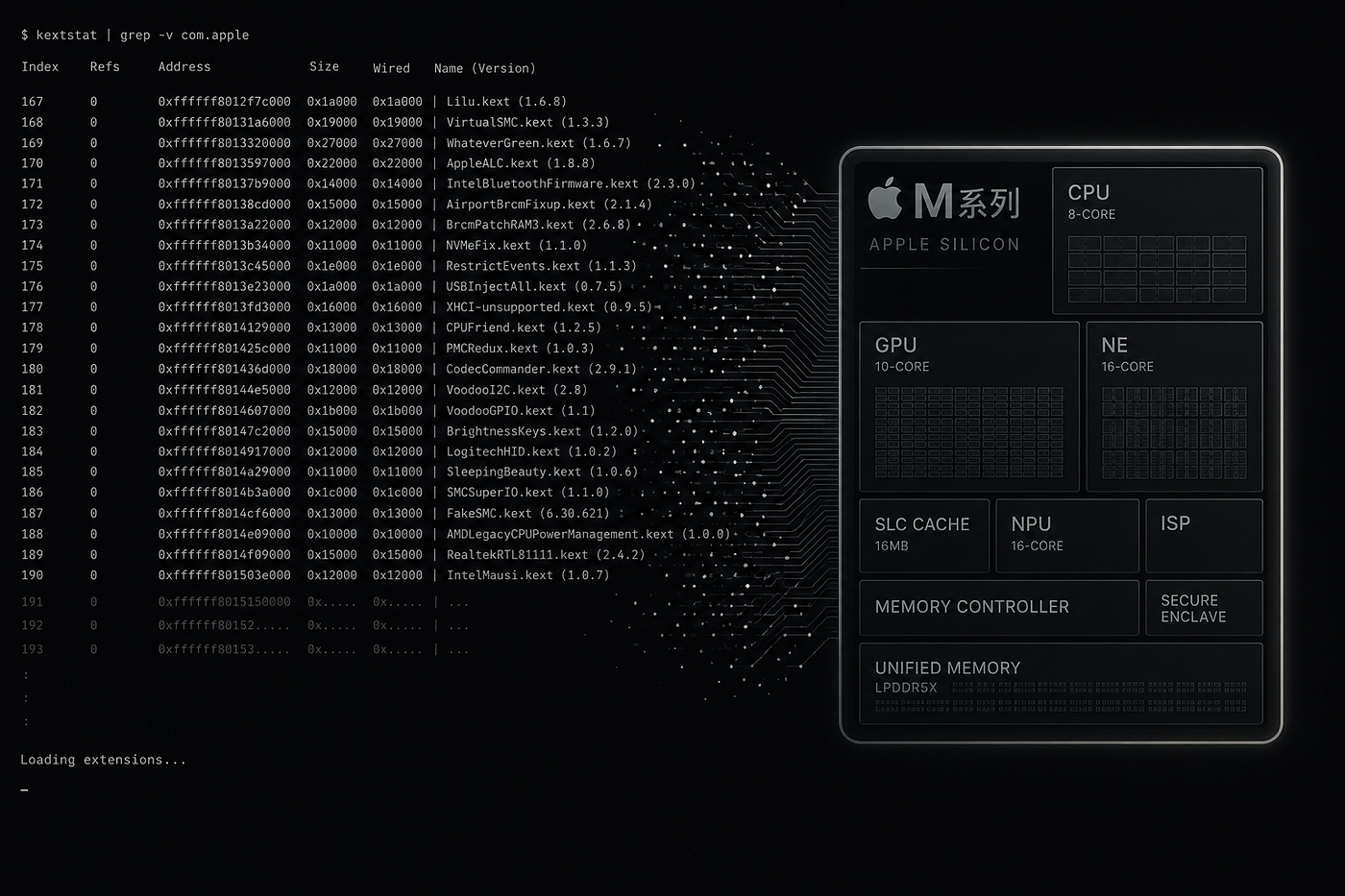
Open System Information → Extensions on any Mac and you’ll see something unsettling: hundreds of entries, most with cryptic names like AppleT8132SOCTuner or AppleConvergedIPCOLYBTControl, every single one marked Loaded: Yes.
You didn’t install these. You’ve never heard of most of them. And they’re running right now, at the deepest level of your operating system, before a single app has opened.
This is macOS’s kernel extension layer — and understanding it tells you more about how your Mac actually works than almost anything in System Settings.
The Pain of Not Knowing What’s Running
You’ve probably felt this before. Your Mac feels sluggish, or a driver conflict causes a random kernel panic, or you’re just curious why Activity Monitor never shows the full picture.
You go looking for answers. Activity Monitor shows processes. It doesn’t show you what’s driving your Bluetooth chip, your Thunderbolt ports, or your SSD’s file system. That layer is invisible — unless you know where to look.
That’s what the Extensions pane in System Information reveals: the kernel-level machinery that makes hardware actually work.
The Core Idea
Every one of those entries is a kernel extension (kext) or, on Apple Silicon, its modern replacement — a DriverKit / System Extension. They’re small pieces of code that let macOS talk directly to hardware: your SSD controller, your Wi-Fi chip, your keyboard, your battery.
Your Mac doesn’t boot with one big monolithic kernel. It boots with a core kernel plus hundreds of small, swappable modules, loaded on demand.
A Tour of What You’re Actually Looking At
1. File System Extensions
Right at the top of the list you’ll spot acfs, apfs, and AppleDiskImages2. These aren't optional — they're literally what lets macOS read and write your disk.
apfs(version 2811.120.14 in the screenshots) is Apple's modern copy-on-write file system driverAppleDiskImages*handles every.dmgyou've ever mountedacfsis Apple's clustered file system, used for things like Fusion Drives and Xsan
Without these loading successfully at boot, your Mac wouldn’t get past a gray screen.
2. Silicon-Specific Drivers
Names like AppleT8132, AppleA7IOP, and AppleH16ANEInterface map directly to Apple Silicon internals. T8132 is the internal codename tied to the M-series chip family; ANE stands for Apple Neural Engine — the same silicon that accelerates on-device machine learning.
Think of these as translators. The chip speaks in raw electrical signals and memory addresses; these extensions translate that into something the OS kernel can reason about.
3. Connectivity & Peripheral Drivers
Scroll further and you hit the Bluetooth, Thunderbolt, and USB stack: AppleBluetoothHIDKeyboard, AppleThunderboltDPAdapterFamily, AppleSynopsysUSBXHCI.
This is why plugging in a Thunderbolt dock, a USB-C hub, or a Bluetooth mouse “just works” — each device type has a dedicated extension standing by, already loaded, waiting for the physical connection.
4. Security & Trust Infrastructure
Less obvious but arguably more important: AppleCredentialManager, AppleFDEKeyStore, AppleAuthCP, AppleBTM.
FDEKeyStoremanages FileVault encryption keysBTMstands for Boot Time Manager — Apple's system for auditing what launches automatically at boot, which is exactly how macOS flags suspicious login itemsAppleCredentialManagerunderpins Touch ID and secure credential storage
These aren’t hardware drivers at all — they’re the trust layer that makes the rest of macOS’s security model possible.
Why This Matters: A Simple Mental Model
Think of macOS like a hotel. The kernel is the building’s core structure — plumbing, wiring, load-bearing walls. Kernel extensions are the specialized staff: the electrician who only shows up when a socket needs fixing, the locksmith who’s on call for security systems.
You never see most of the staff. But if the electrician doesn’t show up, nothing in that wing of the hotel works — no matter how nice the app you’re using in Finder looks on the surface.
That’s why a single failed or conflicting kext can cause a kernel panic: it’s not an app crashing, it’s a load-bearing piece of the building failing.
Reading the Detail Pane Like a Diagnostician
Click any extension in System Information and the bottom pane gives you a mini forensic report:
Version:          589
Last Modified:     01/05/26, 1:03 AM
Bundle ID:         com.apple.filesystems.acfs
Loaded:            Yes
Architectures:     arm64e
64-Bit (Intel):    No
Location:          /System/Library/Extensions/acfs.kext/
A few things worth actually reading here:
- Bundle ID tells you the extension’s true identity — useful when Googling an unfamiliar name, since display names can be ambiguous but bundle IDs are unique
- Architectures: arm64e confirms this binary is compiled for Apple Silicon with pointer authentication — a hardware security feature that makes memory-corruption exploits dramatically harder
- Location under
/System/Library/Extensions/marks it as an Apple-signed system extension, protected by System Integrity Protection (SIP), not something a third-party app dropped in
If you ever see a third-party kext here from /Library/Extensions/ instead of /System/Library/Extensions/, that's your signal it came from installed software — a VPN client, virtualization tool, or security suite — not from Apple.
Practical Implementation: Using This as a Diagnostic Tool
Here’s how to actually put this to work next time something feels off:
Step 1 — Open the right view System Information (hold ⌥ and click the Apple menu → "System Information") → Software → Extensions
Step 2 — Sort and scan Sort by “Loaded” or search by name. Anything showing Loaded: No that you expect to be active is worth investigating first.
Step 3 — Cross-check from Terminal For a faster, scriptable view:
kmutil showloadedor, for legacy-style output:
kextstat | grep -v com.appleThat second command filters out Apple’s hundreds of built-in extensions and shows you only third-party kexts — the ones actually worth worrying about.
Step 4 — Investigate unknown non-Apple entries If something unfamiliar isn’t from com.apple.*, check its bundle ID and location. Legitimate hardware and security tools (webcams, VPNs, device management) will typically show a matching, well-known vendor. Anything unsigned or oddly located deserves closer scrutiny.
Key Takeaways
- Every loaded kext is a small, specialized driver — not bloat, but the reason your hardware works at all
- Apple’s own kexts live in
/System/Library/Extensions/; third-party ones live in/Library/Extensions/— location is your fastest trust signal arm64earchitecture indicates Apple Silicon binaries with pointer authentication, a real hardware security boundary- Use this pane (or
kmutil showloaded) as your first stop when diagnosing kernel panics, hardware not being detected, or suspicious background activity - You don’t need to recognize every name — you need to recognize the pattern: Apple-signed, system-located, versioned consistently with your OS build
The Bigger Picture
Apple has been steadily pushing developers away from legacy kexts toward System Extensions and DriverKit, which run in user space instead of kernel space — safer, sandboxed, and far less likely to crash your entire machine over a bad driver.
The next time your Mac boots in a couple of seconds and every peripheral just works, remember: it’s not magic. It’s a few hundred small, mostly invisible programs doing their job perfectly, one layer below anything you’ll ever click on.
메타데이터
- post_id
- 609756d3dbff
- slug
- your-mac-is-running-300-hidden-programs-before-you-even-log-in-609756d3dbff
- url
- https://medium.com/macoclock/your-mac-is-running-300-hidden-programs-before-you-even-log-in-609756d3dbff
- canonical_url
- https://medium.com/macoclock/your-mac-is-running-300-hidden-programs-before-you-even-log-in-609756d3dbff
- author_url
- https://medium.com/@rajveer.rathod1301
- status
- ok
- fetched_at
- 2026-07-08 16:25:30