The Split: When to use Fabric vs. TurboModules in React Native
Lessons learned implementing a custom FSCalendar wrapper.
The Split: When to use Fabric vs. TurboModules in React Native
Lessons learned implementing a custom FSCalendar wrapper.
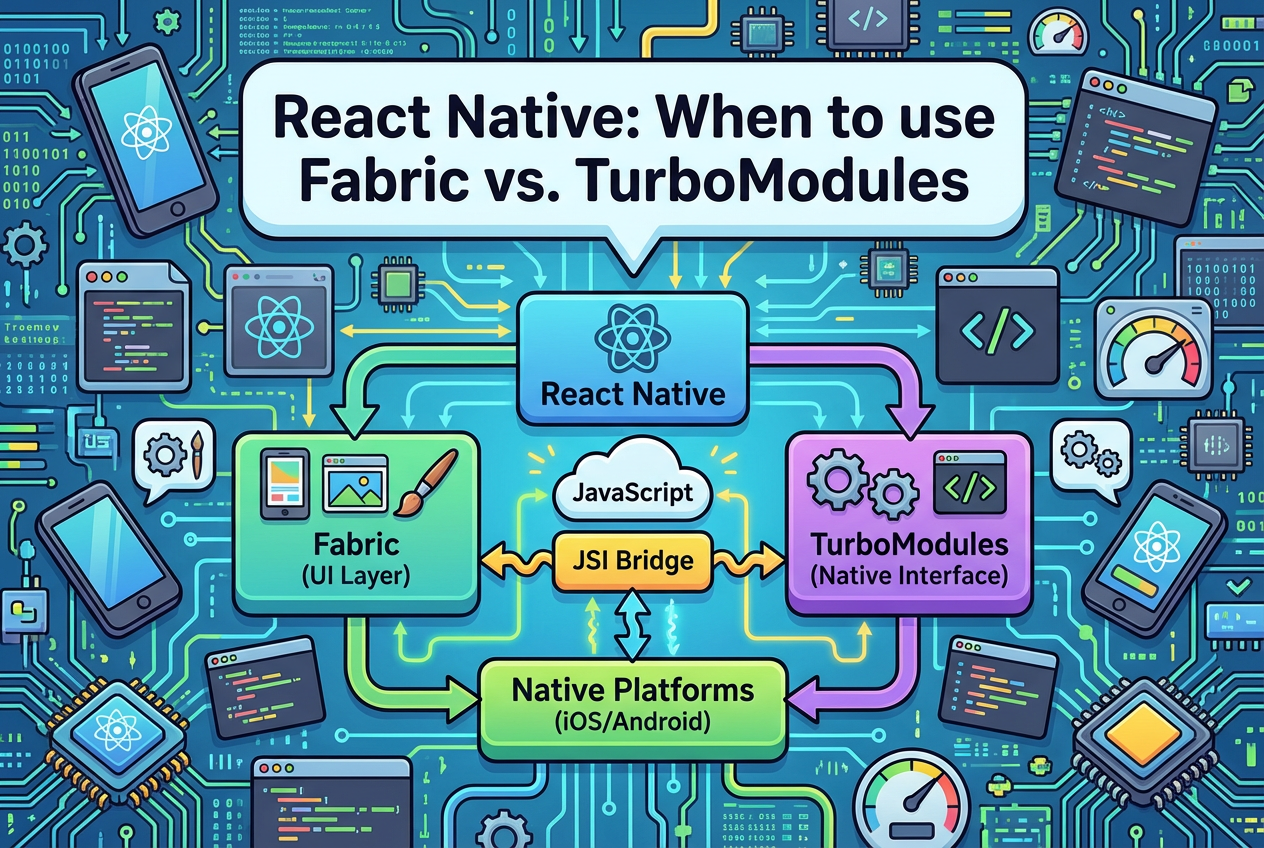
I wanted to integrate FSCalendar, a native library written in Swift and Objective-C, into my React Native application. Despite having considerable knowledge about React Native architecture, I encountered numerous challenges during this process. This led me to extensively research articles and consult AI chatbots while going through many trials and errors. In this article, I want to share what I learned throughout this journey.
My starting point was following an article from the official React Native documentation about implementing a Turbo Module. I strongly recommend reading that article before continuing here, as I will be referring to several concepts and sections discussed in that documentation.
The project I used for this integration is a bare React Native project (v0.82.1 — new architecture is enabled by default) that leverages the New Architecture. While I recognize that Expo is currently the prevailing trend, we will focus on writing native modules in a bare project for this article. I believe it is crucial to first understand these concepts at a foundational level, as Expo introduces an additional abstraction layer on top of React Native.
Since this is a wrapper to a existing UI component in Native side, we don’t need to implement turbo modules. we can implement this warpper for the FSCalendar using the Fabric.
1. Codegen configuration
Update package.json as follows.
{
    "name": "AppSpec",
    "type": "components",
    "jsSrcsDir": "specs",
    "ios": {
      "componentProvider": {
        "CustomCalendar": "RCTFSCalendar"
      }
    }
  }
In React Native’s New Architecture (Fabric + TurboModules), the codegenConfig in your package.json includes a “type” field that tells the codegen tool how to process your specs during build time. It generates the necessary bindings based on whether you’re building a UI-focused component or a non-UI native API. Here’s a breakdown of when to choose each:
I. type: components (For Fabric Native Views/Components)
- You’re creating or wrapping a native UI element (e.g. a custom view, button, or calendar like your FSCalendar integration).
- Focus is on declarative rendering: Props for styling/layout (e.g.
selectionColor), events (e.g.onDateSelected), and imperative commands (e.g.selectDatevia refs). - Integrates with ViewManagers for shadow tree rendering, layout, and batched updates.
- JS Side: Define a native component extending
ViewPropsinterface. - Make sure to rename the spec file ending with ‘
NativeComponent’
II. type: modules (For TurboModules)
- You’re exposing non-UI native functionality (e.g., file I/O, network utils, or calendar date computations without rendering a view).
- Focus is on imperative, async APIs: Methods that return promises/callbacks (e.g.
fetchEvents(month: string): Promise<string[]>). - Stands alone; no direct tie to rendering — great for shared logic across screens.
- Generates: JSI executors (e.g., MyModuleSpecJSI.cpp) for direct JS-native calls.
- JS Side: Define a TurboModule spec interface (e.g.
export interface Spec extends TurboModule { … }), thenTurboModuleRegistry.getEnforcing<Spec>('MyModule').
You can (and often should) have both Fabric components (UI views, like your FSCalendar) and TurboModules (non-UI native APIs, like a date utils module) in the same project — whether it’s an app or a library. Codegen handles both seamlessly during build, generating separate artifacts.
The key is proper spec separation and codegenConfig setup. Codegen scans your JS/TS files for type-specific markers (e.g., codegenNativeComponent for components vs. TurboModule interfaces for modules) and processes them accordingly. No conflicts — it’s all under one roof.
Single codegenConfig for Both
- Use a single config in your root package.json with a neutral “type” (or omit it for auto-detection). Set
jsSrcsDirto scan everything. - Codegen will auto-classify: Files with component specs get “components” treatment; module specs get “modules.”
Example package.json for both (not in my code):
{
  "name": "MyRNProject",
  "codegenConfig": {
    "name": "MyProject",  // Namespace for all generated files
    "type": "all",        // Or omit for auto (RN 0.82+ defaults to scanning both)
    "jsSrcsDir": "./src"  // Scans ./src for all specs; adjust to your folder
  },
  "dependencies": {
    "react-native": "0.82.1"
  }
}
2. pod configuration
Add pod ‘FSCalendar’ to your pod file and pod install.
3. Adding JS code
Create file called specs/CalendarNativeComponent.ts
The specification file must be named <MODULE_NAME>NativeComponent.{ts|js} to work with Codegen. The suffix NativeComponent is not only a convention, it is actually used by Codegen to detect a spec file.
import type { HostComponent, ViewProps } from 'react-native';
import { codegenNativeComponent, ProcessedColorValue } from 'react-native';
import {
  DirectEventHandler,
  Int32,
} from 'react-native/Libraries/Types/CodegenTypes';
import codegenNativeCommands from 'react-native/Libraries/Utilities/codegenNativeCommands';

type DateSelectedEvent = {
  date: string;
};

type MonthChangedEvent = {
  month: string;
};

export interface NativeProps extends ViewProps {
  // Events
  onDateSelected?: DirectEventHandler<DateSelectedEvent>;
  onMonthChanged?: DirectEventHandler<MonthChangedEvent>;

  // Props
  firstWeekday?: Int32;
  selectionColor?: ProcessedColorValue | null;
  todayColor?: ProcessedColorValue | null;
  headerTitleColor?: ProcessedColorValue | null;
  weekdayTextColor?: ProcessedColorValue | null;
  eventDates?: string[];
}

export interface CalendarRef {
  setCurrentPage: (date: string) => void;
  addEvent: (date: string) => void;
}

export interface NativeCommands {
  setCurrentPage: (viewRef: React.ElementRef<HostComponent<NativeProps>>, date: string) => void;
  addEvent: (viewRef: React.ElementRef<HostComponent<NativeProps>>, date: string) => void;
}

export const Commands: NativeCommands = codegenNativeCommands<NativeCommands>({
  supportedCommands: ['setCurrentPage', 'addEvent'],
});

export default codegenNativeComponent<NativeProps>(
  'CustomCalendar',
) as HostComponent<NativeProps>;
Now run
cd ios bundle install bundle exec pod install
This will generate the necessary glue code using codegen.
Create a file called src/Calendar.tsx
import React, { forwardRef, useRef, useImperativeHandle } from 'react';
import { ViewStyle, processColor } from 'react-native';
import CalendarNativeComponent from '../specs/CalendarNativeComponent';
import { Commands, CalendarRef } from '../specs/CalendarNativeComponent';

export interface CalendarProps {
  style?: ViewStyle;
  firstWeekday?: number;
  selectionColor?: string;
  todayColor?: string;
  headerTitleColor?: string;
  weekdayTextColor?: string;
  eventDates?: string[];
  onDateSelected?: (date: string) => void;
  onMonthChanged?: (month: string) => void;
}

const Calendar = forwardRef<CalendarRef, CalendarProps>(({
  style,
  firstWeekday = 1,
  selectionColor = '#000000ff',
  todayColor = 'rgba(107, 235, 255, 1)',
  headerTitleColor = 'rgba(107, 77, 255, 1)',
  weekdayTextColor = 'rgba(0, 0, 0, 1)',
  eventDates = [],
  onDateSelected,
  onMonthChanged,
}, ref) => {
  const nativeRef = useRef(null);

  useImperativeHandle(ref, () => ({
    setCurrentPage: (date: string) => {
      if (nativeRef.current) {
        Commands.setCurrentPage(nativeRef.current, date);
      }
    },
    addEvent: (date: string) => {
      if (nativeRef.current) {
        Commands.addEvent(nativeRef.current, date);
      }
    },
  }));

  return (
    <CalendarNativeComponent
      ref={nativeRef}
      style={style}
      firstWeekday={firstWeekday}
      selectionColor={processColor(selectionColor)}
      todayColor={processColor(todayColor)}
      headerTitleColor={processColor(headerTitleColor)}
      weekdayTextColor={processColor(weekdayTextColor)}
      eventDates={eventDates}
      onDateSelected={(event) => {
        onDateSelected?.(event.nativeEvent.date);
      }}
      onMonthChanged={(event) => {
        onMonthChanged?.(event.nativeEvent.month);
      }}
    />
  );
});

Calendar.displayName = 'Calendar';

export default Calendar;
Imperative Commands (Fabric Commands) are defined in above code. The code has a ref to the native element and executes commands(add events, slect date etc.)on it.
- Note that we pass a ref to native side that we can directly call commands on the UI element.
Add code to App.tsx
import React, { useRef, useState } from 'react';
import {
  SafeAreaView,
  StyleSheet,
  Text,
  View,
  Button,
  ScrollView,
} from 'react-native';
import Calendar from './src/Calendar';
import { CalendarRef } from './specs/CalendarNativeComponent';

function App(): React.JSX.Element {
  const [selectedDate, setSelectedDate] = useState<string>('');
  const [currentMonth, setCurrentMonth] = useState<string>('');
   const calendarRef = useRef<CalendarRef>(null);

  const handleDateSelected = (date: string) => {
    console.log('Date selected:', date);
    setSelectedDate(date);
  };

  const handleMonthChanged = (month: string) => {
    console.log('Month changed:', month);
    setCurrentMonth(month);
  };

  const addEventToday = () => {
    const today = new Date().toISOString().split('T')[0];
    calendarRef.current?.addEvent(today);
  };

  const goToToday = () => {
    const today = new Date().toISOString().split('T')[0];
    calendarRef.current?.setCurrentPage(today);
  };

  return (
    <SafeAreaView style={styles.container}>
      <ScrollView>
        <View style={styles.header}>
          <Text style={styles.title}>FSCalendar Example</Text>
          {selectedDate ? (
            <Text style={styles.selectedText}>
              Selected Date: {selectedDate}
            </Text>
          ) : null}
          {currentMonth ? (
            <Text style={styles.selectedText}>
              Selected Month: {currentMonth}
            </Text>
          ) : null}
        </View>

        <Calendar
          ref={calendarRef}
          style={styles.calendar}
          onDateSelected={handleDateSelected}
          onMonthChanged={handleMonthChanged}
          firstWeekday={1} // Monday
          // scope="month"
          selectionColor="#3366FF"
          todayColor="#FF9500"
          headerTitleColor="#000000"
          weekdayTextColor="#666666"
          eventDates={['2025-11-28']}
        />

        <View style={styles.buttonContainer}>
          <Button title="Add Event Today" onPress={addEventToday} />
          <View style={styles.spacing} />
          <Button title="Go to Today" onPress={goToToday} />
        </View>
      </ScrollView>
    </SafeAreaView>
  );
}

const styles = StyleSheet.create({
  container: {
    flex: 1,
    backgroundColor: '#F5F5F5',
  },
  header: {
    padding: 20,
    backgroundColor: 'white',
  },
  title: {
    fontSize: 24,
    fontWeight: 'bold',
    marginBottom: 10,
  },
  selectedText: {
    fontSize: 16,
    color: '#666',
  },
  calendar: {
    height: 350,
    backgroundColor: 'white',
    margin: 10,
    borderRadius: 10,
  },
  buttonContainer: {
    padding: 20,
  },
  spacing: {
    height: 10,
  },
});

export default App;
4.Native codes
Create a group in code called, NativeFSCalendar and create following files.

.h files define the structure and the .m files have the implementation for that structure. This is a common pattern in Objective-C world. if you want to add c++ code also in mix with C, then use the .mm file extension.
I. RCTFSCalendar.mm (The Core View Logic Layer)
//
//  RCTFSCalendar.mm
//  Demo
//
//  Created by Krishan Madushanka on 2025-12-06.
//

#import "RCTFSCalendar.h"

#import <react/renderer/components/AppSpec/ComponentDescriptors.h>
#import <react/renderer/components/AppSpec/EventEmitters.h>
#import <react/renderer/components/AppSpec/Props.h>
#import <react/renderer/components/AppSpec/RCTComponentViewHelpers.h>
#import <FSCalendar/FSCalendar.h>

using namespace facebook::react;

@interface RCTFSCalendar () <RCTCustomCalendarViewProtocol, FSCalendarDelegate, FSCalendarDataSource>
@end

@implementation RCTFSCalendar {
  FSCalendar *_calendar;
  NSMutableArray<NSString *> *_eventDates;
}

- (instancetype)init
{
  if (self = [super init]) {
    _calendar = [[FSCalendar alloc] initWithFrame:CGRectZero];
    _calendar.delegate = self;
    _calendar.dataSource = self;
    _eventDates = [NSMutableArray array];
    [self addSubview:_calendar];
  }
  return self;
}

- (void)updateProps:(Props::Shared const &)props oldProps:(Props::Shared const &)oldProps
{
  const auto &oldViewProps = *std::static_pointer_cast<CustomCalendarProps const>(_props);
  const auto &newViewProps = *std::static_pointer_cast<CustomCalendarProps const>(props);

  // Handle firstWeekday
  if (oldViewProps.firstWeekday != newViewProps.firstWeekday) {
    _calendar.firstWeekday = newViewProps.firstWeekday;
  }

  // Handle selectionColor
  if (oldViewProps.selectionColor != newViewProps.selectionColor) {
    _calendar.appearance.selectionColor = [self colorFromSharedColor:newViewProps.selectionColor];
  }

  // Handle todayColor
  if (oldViewProps.todayColor != newViewProps.todayColor) {
    _calendar.appearance.todayColor = [self colorFromSharedColor:newViewProps.todayColor];
  }

  // Handle headerTitleColor
  if (oldViewProps.headerTitleColor != newViewProps.headerTitleColor) {
    _calendar.appearance.headerTitleColor = [self colorFromSharedColor:newViewProps.headerTitleColor];
  }

  // Handle weekdayTextColor
  if (oldViewProps.weekdayTextColor != newViewProps.weekdayTextColor) {
      _calendar.appearance.weekdayTextColor = [self colorFromSharedColor:newViewProps.weekdayTextColor];
  }

  // Handle eventDates
  if (oldViewProps.eventDates != newViewProps.eventDates) {
    [_eventDates removeAllObjects];
    for (const auto &dateStr : newViewProps.eventDates) {
      NSString *nsDateStr = [NSString stringWithCString:dateStr.c_str() encoding:NSUTF8StringEncoding];
      [_eventDates addObject:nsDateStr];
    }
    [_calendar reloadData];
  }

  [super updateProps:props oldProps:oldProps];
}

- (void)layoutSubviews
{
  [super layoutSubviews];
  _calendar.frame = self.bounds;
}

#pragma mark - RCTCustomCalendarViewProtocol

- (void)handleCommand:(const NSString *)commandName args:(const NSArray *)args
{
  RCTCustomCalendarHandleCommand(self, commandName, args);
}

#pragma mark - Commands

- (void)setCurrentPage:(NSString *)date
{
  NSDateFormatter *formatter = [[NSDateFormatter alloc] init];
  [formatter setDateFormat:@"yyyy-MM-dd"];
  NSDate *targetDate = [formatter dateFromString:date];

  if (targetDate) {
    [_calendar setCurrentPage:targetDate animated:YES];
  }
}

- (void)addEvent:(NSString *)date
{
  if (![_eventDates containsObject:date]) {
    [_eventDates addObject:date];
    [_calendar reloadData];
  }
}

#pragma mark - FSCalendarDelegate

- (void)calendar:(FSCalendar *)calendar didSelectDate:(NSDate *)date atMonthPosition:(FSCalendarMonthPosition)monthPosition
{
  NSDateFormatter *formatter = [[NSDateFormatter alloc] init];
  [formatter setDateFormat:@"yyyy-MM-dd"];
  NSString *dateString = [formatter stringFromDate:date];

  CustomCalendarEventEmitter::OnDateSelected event = CustomCalendarEventEmitter::OnDateSelected{
    CustomCalendarEventEmitter::OnDateSelected{std::string([dateString UTF8String])}
  };
  self.eventEmitter.onDateSelected(event);
}

- (void)calendarCurrentPageDidChange:(FSCalendar *)calendar
{
  NSDateFormatter *formatter = [[NSDateFormatter alloc] init];
  [formatter setDateFormat:@"yyyy-MM"];
  NSString *monthString = [formatter stringFromDate:calendar.currentPage];

  CustomCalendarEventEmitter::OnMonthChanged event = CustomCalendarEventEmitter::OnMonthChanged{
    CustomCalendarEventEmitter::OnMonthChanged{std::string([monthString UTF8String])}
  };
  self.eventEmitter.onMonthChanged(event);
}

#pragma mark - FSCalendarDataSource

- (NSInteger)calendar:(FSCalendar *)calendar numberOfEventsForDate:(NSDate *)date
{
  NSDateFormatter *formatter = [[NSDateFormatter alloc] init];
  [formatter setDateFormat:@"yyyy-MM-dd"];
  NSString *dateString = [formatter stringFromDate:date];

  if (_eventDates && [_eventDates containsObject:dateString]) {
    return 1;
  }
  return 0;
}

#pragma mark - Helpers

- (UIColor *)colorFromSharedColor:(const SharedColor &)sharedColor {
    if (!sharedColor) {
        return nil;
    }

    auto colorComponents = colorComponentsFromColor(sharedColor);

    CGFloat alpha = colorComponents.alpha;
    if (alpha == 0.0) {
        alpha = 1.0;
    }

    return [UIColor colorWithRed:colorComponents.red
                           green:colorComponents.green
                            blue:colorComponents.blue
                           alpha:alpha];
}

// Event emitter convenience method
- (const CustomCalendarEventEmitter &)eventEmitter
{
  return static_cast<const CustomCalendarEventEmitter &>(*_eventEmitter);
}

+ (ComponentDescriptorProvider)componentDescriptorProvider
{
  return concreteComponentDescriptorProvider<CustomCalendarComponentDescriptor>();
}

@end
This directly wraps and manages the FSCalendar instance. Responsible for rendering the calendar UI, processing props into native appearance changes, and responding to user interactions via delegates.
II. RCTFSCalendar.h
5. Final Output

Clone the full code from here.
Fabric vs. TurboModules: The Clear Separation
- Fabric: The renderer for UI components. It builds a shadow tree for fast layouts, batches prop updates, and dispatches events/commands. Use it for views — anything declarative like
<MyCalendar eventDates={[]}/>. - TurboModules: Asynchronous native modules for non-UI logic (e.g. file I/O, database or date computations). They use JSI for low-latency JS-native calls, lazy-loading on demand. We can call the native apis thrugh the codegen generated glue code.
In my code, Fabric dominated: Props flowed from JS to native setters (e.g., setSelectionColor parsing hex strings), events bubbled back (e.g., didSelectDate firing onDateSelected), and commands routed via codegen glue code.
Example Flow: Prop Update (Fabric-Only)
- JS:
<FSCalendarView selectionColor=”#3366FF” />. - Fabric: Serializes prop via shadow tree.
- Native: ViewManager calls -
setSelectionColor, which appliescalendar.appearance.selectionColor.
No TurboModules needed — it’s pure UI.
In react native documentation article, note that it shows how to write an implementation of the Web Storage API: localStorage , which wants to access to the APIs available in native sides to deal with localStorage. In that case we want to implement a Turbo Module — No UI.
- In a Turbo Module you need to define a spec file in JS side,
import type {TurboModule} from 'react-native';
import {TurboModuleRegistry} from 'react-native';

export interface Spec extends TurboModule {
  setItem(value: string, key: string): void;
  getItem(key: string): string | null;
  removeItem(key: string): void;
  clear(): void;
}
export default TurboModuleRegistry.getEnforcing<Spec>(
  'NativeLocalStorage',
);
and generate glue code by running ,
cd ios
bundle install
bundle exec pod install
using codegen for that file. Then implement the APIs in native side which JS side will call.
import NativeLocalStorage from './specs/NativeLocalStorage';

function saveValue() {
   //call native method from js side.
   NativeLocalStorage?.setItem(editingValue ?? EMPTY, 'myKey');
}
Also we can use both(module and components) in combination whenever needed.
You can find the expo module implementation for FSCalendar from this link.
메타데이터
- post_id
- 60f4e56fc3bb
- slug
- the-split-when-to-use-fabric-vs-turbomodules-in-react-native-60f4e56fc3bb
- url
- https://medium.com/@krishanmadushankadev/the-split-when-to-use-fabric-vs-turbomodules-in-react-native-60f4e56fc3bb
- canonical_url
- https://medium.com/@krishanmadushankadev/the-split-when-to-use-fabric-vs-turbomodules-in-react-native-60f4e56fc3bb
- author_url
- https://medium.com/@krishanmadushankadev
- status
- ok
- fetched_at
- 2026-08-03 03:40:02




