How to Fix the “Cannot Find 1536x864x32 Video Mode” Error in GTA San Andreas
A complete troubleshooting guide on resolving the 1536x864x32 video mode error in GTA SA, with additional AI-powered repair solution.
How to Fix the “Cannot Find 1536x864x32 Video Mode” Error in GTA San Andreas
The “Cannot Find 1536x864x32 Video Mode” error is a well-documented issue among GTA San Andreas and SAMP players. It typically indicates that the requested resolution or color depth fails to initialize due to hardware, software, or configuration limitations. This Medium guide provides a structured breakdown of the causes and fixes, along with an additional solution for corrupted in-game video files via HitPaw VikPea.

Part 1. What Does “Cannot Find 1536x864x32 Video Mode” Mean?
The Cannot Find 1536x864x32 Video Mode error usually appears when GTA San Andreas, GTA SA mods, or SAMP fails to detect a compatible resolution supported by your display.
This error often occurs in situations such as:
1. Unsupported Resolution
You or a mod may have set a resolution (1536x864x32) that your monitor simply does not support. This is especially common on older monitors or laptop screens.
2. Outdated or Broken Graphics Drivers
If your NVIDIA, AMD, or Intel GPU drivers are incompatible or corrupted, GTA SA may not be able to read available video modes.
3. Incorrect Windows Display Settings
If Windows is forcing a refresh rate or custom resolution that conflicts with GTA SA, the game may throw this error.
4. Monitor Compatibility Issues
Some monitors do not recognize certain color-depth combinations, such as 32-bit color at 1536×864 resolution.
Because of these reasons, many players see related messages like:
● cannot find 1536x864x32 video mode gta sa
● gta san andreas cannot find 1536x864x32 video mode
● cannot find 1536x864x32 video mode samp
Part 2. How to Fix GTA SA Cannot Find 1536x864x32 Video Mode
Below are the most effective solutions. Each method includes an explanation plus step-by-step instructions to help you fix the error quickly.
Method 1. Adjust the Resolution Directly
Often, the game is set to a resolution your monitor can’t handle. By changing your Windows desktop resolution, you can often “trick” the game into launching correctly.
● Right-click on your desktop and go to “Display settings.”
● Under the “Display resolution” dropdown, select a common, supported resolution (e.g., 1920*1080).
● Click “Apply.” Now, try launching the game.

Method 2. Update Your Graphics Drivers
GTA SA is sensitive to outdated GPU drivers. Updating your NVIDIA, AMD, or Intel drivers restores compatibility with modern Windows versions and video modes.
● Identify your graphics card: Press Win + X → Device Manager → Display adapters.
● Visit your GPU manufacturer’s driver page.
● Download and install the latest driver.
● Restart your PC.
● Launch GTA SA again to check if the error is fixed.

This method solves how to fix gta sa cannot find 1536x864x32 video mode for many users.
Method 3. Verify Windows Display Settings
● Double-check your general display settings for any unusual configurations:
● Go back to Display Settings.
● Ensure the Refresh Rate and Resolution are set to values your monitor and graphics card are certified to handle. Fix anything that looks off and hit “Apply.”

Method 4. Ensure Monitor Compatibility
If all else fails, your monitor might be the physical limitation. Check your monitor’s user manual or manufacturer website. If your monitor doesn’t support the required depth or resolution, you must stick to compatible settings or, in extreme cases, upgrade your display.
Part 3. Going Deeper: Fixing Corrupted Videos with AI
Occasionally, the error isn’t about configuration, but about a truly corrupted game file (like a flickering intro cutscene) that crashes the application and triggers the generic display error.
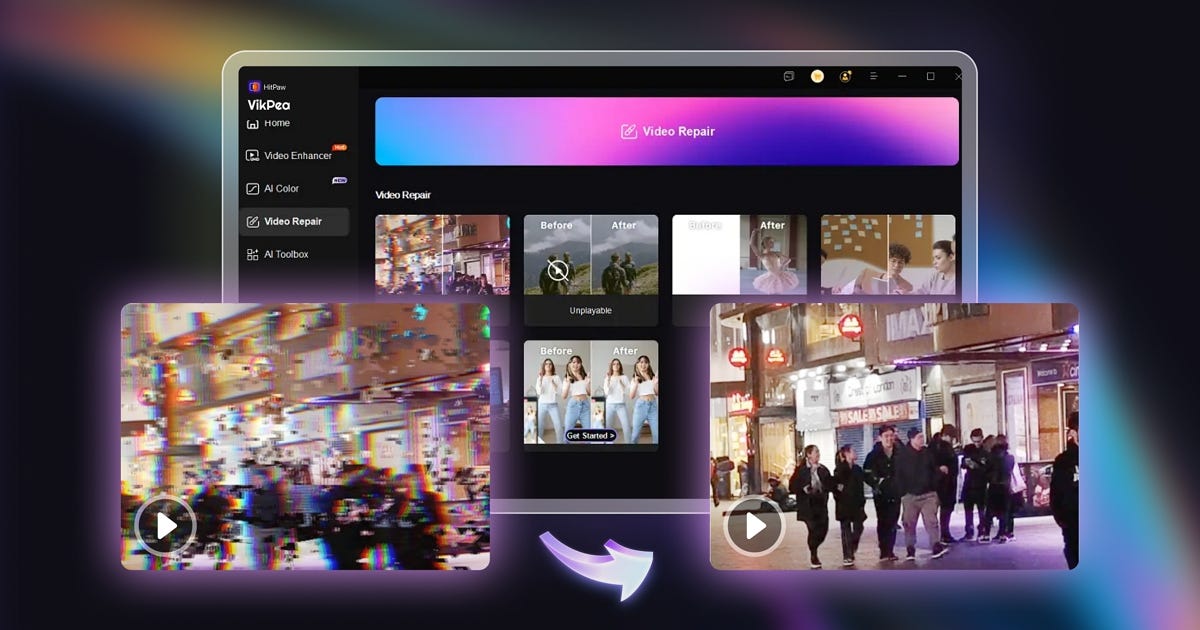
For these tough cases, traditional methods won’t work. Specialized AI tools, such as HitPaw VikPea’s Video Repair feature, are designed to fix severe video damage. Using deep learning algorithms, it can analyze and reconstruct corrupted video data, restoring the file integrity and eliminating the crash source. It’s a powerful tool if you suspect deep-level file damage is the true cause.
Key Advantages
● AI-driven analysis and restoration
● Effective against severe corruption and flickering
● Supports multiple video formats
● Batch processing
● Includes additional enhancement tools
Step 1. Download the HitPaw VikPea software from the official website.
Step 2. Open the tool and select the Video Repair function. Click “Add Video” to upload the potentially corrupted game asset file (if you can locate it).
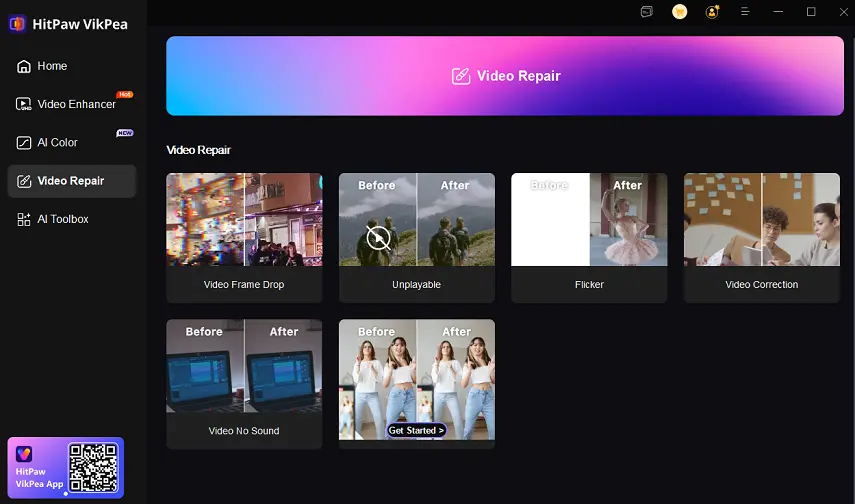
Step 3. The AI will automatically analyze the damage, determine the optimal repair model, and begin the intelligent reconstruction process.

Step 4: Once the repair is complete, click Download button to save the clean file, and replace the corrupted one in your GTA SA installation folder.
The Bottom Line
The “cannot find 1536x864x32 video mode GTA SA” error is a classic but resolvable issue rooted in display configuration conflicts. By following the steps — starting with simple file edits and progressing to driver updates — you should quickly eliminate the problem. For more complex cases where the video corruption itself is the culprit, tools like HitPaw VikPea AI offer a powerful, modern solution to reconstruct damaged assets and ensure smooth gameplay.
메타데이터
- post_id
- 61c335636b93
- slug
- how-to-fix-the-cannot-find-1536x864x32-video-mode-error-in-gta-san-andreas-61c335636b93
- url
- https://medium.com/@carolzz/how-to-fix-the-cannot-find-1536x864x32-video-mode-error-in-gta-san-andreas-61c335636b93
- canonical_url
- https://medium.com/@carolzz/how-to-fix-the-cannot-find-1536x864x32-video-mode-error-in-gta-san-andreas-61c335636b93
- author_url
- https://medium.com/@carolzz
- status
- ok
- fetched_at
- 2026-07-14 05:24:17






