Building TV Apps with Cobalt
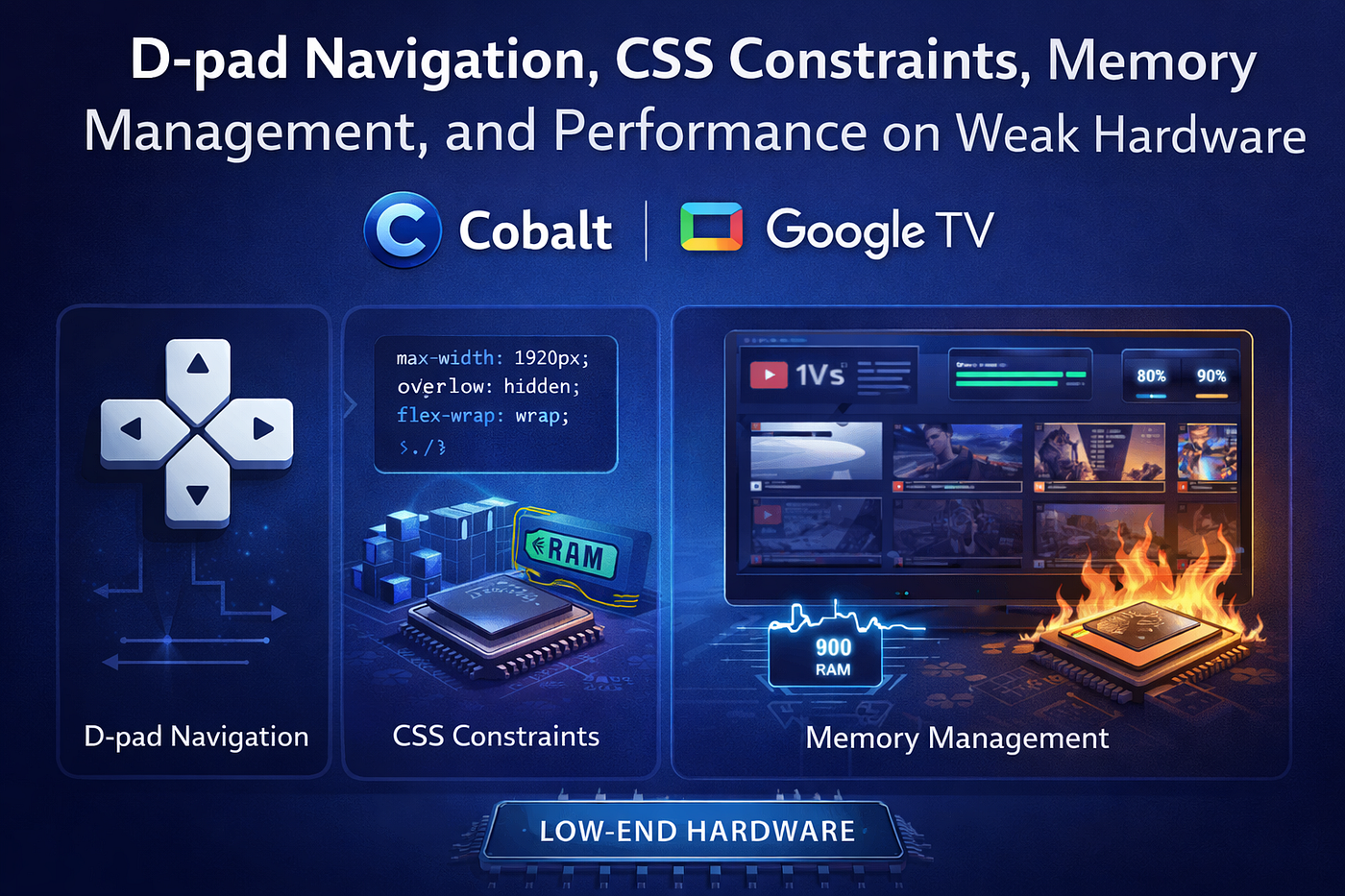
D-pad Navigation, CSS Constraints, Memory Management, and Performance on Weak Hardware
Building TV Apps with Cobalt
D-pad Navigation, CSS Constraints, Memory Management, and Performance on Weak Hardware
Part 4 of 6 — The Cobalt Series
If you have followed this series so far, you have a running Cobalt binary on your Mac, a TV app served locally, and a passing test suite. The scaffolding is in place. Now comes the real work: writing TV applications that are genuinely good. Applications that feel native on a television — responsive to the remote, smooth at 60 frames per second, and stable on the same hardware that runs a 2015 Samsung TV.
TV app development looks like web development — you write HTML, CSS, and JavaScript — but the constraints are fundamentally different. There is no mouse. The screen is 3 metres away. The device has 256 megabytes of RAM. The CPU runs at 1GHz. Every decision you make as a developer either works with these constraints or fights against them. This article teaches you to work with them.
The 10-Foot UI — Designing for Television
The term 10-foot UI comes from the typical viewing distance between a person sitting on a sofa and their television — roughly 10 feet or 3 metres. This single constraint changes almost every design decision you make.
On a phone you design for a 5-inch screen held 30cm from your face. On a TV you design for a 55-inch screen viewed from 3 metres. The physics of vision at that distance demand bigger everything — bigger text, bigger targets, higher contrast, simpler layouts.

The 10-foot UI — how every design decision changes for television
The simple test: sit 3 metres away from your monitor and try to use your app. If you cannot read the text, find where focus is, or understand what pressing Enter will do — it needs work. This physical test catches more issues than any automated tool.
D-pad Navigation — The Heart of Every TV App
On the web, users point at things with a mouse. On a TV, users navigate between focusable elements using a directional pad — up, down, left, right. There is no pointer. There is only focus: one element is highlighted at all times, and the user moves that highlight around the screen.
Every TV app you build must implement a complete focus management system. This is not optional and it is not handled by the browser — you write it yourself in JavaScript.

D-pad navigation flow — from keypress to DOM update
A complete, production-grade FocusManager:
/**
 * FocusManager — complete D-pad navigation for Cobalt TV apps
 * Handles: linear lists, grids, nested zones, scroll-into-view
 */
class FocusManager {
  constructor() {
    this.currentIndex = 0;
    this.items = [];
    this.columns = 1; // 1 = list, N = grid
    this.onSelect = null;
    this.onFocusChange = null;
    this._bindKeys();
  }
// Register focusable elements — call after DOM is ready
register(selector, { columns = 1 } = {}) {
this.items = Array.from(document.querySelectorAll(selector));
this.columns = columns;
this.setFocus(0);
} setFocus(index) {
if (index < 0 || index >= this.items.length) return; // Remove focus from previous item
if (this.items[this.currentIndex]) {
this.items[this.currentIndex].classList.remove('focused');
} this.currentIndex = index;
const el = this.items[index];
el.classList.add('focused'); // Scroll focused item into view — critical for long lists
el.scrollIntoView({ behavior: 'smooth', block: 'nearest' }); if (this.onFocusChange) this.onFocusChange(index, el);
} _bindKeys() {
document.addEventListener('keydown', (e) => {
const i = this.currentIndex;
const cols = this.columns; switch (e.key) {
case 'ArrowDown': this.setFocus(i + cols); break;
case 'ArrowUp': this.setFocus(i - cols); break;
case 'ArrowRight': this.setFocus(i + 1); break;
case 'ArrowLeft': this.setFocus(i - 1); break;
case 'Enter':
if (this.onSelect) this.onSelect(this.items[i], i);
break;
}
});
}
}// Usage — linear menu
const fm = new FocusManager();
fm.register('.menu-item');
fm.onSelect = (el, i) => console.log(`Selected: ${el.textContent}`);// Usage — 4-column grid (ArrowDown moves down a full row)
fm.register('.grid-item', { columns: 4 });CSS in Cobalt — What Works and What Breaks
Cobalt supports a subset of CSS. Most of what you use day-to-day works exactly as expected. But a handful of properties are either unsupported or will cause catastrophic performance problems on TV hardware.
“The rule is simple: if it affects layout, do not animate it. If it only affects how pixels are composited, animate freely.”

CSS rules for Cobalt — what animates smoothly and what kills performance

CSS property support in Cobalt — complete reference table
Rule 1 — Only animate transform and opacity:
/* ❌ NEVER — triggers full layout recalculation every frame */
.item { transition: width 0.3s; }
.item.focused { width: 110%; }
/* ALWAYS — GPU compositor thread, always 60fps */
.item {
will-change: transform;
transition: transform 0.2s ease, opacity 0.2s ease;
}
.item.focused {
transform: scale(1.05) translateZ(0);
/* translateZ(0) forces GPU layer in older Cobalt versions */
}Rule 2 — Add will-change: transform proactively:
Tells the browser to promote the element to its own GPU layer before the animation starts. Without this, promotion happens at the first frame — causing a visible hitch. Apply to every menu item, card, and carousel element.
Rule 3 — Use Flexbox, avoid CSS Grid:
CSS Grid has known edge cases across Starboard API versions. Flexbox is fully supported everywhere. For grid-like layouts, use a wrapping flex container with explicit item widths.
Rule 4 — No filters, backdrop-filter, or mix-blend-mode:
These require per-pixel GPU computation not available in Cobalt’s GLES2 renderer. They are silently ignored or cause artefacts.
Memory Management on 256MB Devices
A modern desktop browser page can comfortably use 2–4GB of RAM. On a TV with 256MB total system memory, your application — all its JavaScript, DOM nodes, images, and cached data — must fit in approximately 50–90MB. This sounds tiny. For a focused TV application it is workable, but only if you are deliberate about every allocation.

Memory budget on a 256MB TV — how RAM gets split between OS, Cobalt, and your app
Lazy load images — never load what is not on screen:
// Load only thumbnails near the current focus position
function loadThumbnailsNearFocus(focusIndex, allItems) {
  const LOAD_AHEAD = 5;   // load 5 items ahead of focus
  const UNLOAD_BEHIND = 10; // unload items 10+ behind focus
allItems.forEach((item, i) => {
const img = item.querySelector('img');
if (!img) return; if (i <= focusIndex + LOAD_AHEAD && i >= focusIndex - 2) {
// In range — load if not already loaded
if (!img.src && img.dataset.src) {
img.src = img.dataset.src;
}
} else if (i < focusIndex - UNLOAD_BEHIND) {
// Far behind — unload to free memory
img.src = '';
}
});
}DOM recycling — create once, reuse forever:
// Create 10 DOM nodes once. Reuse them forever.
// Much faster than creating/destroying on every scroll.
const VISIBLE_COUNT = 10;
const pool = Array.from({ length: VISIBLE_COUNT }, () => {
  const el = document.createElement('div');
  el.className = 'list-item';
  container.appendChild(el);
  return el;
});
// When user scrolls: update content, not DOM structure
function renderWindow(data, startIndex) {
pool.forEach((el, i) => {
const item = data[startIndex + i];
if (item) {
el.textContent = item.title;
el.style.display = '';
} else {
el.style.display = 'none';
}
});
}The 16ms Frame Budget — Why Every Millisecond Counts
A TV running at 60fps has exactly 16 milliseconds to complete every step of the render pipeline — JavaScript, layout, paint, GPU calls, video decode, and frame presentation — before the frame deadline. On a 1GHz TV chip, there is almost no margin for error.

The 16ms frame budget — what fits inside it and what causes frame drops
Measuring JavaScript execution time:
// Use performance.now() for precise timing in Cobalt
function measureRender(label, fn) {
  const start = performance.now();
  fn();
  const end = performance.now();
  const ms = (end - start).toFixed(2);
  console.log(`[perf] ${label}: ${ms}ms`);
// Warn if over 8ms (half the 16ms frame budget)
if (end - start > 8) {
console.warn(`[perf] ⚠ ${label} exceeded 8ms budget`);
}
}// Example usage
measureRender('renderHomeScreen', () => {
renderHomeScreen(data);
});
// Output: [perf] renderHomeScreen: 3.42ms ✓Reading the Chrome DevTools flame chart:
- Yellow bars — JavaScript execution. If tall, your JS is taking too long. Look for synchronous loops or large DOM queries.
- Purple “Layout” bars — layout recalculation triggered. If these appear during an animation, you are animating a layout property. Switch to transform.
- Green “Paint” bars — painting triggered. Should not happen during CSS transform animations.
Putting It All Together — A Complete TV Screen
Here is a complete, production-quality TV home screen that applies every rule in this article: transform-only animations, DOM recycling, lazy loading, and proper D-pad focus management.
class HomeScreen {
  constructor(container, data) {
    this.container = container;
    this.data = data;
    this.focusIndex = 0;
    this.fm = new FocusManager();
    this._render();
    this._bindFocus();
  }
_render() {
// Use innerHTML once — then update via DOM recycling
this.container.innerHTML = this.data
.slice(0, 10) // only first 10 — lazy load rest
.map((item, i) => `
<div class="card" data-index="${i}">
<img data-src="${item.thumbnail}" alt="${item.title}">
<p class="card-title">${item.title}</p>
</div>
`)
.join('');
} _bindFocus() {
this.fm.register('.card', { columns: 4 }); this.fm.onFocusChange = (index) => {
this.focusIndex = index;
// Lazy load thumbnails near the new focus position
loadThumbnailsNearFocus(
index,
this.container.querySelectorAll('.card')
);
}; this.fm.onSelect = (el) => {
const item = this.data[el.dataset.index];
navigateTo(`/player?id=${item.id}`);
};
}
}Wrapping Up
Building TV applications well is a discipline. It requires understanding not just what works, but why — why transform animations run smoothly when width animations do not, why 256MB of RAM changes every architectural decision, why focus management must be explicit and deliberate.
Every rule in this article has a reason rooted in the physics of TV hardware and the architecture of Cobalt’s rendering pipeline. The 16ms budget is not arbitrary — it is 1000ms divided by 60 frames. The transform-only rule is not a Cobalt quirk — it is how GPU compositing works. The memory budget is not conservative — it is the reality of a chip designed to decode video, not run a general-purpose browser.
In the next article we go deeper into Cobalt itself, examining Starboard, the abstraction layer that makes all of this run on any TV chip on Earth.
The Cobalt Series:
- ✓ Part 1 — From Chromium to Your TV: How YouTube Runs on 500 Million Devices
- ✓ Part 2 — How a Browser Actually Works: HTML Parsing, the DOM, V8, the Call Stack, and the Event Loop
- ✓ Part 3 — Setting Up Cobalt on Your Mac: Docker, Building from Source, and Running Your First TV App
- ✓ Part 4 — Building TV Apps with Cobalt (this article)
- Part 5 — Starboard Deep Dive: How TV Manufacturers Port Cobalt to Their Hardware in 6 Weeks
- Part 6 — Evergreen Internals: How Google Updates 500 Million TVs in 24 Hours Without Anyone Noticing
Written by Anshu · Software Engineer, YouTube TV
메타데이터
- post_id
- 66dcbef372ad
- slug
- building-tv-apps-with-cobalt-66dcbef372ad
- url
- https://medium.com/@rush2anshugupta/building-tv-apps-with-cobalt-66dcbef372ad
- canonical_url
- https://medium.com/@rush2anshugupta/building-tv-apps-with-cobalt-66dcbef372ad
- author_url
- https://medium.com/@rush2anshugupta
- status
- ok
- fetched_at
- 2026-07-11 13:37:47