How to Split a Large PDF into Smaller Files (A Practical Guide for Everyday Users)
Working with PDFs sounds simple — until you’re stuck with a 200-page file that refuses to upload, email, or even open smoothly on your…
How to Split a Large PDF into Smaller Files (A Practical Guide for Everyday Users)
Working with PDFs sounds simple — until you’re stuck with a 200-page file that refuses to upload, email, or even open smoothly on your phone.
At some point, almost everyone runs into this problem: You don’t need the entire document — you just need a few pages.
That’s where splitting a PDF becomes essential.
Instead of struggling with large, heavy files, you can break them into smaller, cleaner, and more usable pieces. In this guide, we’ll walk through how to do that efficiently, without overcomplicating things.
Why Splitting PDFs Matters More Than You Think
Let’s start with a simple truth: big files slow everything down.
Large PDFs are harder to manage, share, and even store. Splitting them isn’t just a technical trick — it’s a productivity upgrade.
When you divide a PDF:
- You can send only relevant pages instead of the whole file
- You reduce file size for faster uploads
- You organize content into logical sections
- You improve readability and navigation
In fact, breaking PDFs into smaller parts makes them easier to handle across devices and platforms, especially when sharing documents online.
The Basic Idea Behind Splitting a PDF
Before diving into tools, understand this simple concept:
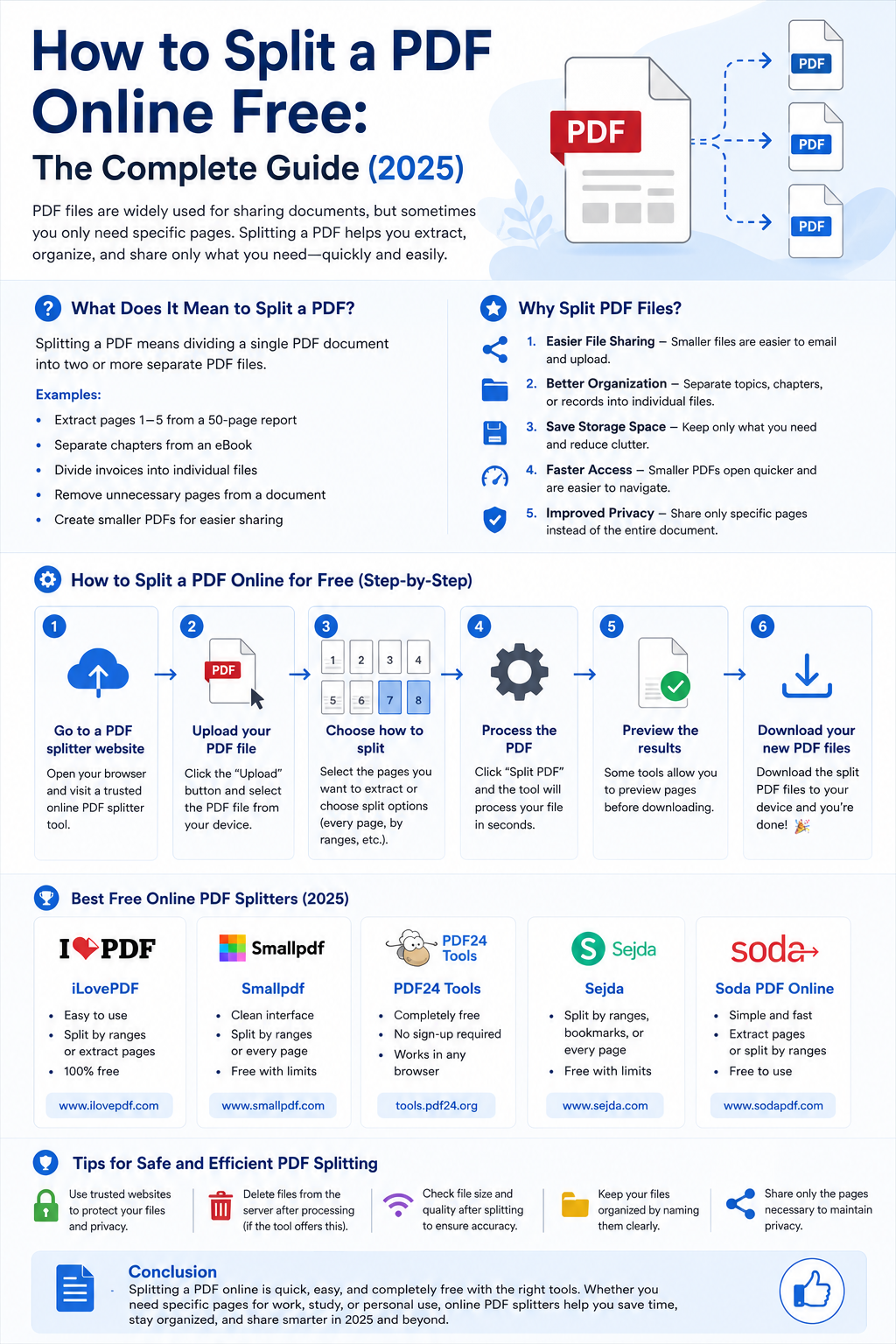
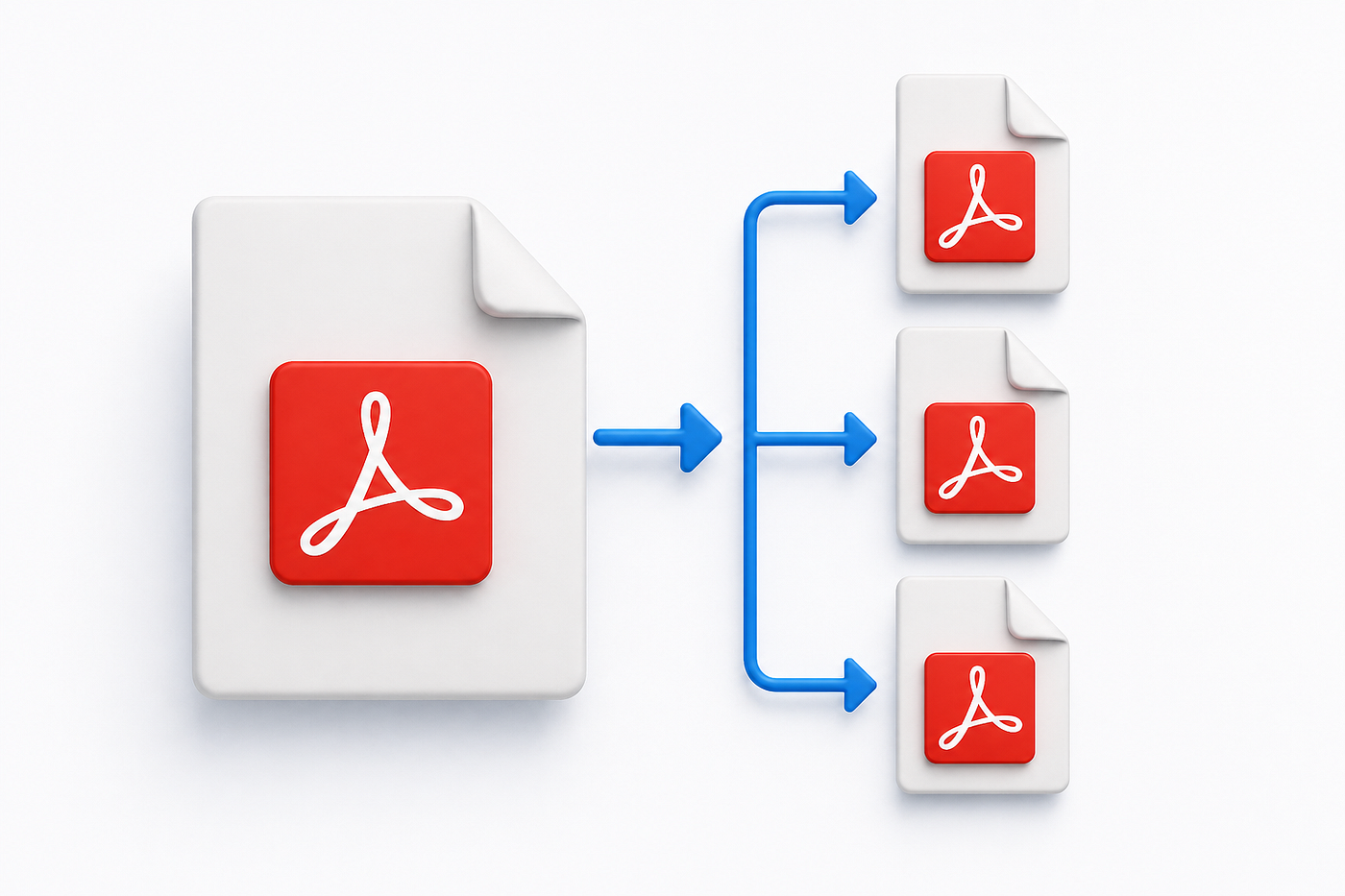
Splitting a PDF means taking one file and extracting parts of it into new files.
You can do this in multiple ways:
- Extract a few specific pages
- Divide the document into equal sections
- Convert each page into a separate file
- Split based on file size or structure
Modern tools allow all these options, often with just a few clicks.
Method 1: Using Online Tools (Fastest Option)
If you want the easiest method, online tools are your best bet.
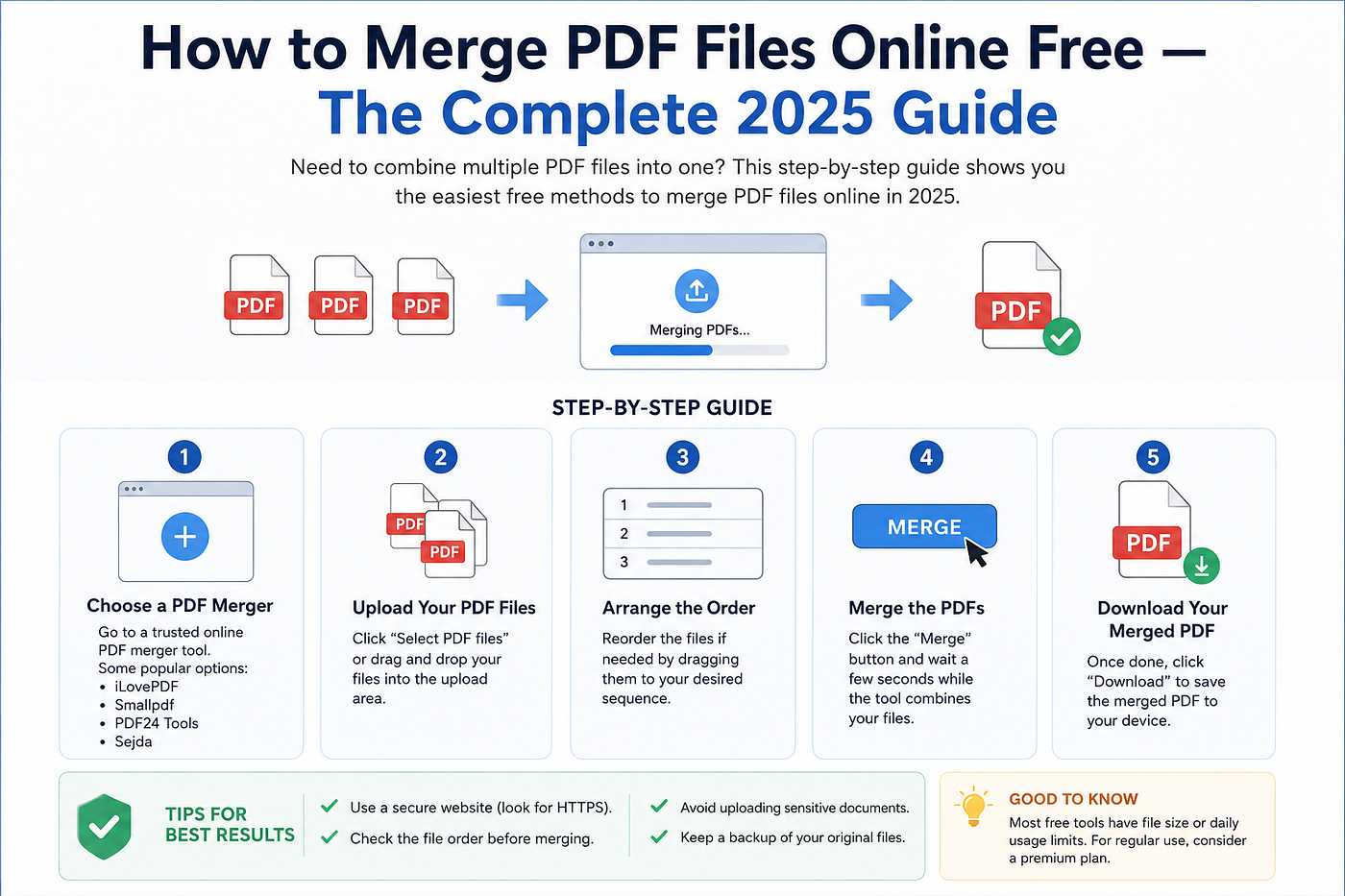
Most platforms follow a similar process:
- Upload your PDF
- Choose how to split it
- Download the new files
For example, tools like online PDF splitters allow you to extract selected pages or divide files into ranges without installing anything.
These tools are designed to be beginner-friendly and work directly in your browser.
Why people prefer this method:
- No installation required
- Works on any device
- Quick results
But there’s a catch:
Uploading sensitive documents online may not always be ideal. If privacy matters, consider offline options.
Method 2: Splitting PDFs Without Any Software
Here’s something many people don’t realize — you can split PDFs using your browser or system tools.
Using the “Print to PDF” trick:
- Open the PDF in your browser
- Click “Print”
- Select “Save as PDF”
- Enter page range (e.g., 1–5)
- Save the new file
This method works because you’re essentially creating a new PDF from selected pages.
It’s simple, effective, and requires zero additional tools.
Method 3: Using Dedicated Software
If you work with PDFs regularly, dedicated software gives you more control.
Programs like PDF editors allow you to:
- Split by page number
- Extract pages in bulk
- Automate repetitive tasks
- Preserve formatting
Some tools even let you split files by size or bookmarks, which is useful for large documents.
Best use cases:
- Office work
- Academic research
- Large reports or datasets
Method 4: Mobile Apps (For On-the-Go Users)
Need to split a PDF quickly from your phone?
There are plenty of mobile apps that let you do it in seconds.
These apps usually offer:
- Page selection tools
- Drag-and-drop splitting
- Quick export options
They’re perfect when you’re away from your computer but still need to manage documents efficiently.
Different Ways to Split a PDF (And When to Use Them)
Not all splitting methods are equal. Choosing the right one depends on your goal.
1. Split by Page Range
Use this when working with chapters or sections.
Example: Pages 1–10 → File 1 Pages 11–20 → File 2
2. Extract Specific Pages
Perfect when you only need a few pages.
Example: Only pages 3, 7, and 12
3. Split Every Page
Each page becomes its own file.
Useful for forms, invoices, or individual records.
4. Split by Intervals
Example: every 5 pages becomes a new file.
Helpful for large structured documents.
Common Mistakes to Avoid
Even though splitting PDFs is simple, people often make small mistakes that create problems later.
1. Not Checking Page Numbers
Always double-check the page range before splitting.
2. Overwriting Original Files
Keep a backup of the original document.
3. Poor File Naming
Avoid names like “file1.pdf.” Instead, use meaningful names like “Chapter-1.pdf.”
4. Ignoring File Quality
Good tools maintain quality during splitting, so choose reliable ones.
Real-Life Use Cases
Let’s bring this into real-world scenarios.
Students
Split textbooks into chapters for easier study.
Professionals
Extract reports or presentations for meetings.
Bloggers & Creators
Offer downloadable sections instead of one large file.
Businesses
Send only relevant documents to clients.
A Smarter Way to Split PDFs
If you’re dealing with PDFs regularly, using a dedicated tool or platform can save time.
Instead of repeating the process manually, you can streamline everything with a single interface.
👉 You can try this step-by-step tool here: Split PDF Into Smaller Files Tool
Or explore a more detailed guide here: 👉 https://digitalcreatorhub.online/split-pdf-into-smaller-files/
This approach helps you handle large files quickly without technical complications.
Tips to Work Faster
Once you get comfortable with splitting PDFs, you can speed things up significantly.
Use batch processing
Split multiple PDFs at once using advanced tools.
Organize before splitting
Plan your sections.
Automate repetitive tasks
Some tools allow automation for frequent workflows.
The Bigger Picture: Why This Skill Matters
At first glance, splitting PDFs might seem like a small skill.
But in reality, it’s part of a larger shift — working smarter with digital content.
We live in a world where:
- File sizes matter
- Speed matters
- Organization matters
Being able to break down and manage documents quickly gives you a clear advantage.
Final Thoughts
Splitting a large PDF into smaller files is one of those simple skills that can make a big difference in your daily workflow.
Whether you’re a student, professional, or content creator, learning how to do this efficiently helps you:
- Save time
- Stay organized
- Share information easily
And the best part? You don’t need advanced technical knowledge to get started.
Once you try it a few times, it becomes second nature.
메타데이터
- post_id
- 68d8bfccd7bd
- slug
- how-to-split-a-large-pdf-into-smaller-files-a-practical-guide-for-everyday-users-68d8bfccd7bd
- url
- https://medium.com/@vickypalova/how-to-split-a-large-pdf-into-smaller-files-a-practical-guide-for-everyday-users-68d8bfccd7bd
- canonical_url
- https://medium.com/@vickypalova/how-to-split-a-large-pdf-into-smaller-files-a-practical-guide-for-everyday-users-68d8bfccd7bd
- author_url
- https://medium.com/@vickypalova
- status
- ok
- fetched_at
- 2026-08-17 23:29:27