Accessing a Private MWAA Webserver via a Bastion Host
If the ALB approach feels like overkill for your situation — maybe you’re the only one who needs access, or you’re just debugging something…
Accessing a Private MWAA Webserver via a Bastion Host
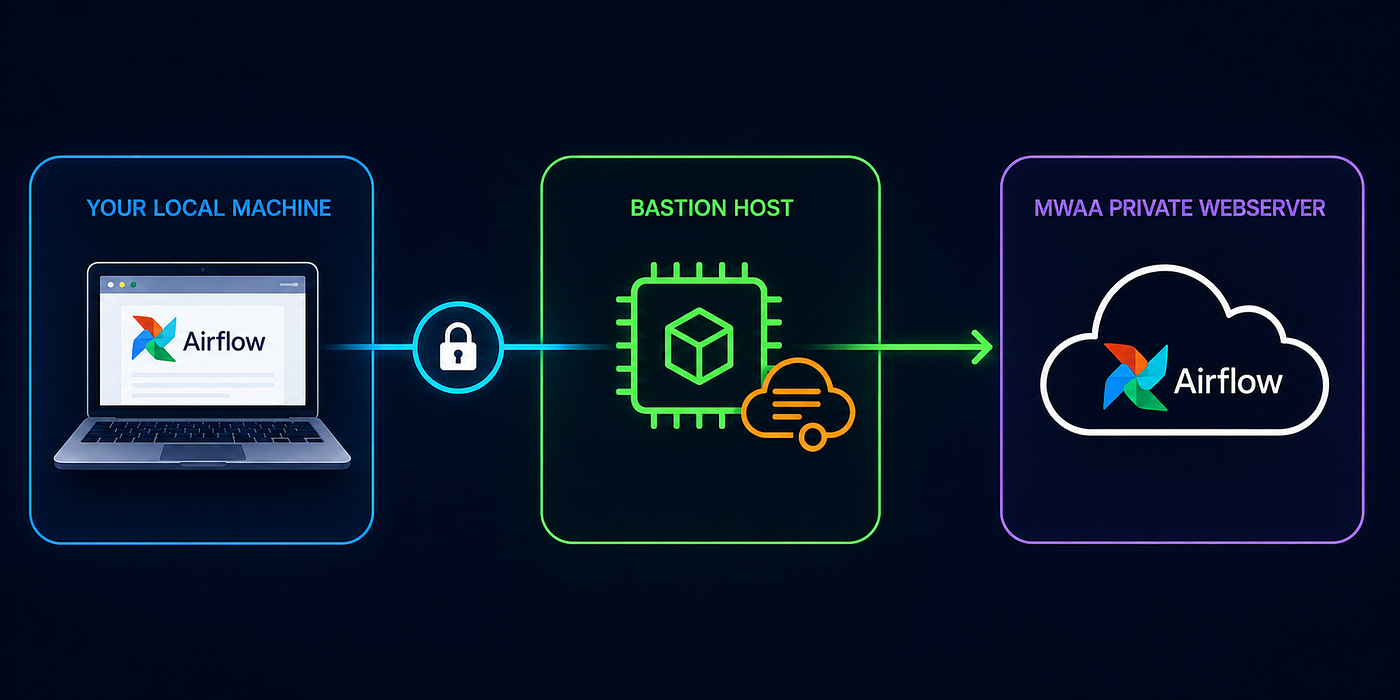
If the ALB approach feels like overkill for your situation — maybe you’re the only one who needs access, or you’re just debugging something quickly — this bastion host method is a lighter alternative.
With an EC2 instance in your VPC and SSM Session Manager, you can tunnel straight to the Airflow UI from your laptop. No load balancers to set up, no public IPs needed, no SSH keys floating around. Just a secure, encrypted tunnel that takes minutes to configure.
This guide walks you through it.
Architecture Overview
Your Local Machine
      |
      |  SSM Port Forwarding (port 443)
      v
[Bastion Host] (EC2, private subnet, no public IP needed)
      |
      |  via webserver URL
      v
[MWAA Webserver] (AWS managed)
Prerequisites
- MWAA environment with private webserver mode (status: AVAILABLE)
- EC2 instance (bastion host) in the same VPC as MWAA
- Bastion EC2 must have an IAM role with
AmazonSSMManagedInstanceCoremanaged policy - Your IAM user/role needs:
airflow:CreateWebLoginToken,ssm:StartSession - SSM Session Manager Plugin installed on your local machine
- AWS CLI configured
What is SSM and Why Do We Need It?
AWS Systems Manager (SSM) lets you manage EC2 instances without SSH keys or open inbound ports. The SSM Agent comes pre-installed on most modern AMIs (including Amazon Linux) — it’s a lightweight process that maintains an outbound connection to AWS, so you don’t need to open port 22 or manage SSH keys to interact with the instance.
The piece that matters for our use case is SSM port forwarding. We can tunnel traffic through the bastion host to reach the private MWAA webserver: your browser talks to localhost, SSM forwards it through the bastion, and the bastion reaches MWAA. All encrypted, no public exposure.
How SSM Connectivity Works
For SSM to function, the agent on your EC2 needs to reach AWS SSM service endpoints. Two ways to make this happen:
Option A: SSM VPC Endpoints (No Internet)
EC2 → SSM VPC Endpoints → SSM ServiceIf your bastion is in a private subnet with no internet access, create these VPC endpoints:
com.amazonaws.REGION.ssmcom.amazonaws.REGION.ssmmessagescom.amazonaws.REGION.ec2messages
Note: The SSM tunnel itself (your UI traffic) flows privately through AWS. The internet/VPC endpoint path is only for the SSM control plane (session setup, heartbeats).
Option B: Public Subnet or NAT Gateway (Internet Access)
EC2 → IGW/NAT → Internet → SSM ServiceIn case your EC2 instance is in a public subnet or has a NAT Gateway route, this also works:
- Bastion in public subnet with IGW route, OR
- Bastion in private subnet with NAT Gateway
Step-by-Step Setup
Step 1: Install SSM Session Manager Plugin
On your local machine (macOS):
brew install --cask session-manager-pluginVerify:
session-manager-plugin --versionStep 2: Launch Bastion Host
Launch an EC2 instance in your MWAA VPC:
- AMI: Amazon Linux 2023
- Instance type: t3.micro
- Subnet: Any subnet in MWAA VPC — can also be same as that of the environment (see SSM connectivity options above)
- IAM Role: Attach
AmazonSSMManagedInstanceCorepolicy
Subnet options:
- Public subnet with IGW route → SSM works via internet
- Private subnet with NAT → SSM works via NAT to IGW (Internet)
- Private subnet without internet → Need SSM VPC endpoints
Step 3: Configure Security Groups
Bastion Security Group — Outbound:
HTTPS (443) to 0.0.0.0/0MWAA VPC Endpoint Security Group — Inbound:
HTTPS (443) from Bastion security groupStep 4: Get MWAA Webserver URL
aws mwaa get-environment --name YOUR-ENVIRONMENT-NAME \
  --query 'Environment.WebserverUrl' --output text
Example output:
a1b2c3d4-5678-90ab-cdef.c1.us-east-1.airflow.amazonaws.comStep 5: Configure Local Hosts File
Add the webserver hostname to your local /etc/hosts:
sudo nano /etc/hostsAdd:
127.0.0.1 a1b2c3d4-5678-90ab-cdef.c1.us-east-1.airflow.amazonaws.comSave (Ctrl+O, Enter, Ctrl+X).
Step 6: Start SSM Port Forwarding
From your local terminal (keep this open):
sudo aws ssm start-session \
  --target i-YOUR-BASTION-INSTANCE-ID \
  --document-name AWS-StartPortForwardingSessionToRemoteHost \
  --parameters '{"host":["YOUR-WEBSERVER-URL"],"portNumber":["443"],"localPortNumber":["443"]}'
Important: Use sudo because port 443 requires root privileges. Without it, the session starts but connections will fail.
Example:
sudo aws ssm start-session \
  --target i-0abc123def456789 \
  --document-name AWS-StartPortForwardingSessionToRemoteHost \
  --parameters '{"host":["a1b2c3d4-5678-90ab-cdef.c1.us-east-1.airflow.amazonaws.com"],"portNumber":["443"],"localPortNumber":["443"]}'
You should see:
Starting session with SessionId: user-xxxxxxxxxxxx
Port 443 opened for sessionId user-xxxxxxxxxxxx.
Waiting for connections...
Step 7: Verify Port Forwarding
In a new terminal:
curl -k https://localhost:443/api/v2/monitor/healthYou should see health status JSON and not errors.
Step 8: Generate Login Token and Access UI
TOKEN=$(aws mwaa create-web-login-token --name YOUR-ENVIRONMENT-NAME --query 'WebToken' --output text)echo "https://YOUR-WEBSERVER-URL:443/aws_mwaa/aws_console_sso?login=true#$TOKEN"Copy the entire URL and paste in browser immediately (within 60 seconds).
Accept the certificate warning (click Advanced → Proceed).
Troubleshooting
Non-Standard Ports (8080, 8443) Cause Redirect Failures
Symptom: You see the SSO login page, then get “Unable to connect” in Firefox (Chrome has its own messaging, but essentially no access) after it redirects.
Cause: MWAA’s SSO flow redirects to the hostname without the port. If you’re forwarding to any other port, the redirect goes to port 443 (default) which breaks.
Fix: Always use port 443 for local forwarding. This is why I use "localPortNumber":["443"].
Token Expires in 60 Seconds
Error: “Forbidden” after pasting the URL.
Fix: Generate token and paste URL immediately.
Browser Can’t Connect but curl Works
Cause: Browser DNS cache still resolving hostname to AWS IP instead of localhost.
Fix:
- Verify hosts file:
cat /etc/hosts | grep airflow - Flush DNS:
sudo dscacheutil -flushcache; sudo killall -HUP mDNSResponder - Try incognito mode or different browser
Certificate Warning
Expected. The certificate is for the AWS hostname. Click “Advanced” → “Proceed anyway”. Connection is still encrypted. I explained this in the previous ALB doc.
메타데이터
- post_id
- 6a3aedca6bb9
- slug
- accessing-a-private-mwaa-webserver-via-a-bastion-host-6a3aedca6bb9
- url
- https://medium.com/@viukpe/accessing-a-private-mwaa-webserver-via-a-bastion-host-6a3aedca6bb9
- canonical_url
- https://medium.com/@viukpe/accessing-a-private-mwaa-webserver-via-a-bastion-host-6a3aedca6bb9
- author_url
- https://medium.com/@viukpe
- status
- ok
- fetched_at
- 2026-06-09 15:37:30




