Day 3/100: Secure Root SSH Access
Challenge Source: KodeKloud — 100 Days of DevOps
Day 3/100: Secure Root SSH Access
Challenge Source: KodeKloud — 100 Days of DevOps
The Task
Following security audits, the
**xFusionCorp Industries** security team has rolled out new protocols, including the restriction of direct root SSH login.
Your task is to disable direct SSH root login on all app servers within the
**Stratos Datacenter**.

Introduction
If you have worked with a Linux server, you have almost certainly come across SSH. SSH is the standard way we access servers over a network, whether it is a personal virtual machine, a production server or a jump host in a larger environment.
Before SSH became the norm, administrators relied on Telnet, a protocol that sent everything, including passwords, in plain text. Not great. I have never used Telnet for remote access myself, but it is still a useful little utility even today when you need to check whether a port on a server is reachable.
SSH solved this by providing encrypted communication, which made remote access far more secure and reliable.
In today’s task, we take that security a step further by hardening our server and disabling direct root SSH access.
What We Need to Achieve
We can break down the task as follows:
- Understand the risk of direct root SSH access: as it gives full control to anyone who logs in and reduces accountability.
- Update the SSH settings to block direct root login: this improves the overall security posture of the server.
If you are here just for the task solution, feel free to skip ahead to this section.
Key Concepts to Understand Before We Start
Why We Disable Root Access
Direct root SSH access gives anyone who logs in complete and unrestricted control of the server. This makes it a high-risk entry point, especially in environments where several people may need administrative access. Security standards also widely recommend disabling direct root logins because automated attacks often target the root user first, and a single successful attempt can compromise the entire system.
There is also an important accountability aspect. Industry hardening guidelines highlight that administrators should authenticate with their own user accounts and then escalate privileges with sudo. This creates a clear audit trail and prevents situations where multiple people share the same root login, which would otherwise make tracking actions difficult during a security incident.
Important Files for This Configuration Change
The main file involved in this task is /etc/ssh/sshd_config. This is the file the SSH server reads to decide who can log in and how authentication should work. The PermitRootLogin setting is defined here, and any mistakes in this file can prevent the SSH service from starting properly, so it is important to edit it carefully.
There is also a file called /etc/ssh/ssh_config, but this applies only to the SSH client. It does not influence server-side login permissions and should not be used when restricting root access.
How SSH Applies These Changes
SSH does not automatically load new settings when the configuration file is changed. The SSH daemon needs to be reloaded so it can apply the updated rules. Reloading is the safer option, as it keeps your current connection active while applying the new configuration in the background.
After the reload, you can confirm the change by checking the effective configuration:
#Command to run extended test on SSH daemon configuration
sshd -T
Now that we have understood how things work under the hood, let’s work on the task.
Now for the Practical Part
Since we are asked to perform this task on all three application servers(**stapp01, stapp02, stapp03), the following steps will have to be repeated for the other application servers. The steps shown below were implemented on `stapp01`**.
Firstly, SSH into the server using the username and password provided in the information sheet for the first server.
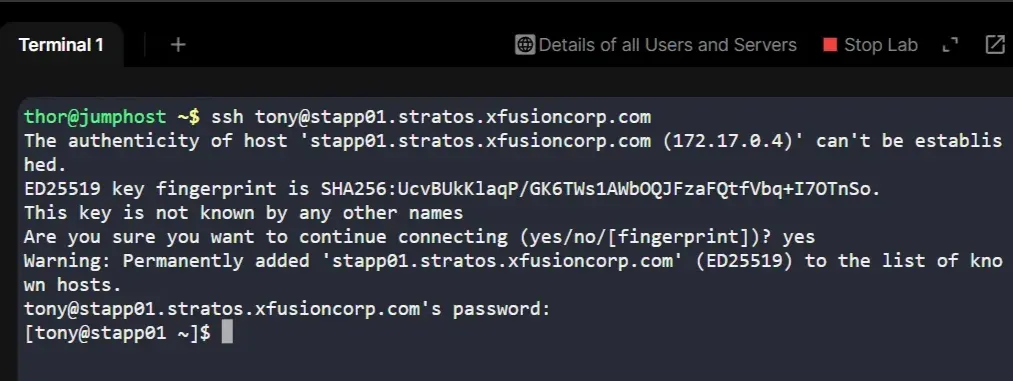
SSHing into strapp01
Let’s now inspect the SSH daemon configuration file. The file is located at the absolute path /etc/ssh/sshd_config. Open it using your preferred text editor. In my case, I will be using vi, and the command is sudo vi /etc/ssh/sshd_config. The file requires root privileges to open. Once opened, scroll down until you see the line containing PermitRootLogin.
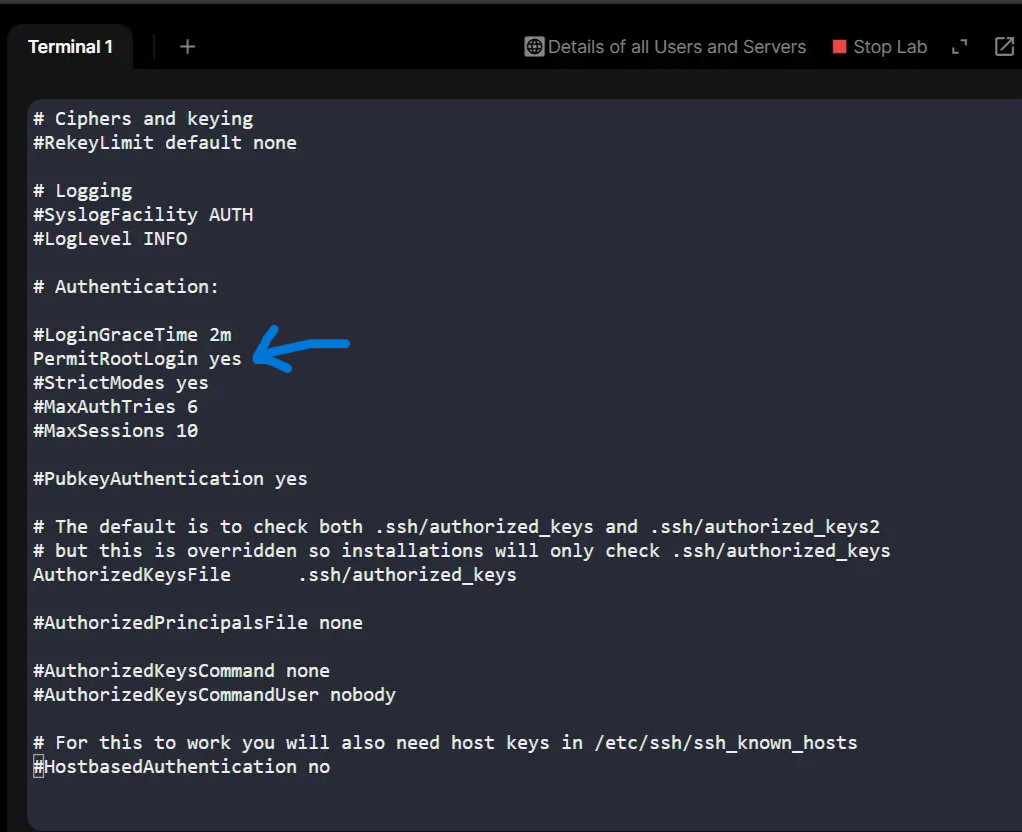
Content of /etc/ssh/sshd_config before disabling root login access.
You’ll typically see something like PermitRootLogin yes. Uncomment the line if needed (remove the #) and change the value to no.
Your file should now look something like this.
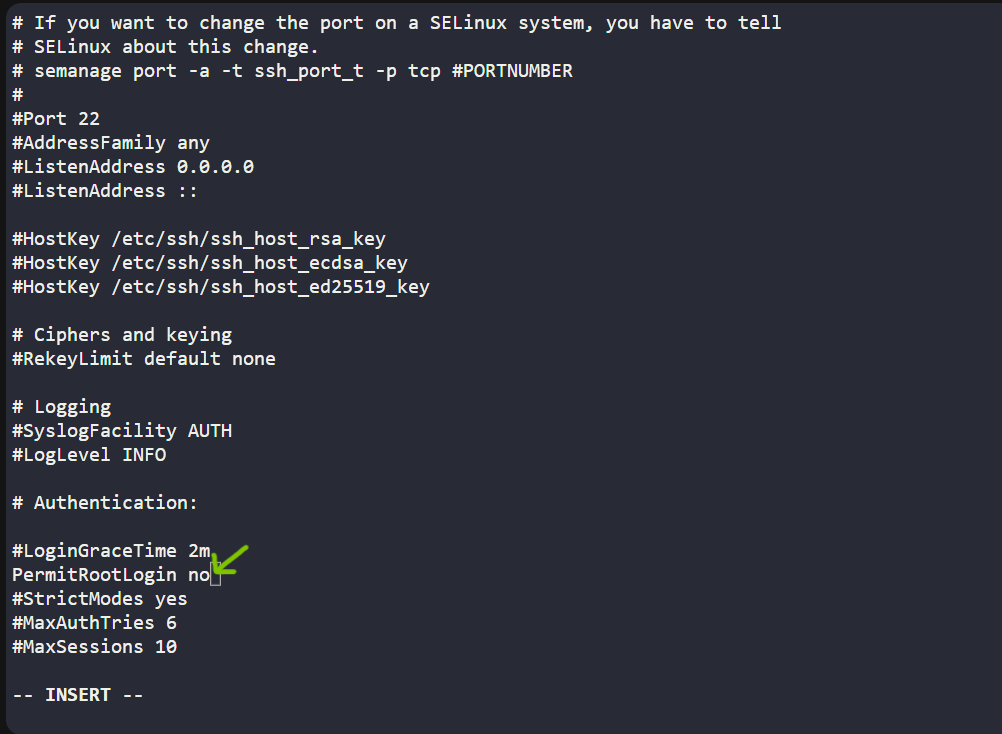
Content of /etc/ssh/sshd_config after disabling root login access.
You can now save and exit the text editor. Before applying the changes, we should check whether the configuration file contains any syntax errors. This can be done by running sudo sshd -t. If the command returns no output, it means the configuration file does not have any syntax errors.
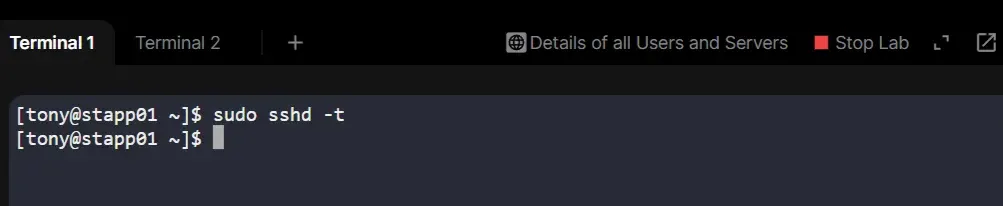
Checking configuration file syntax.
Now apply the changes by reloading the SSH daemon using sudo systemctl reload sshd, followed by sudo systemctl status sshd to confirm that the SSH service is running correctly.
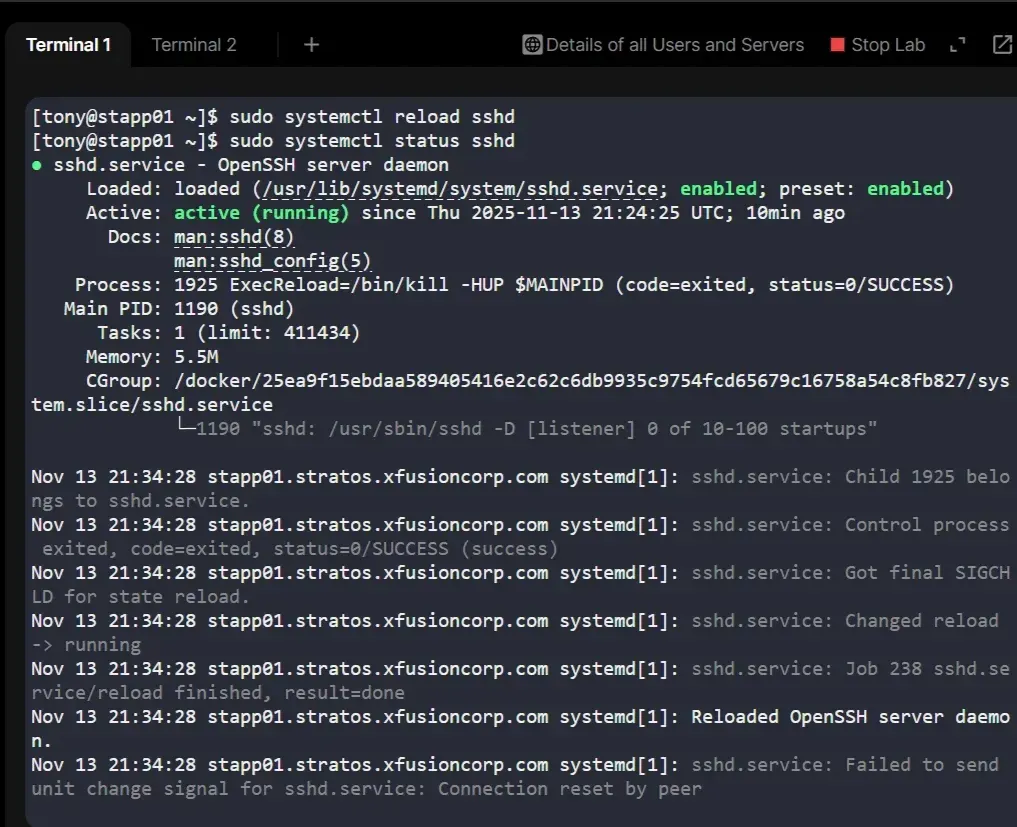
Checking status of SSH daemone after applying configuration.
Next, we can validate the changes either by trying to SSH as the root user, or by checking whether the configuration has been applied correctly. Since attempting to log in as root still prompts for a password we do not have, we will validate the change by checking the active SSH daemon configuration instead.
The applied configuration can be checked by running the extended test mode, sudo sshd -T, which displays the effective configuration. The grep command after the pipe filters the configuration file for only permitrootloginconfiguration. You should see the output: permitrootlogin no.
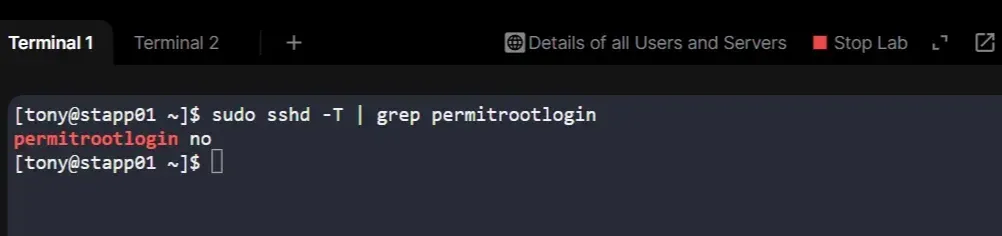
Checking if the new configurations are applied.
Repeat these same steps on stapp02 and stapp03 using their respective credentials from the information sheet. Once complete, direct root SSH login will be disabled across all app servers in the Stratos Datacenter. Yayyy!!!

Concluding with Reflection
Today’s task was a simple one on paper, but it highlighted an important point about server security. Disabling direct root SSH access is just a single line in a configuration file, yet it significantly improves accountability and reduces risk. It reminded me that not every security improvement needs a complex setup; sometimes it’s about knowing which defaults to change and using safer practices like logging in with a normal user and elevating with sudo.
It also encouraged me to look beyond the task itself. Security guidelines and benchmarks, including the freely available CIS documents and distribution-specific hardening guides, explain why changes like this matter in real environments. They are great resources for anyone trying to build stronger server-hardening habits.
Small improvements like this build a strong foundation, one configuration change at a time. #100DaysOfDevOps
Key Takeaways
- Disabling direct root SSH access removes a major security risk and improves accountability.
- The
PermitRootLoginsetting insshd_configis a simple but effective way to harden a server. - Validating changes with
sshd -tandsshd -Thelps avoid misconfigurations and accidental lockouts.
References
- https://kodekloud.com/100-days-of-devops
- https://docs.redhat.com/en/documentation/red_hat_enterprise_linux/7/html/security_guide/sec-controlling_root_access
- https://www.cisecurity.org/
Follow My Journey on 100 Days of DevOps
This article is part of a series documenting my progress through KodeKloud’s 100 Days of DevOps challenge.
Previous Post: Day 2/100: Temporary User Setup with Expiry Next Post: Day 4/100: Script Execution Permissions
Follow my #100DaysOfDevOps journey here on Medium or connect with me on LinkedIn.

100DaysOfDevOps, #Linux, #SysAdmin, #DevOps, #KodeKloud.
메타데이터
- post_id
- 6aaafd08c8fa
- slug
- day-3-100-secure-root-ssh-access-6aaafd08c8fa
- url
- https://medium.com/@kripalparsekar/day-3-100-secure-root-ssh-access-6aaafd08c8fa
- canonical_url
- https://medium.com/@kripalparsekar/day-3-100-secure-root-ssh-access-6aaafd08c8fa
- author_url
- https://medium.com/@kripalparsekar
- status
- ok
- fetched_at
- 2026-06-21 15:33:18


