Testing Expo Go SDK 54: A Beginner’s Perspective on React Native Development
Coming from web development, I chose Expo Go to build a mobile-first app using React Native and TypeScript with an easier testing workflow…

Expo Home page
Testing Expo Go SDK 54: A Beginner’s Perspective on React Native Development
Coming from web development, I chose Expo Go to build a mobile-first app using React Native and TypeScript with an easier testing workflow on real devices.
While I am still growing in the software development field, most of my experience so far comes from building web applications. For my new idea, however, this approach was not ideal, since the product is intended primarily for mobile users.
I initially considered sticking with technologies I already know, especially React, and using a mobile wrapper solution to bridge the gap. But after some research and planning, I realized I needed a more native-focused approach that would still keep development simple and familiar.
That’s when I came across Expo Go. It provides a modern development environment built on React Native, allowing applications to run on both Android and iOS devices with minimal setup. It also supports TypeScript and offers a fast testing workflow directly on physical devices.
Since I tend to learn by building, I naturally ran into a few issues and misunderstandings at the beginning. I’ll go through those in this article so you can avoid the same confusion.
The Expo Go mobile app is one of the things you need for testing your own app. It is available on the Google Play Store and the Apple App Store.
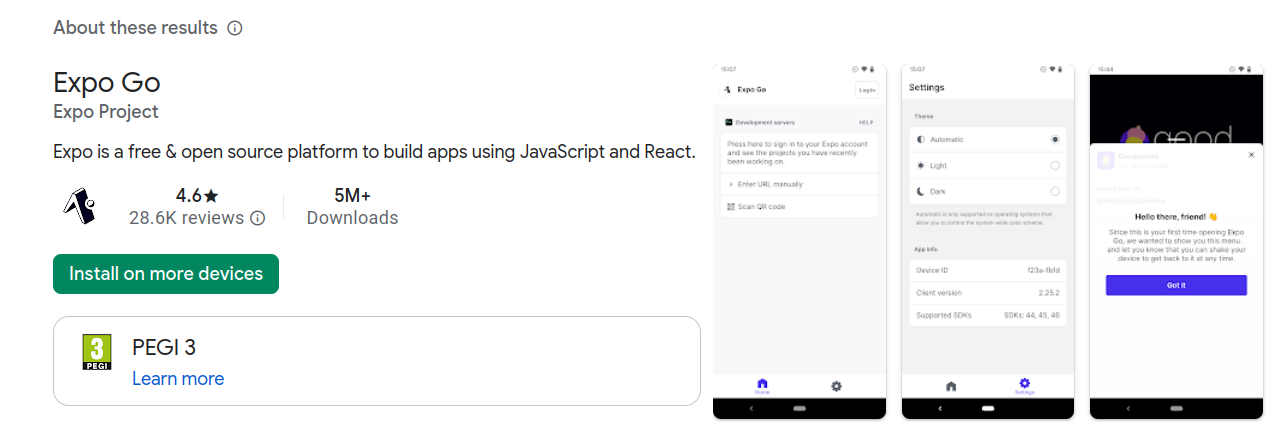
Expo Go in Google Play Store
After installation, you will have different options to sign in, such as a Google or GitHub account. This is enough to start testing your app directly on a mobile device.
The next step is to create your first Expo project, which is the first “brick” in the actual development process.
To create an Expo project, simply run the command npx create-expo-app@latest your-app. If you have already created a project folder, open it in your terminal and run npx create-expo-app@latest instead.
In the terminal, you will be presented with three options: SDK 56, SDK 54, and other versions. For this article, you should choose SDK 54. Why? I’ll explain that shortly, but first I need to talk a bit about what an SDK actually is.
Why SDK 54 Makes Sense Right Now
An SDK is not the app version itself. Instead, it is a package of libraries, tools, and native code that are designed to work together. This collection of modules allows developers to write cross-platform applications for iOS, Android, and the web.
If you are just getting started with Expo, and especially with Expo Go, I recommend choosing SDK 54. The reason is simple: if you create a project with SDK 56, it will not work with the current Expo Go app yet. You will only be able to run it on the web.
I learned this the hard way. I selected SDK 56 and was immediately greeted with the following error:
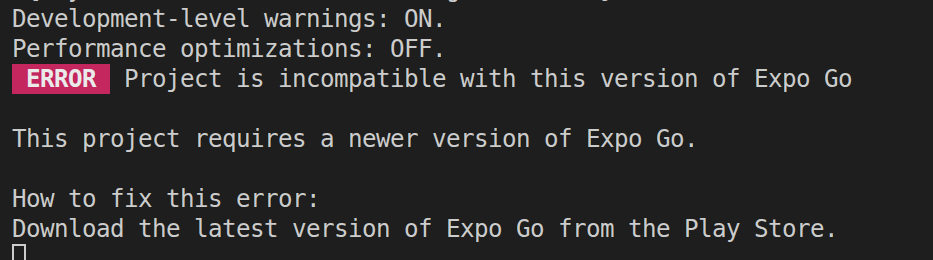
Error: Project is incompatible with this version of Expo Go
At the time of writing, SDK 54 is the latest version fully supported by Expo Go and approved for the app stores, while SDK 56 support is still being rolled out. Once that process is complete, creating new projects with SDK 56 or upgrading existing ones should be straightforward.
This is also why it is a good idea to use the @latest option when creating your project instead of manually selecting an SDK version unless you have a specific reason to do so.
Choosing SDK 56 is not wrong. In fact, it is the logical choice if you want the newest features. However, SDK 54 is currently the safer option when your goal is to test your application directly on a mobile device using Expo Go.
For more details, the Expo team has published (May 27, 2026) a video explaining the status of Expo Go support for SDK 56.
Taking the next step
After running the command to create a project, I recommend choosing SDK 54 for now.

Choosing between SDK Version
Next, you will see the following prompt:

Expo Go Terminal Prompt
If you have already created a Git repository for your project, choose Y (yes). If you choose N (no), Expo will run the git init command and initialize a new repository.
Be careful at this step. If a Git repository already exists and you choose N, you may end up with a nested Git repository, which can cause issues with version control and pushing changes to a remote repository.
Another thing worth noting is that the project creation process generates its own README.md file. If you have already created a README file for your project, make sure to review it afterward and merge any content you want to keep.
Understanding the Files Created by Expo
We will look at some important files to better understand how it works and where to make changes if needed.
📄 app.json — it is an Expo configuration file. It controls the application name, icon, splash screen, platform settings, and the overall Expo project identity.
📄 tsconfig.json — it is a TypeScript configuration file. It tells the editor how strict the types are and defines module rules.
📄 package.json — it is the “brain” of dependencies. This file defines Expo and React/React Native versions, scripts, and dependencies.
📂 The app/ folder in the project usually means that Expo Router is enabled. Each file is a screen. Navigation in Expo projects is file-based. It defines navigation automatically.
📂 The assets/ folder contains static files like images, icons, and fonts.
📂 The scripts/ folder has helper scripts like reset scripts, automation tools, and development utilities.
🤖 CLAUDE.md and AGENTS.md are AI tooling notes.
📄 node_modules contains installed dependencies.
Now let’s look inside the app/ folder, since it has the most useful files.
📄 index.tsx is the home page (/). It is the first file that you see on the screen.
📂 The components/ folder contains reusable UI blocks. They are small building blocks used everywhere across the app, like buttons and cards.
📂 The constants/ folder has fixed data. It stores values like colors, spacing data, and mock data. They don’t change often.
📂 The hooks/ folder contains logic functions. It provides reusable logic using React hooks like useLocation() or useAuth().
Running Your Expo Project
Finally, we can move on to the last step where we run the project. To start the development server, you can use:
npm startor:
npx expo startBoth commands do the same thing in most Expo projects.
Once the server is running, you can press **w in the terminal and open the app in a web browser or scan the QR code using the Expo Go** app on your Android or iOS device. It will run your app on an emulator. This allows you to see your app running on both web and mobile during development.
First “Hello World” screen
If you are ready to test your first screen, open the app/ folder and find:
app/index.tsxThis file is the entry point of your application (home screen).
You can safely replace its contents with a simple example like:
import { View, Text } from "react-native";export default function HomeScreen() {
return (
<View style={{ flex: 1, alignItems: "center", justifyContent: "center" }}>
<Text>Hello World</Text>
</View>
);
}Save the file, and the app will automatically reload.
This is all you need to start your first Expo project. In the beginning, I got confused, but you will not, I hope so.
P.S. I bumped into a problem with node_modules. I am using Ubuntu and a long time ago I installed Node.js from the Snap Store, which can cause problems when creating an Expo project. Make sure that it is installed properly. Reinstall Node.js via NodeSource: if you are on Ubuntu/Debian, Node.js installed via Snap or system packages often causes these conflicts.
💻 Happy Coding!
메타데이터
- post_id
- 6ca42b0ab9f1
- slug
- testing-expo-go-sdk-54-a-beginners-perspective-on-react-native-development-6ca42b0ab9f1
- url
- https://medium.com/@karinamisnik94/testing-expo-go-sdk-54-a-beginners-perspective-on-react-native-development-6ca42b0ab9f1
- canonical_url
- https://medium.com/@karinamisnik94/testing-expo-go-sdk-54-a-beginners-perspective-on-react-native-development-6ca42b0ab9f1
- author_url
- https://medium.com/@karinamisnik94
- status
- ok
- fetched_at
- 2026-06-16 19:09:56




