Figma Added Animation to Its Canvas. Here Is How It Works
Figma added a full animation timeline to its canvas. This guide covers what Figma Motion does, how it fits your design workflow, and what…
Figma Added Animation to Its Canvas. Here Is How It Works
Figma added a full animation timeline to its canvas. This guide covers what Figma Motion does, how it fits your design workflow, and what it means for handoff.

Figma motion timeline
You design the screens in Figma. The layouts are done, the flows make sense, and the product is starting to look like something real. Then someone asks about the animation. Suddenly you are in a different tool, rebuilding elements you already designed, working in an environment that does not know anything about your components or your variables. You animate, export, write a spec, and hand it to a developer who will do their best to implement something close to what you had in mind. It works. But it rarely feels like what you designed.
Figma Motion changes where that work happens. Instead of leaving your design file to build animations, you stay in it. The timeline, the keyframes, the handoff — all of it lives in the same canvas as your UI.
What Is Figma Motion?
Figma Motion is a native animation environment built into Figma Design. It is not a plugin, and it is not an extension of the existing prototype transitions. It is a separate mode, accessible from the same toolbar as Design, Draw, and Dev, that turns the Figma canvas into a working animation timeline.
When you switch a frame to Motion mode, a timeline appears at the bottom of the screen. Your existing layers become tracks on that timeline. From there, you can set keyframes on individual properties, scrub through the animation frame by frame, apply preset animations, adjust easing curves, or prompt the Figma agent to generate a first draft from a text description.
The key difference from Figma's existing Smart Animate and prototype transitions is control. Smart Animate interpolates between two defined states. The Motion timeline gives you per-property keyframe precision — position, scale, rotation, and opacity, each controlled independently, at any point in the animation's duration. Everything you build stays in the file. The animation sits alongside the components and variables it belongs to, which means it updates when the design updates and travels with the component when it is published to a library.
Why Figma Built Motion
The problem Figma Motion is solving is not a new one. Product teams have been working around it for years. The old workflow required designing in Figma, rebuilding those designs in a separate animation tool, animating there, exporting a video or Lottie file for handoff, writing a spec that tried to express timing values in plain language, and handing it to a developer who re-implemented the motion in code. When the design changed, the animation had to be rebuilt. When the developer had a question, the answer required opening the animation file and reading out a number. Every step in that chain was a translation, and every translation was a place where the original intent could drift from what eventually shipped. Beyond the mechanics, the process kept motion behind a specialist barrier. Most UI designers could not justify the learning curve for tools built primarily for broadcast and video production. So motion got simplified, approximated, or cut when deadlines tightened. Figma’s position is that motion is a design material, the same as vectors, type, and colour. It belongs on the canvas from the beginning of the process, not at the end of it. Figma Motion is the implementation of that position.
Inside Figma Motion: The Features That Change How You Work
- The Timeline. Switch any frame to Motion mode and a timeline panel opens across the bottom of the canvas. Each layer appears as a track. You set the duration, place keyframes at specific moments for specific properties, and scrub the playhead to preview the result. Auto-keyframing is available for designers who prefer to work by feel: move the playhead to a point in time, adjust a property, and Figma records the keyframe automatically.
- Easing and Spring Controls Easing determines how an animation accelerates and decelerates. Without it, motion feels mechanical. With a well-chosen curve, the same transition can feel light, weighted, snappy, or settled. Figma Motion gives designers direct control over easing through curve handles, and also supports spring physics, where motion behaves as if attached to a spring with adjustable tension and damping. This matters practically because easing is where most motion handoff breaks down. A designer knows the feel they want. A developer re-implementing motion from a video clip can approximate the timing but cannot accurately read the curve. With Figma Motion, easing values are inspectable in Dev Mode and copyable as code.
- Preset Animations For designers new to animation, presets provide a starting library of common UI motion patterns including fades, slides, and scale transitions. Apply a preset and Figma places the keyframes on the timeline automatically. The result is fully editable, so presets are an entry point, not a limitation.
- AI-Assisted Animation Type a description of the motion you want and the Figma agent builds keyframes on the timeline as a draft. Because the agent works within the context of your file, prompts can be specific to the layers and components already present. The output is a starting point you refine manually or continue prompting. AI-assisted generation currently requires a Full seat on a paid Figma plan.
- Motion Variables and Animated Components Motion variables let you define timing and easing values once and reference them across your work, the same way colour tokens and spacing variables work. Change the variable and every animation referencing it updates. Animated components extend this to the library level. Build an animation on a component, publish the library, and every instance across every file that pulls from it inherits that motion. For design system teams, this means motion can be a property of a component rather than a separate document that describes what the component should do.
- Time-Stamped Comments Collaborators can leave comments pinned to specific moments on the timeline. A stakeholder can flag a transition that feels too fast at exactly the frame it happens. A developer can mark a timing value they need clarified. Feedback is anchored to the moment being discussed rather than described in approximate language elsewhere.
Where Figma Motion Fits in Your Work
- UI Micro-Interactions Button states, toggle animations, icon transitions, loading indicators. These are the details that make a product feel considered. They are also the animations most likely to be cut when building them requires a separate tool and rebuilding them from scratch every time the design changes. Inside Figma Motion, a designer animates directly on the component, the result is reviewable in the same file as the screens, and the handoff carries the actual keyframe data.
- Onboarding and Empty State Animations These are high-visibility moments in any product, and they are notoriously difficult to keep aligned with the design system as the product evolves. When animation lives in a separate file, it drifts from the UI as designs change. When it lives inside the design file, with access to the same components and variables, it updates as the design updates.
- Design System Motion Standards A design system that includes motion as a component property means every team building on it gets consistent animation without having to design it independently each time. Define the easing variables, build the animated components, publish the library. The motion standard ships with the component, not as a document that describes what the component should do.
- Stakeholder Reviews Export an MP4 or WebM directly from Figma for early alignment. Share a link to the animated frame for collaborators with file access. Time-stamped comments mean feedback is anchored to the exact moment being discussed, not described in a message that requires everyone to count seconds.
How Motion Design Worked Before Figma Motion
Most product teams did not think of their motion workflow as broken. They thought of it as how things work. Design the screens in Figma. Hand the file to a motion designer or open After Effects yourself. Rebuild the relevant layers in the animation tool because it does not read Figma files natively. Animate there, in an environment with its own logic, its own layer naming, its own version of the components you already built once. Export a video, a GIF, or a Lottie file. Write a spec to explain what the export cannot carry; the easing values, the timing, which animations run together and which run in sequence. Hand everything to the developer and wait to see what comes back. When it came back wrong, the fix required going through the same chain again. That workflow had two costs most teams never measured. The first was time; the hours spent rebuilding, re-exporting, and re-speccing every time a design changed. The second was quality; the motion that got cut because the process was too expensive, the easing curves that got approximated because there was no better way to communicate them, the animations that shipped as something close but never quite right.
With Figma Motion, the chain compresses. The design and the animation live in the same file. The spec is the timeline. The handoff is inspectable data, not a description of data. When the design changes, the animation changes with it because they are the same object.
Figma Motion vs After Effects
After Effects is a professional motion tool built for video production, compositing, and broadcast work. For those use cases it remains the right choice. For UI animation in product design, After Effects has always demanded more than the job requires. The interface was built for motion designers working at the frame level on video content. Product designers who used it spent significant time managing the tool before they could focus on the actual motion.
Figma Motion does not attempt to match After Effects in depth. It does not support compositing, 3D layer work, or complex masking. What it does is cover the animation work product teams do most often, inside the tool they already use, without requiring a specialist background to get started. For teams that do both product design and brand motion work, the tools serve different contexts and both remain relevant. For product teams that have been avoiding motion because After Effects felt inaccessible, Figma Motion changes what is practical.
What Figma Motion Means for Design Teams
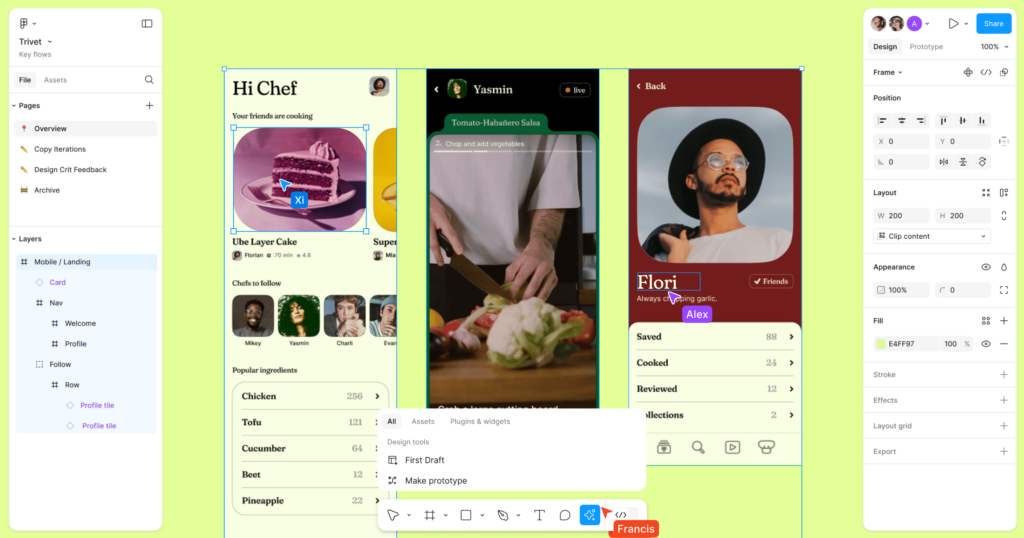
Figma design interface
For UI and Product Designers
Motion becomes part of the design process rather than a phase that happens after it. You can animate a component in the same file where you designed it, share it in the same review as the screens, and hand it off with the keyframe data intact. The Figma agent and presets lower the starting point enough that meaningful motion is achievable without specialist training.
For Motion Designers
The setup work disappears. Importing designs, rebuilding layers in a separate environment, managing version drift between the design file and the animation file — those friction points go away when everything lives in one canvas. The craft work remains: timing, easing, the decisions that make motion feel intentional. Collaboration with UI designers becomes tighter because both are working in the same file from the start.
For Developers
The motion handoff stops being interpretive. The timeline is inspectable in Dev Mode. Timing values and easing curves are readable and copyable as CSS, JSON, or React. For teams using coding agents connected via Figma’s MCP server, structured motion data passes directly to the agent. What gets implemented is what was designed.
For Product Managers and Founders
Motion in a product review is no longer a placeholder or an approximation. Designers can show the actual animation, in context, in the same file as the screens, before any development begins. Feedback can be specific and anchored to the exact moment it refers to.
The Bigger Plan Behind Figma Motion
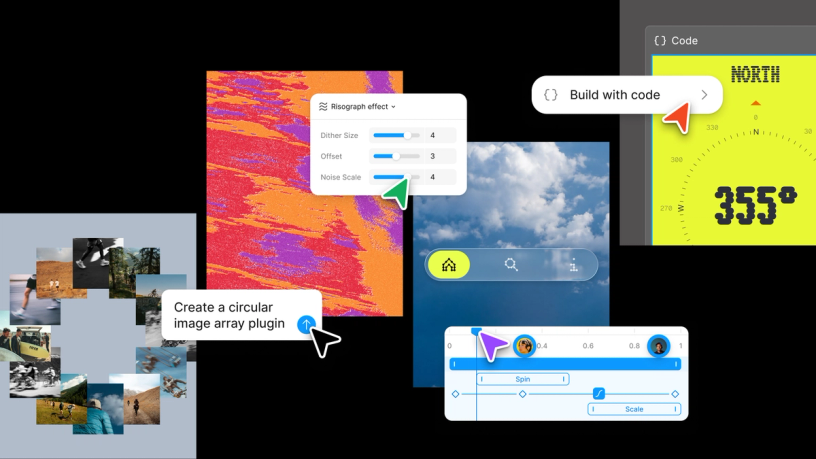
Figma design tools
Figma Motion is one part of a larger shift in what Figma is building. At the same announcement, Figma introduced code layers for writing production code directly on the canvas, shader fills you can create through the design agent, and expanded MCP connectors that bring live context from tools like GitHub, Slack, and Notion into the design environment. The through-line is the same across all of it: every tool switch in a product team’s workflow is a handoff point, and every handoff point is where intent drifts from output. Figma’s direction is a single canvas where design, motion, and code can live together throughout the product development process. Figma Motion is early in that direction. Screen-to-screen transitions are still coming. Lottie export has not shipped. AI generation requires a paid seat. These are real constraints worth knowing before you evaluate the tool for your team. But the shift it represents is already in place. Motion is on the canvas. That changes where the work happens, who can do it, and what survives from design into production.
What This Means for You, Right Now
Figma Motion will not solve every motion problem your team has. Lottie export is not here yet. Screen-to-screen transitions are still coming. AI generation needs a paid seat. But the fundamental shift has already happened. Motion is in the canvas. It is in the same file as your components, your variables, and your design system. The work that used to require leaving Figma, rebuilding what you already built, and hoping the handoff survived the journey, that work now stays where the design lives. For teams that have been avoiding motion because the tooling was too heavy, this changes what is practical. For teams already doing motion work, this changes where that work fits. For design system teams, this changes what a component can carry. You always wanted to do motion well. The tooling was the problem. Now it is not.
Frequently Asked Questions
What is Figma Motion?
Figma Motion is a native animation environment inside Figma Design. It adds a full timeline to the canvas where designers can build keyframe-based animations, apply presets, use easing and spring controls, and hand off production-ready motion to developers — all without leaving the design file.
Is Figma Motion free?
The core timeline, keyframing, presets, and export features are available in open beta across all Figma plans. Publishing animated components, AI-assisted animation generation, and high-resolution video export require a Full seat on a paid plan.
What formats does Figma Motion export?
MP4, GIF, WebM, and Animated SVG for visual delivery. CSS, JSON, and React code through Dev Mode inspection for development handoff. Lottie export is on the roadmap and not yet available.
How does developer handoff work with Figma Motion?
In Dev Mode, the full timeline is visible and inspectable. Developers read timing values and easing curves directly and copy animation code in CSS, JSON, or React. Teams using MCP-connected coding agents can pass animated frames directly to those agents with full motion context included.
Does Figma Motion replace After Effects?
For UI animation in product design, it removes most of the reasons a product team would reach for After Effects. For broadcast, video production, and compositing work, After Effects remains the appropriate tool. The two serve different contexts.
Does Figma Motion replace Rive?
No. Rive handles runtime-responsive animation where motion reacts to live user input or application state. Figma Motion is timeline-based and designed for defined animation sequences. Most teams working on interactive products will use both for different purposes.
When did Figma Motion launch?
Figma Motion was announced and began rolling out on June 24, 2026, in open beta. Some accounts may receive access before others as the rollout continues.
Try Figma Motion
Figma Motion is available now in open beta. Open any design file you have edit access to, switch to Motion mode in the toolbar, and the timeline is there. No installation, no extra subscription on the base plan. If you have been wondering what animation inside Figma feels like, the answer is one toggle away. Learn more at figma.com/motion
메타데이터
- post_id
- 6ec1f8edf4f8
- slug
- figma-added-animation-to-its-canvas-here-is-how-it-works-6ec1f8edf4f8
- url
- https://medium.com/@Majestywrites/figma-added-animation-to-its-canvas-here-is-how-it-works-6ec1f8edf4f8
- canonical_url
- https://medium.com/@Majestywrites/figma-added-animation-to-its-canvas-here-is-how-it-works-6ec1f8edf4f8
- author_url
- https://medium.com/@Majestywrites
- status
- ok
- fetched_at
- 2026-07-29 16:39:03