How do we use a segue link to display different pages in Swift?
Learn Swift from scratch and challenge to create 100 apps — Picasso Paintings App
How to Use a Single Segue to Connect Multiple Pages to the Same Destination Page?
Learn Swift from scratch and challenge to create 100 apps — Picasso Paintings App
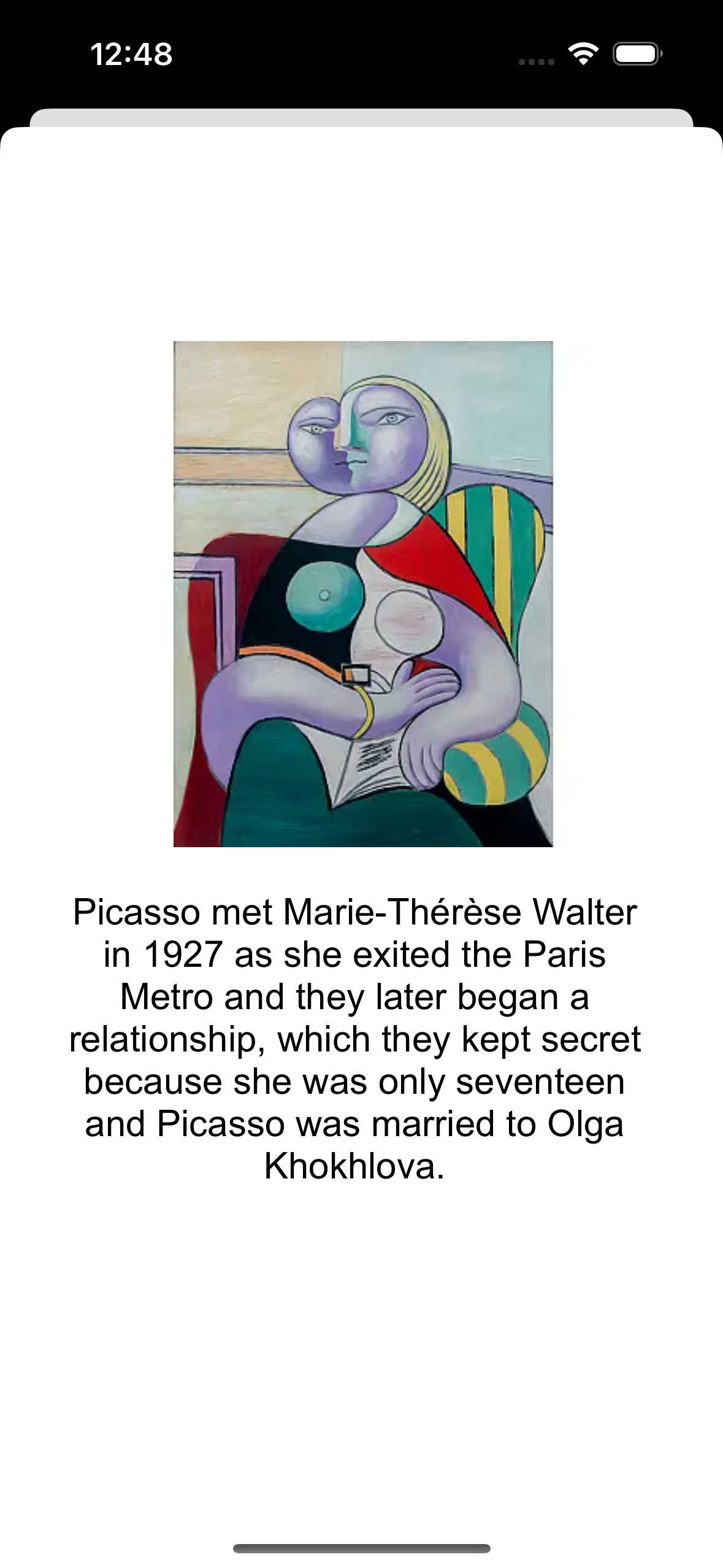


Figure 1 shows the animation of the Picasso Paintings App. In this app, users can use the More button for each painting to get more information about their interest in painting. After pressing the More button, the app will transfer to the next page and show the description of the painting.

Figure 1 The animation of the Picasso Paintings App.
At first glance, it looks like the app needs to connect at least three pages from the first one. However, the point of this article is to show how to complete the app using a single segue from the controller and one display page (ViewController), where different content is shown based on the button the user presses.
Now, let’s start with the step-by-step instructions on how to create this app!
1. Pull the segue from the first view controller
As shown in Figure 2, to use a segue to control the corresponding screen to be displayed when different buttons are pressed, we need to pull the segue from the first view controller to the second page. Please note, do not pull the segue from the button to the second page, otherwise it will take three segues.

Figure 2 The layout for pulling the segue from the first view controller.
2. Use IBOutlet to turn UI components into variables
Then, connect these three Buttons to the front of the viewDidLoad() function respectively, and set a name for each variable, as shown below. By doing so, we will use @IBOutlet to turn Buttons into variables in code.
    @IBOutlet var Dora: UIButton!
    @IBOutlet var Reading: UIButton!
    @IBOutlet var Pigeon: UIButton!
3. Name the segue of the ViewController
To control the segue later, we must first name the segue. In Swift, we use the identifier property to set the name of the segue, as shown in Figure 3.

Figure 3 The screenshot of the segue’s name
4. Use IBAction to trigger the function in code
Next, connect these three buttons to the transfer() function. In the transfer() function, we'll use the performSegue method, triggered by the segue's identifier, to switch to the next page. So, based on step 3, we will use the name of segue (showPainting) to switch to the next page.
 @IBAction func transfer(_ sender: UIButton) {

        performSegue(withIdentifier: "showPainting", sender: sender)

  }
5. Setting the contents of the IBSegueAction
After executing performSegue, the IBSegueAction will be automatically triggered when transitioning to the next page. First, use as? to cast the component that triggered the segue as a UIButton.
Next, use a switch statement to determine which button triggered the segue. After identifying the trigger button, the name of the image and description are stored in an object created from the Painting structure. Finally, return the configured view controller in the last step of the code.
The details of the Painting structure code are shown below.
@IBSegueAction func showPaintResult(_ coder: NSCoder, sender: Any?, segueIdentifier: String?) -> ResultViewController? {

        let controller = ResultViewController(coder: coder)

        let button = sender as? UIButton

        switch button{
        case Dora:
            controller?.paint=Painting(name: .Dora, description: "Portrait of Dora Maar is a 1937 oil on canvas painting by Pablo Picasso. It depicts Dora Maar, the painter's lover, seated on a chair. It is part of the collection of the Musée Picasso, in Paris, where it is considered to be one of Picasso's masterpieces.")
        case Reading:
            controller?.paint=Painting(name: .Reading, description: "Picasso met Marie-Thérèse Walter in 1927 as she exited the Paris Metro and they later began a relationship, which they kept secret because she was only seventeen and Picasso was married to Olga Khokhlova.")
        case Pigeon:
            controller?.paint=Painting(name: .Pigeon, description: "Child with a Dove was painted in 1901, when Picasso was 20 years old, and was still struggling to make his mark at the start of his artistic career. Picasso first visited Paris from October to November 1900.")
        default:
            break
        }


        return controller
    }
struct Painting{
var name:PaintName
var description:String
}
enum PaintName{
case Dora,Reading,Pigeon
}6. Set up the picture’s name and the contents of the label to be displayed
In the last step, we need to set up the name of the picture to be shown in the ImageView and the content of the label to be displayed based on the received data.
As shown below, in the first two lines, we use an if-let conditional statement to check whether the name and description have content, to avoid either one being nil, which could cause the screen to crash
If both have values, we will use the name variable as the image name for the ImageView and display the content of the description on the label. This way, the painting and its content will be displayed based on the received data.
if let name = paint?.name,
   let description = paint?.description{
       imageView.image=UIImage(named: "\(name)")
       text.text=description
}
Finally, the Picasso Paintings App is done!
If you have any questions or recommendations, feel free to comment below.
메타데이터
- post_id
- 6ff875a3d6f7
- slug
- how-do-we-use-a-segue-link-to-display-different-pages-in-swift-6ff875a3d6f7
- url
- https://medium.com/@chiauli/how-do-we-use-a-segue-link-to-display-different-pages-in-swift-6ff875a3d6f7
- canonical_url
- https://medium.com/@chiauli/how-do-we-use-a-segue-link-to-display-different-pages-in-swift-6ff875a3d6f7
- author_url
- https://medium.com/@chiauli
- status
- ok
- fetched_at
- 2026-07-24 00:52:46