Best Android Auto Video Apps (2026 Guide)
If you spend a lot of time driving, Android Auto completely changes how you use your car’s infotainment system. Navigation, music…
Best Android Auto Video Apps (2026 Guide)
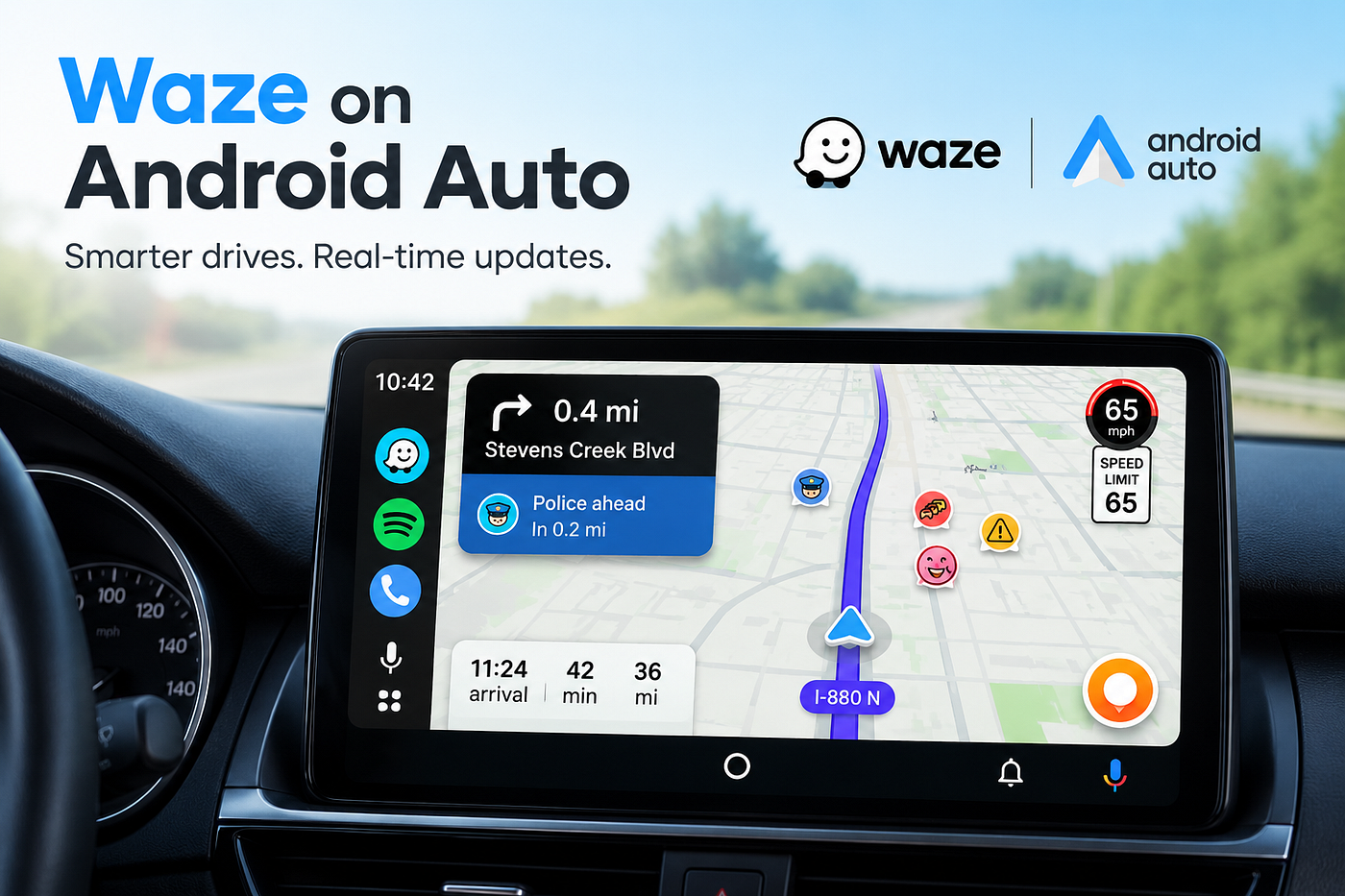
If you spend a lot of time driving, Android Auto completely changes how you use your car’s infotainment system. Navigation, music streaming, and hands free calls already work perfectly, but one feature many users still search for is video playback.
Can you actually play video on Android Auto? Which apps work reliably today? And which solution is the best choice in 2026?
This complete explainer covers the Best Android Auto Video Apps, how they work, installation methods, compatibility challenges, and why some apps have become essential tools for modern drivers.
Why Video Apps for Android Auto Are So Popular
When Android Auto first launched, Google designed it strictly around driving safety. Entertainment was limited mostly to audio apps like Spotify or podcasts. Video playback was intentionally blocked.
However, real-world usage changed expectations.
Today, drivers commonly want to:
- Watch videos while parked.
- Stream Netflix during charging stops.
- Play movies stored on their phone.
- Use IPTV or YouTube on large car displays.
- Turn the car screen into a media center during travel breaks.
Because of this demand, developers created video apps for Android Auto that work through optimized players or safe mirroring solutions.
In 2026, Android Auto video playback generally falls into three categories:
- Dedicated Android Auto video players.
- Screen mirroring solutions.
- Upcoming official Google video apps (Android 16+ parked mode).
Let’s look at the most popular options.
Best Android Auto Video Apps in 2026
1. Fermata Auto — The Best All-in-One Android Auto
Movie Player Fermata Auto has quickly become the most complete Android Auto movie player available today.
Instead of focusing on one feature, it works as a full multimedia hub designed specifically for car screens.
Key Features
- Play local videos from phone storage.
- IPTV streaming support.
- YouTube playback.
- Netflix support via plugins or mirroring.
- Folder based media browsing.
- Background audio playback.
- Interface optimized for Android Auto.
Unlike mirroring apps, Fermata Auto behaves like a native media player. Performance is smoother, controls are easier to use, and stability is much better on newer Android versions.
Why Users Prefer Fermata Auto
- Works well on modern Android Auto updates.
- No root required.
- Supports multiple video sources in one app.
- Clean interface designed for in car use.
For users searching “Android Auto watch videos” or “Android Auto stream video,” this is usually the easiest solution.
How to Install Fermata Auto on Android Auto
Step 1: Tap the Fermata Auto Installation button.
If using a PC, scan the QR code using your Android phone.
Step 2: Open the installation page in Chrome.
Step 3: Tap Install when the popup appears.
Step 4: Wait for installation to finish.
Step 5: Open Fermata Auto from your app drawer.
Step 6: Reconnect Android Auto and start streaming videos while parked.
Tip: Enable Developer Mode → Unknown Sources if the app doesn’t appear.
2. AAMirror — Full Phone Screen on Android Auto
AAMirror is a popular solution for users who want complete device mirroring. Instead of playing media directly, it duplicates your phone screen onto Android Auto.
Key Features
- Full screen mirroring.
- Works with almost any app.
- Supports YouTube, browsers, and streaming services.
- Gesture navigation.
- Limitations May require root or workaround setups.
- Compatibility issues on Android 13+.
- Possible lag depending on device performance.
Installation (Quick Steps)
- Install AAMirror via AAAD or trusted installer.
- Enable Android Auto Developer Mode.
- Allow Unknown Sources.
- Grant permissions and reconnect the car.
- AAMirror works best for advanced users who want full control.
3. CarStream — Best App to Play YouTube on Android Auto
CarStream focuses on one thing: YouTube playback.
If your main goal is to play YouTube videos on Android Auto, this remains one of the simplest solutions.
Key Features
- Direct YouTube streaming.
- No full screen mirroring required.
- Easy interface.
- Works without root on many devices.
- Limitations YouTube only.
- No local video playback.
May require updates after Android Auto changes.
Installation Overview
- Activate CarStream using the install page.
- Enter email and complete activation.
- Tap GET to download.
- Install and reconnect Android Auto.
CarStream is ideal for users who mainly want YouTube access.
4. Screen2Auto — Advanced Mirroring Solution
Screen2Auto offers powerful mirroring and playback features but targets advanced users.
Key Features
- Full Android Auto mirroring.
- Built-in video playback.
- Supports external streaming apps.
- Adjustable performance settings.
- Limitations Requires root access.
- Manual setup required.
- Not beginner friendly.
Installation Steps
- Install through AAAD or supported installer.
- Enable Developer Settings.
- Allow Unknown Sources.
- Grant screen recording permissions.
- Connect and launch from Android Auto.
Screen2Auto delivers flexibility but requires technical knowledge.
5. Android Auto Apps Downloader (AAAD)
AAAD is not a video player itself it’s an installer that makes third-party apps easy to access.
Key Features
- Installs Android Auto video apps easily.
- No root required.
- Supports Fermata Auto, CarStream, and AAMirror.
- Simplifies setup process.
Installation Steps
- Download AAAD APK.
- Install on your phone.
- Grant storage permissions.
- Select your preferred app.
- Tap Install and reconnect Android Auto.
AAAD is often the easiest starting point for beginners.
Android Version Compatibility (Important in 2026)
One major challenge with Android Auto video apps is compatibility.
- Android 10–13 → Most third-party apps work normally.
- Android 14–15 → Some mirroring apps require updates.
- Android 16+ → Google introducing official parked-mode video apps.
Because Android Auto updates frequently, apps designed specifically for the platform like Fermata Auto tend to remain more stable.
Which Android Auto Video App Should You Choose?
Your choice depends on how you plan to use video playback:
- Fermata Auto → Best all-around solution.
- CarStream → Best for YouTube streaming.
- AAMirror → Full phone mirroring.
- Screen2Auto → Advanced customization.
- AAAD → Easy installation tool.
For most drivers, Fermata Auto provides the best balance between simplicity, compatibility, and features.
FAQs — Best Android Auto Video Apps
- Can I use Fermata Auto instead of AA Mirror?
Yes. Fermata Auto is a dedicated media player, while AAMirror simply mirrors your phone screen.
- Is CarStream better than Fermata Auto?
CarStream is great for YouTube, but Fermata Auto supports more video sources.
- Do these apps require root?
CarStream and AAAD usually don’t. AAMirror and Screen2Auto may require root.
- Which Android versions are supported?
Most apps work on Android 10–13, while official Google video apps require Android 16+.
- Can I stream Netflix on Android Auto?
Yes. using Fermata Auto or Screen2Auto while parked.
- Is it safe to watch videos on Android Auto?
Yes. but only when the vehicle is parked.
메타데이터
- post_id
- 71623da70e8e
- slug
- best-android-auto-video-apps-71623da70e8e
- url
- https://medium.com/@elizafaithh1/best-android-auto-video-apps-71623da70e8e
- canonical_url
- https://medium.com/@elizafaithh1/best-android-auto-video-apps-71623da70e8e
- author_url
- https://medium.com/@elizafaithh1
- status
- ok
- fetched_at
- 2026-07-16 09:42:01