I Turned a Raspberry Pi Pico Into a USB Keyboard — and It Taught Me a BadUSB Lesson
A Raspberry Pi Pico H can pretend to be a USB keyboard. That makes it incredibly useful — and quietly dangerous.
I Turned a Raspberry Pi Pico Into a USB Keyboard — and It Taught Me a BadUSB Lesson
A Raspberry Pi Pico H can pretend to be a USB keyboard. That makes it incredibly useful — and quietly dangerous.
This post covers two sides of the same capability:
- A practical fix for a multi-boot GRUB annoyance: a dedicated USB “Ubuntu boot key” that navigates the boot menu for me when I plug it in at the GRUB screen
- A controlled demonstration of why unknown USB devices are dangerous and why locking your screen matters
Why USB HID devices are trusted by default
USB Human Interface Device (HID) is the device class used by everyday peripherals such as keyboards and mice. When a device identifies itself as a keyboard, most operating systems accept it without asking you to approve anything.
That trust model is great for usability. It is also why a microcontroller like the Raspberry Pi Pico H (the Pico variant with pre-soldered headers) can send keystrokes as soon as it is plugged in.
Part 1: Solving a real problem with GRUB automation
The Bluetooth Keyboard Blues
Here’s a scenario many multi-boot enthusiasts can relate to: I run a mini PC with multiple operating systems. Windows 11 sits as the 5th entry in my GRUB bootloader menu (the default), while Ubuntu occupies the first slot. These are my two most frequently used systems.
The catch? My Bluetooth keyboard doesn’t work during the GRUB boot menu phase. Bluetooth devices require operating system drivers to function, but GRUB runs before any OS loads. Every time I want to boot into Ubuntu, I need to dig out an old USB keyboard, plug it in, press the up arrow a few times, and hit Enter.
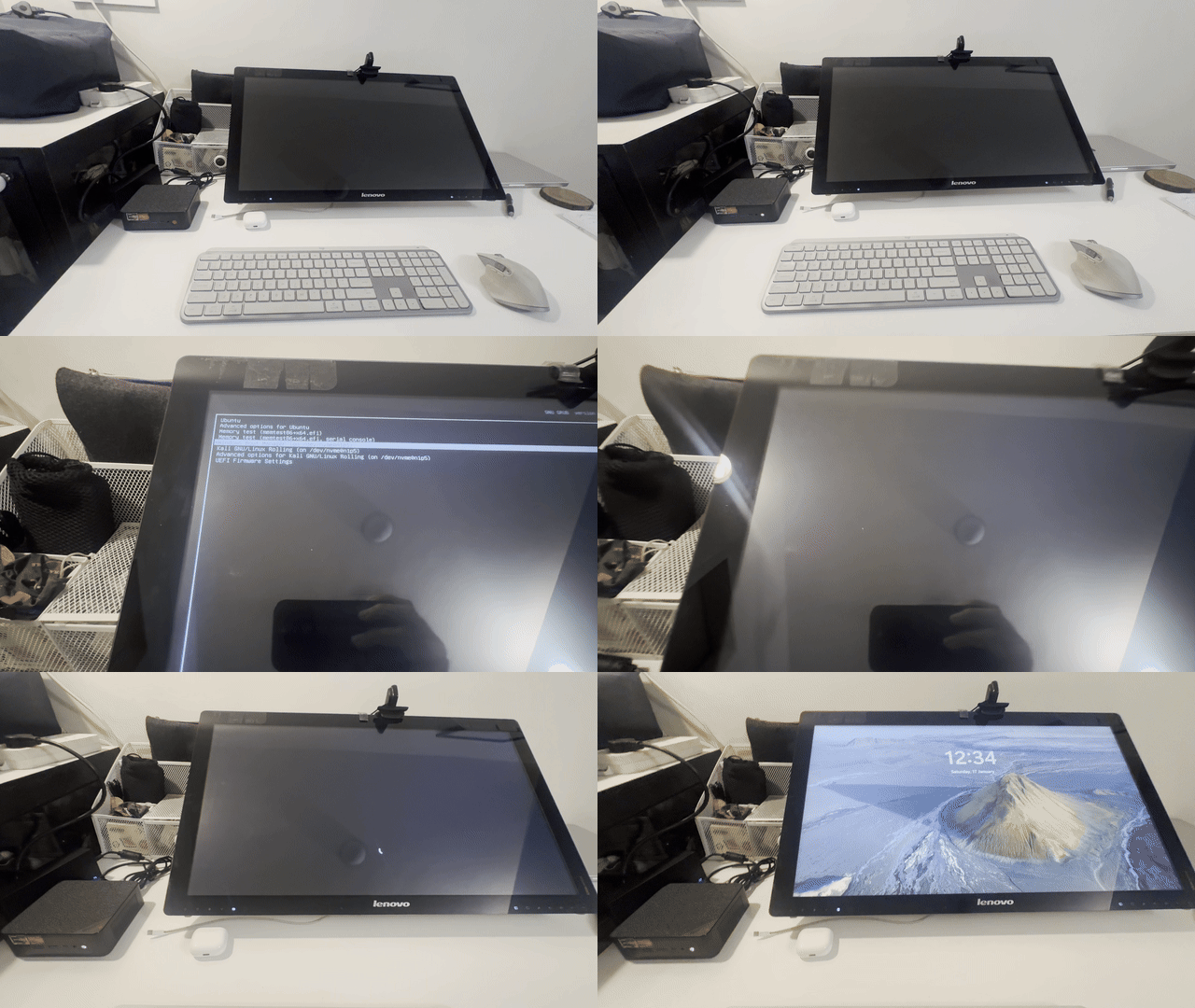
Default boot behavior — Windows 11 loads automatically
The Elegant Solution
Enter the Raspberry Pi Pico H. By programming it as a USB HID keyboard, I created a dedicated “Ubuntu boot key.” When I want Ubuntu, I plug in the Pico after powering on the PC. The device waits for GRUB to appear, sends the Up arrow key presses to navigate to Ubuntu, and confirms the selection.

Pico automatically selects Ubuntu from GRUB menu
With the Pico inserted, Ubuntu is automatically selected from the GRUB menu.
The code (code.py) is remarkably simple:
import time
import usb_hid
from adafruit_hid.keyboard import Keyboard
from adafruit_hid.keycode import Keycode

kbd = Keyboard(usb_hid.devices)

# Wait for GRUB to appear (tune this for your hardware)
time.sleep(2)

# Press up a few times to reach Ubuntu.
# In many GRUB configs, pressing Up while already on the top entry just stays there,
# so “extra” presses are harmless.
for _ in range(10):
    kbd.press(Keycode.UP_ARROW)
    kbd.release(Keycode.UP_ARROW)
    time.sleep(0.5)

# Press Enter to select Ubuntu
kbd.press(Keycode.ENTER)
kbd.release(Keycode.ENTER)
[!NOTE] The complete code is available in this GitHub Gist.
Setting Up Your Own Pico HID
Getting started requires flashing CircuitPython firmware and installing the Adafruit HID library. The official Adafruit tutorial walks through the firmware installation.
Once CircuitPython is running, install the HID library by copying the adafruit_hid folder into CIRCUITPY/lib.
Here’s one way to do it on Ubuntu:
# Download the CircuitPython bundle
cd /tmp
wget https://github.com/adafruit/Adafruit_CircuitPython_Bundle/releases/download/20260116/adafruit-circuitpython-bundle-9.x-mpy-20260116.zip

# Extract and copy the HID library to your Pico
unzip adafruit-circuitpython-bundle-9.x-mpy-20260116.zip
cp -r adafruit-circuitpython-bundle-9.x-mpy-20260116/lib/adafruit_hid /media/$USER/CIRCUITPY/lib/

# Cleanup
rm -rf /tmp/adafruit-circuitpython-bundle-9.x-mpy-20260116*
Drop your code.py file onto the CIRCUITPY drive, and the Pico executes it automatically after the power-up
Part 2: The same HID trick, viewed as a USB security problem
The same simplicity that enables boot menu automation also creates real security concerns. The computer has no way to distinguish between a legitimate keyboard and a Pico pretending to be one. To your operating system, both are equally trusted input devices.
In security circles, this general class of “device that pretends to be a keyboard” problems is often discussed under the umbrella of BadUSB-style attacks.
Demonstration: Automated Command Execution
Consider what can happen when a device like this is plugged into an unlocked desktop: it can inject keystrokes fast enough to open apps and type commands.
Here is a safe, exact example that demonstrates the core risk (keystroke injection) without opening apps, touching files, or making network requests. It simply types into whatever text field currently has focus:
import time
import usb_hid
from adafruit_hid.keyboard import Keyboard
from adafruit_hid.keyboard_layout_us import KeyboardLayoutUS

time.sleep(1)

kbd = Keyboard(usb_hid.devices)
layout = KeyboardLayoutUS(kbd)

# Give the computer time to recognize the device
time.sleep(2)

layout.write("Typed by a Pico HID demo. Lock your screen.\n")
The Pico injects keystrokes to open a terminal and type commands in seconds.
In my full demo (shown in the GIF above), the device opens a terminal (under ubuntu) and types commands. The end-to-end script is linked in the gist, and you should only run it on systems you own and control.
In the hands of a malicious actor, this same technique could:
- Download and execute malware
- Exfiltrate sensitive files
- Create backdoor user accounts
- Modify system configurations
- Install persistent threats
The attack vector is particularly easy to miss because it requires physical access for only a few seconds. Someone walking past your unlocked workstation could plug in a device, wait three seconds, remove it, and walk away, leaving no obvious trace.
In practice, “no obvious trace” often means “nothing the user notices in the moment.” Keystrokes can still leave artifacts such as shell history, application logs, or endpoint telemetry.
Mitigations and Best Practices
The good news is that awareness goes a long way. Here are practical steps to protect yourself:
These mitigations apply to most operating systems, although the specific tooling and policy names vary by platform and environment.
- Lock your screen and require a password to unlock. This is the most effective practical defense because injected keystrokes have nowhere to go.
- Prefer full-disk encryption and strong login credentials. If an attacker can reboot into another OS, your threat model changes.
- Disable or restrict unused USB ports. Depending on your environment, you can use BIOS/UEFI settings, endpoint management policies, or physical port blockers.
- Use device authorization on platforms that support it. On Linux, tools like USBGuard can restrict which USB devices are allowed. These controls are helpful but not perfect because device identity can be spoofed.
- Treat unknown USB devices as untrusted. If you must interact with something you found, use a sacrificial machine or a hardware USB analyzer.
- Use USB data blockers when you only need power. They are effective specifically because HID attacks require the data lines.
FAQ
Is this specific to Raspberry Pi Pico
No. Any device that can emulate a USB HID keyboard can do this, including purpose-built “rubber ducky” style devices and other microcontrollers.
Does this work on Windows and macOS
The underlying trust model is similar, but the exact keystrokes, shortcuts, and timings vary by OS, desktop environment, and security settings.
How do I test safely
Use a throwaway account on a non-production machine, keep the demo offline, and start with the “type into the focused field” example first.
Conclusion
The Raspberry Pi Pico H exemplifies technology’s dual use. The same $4 (few hundred Indian Rupees) device that solves a boot menu problem can also demonstrate why USB HID trust is a real security concern.
Understanding both sides of the capability makes us better technologists. We can leverage it for legitimate automation while staying realistic about the security implications.
If you take only one action after reading this, make it this: lock your screen.
The complete code for both demonstrations is available on GitHub Gist.
메타데이터
- post_id
- 72fc319fe8fb
- slug
- raspberry-pi-pico-as-a-usb-keyboard-grub-automation-and-badusb-lessons-for-usb-security-72fc319fe8fb
- url
- https://medium.com/@maninder.bindra/raspberry-pi-pico-as-a-usb-keyboard-grub-automation-and-badusb-lessons-for-usb-security-72fc319fe8fb
- canonical_url
- https://medium.com/@maninder.bindra/raspberry-pi-pico-as-a-usb-keyboard-grub-automation-and-badusb-lessons-for-usb-security-72fc319fe8fb
- author_url
- https://medium.com/@maninder.bindra
- status
- ok
- fetched_at
- 2026-07-13 10:11:35



