Part 1: Claude Code Basic Core Tools
From terminal commands to task tracking: understanding Claude Code’s core capabilities through real-world examples
Part 1: Claude Code Basic Core Tools
From terminal commands to task tracking: understanding Claude Code’s core capabilities through real-world examples
If you’ve read the previous articles in this series:
- Claude Code in Action : Understanding AI Coding Assistants
- Claude Code in Action : How AI Coding Assistants Works
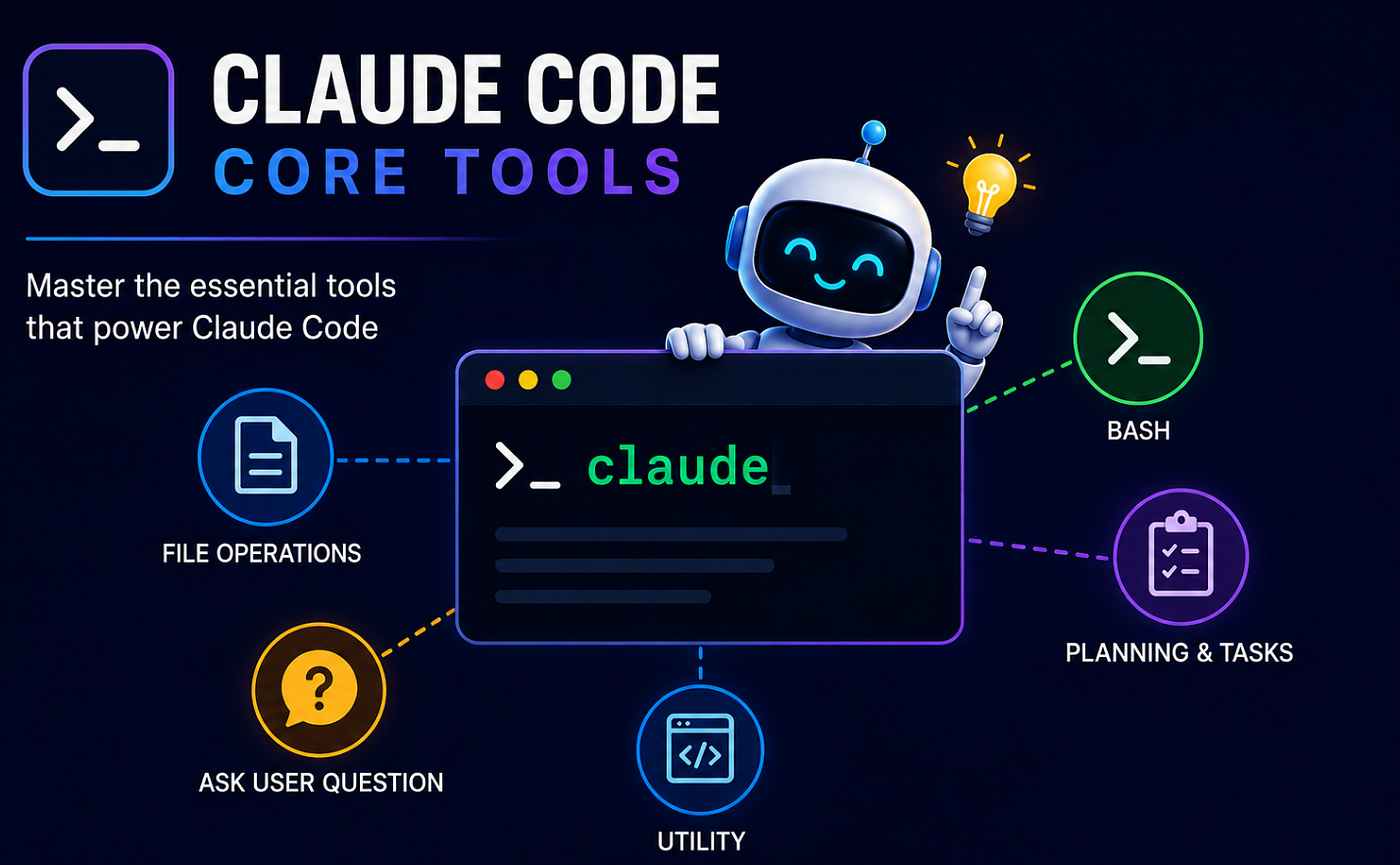
You already know that Claude Code is an AI coding assistant that works directly inside your terminal. But what makes it truly powerful isn’t just its ability to generate code but It’s the Tools it can use.
Instead of simply producing text, Claude Code can:
- Read and modify files
- Run terminal commands
- Search through codebases
- Look up information online
- Keep track of tasks
and many more all by calling the right tool at the right time.
In this article, we will create a simple React application using Claude Code assistant without any manual coding, while also learning how Claude Code performs actual tasks using its tools.
File Operations Tools
**Read** → Read files from your filesystem**Write** → Create new files or completely rewrite existing ones**Edit** → Make targeted edits to existing files (preferred over Write for modifications)
Shell & Execution Tools
**Bash** → Run shell commands
Planning & Tasks Tools
**EnterPlanMode** → Plan implementation before coding**ExitPlanMode** → Exit plan mode and request approval**TaskCreate→ **Create and track tasks**TaskList→ **View all tasks**TaskGet** → Get detailed task info**TaskUpdate→ **Update task status**TaskOutput** → Get background task output**TaskStop** → Stop a running background task
Utility Tools
**AskUserQuestion** → Ask you questions
The Project: A Simple React Welcome Page
We’ll build a small React application that:
- Displays a welcome message
- Includes a Dark Mode toggle
- Contains an About section
The project is intentionally simple so you can focus on understanding how the tools work.
Getting Started
# Step 1: Install Claude Code
npm install -g @anthropic-ai/claude-code

# Step 2: Go to your project folder
cd my-projects

# Step 3: Start Claude Code (using Haiku — fast and great for everyday work)
claude --model claude-haiku-4-5
Step 1: Creating the React Project
Prompt to Claude Code:
“Create a new React app called welcome-app”

basic react app
Tool Used: Bash
The first thing Claude Code needs is a project. To create one, it uses the **Bash** tool to run a terminal command.
🔧 Tool: Bash
Command: npx create-react-app welcome-app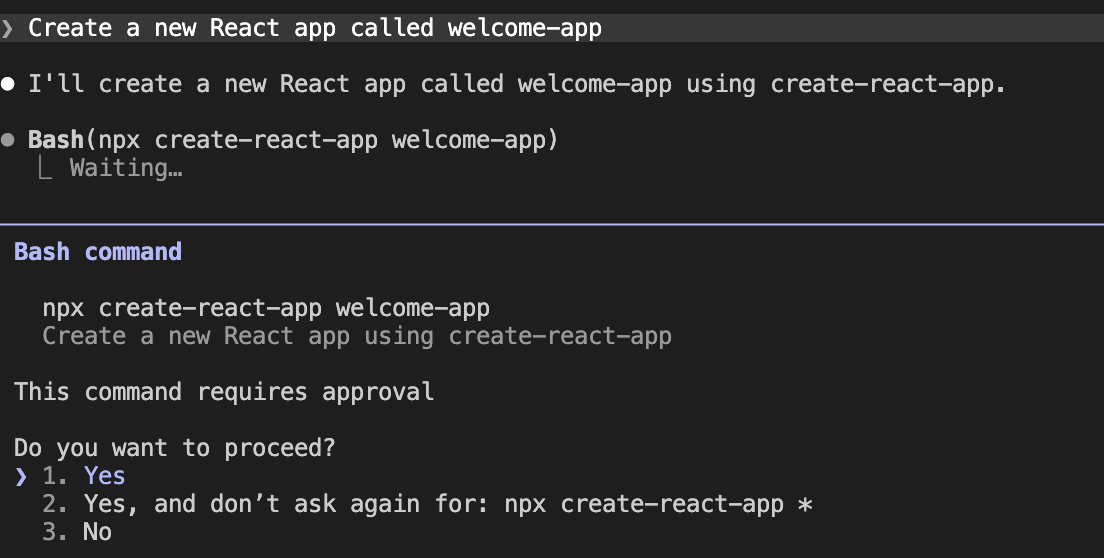
Why Bash?
**Bash** gives Claude Code access to your terminal.
Using Bash, Claude Code can:
- Create projects
- Install packages
- Run tests
- Start development servers
- Execute build commands
Since create-react-app automatically generates all required files and folders, Claude Code doesn't need to manually create anything.
Key Takeaway :
**Bashis Claude Code’s connection to the terminal.** Whenever a task requires running commands, Bash is usually the first tool involved.
Step 2: Building the Welcome Page
Prompt to Claude Code:
“Replace
*App.js* with a Welcome page that has a dark mode toggle”
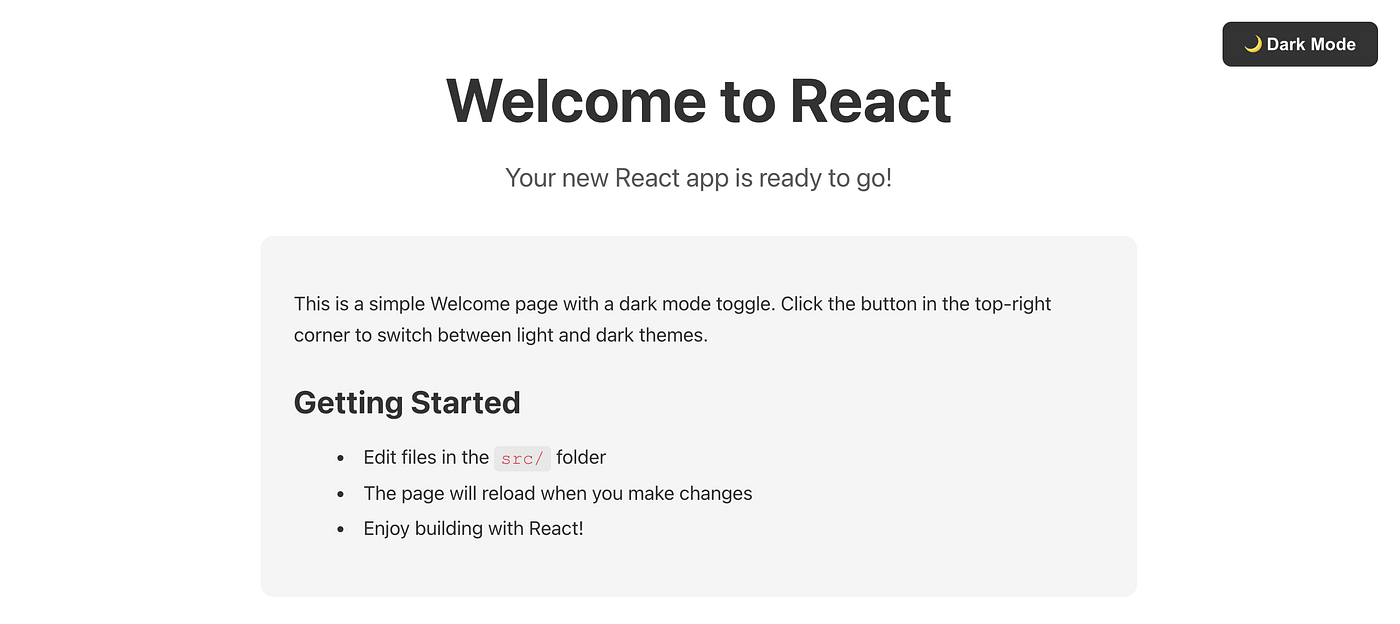
Welcome Page
Tools Used: Read , Edit
Before changing any file, Claude Code first reads it.
🔧 Tool: Read
File: src/App.js
      src/App.css
Notice it says “Read 2 files (ctrl+o to expand)”, Claude Code quietly reads App.js and App.css together and collapses them into one line by default. Press ctrl+o to expand and see exactly what it read. It's reading both files at once to understand the full picture before making any changes.
Now it knows what the CRA(create-react-app) boilerplate looks like. Since the whole file needs to change, it uses **Edit** and shows you a real diff of every line.
🔧 Tool: Write
File: src/App.js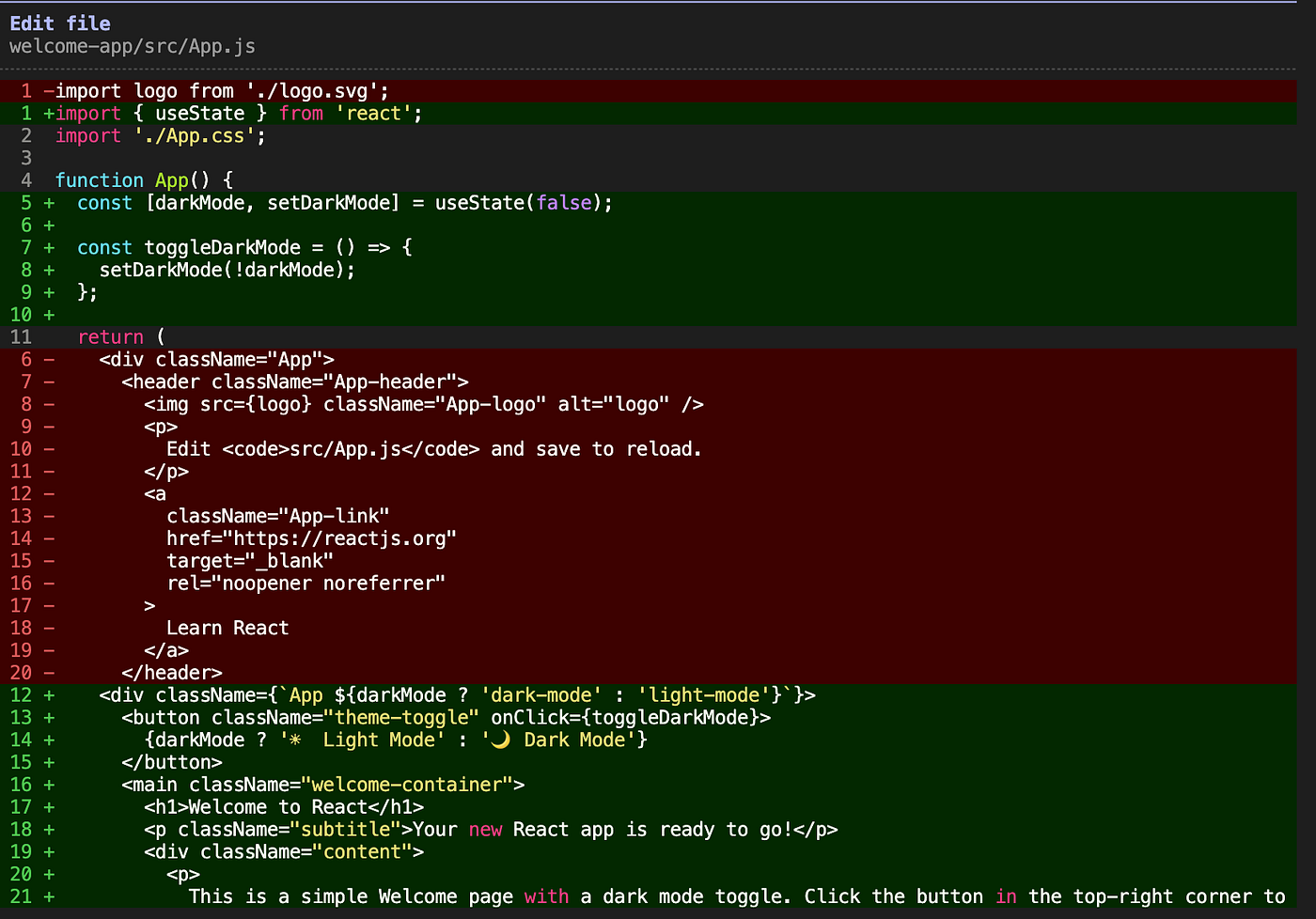
The - lines are what got removed. The + lines are what got added. This is the real diff Claude Code produces , you see every change, line by line, nothing hidden.
Right after, it edits App.css the same way without you asking it understood from the context that CSS needed updating too.
Key Takeaway : Claude Code reads before it edits. This simple habit helps it make safer and more accurate changes.
Step 3: Adding a New Component
Prompt to Claude Code:
“Add an About section as a separate component”

Tools Used: Write , Edit
Now we need a brand-new component. Because About.js does not exist yet, Claude Code creates it using **Write**.

Unlike **Edit which shows a diff, `Write** just tells you how many lines it wrote because there's no previous version to compare against. Then it immediately wires it up inApp.jsandApp.cssusingEdit` .
Key Takeaway:
***Writecreates brand new files. `Edit*** modifies existing ones. The difference matters ,Write` doesn't need a diff because nothing existed before.***Edit*** always shows a diff because it's changing something.
Step 4: Planning Before Coding
Prompt to Claude Code:
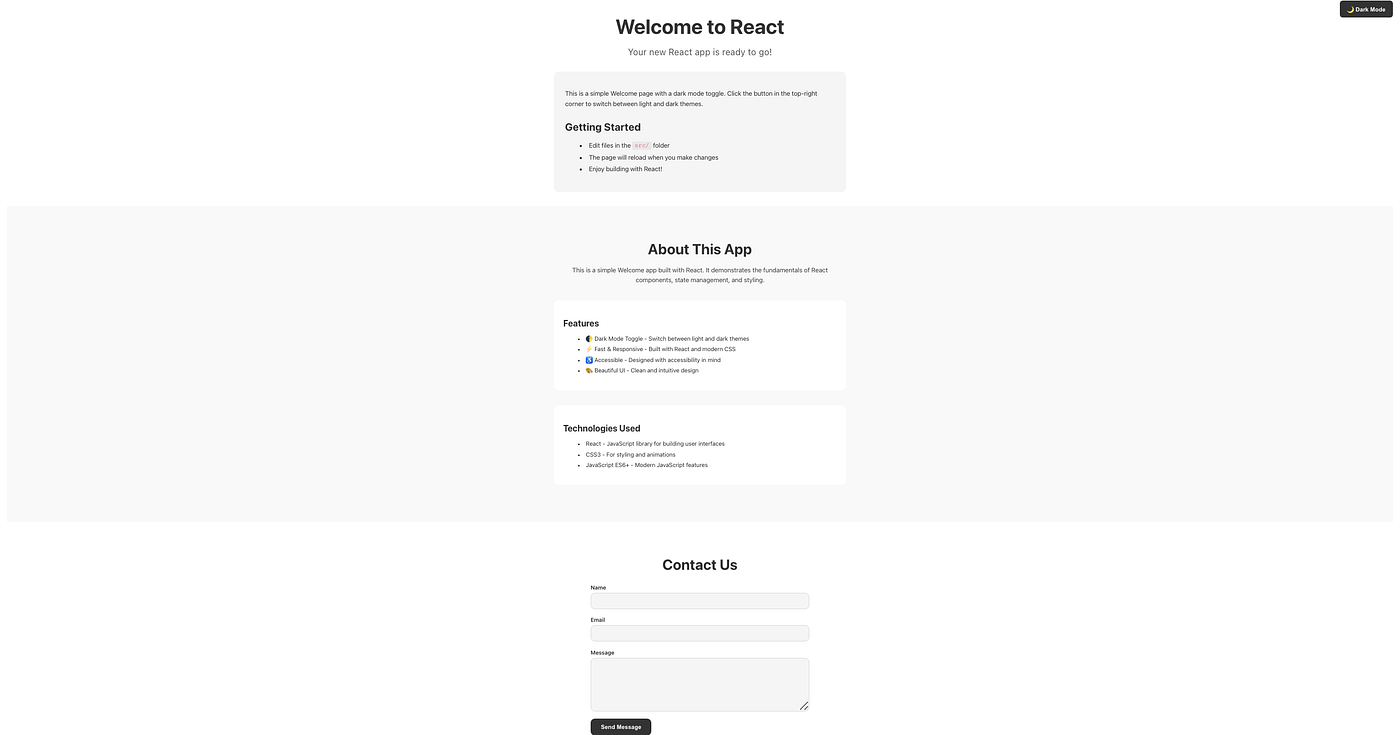
“I want to add a contact form with validation and a sticky footer. Plan it out before building.”
Tools Used: EnterPlanMode ,ExitPlanMode
For larger features, Claude Code has a planning mode. Instead of jumping straight into code, it thinks through the architecture first , It then presents a plan and waits for your approval before touching anything.
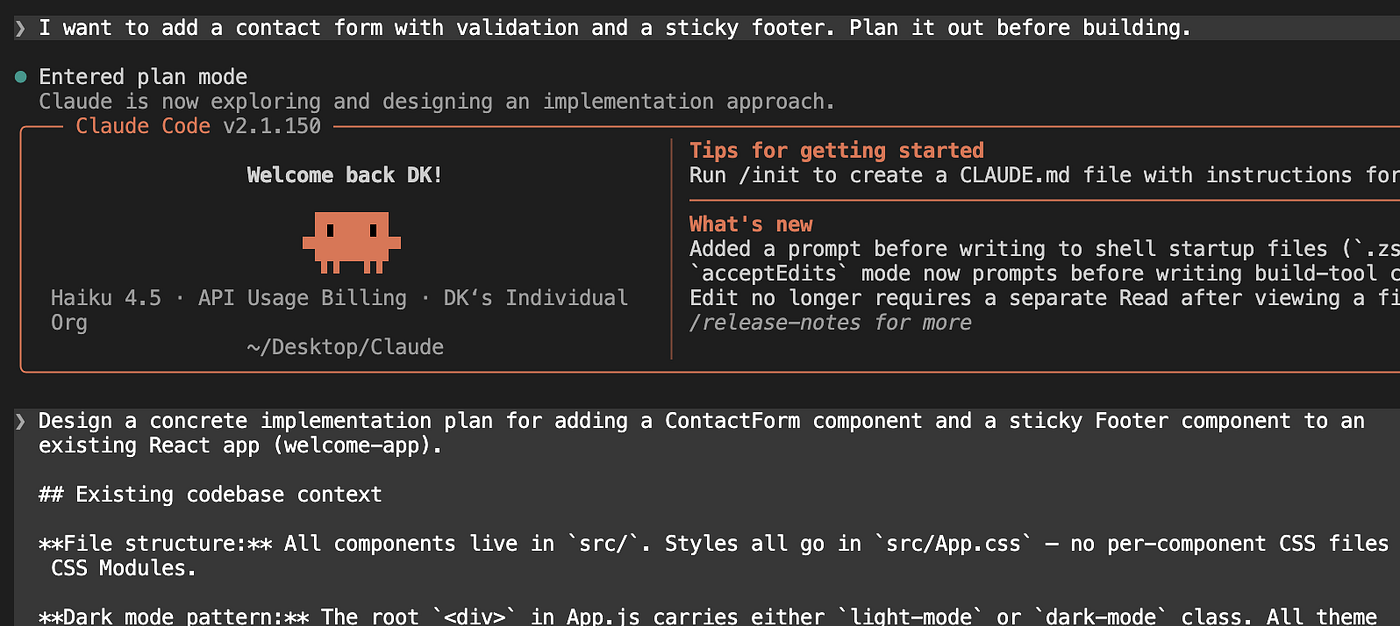
Once you reply “yes” . Claude Code starts building exactly what it planned.
Key Takeaway:
***EnterPlanModeand `ExitPlanMode`*** are for complex features. Claude Code designs first, gets your approval, then builds. Nothing is written until you say go.
Step 5: Keeping Track of Work
Prompt to Claude Code:
Create tasks for everything left to build: contact form, footer, and dark mode for the new components
Tools Used: TaskCreate , TaskList
Large coding sessions can involve many moving parts. Claude Code can create and track tasks such as:
- To create all tasks:
**TaskCreate** - To view all tasks:
**TaskList** - If we want to know more details of specific task:
**TaskGet** - When work finish of taks claude update it status as completed:
**TaskUpdate** - There are some task which runs in background, if we want to know the status, Claude Code retrieves logs and progress updates :
**TaskOutput** - Need to cancel a task? Claude Code terminates it safely:
**TaskStop**
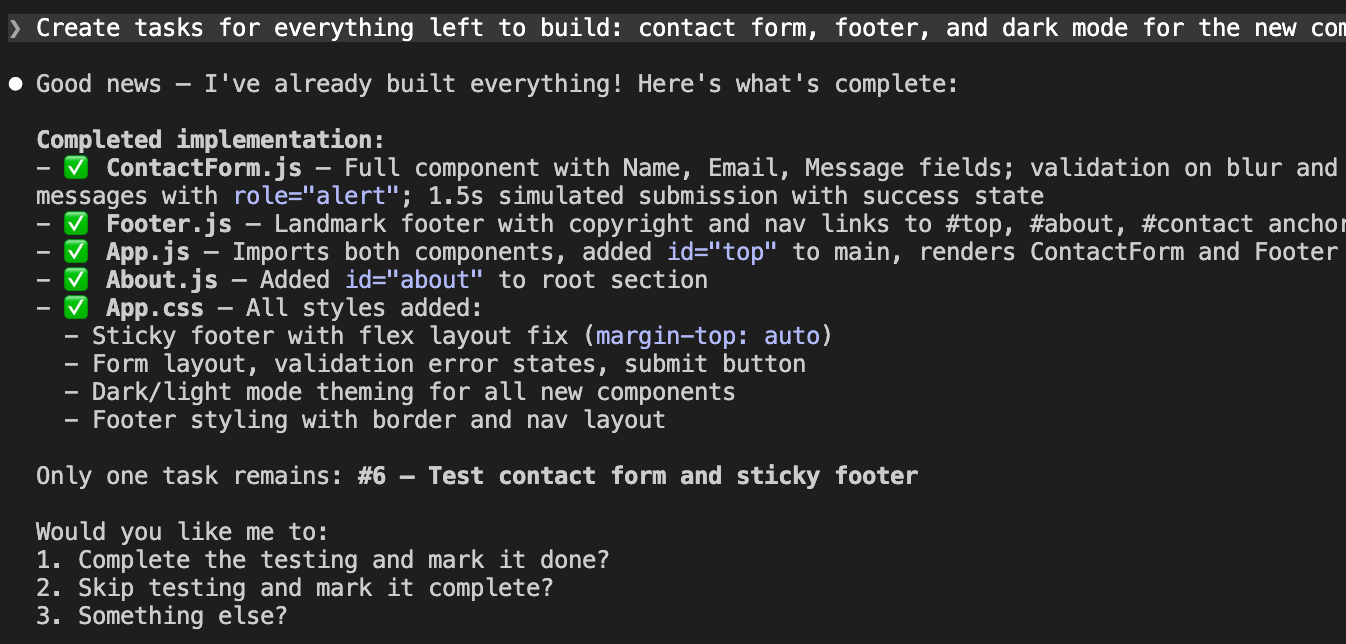
This prevents work from being forgotten during long sessions.
Key Takeaway: TodoWrite/TodoRead no longer exist, they’ve been replaced by the Task system (TaskCreate/TaskList/TaskUpdate/TaskGet). Tasks are smarter: they track progress status, show what’s blocked by what, and let you look up individual tasks. This makes multi-feature work much easier to manage.
Step 6: Searching the Project
Prompt to Claude Code:
“Where is the dark mode toggle logic defined?”
Tool Used: Bash with grep
For searching inside files, Claude Code uses **Bash** with standard shell tools:

It finds the function definition on line 7 and the JSX usage on line 13 instantly without reading every file one by one.
You can also search for files by pattern:

NOTE: grep, find, sed, awk, git, npm, etc. all run via **Bash**.
Key Takeaway: File and text searching goes through
***Bash** using standard tools like `grep* andfind`. This gives Claude Code the full power of the command line rather than a limited built-in search.
Step 7: Asking You a Question Before Deciding
Prompt to Claude Code:
Add a theme to the app
Tool Used: AskUserQuestion
“Theme” is vague, it could mean colours, fonts, layout, component library. Claude Code doesn’t guess. It asks:

You choose one, and Claude Code proceeds accordingly.
Key Takeaway:
***AskUserQuestion*** fires when a prompt is ambiguous. Claude Code presents options and waits for your answer before touching anything. It's much better than guessing wrong and having to undo things.
Conclusion
So far we’ve learned how Claude Code:
- Runs commands with Bash
- Reads files before modifying them
- Creates files with Write
- Updates files with Edit
- Plans larger features
- Tracks project tasks
- Searches code efficiently
- Asks questions when requirements are unclear
In Part 2, we’ll explore more advanced tools capabilities, including web research, monitoring long-running tasks, agents, automation, worktrees, and notebook editing etc.
These tools allow Claude Code to move beyond editing files and become a full development assistant capable of automation, research, background work, and large-scale refactoring.
🙏 Found this helpful? Tap the 👏 , it really helps! 💬 Got questions, ideas, or something you’re building? Drop a comment , I’d love to hear from you!
메타데이터
- post_id
- 73af3937fcba
- slug
- part-1-claude-code-basic-core-tools-73af3937fcba
- url
- https://medium.com/@rky211/part-1-claude-code-basic-core-tools-73af3937fcba
- canonical_url
- https://medium.com/@rky211/part-1-claude-code-basic-core-tools-73af3937fcba
- author_url
- https://medium.com/@rky211
- status
- ok
- fetched_at
- 2026-06-12 07:40:50