Move dual-boot Ubuntu 18 onto a second hard drive
Suppose you have a laptop equipped with two hard drives and intend to install a dual-boot operating system on the second drive while…
Move dual-boot Ubuntu 18 onto a second hard drive
Suppose you have a laptop equipped with two hard drives and intend to install a dual-boot operating system on the second drive while preserving the first drive in its current state. Or move an Operating System (OS) from one hard drive to another retaining its data. You are in the here place!
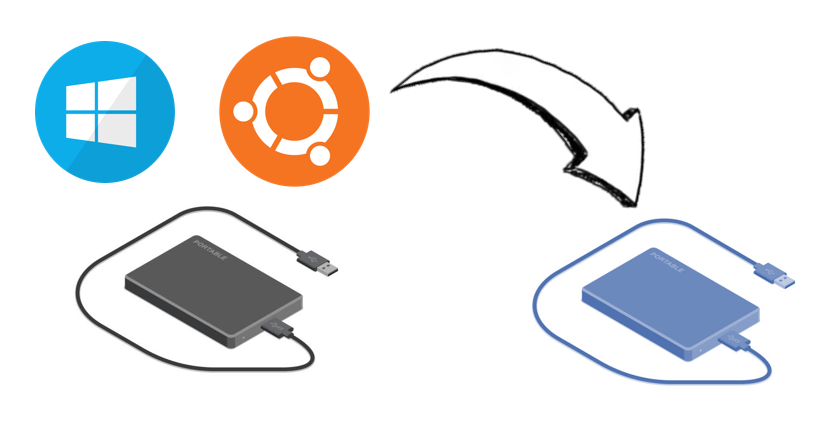
The laptop I used was HP Omen 17” with Windows 10. It was dual-booted with Ubuntu 20.04.6 LTS (Focal Fossa). I had two hard drives, and initially, I dual-booted them on the same hard drive. I then realised I could use the second hard drive for Ubuntu OS. This blog will take you through the high-level steps I followed to achieve it.
Use GParted in Windows
Install Rufus for Windows. This is for creating a bootable USB flash drive. Download Rufus (possibly the latest version) and follow the installation steps. It will look something like this:

In this step, the GParted iso file should be mounted into the USB drive. Download the .iso file from here.
Now, open Rufus and make sure to select the correct USB drive.
CAUTION! the USB drive will be formatted, remember to move all important files from the drive.
Then, select the GParted ISO file. Leave the partition scheme on MBR. Go ahead and press the start button. It will take some time…
Copy the Ubuntu partition to another hard drive using GParted
Reboot your laptop and simultaneously plug in the bootable USB. While it is booting, press and hold a key (in the case of HP Omen it is esc) to go into the boot menu. In the boot menu, select the boot with USB drive. You will see this screen:

Select GParted Live (Default settings).
Then press enter where it says “Don’t touch keymap”, and keep hitting enter for language and other defaults.
You will then go GParted desktop. If you open it, you will something similar to:

Now it’s just copy and paste. Right-click and copy the Ubuntu partition, the one with the “ext4” filesystem. Select the top right dropdown menu to change to the hard drive you want to move it to.
Then again, paste it using the right-click. Make sure to change the UUID of the copied Ubuntu partition (in the other hard drive), this can be done using right-click, you will find an option with “new UUID”. Close the GParted desktop and reboot to Ubuntu and do:
sudo update-grubSetup boot manager to recognise Ubuntu from separate hard drive
This time, while booting, you will see 2 Ubuntu boot options. For that go into Windows disk management to remove the Ubuntu that is in the same partition as Windows. Note: this is not covered in this blog, there are some videos online for that.
Next, Download the Ubuntu 20.04 ISO file from the Ubuntu website. Again, use Rufus to create a bootable USB drive with the Ubuntu image (similar to the previous step, just change the .iso file to the Ubuntu ISO image). Boot into your Ubuntu system using the Live USB from the boot menu.
When the Ubuntu opens, select “Try Ubuntu without Installing”. Then, open a terminal by pressing Ctrl+Alt+T. Open a terminal and type:
sudo blkidThis will list all partitions and their UUIDs. Note down the new UUID of the Ubuntu partition.
Mount the Ubuntu partition on your Live USB drive using:
sudo mount /dev/sdXY /mntTypically, the EFI partition will be something like /dev/sdXY, where X is the disk and Y is the partition number (e.g., /dev/sda1).
Now, create a mount point for the EFI partition if it doesn’t already exist:
sudo mkdir /mnt/boot/efiAnd then mount the EFI partition to this mount point:
sudo mount /dev/sdXY /mnt/boot/efiRemember to replace sdXY with the actual EFI partition identified in the previous step.
Bind Mount Necessary Directories:
sudo mount - bind /dev /mnt/dev
sudo mount - bind /proc /mnt/proc
sudo mount - bind /sys /mnt/sys
sudo mount - bind /run /mnt/run
Then, change the root into the mounted system:
sudo chroot /mntInstall GRUB to the EFI Partition:
grub-install - target=x86_64-efi - efi-directory=/boot/efi - bootloader-id=ubuntu –recheckThis command installs the GRUB bootloader for UEFI systems, targeting the EFI directory and specifying the bootloader ID as Ubuntu.
Now, update the GRUB Configuration using the update-grub command and exit the Chroot Environment using the **exit** command. In the same terminal unmount the filesystems using:
sudo umount /mnt/dev
sudo umount /mnt/proc
sudo umount /mnt/sys
sudo umount /mnt/run
sudo umount /mnt/boot/efi
sudo umount /mnt
If any of these commands fail with the “target is busy” error, you can forcefully unmount using the -l (lazy) option:
sudo umount -l /mnt/run
sudo umount -l /mnt/sys
sudo umount -l /mnt/proc
sudo umount -l /mnt/dev
sudo umount -l /mnt/boot/efi
sudo umount -l /mnt
Finally, reboot the system using the sudo reboot command.
If there are still issues with the boot system, use boot-repair
You will need internet for this step. Connect to the internet and add the boot-repair repository to install it:
sudo add-apt-repository ppa:yannubuntu/boot-repair
sudo apt update
sudo apt install -y boot-repair
Run boot repair using the boot-repair command, it will take some time…
When boot-repair opens, select the “Recommended Repair” option. Follow the on-screen instructions, this process will:
· Detect all operating systems.
· Reinstall GRUB.
· Update the GRUB configuration to include all detected operating systems.
· Create a new EFI boot entry for GRUB if necessary.
Lastly, reboot the system, you should now see the Ubuntu from another hard drive in your boot menu. That’s it!
Hope that helps. Thanks!
메타데이터
- post_id
- 74336ca95520
- slug
- move-dual-boot-ubuntu-18-onto-a-second-hard-drive-74336ca95520
- url
- https://medium.com/@sbkamtam123/move-dual-boot-ubuntu-18-onto-a-second-hard-drive-74336ca95520
- canonical_url
- https://medium.com/@sbkamtam123/move-dual-boot-ubuntu-18-onto-a-second-hard-drive-74336ca95520
- author_url
- https://medium.com/@sbkamtam123
- status
- ok
- fetched_at
- 2026-07-09 00:50:33


