RHCSA systemd Cheat Sheet
EX200 v10 | RHEL 10 Compatible | Units • Services • Targets • Journald • Timers
RHCSA systemd Cheat Sheet
EX200 v10 | RHEL 10 Compatible | Units • Services • Targets • Journald • Timers
systemd is the init system and service manager for RHEL 10. It replaces SysVinit and manages the entire system lifecycle — from booting and service startup to logging and scheduled tasks. Understanding systemd is fundamental to passing the RHCSA EX200 v10 exam.
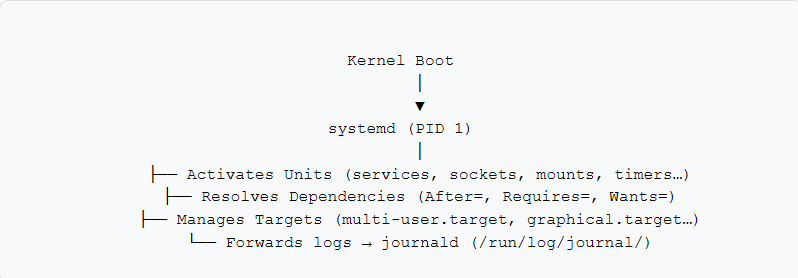
RHCSA Focus: You must be able to start/stop/enable/disable services, inspect their status, manage targets (runlevels), read the journal, write basic unit files, and troubleshoot failed units. Timers are also fair game in v10.
2. Unit Types
systemd organizes everything into units, each identified by a name and a type suffix. For the RHCSA exam, services and targets are the most critical, but you should also recognise the other common types.

Exam Note: When you run systemctl start httpd, systemd implicitly appends .service. For other types you must use the full name, e.g. systemctl start cups.socket.
Unit File Locations

Rule of thumb: Always place custom or modified unit files in /etc/systemd/system/. Files here override those in /usr/lib/systemd/system/ with the same name.
3. Service Management (systemctl)
systemctl is the primary command for interacting with systemd. It covers starting, stopping, enabling, disabling, and inspecting units.
Start, Stop, Restart & Reload
# Start a service now (runtime only)
systemctl start httpd

# Stop a service
systemctl stop httpd

# Restart (stop then start)
systemctl restart httpd

# Reload configuration without full restart (if supported)
systemctl reload httpd

# Reload or restart (try reload first, fall back to restart)
systemctl reload-or-restart httpd
Enable, Disable & Mask
# Enable: auto-start at boot (creates symlink in target.wants/)
systemctl enable httpd

# Enable AND start immediately (combined in one command)
systemctl enable --now httpd

# Disable: remove boot symlink (does not stop running service)
systemctl disable httpd

# Disable AND stop immediately
systemctl disable --now httpd

# Mask: make it impossible to start (links unit to /dev/null)
systemctl mask httpd

# Unmask: remove the mask
systemctl unmask httpd
Key Distinction: enable and disable control boot persistence. start and stop control the current running state. You often need both — systemctl enable --now is your best friend on the exam.
Inspect Service Status
# Detailed status (state, PID, recent logs)
systemctl status httpd
# Check if active (running)
systemctl is-active httpd
# Check if enabled for boot
systemctl is-enabled httpd
# Check if failed
systemctl is-failed httpd
List and Filter Units
# List all active units
systemctl list-units
# List only service units
systemctl list-units --type=service
# List ALL units including inactive and failed
systemctl list-units --all
# List only failed units (great for troubleshooting)
systemctl list-units --state=failed
# List unit files and their enabled/disabled state
systemctl list-unit-files --type=service
Exam Shortcut: After any configuration change, run systemctl daemon-reload before starting or restarting a service. Forgetting this causes the old unit definition to be used.
Reload systemd Configuration
# Re-read unit files from disk (required after editing unit files)
systemctl daemon-reload
4. Unit Files & Custom Services
Unit files are INI-style configuration files that tell systemd how to manage a process. For the RHCSA exam you may be asked to create a simple service unit from scratch.
Anatomy of a Service Unit File
# /etc/systemd/system/myapp.service
[Unit]
Description=My Custom Application
Documentation=man:myapp(8)
After=network.target
# Start after network is up
Wants=network.target
[Service]
Type=simple
ExecStart=/usr/bin/myapp
# Soft dependency on network
# Process stays in foreground
# Command to start the service
ExecStop=/usr/bin/myapp --stop
Restart=on-failure
# Restart if it crashes
RestartSec=5
User=myappuser
WorkingDirectory=/opt/myapp
[Install]
WantedBy=multi-user.target   # Enable under this target
Service Type Values

Drop-In Override Files (systemctl edit)
Instead of editing vendor unit files directly (which would be overwritten on package update), use systemctl edit to create drop-in override files. These are merged with the original unit at runtime.
# Create a drop-in override (opens editor, creates override.conf)
systemctl edit httpd

# Edit the full unit file (replaces entirely — use carefully)
systemctl edit --full httpd

# Drop-in files are stored at:
# /etc/systemd/system/httpd.service.d/override.conf

# Example override — add an environment variable:
[Service]
Environment="MY_VAR=hello"
Best Practice: Prefer systemctl edit over directly editing /usr/lib/systemd/system/ files. Drop-in files survive package updates and are easier to manage.
Full Workflow: Create and Enable a Custom Service
# 1. Write the unit file
vi /etc/systemd/system/myapp.service

# 2. Reload systemd to pick up the new file
systemctl daemon-reload

# 3. Enable (boot) and start (now) the service
systemctl enable --now myapp

# 4. Verify it is running and enabled
systemctl status myapp
systemctl is-enabled myapp
5. Targets (Runlevels)
Targets are groups of units that define a system state. They replace the concept of SysVinit runlevels. The RHCSA exam expects you to change the default target and boot into specific targets (including rescue and emergency modes).
Runlevel → Target Mapping

Working with Targets
# View the current default target
systemctl get-default

# Set the default target permanently
systemctl set-default multi-user.target
systemctl set-default graphical.target

# Switch to a target immediately (does not change default)
systemctl isolate multi-user.target
systemctl isolate rescue.target

# Convenience shortcuts
systemctl poweroff
systemctl reboot
systemctl rescue
systemctl emergency
Exam Tip: systemctl isolate switches to the target right now but does not change the boot default. Use systemctl set-default for persistent changes. Both are commonly tested.
Booting into Rescue / Emergency Mode
If the system won’t boot normally, you can interrupt the GRUB bootloader and manually specify a target to boot into. This technique is heavily tested in the RHCSA exam (password recovery scenario).
Procedure: Boot into Emergency Mode via GRUB
# 1. Reboot the system and interrupt GRUB (press 'e' at the menu)

# 2. Find the line starting with: linux
#    Append one of the following to the END of that line:

systemd.unit=rescue.target      # Rescue: mounts filesystems, single root shell
systemd.unit=emergency.target   # Emergency: minimal shell, read-only root FS

# 3. Press Ctrl+X or F10 to boot with these parameters

# 4. Authenticate as root when prompted

# 5. After making fixes, exit to resume normal boot
exit   # or: systemctl default
Logging with journald
systemd-journald is the default logging system on RHEL 10. It captures logs from all services, the kernel, and the initrd. The journalctl command is used to query the journal. Understanding how to filter and read the journal is an RHCSA exam requirement.
Basic journalctl Usage
# View all journal entries (oldest first)
journalctl

# View journal in reverse (newest first)
journalctl -r

# Follow (tail) new log entries in real time
journalctl -f

# Show only the last N lines
journalctl -n 50
Filtering Journal Output
# Filter by systemd unit (service logs)
journalctl -u httpd
journalctl -u sshd -u firewalld    # Multiple units

# Filter by time
journalctl --since "2025-01-01"
journalctl --since "2025-01-01 08:00:00" --until "2025-01-01 09:00:00"
journalctl --since today
journalctl --since "1 hour ago"

# Filter by priority (log level)
journalctl -p err             # Only error and above
journalctl -p warning..crit  # Range: warning to critical
# Levels: emerg(0) alert(1) crit(2) err(3) warning(4) notice(5) info(6) debug(7)

# Filter by UID / PID
journalctl _UID=1000
journalctl _PID=1234

# Combine filters
journalctl -u httpd -p err --since today
Boot-Specific Logs
# Show logs from the current boot
journalctl -b

# Show logs from the previous boot
journalctl -b -1

# List available boot records
journalctl --list-boots
Output Formats
# Short format (default)
journalctl -o short

# JSON format (useful for parsing)
journalctl -o json-pretty

# Verbose (all metadata fields)
journalctl -o verbose

# Kernel messages only (like dmesg)
journalctl -k
Journal Persistence
By default on RHEL 10, the journal is persistent across reboots (stored in /var/log/journal/). This can be configured in /etc/systemd/journald.conf.
# View journal disk usage
journalctl --disk-usage

# Vacuum old logs (by size)
journalctl --vacuum-size=500M

# Vacuum old logs (by time)
journalctl --vacuum-time=2weeks

# journald configuration
vi /etc/systemd/journald.conf
# Key settings:
#   Storage=persistent   # persistent | volatile | auto | none
#   SystemMaxUse=500M    # Max disk space for journal
#   MaxRetentionSec=1month
Exam Tip: journalctl -u SERVICE_NAME combined with -p err or --since "5 min ago" is the fastest way to diagnose a failing service during the exam.
7. systemd Timers
systemd timers are the modern replacement for cron jobs. Each timer unit (.timer) activates a corresponding service unit (.service) with the same base name. Timers are increasingly tested in RHCSA v10.
Timer Unit File Structure
# /etc/systemd/system/backup.timer
[Unit]
Description=Run daily backup

[Timer]
OnCalendar=daily              # Run once a day at midnight
Persistent=true               # Run missed jobs after downtime
Unit=backup.service           # Which service to activate (optional if same name)

[Install]
WantedBy=timers.target
# /etc/systemd/system/backup.service
[Unit]
Description=Backup job
[Service]
Type=oneshot
ExecStart=/usr/local/bin/backup.shOnCalendar Expressions

Monotonic Timer Options
# Run 5 minutes after the unit is activated
OnActiveSec=5min

# Run 10 minutes after systemd boot
OnBootSec=10min

# Run 1 hour after the system was last active
OnUnitActiveSec=1h
Managing Timers
# Enable and start the timer
systemctl enable --now backup.timer

# List all active timers with next/last trigger times
systemctl list-timers --all

# Check timer status
systemctl status backup.timer

# Validate an OnCalendar expression
systemd-analyze calendar "Mon..Fri 09:00:00"
Remember: You enable and manage the .timer unit, not the .service. The service is triggered automatically by the timer. The service itself should not be enabled independently unless you also want it to run at boot.
8. Troubleshooting Failed Services
On the RHCSA exam you may be given a broken service and asked to diagnose and fix it. Here is a structured approach to troubleshooting with systemd tools.
Structured Troubleshooting Workflow
# Step 1: Identify failed units
systemctl list-units --state=failed

# Step 2: Get detailed status of the failing service
systemctl status SERVICE_NAME

# Step 3: Check the journal for error messages
journalctl -u SERVICE_NAME -p err --since "10 min ago"
journalctl -xe     # Jump to end with context (very useful)

# Step 4: Validate the unit file syntax
systemd-analyze verify /etc/systemd/system/myapp.service

# Step 5: Check for configuration file errors
# (depends on the service — e.g. apachectl configtest for httpd)
apachectl configtest
sshd -t

# Step 6: After fixing the issue, reload and restart
systemctl daemon-reload
systemctl restart SERVICE_NAME
systemctl status SERVICE_NAME
Common Failure Reasons and Fixes

Quick Reference Table


Memory Hooks: “Start/stop with systemctl, persist with enable, investigate with status and journalctl -u, boot mode with set-default, scheduled tasks with .timer units, always daemon-reload after editing unit files." These cover the core of the RHCSA systemd objectives.
LinuxCert.GURU
Master systemd for RHCSA Success
systemd is the backbone of every RHEL system. This cheat sheet gives you the commands, unit file patterns, and exam workflows to confidently manage services, targets, logging, and timers on RHEL 10.
For hands-on labs , visit LinuxCert.GURU.
메타데이터
- post_id
- 759cd1e4d42c
- slug
- rhcsa-systemd-cheat-sheet-759cd1e4d42c
- url
- https://medium.com/@linuxcertguru/rhcsa-systemd-cheat-sheet-759cd1e4d42c
- canonical_url
- https://medium.com/@linuxcertguru/rhcsa-systemd-cheat-sheet-759cd1e4d42c
- author_url
- https://medium.com/@linuxcertguru
- status
- ok
- fetched_at
- 2026-07-28 20:20:15
