Seamless Swiping: PageView in Flutter
Introduction 🌅
Seamless Swiping: PageView in Flutter

Introduction 🌅
In the realm of Flutter app development, providing users with intuitive and seamless navigation experiences is paramount. Whether it’s guiding users through onboarding screens, showcasing a gallery of images, or presenting dynamic content, having a widget that facilitates smooth page transitions is essential. Flutter’s PageView and PageView.builder widgets are invaluable tools for achieving this goal. In this detailed guide, we will explore these widgets extensively, covering their features, syntax, examples, use cases, and more.
Need for PageView 🤔
Efficient navigation and fluid transitions between different pages are fundamental aspects of modern mobile applications. Users expect intuitive interfaces that allow them to seamlessly navigate through various sections of an app with minimal effort. Whether it’s swiping through articles, exploring product catalogs, or browsing image galleries, having a widget that enables smooth page transitions enhances the overall user experience. This is where PageView and PageView.builder shine, providing developers with powerful tools to implement such functionalities effortlessly.
Understanding PageView 📃
At its core, PageView is a versatile Flutter widget that enables users to navigate through a sequence of pages horizontally. Each page in a PageView is typically represented by a widget, allowing developers to create rich and interactive user interfaces. Whether you're displaying static content or dynamically generated pages, PageView offers flexibility and performance.
Syntax ⚙️
PageView(
  controller: PageController(),
  physics: BouncingScrollPhysics(),
  pageSnapping: true,
  onPageChanged: (int pageIndex) {},
  scrollBehavior: ScrollBehavior(),
  padEnds: false,
  children: <Widget>[
    // Pages/widgets to display
    PageWidget1(),
    PageWidget2(),
    PageWidget3(),
  ],
)- children: Parameter takes a list of widgets, each representing a page in the
PageView. - controller: Allows for programmatically controlling the position of the page view.
- physics: Defines the physics of the page view, such as how it responds to user input.
- pageSnapping: Specifies whether pages should snap to the nearest page boundary during scrolling.
- onPageChanged: Callback function that is called when the currently displayed page changes.
- scrollBehavior: Defines the scroll behavior of the page view.
- padEnds: Specifies whether to pad the ends of the scrollable when the viewport is smaller than the content.
Usecases 🪴
PageView is incredibly versatile and can be used in various scenarios, including,
- Onboarding Screens: Use
PageViewto guide users through onboarding screens when they first launch the app. - Image Galleries: Implement a gallery where users can swipe through a collection of images using
PageView. - Tutorials and Walkthroughs: Create tutorials or walkthroughs for app features or functionalities.
- Articles or Content Display: Allow users to swipe through articles or content in a seamless manner.
Leveraging PageView.builder 👷🏻♂️
While PageView is powerful, it may not always be feasible to predefine all pages statically, especially when dealing with a large number of pages or dynamically generated content. This is where PageView.builder comes in handy. It extends the capabilities of PageView by allowing developers to dynamically create pages based on a builder function.
Syntax ⚙️
PageView.builder(
  itemCount: itemCount,
  itemBuilder: (context, index) {
    // Return a widget representing the page at the specified index
    return PageWidget(index: index);
  },
)- controller, physics, pageSnapping: Similar to
PageView, these parameters control the behavior of thePageView.builder. - itemBuilder: Callback function that is called to build each page dynamically.
- itemCount: Parameter specifies the total number of pages in the
PageView.
Usecases 🪴
PageView.builder opens up a world of possibilities, including,
- Dynamic Content: Display a dynamic list of items fetched from an API or database.
- Pagination: Implement pagination for large datasets, loading pages dynamically as the user scrolls.
- Customization: Build pages with custom layouts or designs based on specific criteria.
Example 📖
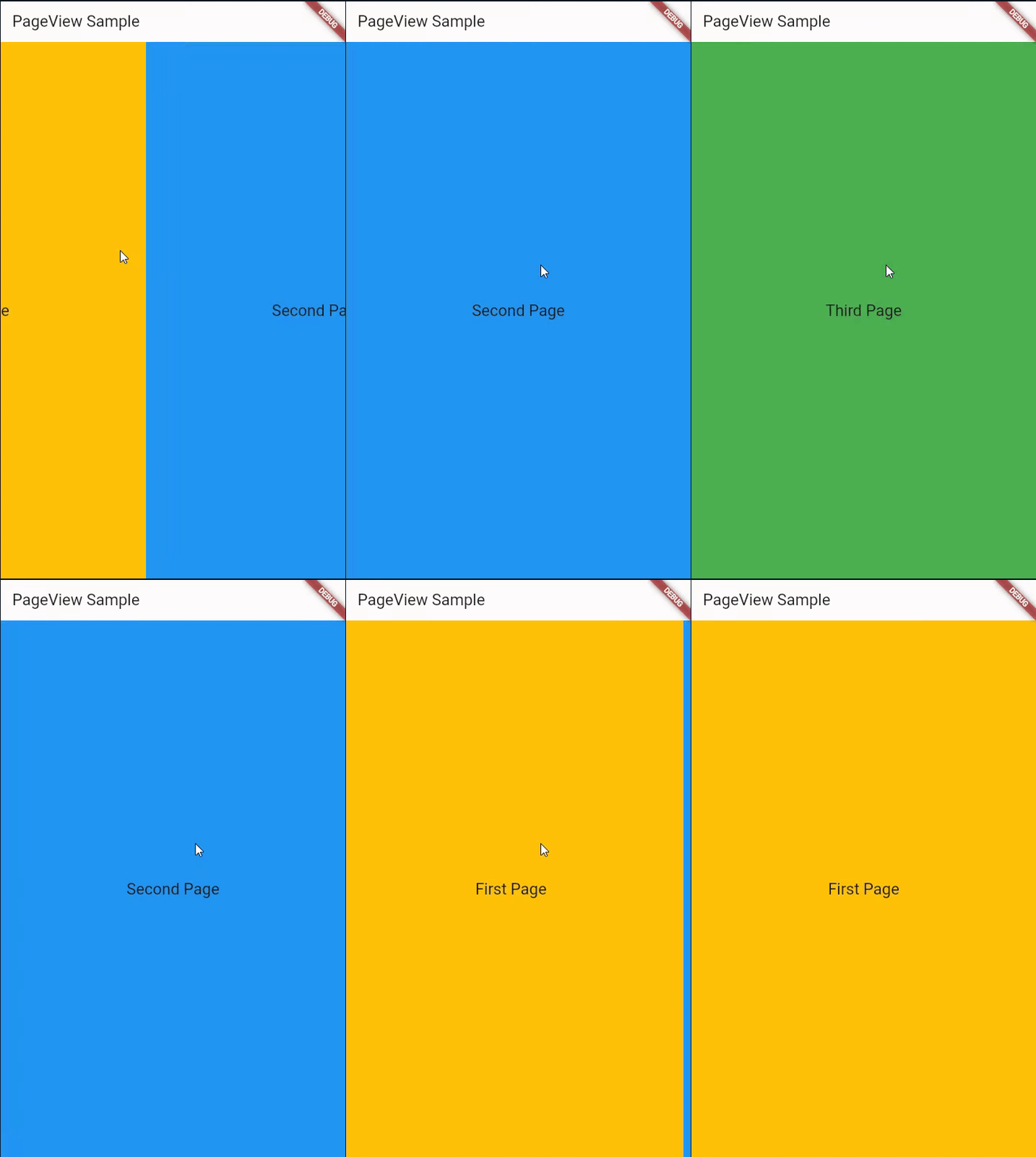
Widget createItem(String text, Color color) {
  final TextTheme textTheme = Theme.of(context).textTheme;
  return Scaffold(
    backgroundColor: color,
    body: Center(child: Text(text, style: textTheme.titleLarge)),
  );
}

@override
Widget build(BuildContext context) {
  return PageView(
    children: <Widget>[
      createItem('First Page', Colors.amber),
      createItem('Second Page', Colors.blue),
      createItem('Third Page', Colors.green),
    ],
  );
}
Conclusion 📰
In conclusion, mastering PageView and PageView.builder is essential for creating engaging and intuitive user interfaces in Flutter applications. By understanding their features, syntax, and various use cases, developers can leverage these widgets to build impressive and immersive experiences for their users. Whether it's guiding users through onboarding screens or presenting dynamic content, PageView and PageView.builder empower developers to deliver seamless navigation experiences that elevate the overall quality of their Flutter apps.
[embed]Custom Text Formatters for Flutter Forms blog.stackademic.com
[embed]Unveiling the Magic of Custom Painters Introduction 🌅blog.stackademic.com
Thanks for reading. If you found this article to be helpful please share it with your friends.
Stackademic 🎓
Thank you for reading until the end. Before you go:
- Please consider clapping and following the writer! 👏
- Follow us **X | LinkedIn | YouTube | Discord**
- Visit our other platforms: **In Plain English | CoFeed | Venture | Cubed**
- More content at **Stackademic.com**
메타데이터
- post_id
- 75caddff95e7
- slug
- seamless-swiping-pageview-in-flutter-75caddff95e7
- url
- https://blog.stackademic.com/seamless-swiping-pageview-in-flutter-75caddff95e7
- canonical_url
- https://blog.stackademic.com/seamless-swiping-pageview-in-flutter-75caddff95e7
- author_url
- https://medium.com/@adityagmhatre
- status
- ok
- fetched_at
- 2026-08-01 17:41:58