Security Best Practices Implemented
Permission Lockdown: 400 permissions on private key Secure Storage: Keys stored in encrypted home directory No Password Fallback…
My First Cloud Computing Journey: Deploying a Linux VM on AWS Free TierIntroduction
As a Computer Science student at NUCES FAST, I recently completed my first cloud computing assignment that took me from theoretical knowledge to practical implementation. The task? Deploy a Linux virtual machine on a cloud platform, configure security, enable remote access, and host a web server - all with zero cost using Free Tier resources.
In this detailed guide, I'll walk you through my entire journey, sharing every st
ep, challenge, and learning along the way. Whether you're a student, a beginner in cloud computing, or someone looking to understand AWS basics, this article will provide practical insights you can apply immediately.Step 1: Launching My First EC2 Instance
### Why AWS?
After comparing AWS, Azure, and Google Cloud, I chose AWS because:
- Most generous Free Tier (750 hours/month free)
- Comprehensive documentation
- Industry standard certifications
### Instance Configuration
- **OS:** Ubuntu 24.04.3 LTS
- **Instance Type:** t3.micro (Free Tier eligible)
- **Storage:** 8 GB EBS
- **Public IP:** 3.26.198.81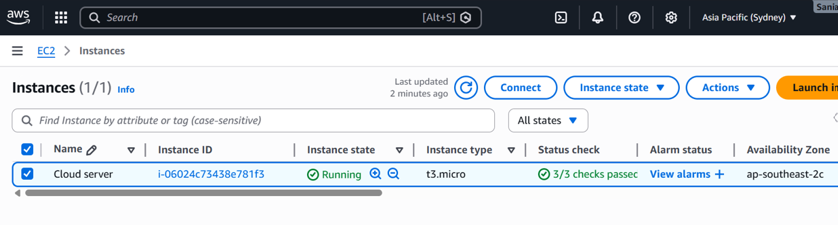
AWS EC2 Dashboard showing my running t3.micro instance
Step 2: SSH Key Security Setup

### Why SSH Keys Over Passwords?
- More secure (cryptographic authentication)
- Eliminates password brute-force attacks
- Required for automated deployments

### My Implementation:
```bash
# Generated 2048-bit RSA key via AWS
# Downloaded .pem file
# Set permissions: chmod 400 key.pem
WS Key Pair creation with .pem file download
Security Best Practices Implemented
Permission Lockdown: 400 permissions on private key Secure Storage: Keys stored in encrypted home directory No Password Fallback: Disabled password authentication in SSH config Key Rotation Plan: Prepared for regular key rotation

Step 4: Firewall Configuration (Security Groups)
Understanding AWS Security Groups
Security Groups act as virtual firewalls for your EC2 instances. Key characteristics:
- Stateful: Return traffic is automatically allowed
- Rule-based: Define inbound/outbound traffic rules
- Instance-level: Applied at instance level, not subnet
Custom Rules Configuration
I implemented a defense-in-depth strategy with these rules:
The firewall rules are configured to allow secure SSH access on port 22, restricted to a specific IPv4 address while remaining open for IPv6. HTTP traffic on port 80 is publicly accessible over both IPv4 and IPv6 to support web hosting. Additionally, RDP access on port 3389 is enabled for remote desktop connectivity across IPv4 and IPv6 networks.

Security Principles Applied
Principle of Least Privilege: Only necessary ports opened Default Deny: Implicit deny for all unspecified traffic Dual-Stack: Both IPv4 and IPv6 support Source Restriction: SSH limited to my IP for security
Step 5: RDP Installation & Graphical Access
Why RDP for a Linux Server?
While Linux servers are typically managed via CLI, RDP provides:
- Learning Curve: Easier for beginners transitioning from Windows
- GUI Tools: Access to graphical applications and tools
- Multitasking: Multiple terminal windows in GUI environment
Installation Process
# Update system packages
sudo apt update && sudo apt upgrade -y

# Install XFCE desktop (lightweight)
sudo apt install -y xfce4 xfce4-goodies

# Install xrdp server
sudo apt install -y xrdp

# Configure xrdp to use XFCE
echo xfce4-session > ~/.xsession

# Start and enable services
sudo systemctl enable xrdp
sudo systemctl start xrdp

# Verify service status
sudo systemctl status xrdp
Setting User Password
# Set password for RDP authentication
sudo passwd ubuntu
Connecting from Windows
- Open Remote Desktop Connection (mstsc)
- Enter Computer:
3.26.198.81 - Username:
ubuntu - Password: (set in previous step)
- Accept security certificate warning
Success: Ubuntu XFCE desktop loaded successfully via RDP!

Step 6: HTTP Server Deployment
Deploy a web server and access hosted content via public IP address.
HTTP Server Setup
# Create web directory
mkdir ~/mywebsite
cd ~/mywebsite

# Create HTML file
cat > index.html << EOF
<html>
<head>
<title>CLOUD ASSIGNMENT 1</title>
</head>
<body>
<h1>Assignment completed</h1>
<p><b>SANIA ABID</b></p>
<p><b>22F-3280</b></p>
</body>
</html>
EOF

# Start HTTP server
sudo python3 -m http.server 80

Result: Custom webpage displayed successfully!
Challenges & Solutions
Challenge 1: RDP Connection Issues
Problem: After installing xrdp, RDP connection failed with black screen Root Cause: Missing desktop environment configuration Solution:
# Configure xrdp to use XFCE
echo xfce4-session > ~/.xsession
sudo systemctl restart xrdp
Challenge 2: Security Group Rules Not Working
Problem: Changes not taking effect Solution: Waited 2 minutes + tested from new connection
Key Learnings & Insights
Technical Skills Gained
Cloud Infrastructure Management:
- EC2 instance lifecycle management
- EBS volume configuration
- VPC and subnet understanding
Security Implementation:
- SSH key-based authentication
- Security Group configuration
- Principle of Least Privilege application
System Administration:
- Linux package management (apt)
- Service management (systemctl)
- Network configuration
Web Deployment:
- HTTP server setup
- Port management
- Public IP accessibility
Conclusion
This assignment transformed my understanding of cloud computing from abstract concepts to practical skills. Deploying a real Linux VM, configuring security, enabling remote access, and hosting a web server gave me confidence that I can work with cloud infrastructure.
The most valuable lesson? Cloud computing is accessible to everyone. With Free Tier resources, comprehensive documentation, and supportive communities, anyone can start their cloud journey today.
메타데이터
- post_id
- 7670b00a199d
- slug
- security-best-practices-implemented-7670b00a199d
- url
- https://medium.com/@f223280/security-best-practices-implemented-7670b00a199d
- canonical_url
- https://medium.com/@f223280/security-best-practices-implemented-7670b00a199d
- author_url
- https://medium.com/@f223280
- status
- ok
- fetched_at
- 2026-06-09 15:37:30