The Non-Technical Guide to “Vibe Coding” with Google AI Studio
From Blank Screen to Deployed App in Minutes
The Non-Technical Guide to “Vibe Coding” with Google AI Studio
From Blank Screen to Deployed App in Minutes
If you’re not a member, you can still access the article for free here.
If you have an idea for an app but don’t know how to write code, the world of software development usually feels like a closed door. You need to know Python or JavaScript, or be able to set up servers.
Google AI Studio unlocks that door.
It is a web-based tool that lets you build software using plain English. You don’t need to learn syntax; you just need to describe the “vibe” of what you want. This guide will walk you through the interface, explain the features, and teach you how to “Vibe Code” and launch your first app.
What is Google AI Studio?
Think of Google AI Studio as a magic canvas. It is a prototyping environment where you can access Google’s smartest AI models (like Gemini) directly.
Unlike a standard chatbot (like ChatGPT), which is designed for conversation, AI Studio is designed for creation. It gives you the controls to build tools, generate code, and handle complex tasks like analyzing video or audio, all in one place.
Tour of the Interface (The Home Screen)
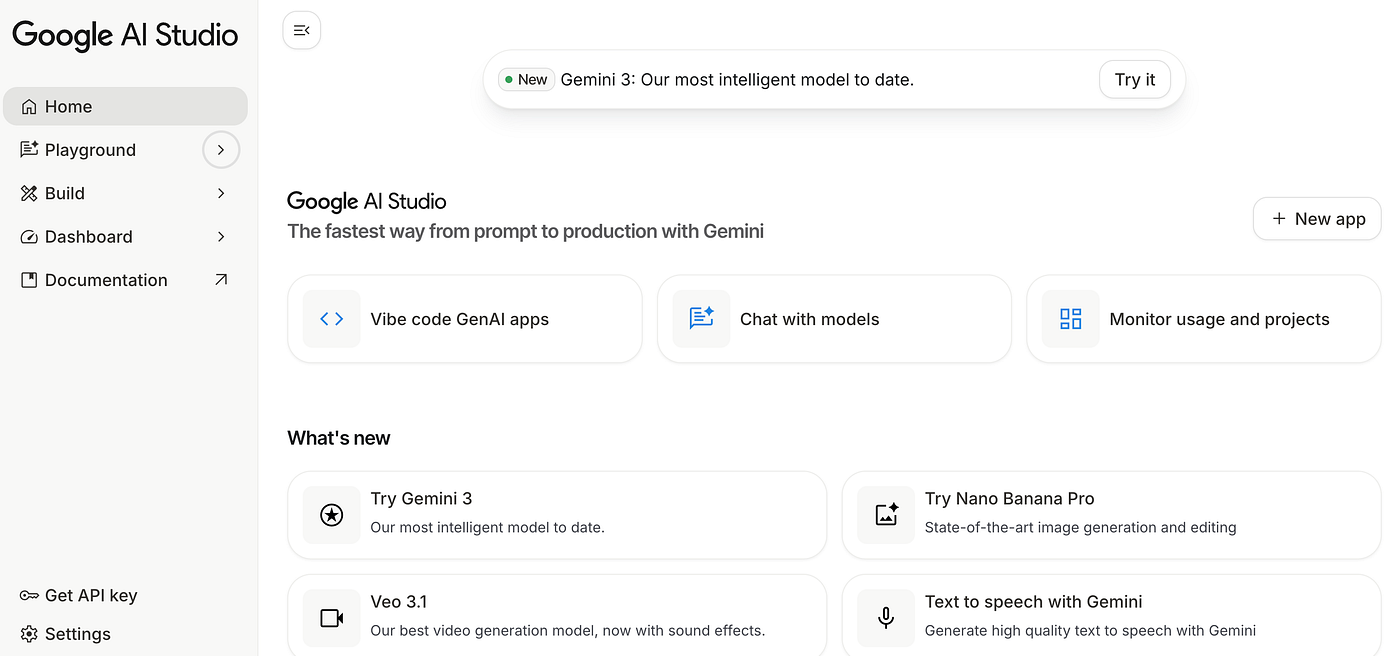
Let’s look at the first thing you see when you log in. Based on the interface provided, here is your dashboard breakdown:
1. The “Launchpad” (Center Screen)
The most important part of the screen is the center, where you choose your path. You’ll see three large action buttons:
- Vibe code GenAI apps
< >: (This is where the magic happens). This button launches the "Build" mode. It is designed specifically for turning your words into working applications. If you want to make a tool, click this. - Chat with models: This opens a standard chat interface. Use this if you just want to talk to the AI, brainstorm ideas, or ask questions without building software.
- Monitor usage and projects: This is the administrative side. It shows you how much you’ve used the tool and lets you manage different saved projects.
2. The “What’s New” Section (Bottom Center)
Below the main buttons, you’ll see cards showing the cutting-edge models available to you. In your specific view, this includes:
- Try Gemini 3: Access to the latest, most intelligent text model.
- Try Nano Banana Pro: A state-of-the-art tool for image generation and editing.
- Veo 3.1: Google’s video generation model (now with sound effects!).
- Text to speech: Tools to turn written words into lifelike audio.
Note: AI Studio is a “playground,” so you often get access to these futuristic models (like Gemini 3 or Veo) before the general public.
3. The Navigation Bar (Left Sidebar)
Think of this as your filing cabinet:
- Home: Takes you back to this start screen.
- Playground: This dropdown stores your history. In the screenshot, you can see past projects. This is where your saved chats and apps live.
- Get API Key: If you eventually want to take your AI logic and plug it into a different piece of software outside of Google, you get your “key” here.
- Settings: Where you adjust your account preferences.
What is “Vibe Coding”?
Vibe Coding is a new way of programming where you focus on the intent rather than the syntax.
Instead of typing: if user_input == 'hello': print('world')
You type: “Make an app that greets the user cheerfully when they say hello.”
You act as the Product Manager, describing the features and the “vibe” (e.g., “Make it look retro,” “Make it professional,” “Make it funny”). The AI acts as the Senior Engineer, writing all the complex code to make that happen instantly.
How to Vibe Code Your First App
Let’s build a simple “Recipe Generator” app.
Step 1: Start the Build
From the Home screen (the one in your screenshot), click the big button that says “Vibe code GenAI apps”.
Step 2: Enter Your Vibe ( The Prompt)
You will see a chat box on the left and a blank preview screen on the right. Type this into the chat:
“Build a web app using Python and Streamlit. The app is called ‘Chef Gemini’. Features:
- A text box where I can list the ingredients I have in my fridge (e.g., eggs, cheese, milk).
- A ‘Find Recipe’ button.
- When I click the button, suggest a delicious recipe I can make with those items.
- Make the design look clean and appetizing, using warm colors like orange and yellow.”
Step 3: Iterate
The AI will write the code and automatically run it in the preview window on the right. You will see your app appear in seconds.
- Don’t like the look? Type: “Change the background to white and make the text bigger.”
- Want more features? Type: “Add a button to save the recipe to a text file.”
The app updates in real-time. This loop of Prompt -> Preview -> Refine is Vibe Coding.
Deploying to Google Cloud Run
Right now, your app only exists inside your AI Studio tab. To share it with friends or the world, you need to “Deploy” it. We will use Google Cloud Run, which hosts your app on a secure Google server.
Step 1: The Deploy Button
Look at the top right corner of your AI Studio screen (once you are inside the app you built). You will see a Deploy icon (often a rocket ship or an arrow). Click it and select Google Cloud Run.
Step 2: Configure the Cloud
A panel will open, asking for a few details:
- Google Cloud Project: You need a “wrapper” for your app. If you don’t have one, click “Create New Project” and give it a name (e.g.,
my-chef-app). - Region: Pick a location near you (e.g.,
us-central1). - Access: Select “Allow unauthenticated invocations”. Crucial Step: This setting makes your app public, so anyone with the link can open it. If you don’t check this, only you can see it.
Step 3: Launch
Click “Deploy”.
Google will now take your code, package it up, and send it to the cloud. This usually takes 1–3 minutes. When it’s done, it will give you a URL that looks like this: [https://chef-app-x82s.a.run.app](https://chef-app-x82s.a.run.app)
Step 4: Share
Copy that link and send it to anyone. They can now use the app you built on their phone or computer, anywhere in the world.
Summary
- Open AI Studio: Use the “Vibe code GenAI apps” button on the home screen.
- Prompt: Describe your app in plain English.
- Refine: Chat with the AI to fix bugs or change colors.
- Deploy: Click the rocket ship icon to put it on Google Cloud Run.
You are now a software builder!
Opinions and views expressed here, including but not limited to my lectures and public activities, are solely my own and do not reflect those of my current or past employers or any affiliations.
메타데이터
- post_id
- 76d8797db744
- slug
- the-non-technical-guide-to-vibe-coding-with-google-ai-studio-76d8797db744
- url
- https://medium.com/@roya90/the-non-technical-guide-to-vibe-coding-with-google-ai-studio-76d8797db744
- canonical_url
- https://medium.com/@roya90/the-non-technical-guide-to-vibe-coding-with-google-ai-studio-76d8797db744
- author_url
- https://medium.com/@roya90
- status
- ok
- fetched_at
- 2026-06-11 21:11:36