Revolutionary Free Voice Cloning—Open-Sourced Model: The Definitive Guide
Unlocking the power of AI voice cloning is no longer just for engineers or tech giants. With impressive open-source tools like Pinokio AI…
Revolutionary Free Voice Cloning—Open-Sourced Model: The Definitive Guide
Unlocking the power of AI voice cloning is no longer just for engineers or tech giants. With impressive open-source tools like Pinokio AI and the F5-TTS model, anyone can create a high-quality digital voice double — for free, on their own computer. This guide, meticulously structured for Medium publication, dives deep into the installation, configuration, voice cloning, troubleshooting, and ethical usage of these technologies in 2025. All official resources and website links are included for a seamless experience.
1. Introduction: The Era of Accessible Voice Cloning
Voice cloning technology—once an academic curiosity—is now shaping how creators, educators, developers, and businesses interact with audiences. Modern AI can replicate human voices with astonishing realism, opening up new frontiers in audiobooks, game development, content creation, accessibility, and more. Two tools lead this revolution: Pinokio AI, a one-click app installer for complex AI models, and F5-TTS, a best-in-class text-to-speech engine with ultra-fast, zero-shot voice cloning capabilities.
2. Understanding Pinokio AI and F5-TTS
What is Pinokio AI?
Pinokio AI (official site) is an “AI browser”—not ”for the web, but for local AI apps. It lets you install, update, and run powerful AI scripts (including TTS, image generation, and more) with just a few clicks. No command-line expertise is needed; Pinokio automates Python environments, dependencies, and model management.
Features:
- Install nearly any server-based open-source AI software
- Sandbox isolation: each app runs independently
- Built-in “Discover” section for finding new AI tools
- GUI-first, no-code workflow
What is F5-TTS?
F5-TTS (“Fairytaler Fakes Fluent and Faithful Speech with Flow Matching”) is an open-source neural speech synthesizer designed for both speed and fidelity. It delivers:
- Zero-shot voice cloning: Mimics a new voice from just seconds of audio
- Fast performance: Works on CPUs, but unlocks real-time speed with a GPU
- Emotional, multilingual support
- Local privacy: Everything runs on your PC637
Official repo: https://github.com/SWivid/F5-TTS
3. System Requirements and Preparations
Prepare your machine for seamless operation:
- Operating System: Windows 10/11, macOS, or modern Linux
- Processor: x86–64 or ARM64; recent multicore recommended
- RAM: Minimum 8GB (16GB+ preferred for speed)
- Storage: 30–50GB free disk space
- GPU: Optional, but strongly recommended for large or real-time jobs (NVIDIA CUDA support is optimal)
- Internet: For downloads and model setup
- Admin privileges: Required initially for some installations
4. Downloading and Installing Pinokio AI
Step 1: Get Pinokio AI
Visit the Pinokio Download Page and select the latest version for your OS.
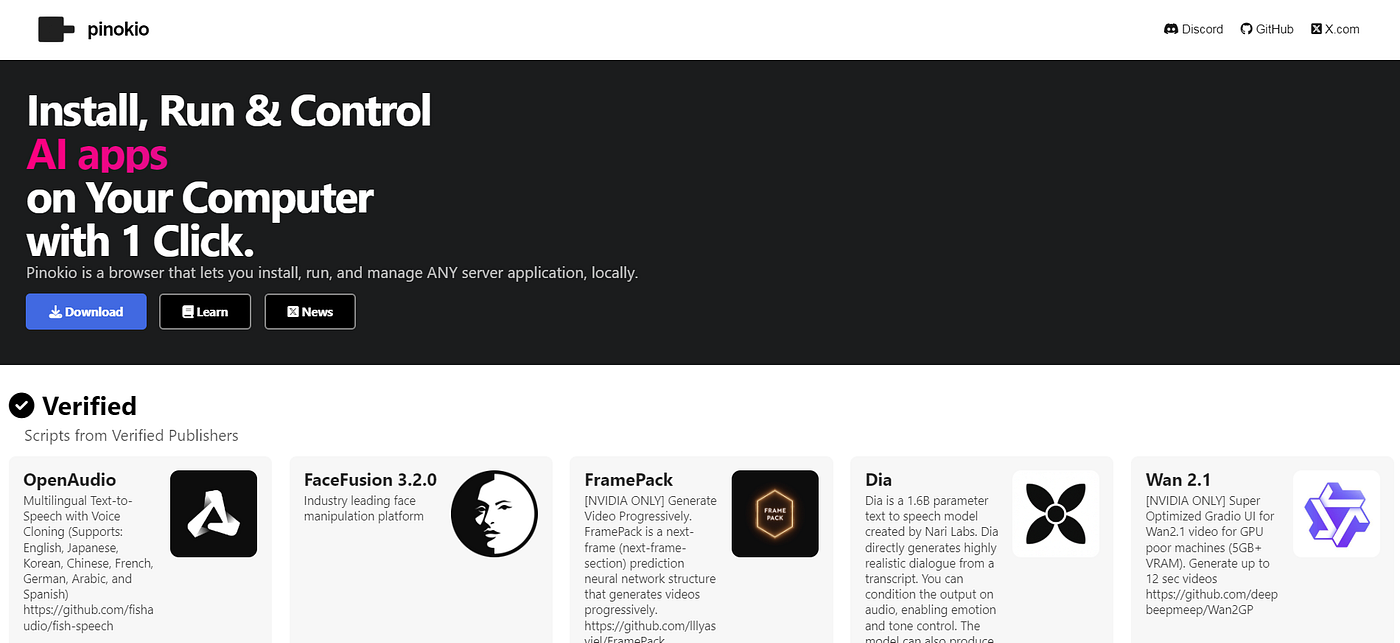
- Windows:
.exeinstaller - Mac:
.dmgor.zippackage - Linux:
.debor.AppImage
Step 2: Run the Installer
- Double-click the installer
- On macOS, drag Pinokio to “Applications” (might require right-click → Open due to Gatekeeper)
- Linux users: follow on-screen or GitHub instructions.
Step 3: First Launch & Initial Setup
- On the first run, Pinokio asks for a “Home Directory.” Choose a location with enough space (avoid cloud sync folders or exFAT drives for best results).
- Pinokio auto-installs dependencies (Python, Conda, and Git). This process is hands-off—let it complete.
- You will be greeted by the Pinokio dashboard, featuring a side panel, Discover section, and App Manager.
Installation screenshots and visual guides are shown in official video tutorials—check here and Pinokio’s documentation
5. Setting Up F5-TTS using Pinokio
Pinokio AI streamlines the notoriously complex TTS installations into a point-and-click experience.
Step 1: Open Pinokio and Access “Discover”
- Find the Discover tab on the left panel
- Use the search bar to enter “F5-TTS”, “TTS”, or even “XTTS” (Pinokio sometimes groups similar tools together)
Step 2: Install F5-TTS
- Click the “F5-TTS” app card
- Choose Install. Pinokio automatically fetches the code and all dependencies:
- PyTorch (with CUDA for GPU acceleration if available)
- Gradio (for web interface)
- Pretrained F5-TTS voice models
- Wait 5–15 minutes for the process (time depends on network and system speed)
Step 3: Launch the Application
- Once installed, click Launch
- A browser window (e.g.,
http://localhost:XXXX) opens with the F5-TTS web UI - You are now ready to begin voice cloning
Tip: The Pinokio dashboard keeps all your installed apps organized. You can update or remove any app from here.

6. Creating a Voice Clone: Step-by-Step
Voice cloning—that is, creating a digitally transferable “voice ”double”—has never been more accessible.
Step 1: Prepare Your Voice Sample
- Format: WAV or MP3 preferred
- Length: 10–120 seconds is ideal (minimum for zero-shot: 5–15 seconds)
- Quality: Quiet room, avoid background noise, speak naturally
Step 2: Upload Your Reference Audio
- In F5-TTS’s web UI, locate the section labeled “Upload Reference,” “Speaker Embedding,” or similar
- Drag and drop your audio file, or use the file picker
- You’ll see your file listed and possibly a waveform visualization.
Step 3: Customize/Train (Optional)
- F5-TTS can instantly synthesize using “zero-shot” cloning—no extra training needed for many voices
- For advanced users, you can provide multiple samples or initiate fine-tuning from the UI or command line, which gives higher fidelity but takes longer and leverages your GPU
Step 4: Configure Output
- Adjust emotion (“neutral,” “happy,” etc.), language, pace, and pitch using sliders and dropdowns as available
7. Generating Natural Speech with Your Cloned Voice
With your voice clone set, you’re ready for instant text-to-speech transformations.
Step 1: Enter Text
- Type or paste your desired content into the “Input Text” field
Step 2: Synthesize
- Click Synthesize or Generate
- The F5-TTS backend processes your request (A GPU will make synthesis nearly instantaneous; on CPUs, it may take several seconds per sentence.)
Step 3: Preview & Export
- Listen to the generated speech directly in the browser interface
- Download the resulting audio as WAV or MP3 for use in podcasts, videos, games, etc.
8. Advanced Usage and Troubleshooting
Access from Any Device
- Use Pinokio’s built-in Wifi/Cloud sharing to expose your local F5-TTS web UI on your network or securely online (Cloudflare tunneling).
Updating, Maintenance, and More
- Update F5-TTS and Pinokio via the “Update” buttons in the dashboard
- Remove unused models to save disk space
- You may run multiple AI apps in isolation via Pinokio’s app manager
Troubleshooting Common Issues
- Installation Fails: Ensure admin rights and enough free space; check logs in Pinokio’s Help menu
- Error: Missing Model: Download the required checkpoints or model files—check official docs or the interface prompts
- White Screen/UI bugs: Disable aggressive antivirus or firewalls temporarily
Community support is available on the Pinokio Discord and the F5-TTS GitHub Issues page for live troubleshooting.
9. Ethics and Responsible Voice Cloning
AI voice cloning offers immense creative power—but also significant ethical responsibilities.
- Always obtain explicit permission before using someone else’s voice
- Clearly disclose AI-generated voices in all public-facing projects
- Never use voice clones for deception, impersonation, or fraud
- Familiarize yourself with relevant laws and regulations regarding voice, likeness, and AI content in your jurisdiction
10. Frequently Asked Questions
Q: Can I use F5-TTS and Pinokio on lower-end hardware? A: Yes, voice cloning works on CPU, but synthesis will be slower. GPU acceleration is highly recommended for real-time or large tasks.
Q: Is all processing done locally? A: Yes; no audio, voice, or text data leaves your machine by default.
Q: Are there limits on the number of cloned voices or TTS requests? A: No limits—everything is unrestricted and local.
Q: How do I update to the latest F5-TTS model? A: Use the Update button in Pinokio or pull the latest from the official GitHub repo.
11. Additional Resources & Links
- Pinokio Official Site: https://pinokio.co
- Official F5-TTS GitHub: https://github.com/SWivid/F5-TTS
- Pinokio Discord: https://discord.gg/pinokio
- F5-TTS Video Guide: YouTube Tutorial by AI Tool Guide
- F5-TTS How-To Blog: Step-by-Step with Screenshots
- Power Users: F5-TTS for Developers
- Community Stories: Reddit: Free Local Voice Cloning
12. Conclusion: The Future of DIY Voice AI
Pinokio AI and F5-TTS have democratized high-end voice cloning, making it as simple as a software install and a few clicks, all without fees or coding. Whether you’re narrating your own audiobook, localizing apps, or experimenting with AI creativity, these tools put powerful technology in your hands—privately and locally.
The only limit now is your imagination—and your commitment to ethical, creative use.
For visuals, installation screenshots, and step-by-step video instructions, refer to official Pinokio and F5-TTS documentation as well as popular YouTube tutorials linked above. If you’re publishing on Medium, enrich your article with images from these resources, adhering to copyright rules and giving credit where needed.
Let your digital voice be heard.
메타데이터
- post_id
- 76ee69f6180f
- slug
- revolutionary-free-voice-cloning-open-sourced-model-the-definitive-guide-76ee69f6180f
- url
- https://medium.com/@reviewradar24/revolutionary-free-voice-cloning-open-sourced-model-the-definitive-guide-76ee69f6180f
- canonical_url
- https://medium.com/@reviewradar24/revolutionary-free-voice-cloning-open-sourced-model-the-definitive-guide-76ee69f6180f
- author_url
- https://medium.com/@reviewradar24
- status
- ok
- fetched_at
- 2026-07-18 16:20:06






