How I Created a Professional Storyboard in 15 Minutes With Adobe Firefly
If you’ve ever tried making a storyboard, you know the pain: sketching scenes by hand, collecting reference images, or paying for costly…
How I Created a Professional Storyboard in 15 Minutes With Adobe Firefly
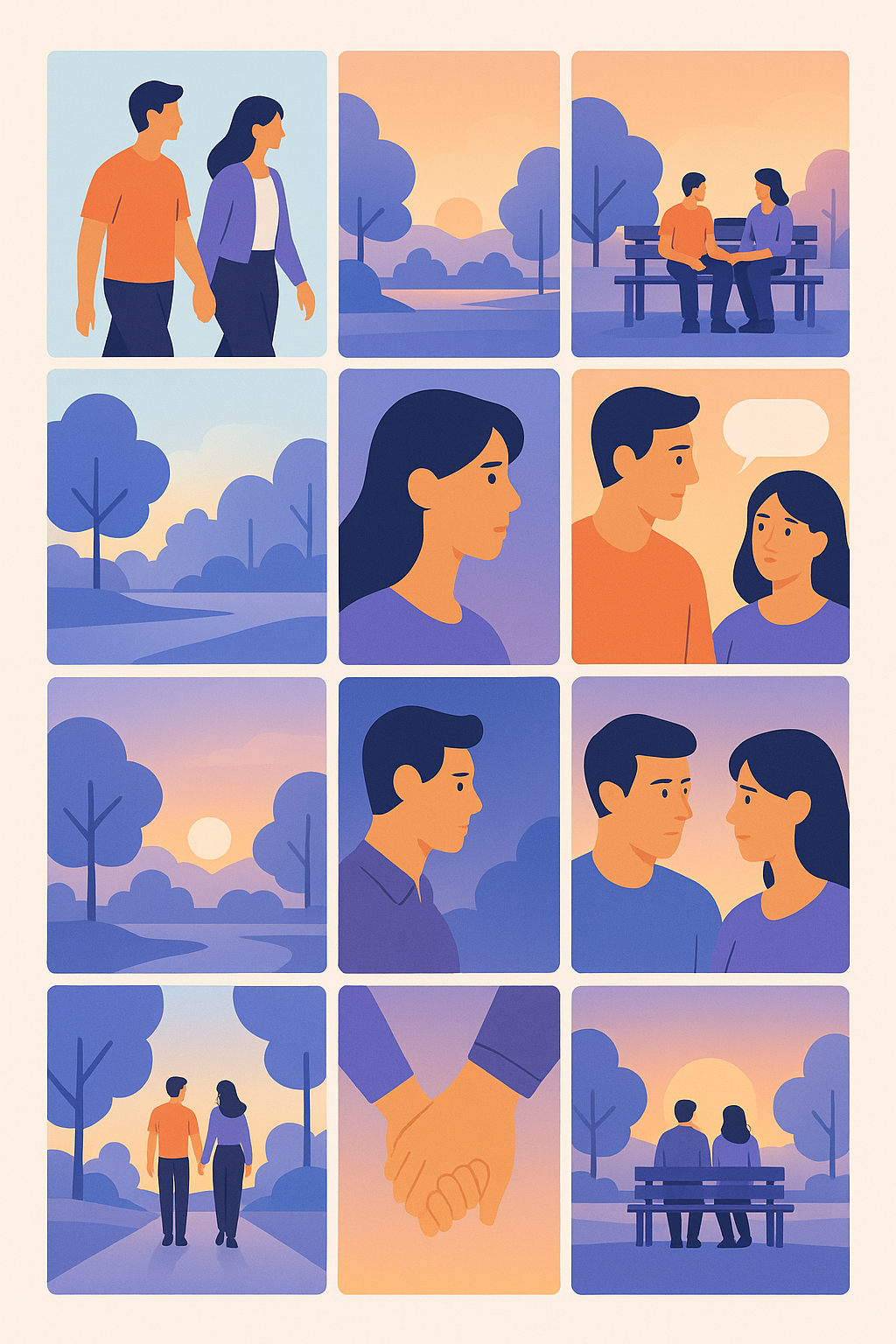
Example Story Board with multiple scenes
If you’ve ever tried making a storyboard, you know the pain: sketching scenes by hand, collecting reference images, or paying for costly stock visuals. The process can eat up hours — or even days — before you get something polished enough to present.
But with Adobe Firefly, that’s all changing. In less than 15 minutes, I created a professional storyboard for a short narrative idea without touching a pencil or Photoshop brush. Firefly’s AI-powered image generation and new Boards feature streamline the process from idea to pitch-ready visuals. And the best part? You don’t need to be an artist.
Here’s exactly how I did it.
Why Storyboards Matter
Storyboards aren’t just for filmmakers. Marketers, educators, startup founders, and even social media creators use them to:
- Pitch ideas visually.
- Align teams around a creative direction.
- Plan video ads, explainer videos, and campaigns.
The traditional problem: storyboards usually require either artistic skills or lots of expensive stock imagery.
Enter Firefly: The AI Creative Boost
Adobe Firefly steps in as an AI partner for visual storytelling. You type a description, choose a style, and Firefly generates images in seconds. With Boards, you can organize your generated visuals into a storyboard layout and share them with collaborators.
Step-by-Step Walkthrough
- Write Your Prompt I started with: “A young couple walking in a park at sunset, cinematic style, warm tones, wide shot.”
- Refine the Style Firefly offers multiple artistic approaches — sketch, cinematic, comic, storyboard-like visuals. I picked a clean cinematic look for consistency.
- Generate Key Scenes I repeated the process for each storyboard frame: walking, sitting on a bench, close-up of dialogue, etc.
- Use Firefly Boards Once the images were ready, I dragged them into a Board. Within minutes, I had a neat 9-scene storyboard sequence.
- Export & Share Firefly let me export the board as a PDF to send to my collaborator.
My Results in 15 Minutes
What once took me half a day with stock images and Photoshop was now ready in under 20 minutes. The generated visuals had a consistent style, and even though I tweaked prompts a few times, the workflow was seamless.
Why This Changes the Game
- Accessibility: Even non-designers can storyboard ideas.
- Speed: Perfect for last-minute pitches.
- Cost: No more buying 20 stock photos just for a rough draft.
This isn’t about replacing creativity — it’s about unlocking it faster.
👉 Want a deeper guide with prompt templates and examples? Check out the full walkthrough on MadeWithFirefly.com.
메타데이터
- post_id
- 788b1fe76e63
- slug
- how-i-created-a-professional-storyboard-in-15-minutes-with-adobe-firefly-788b1fe76e63
- url
- https://medium.com/@madewithfirefly/how-i-created-a-professional-storyboard-in-15-minutes-with-adobe-firefly-788b1fe76e63
- canonical_url
- https://medium.com/@madewithfirefly/how-i-created-a-professional-storyboard-in-15-minutes-with-adobe-firefly-788b1fe76e63
- author_url
- https://medium.com/@madewithfirefly
- status
- ok
- fetched_at
- 2026-06-26 21:52:29