Lock Down Your SSH: A No-Sweat Guide for Newbs
Weekly Bootcamp Task ID-Networkers — Linux SSH Hardening
Lock Down Your SSH: A No-Sweat Guide for Newbs
Weekly Bootcamp Task ID-Networkers — Linux SSH Hardening

Hey there! So, you’ve got a Linux server (or maybe a cool Kali VM) and you’re using SSH to connect to it. Smart move! SSH is like a secret tunnel for your commands. But just like you wouldn’t leave your Kos-kosan door wide open, you shouldn’t leave your SSH with default settings. Let’s pimp your SSH security so only you and your real homies can get in.
Your Mission Prep (Don’t Skip This. Seriously.):
- Backup Your Config (Your “Undo Button” for Servers):
Before you go changing stuff, make a copy of your SSH settings file. If something goes sideways, you can always go back.
sudo cp /etc/ssh/sshd_config /etc/ssh/sshd_config.backup_anjay_
#(Yeah, I added _anjay_ for fun. You can name it whatever you like.)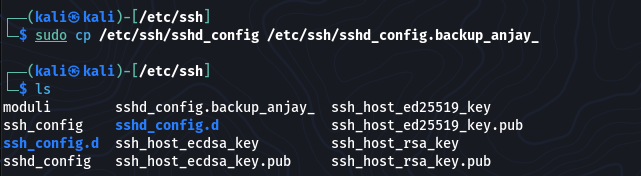
- Open the Magic File:
Most of our work will be in this file: /etc/ssh/sshd_config. Open it with your favorite text editor (nano is easy):
sudo nano /etc/ssh/sshd_configAfter You change Something :
- Check for Typos:
sudo sshd -t
#(If it return nothing you're golden).
Make it Live:
sudo systemctl restart ssh(Or reload if you want to be gentle and not drop current connections: sudo systemctl reload sshd).
- Pro Tip: Keep a Backdoor (Session) Open: If you’re SSH’d into the machine you’re hardening, keep that first SSH window open! If you mess up a setting and lock yourself out, you might still be able to fix it from that original session. With a VM, you usually have console access, which is your ultimate safety net.
Alright, let’s get to the good stuff!
The Hardening Steps: Level Up Your SSH Security!
- Stick to Protocol 2 (Like, Duh, It’s Newer and Better!)

- Why Bother? Protocol 1 is ancient and has more holes than your favorite pair of ripped jeans. Protocol 2 is the current, secure standard.
- The Magic Line: Protocol
- What to Type (in /etc/ssh/sshd_config): Protocol 2
- Make sure this line isn’t commented out (no # at the beginning) and is set to 2. Most systems already do this, but double-checking is what pros do.
- Did it Work? If you can still connect after restarting sshd, you’re good.
2. No Root Logins Allowed! (Keep the Superuser on a Leash)
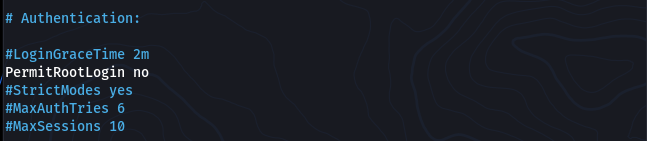
- Why Bother? Letting root (the all-powerful user) log in directly via SSH is like leaving your master key under the doormat. If someone guesses the root password, game over. Better to log in as a normal user and use sudo when you need super-powers.
- The Magic Line: PermitRootLogin
- What to Type: PermitRootLogin no
- Did it Work? Try ssh root@your_server_ip. It should give you the digital cold shoulder (aka, deny you).
3. Hide and Seek: Change the Default SSH Port (Optional: Less Annoying Bots)

- Why Bother? Every script kiddie and their bot scans port 22 (the default SSH port). Changing it is like moving your front door to the side of the house. It won’t stop a determined pro, but it cuts down on the constant knocking from automated pests.
- The Magic Line: Port
- What to Type (Example): Port 2222
- (Pick a number that’s not being used, usually above 1024. Like 2222, 49155, whatever floats your boat.)
- Heads Up! Firewall Alert! If you’re using a firewall (like ufw), you must tell it to allow your new port before you restart SSH, or you’ll lock yourself out. For ufw: sudo ufw allow 2222/tcp (replace 2222 with your chosen port).
- Did it Work? Connect using ssh -p 2222 your_user@your_server_ip.
6. Don’t Ghost Us: Set an Idle Timeout (Kick Out Lurkers)

- Why Bother? If someone SSHes in and then wanders off to make a pizza, that open session is a (small) risk. This setting automatically boots idle users.
- The Magic Lines: ClientAliveInterval, ClientAliveCountMax
- What to Type (Example): ClientAliveInterval 300 # Server pings client every 5 mins ClientAliveCountMax 2 # If client doesn’t answer twice, bye-bye! (Total ~10 mins idle)
- Did it Work? Log in, grab that pizza (or just wait 10+ minutes without typing anything). Your session should get disconnected.
7. No X11 Peeking (If You Don’t Need It, Ditch It!)

- Why Bother? X11 forwarding lets you run graphical apps from the server on your screen through SSH. Cool, but if you’re not using it, it’s just another open window (potential attack surface).
- The Magic Line: X11Forwarding
- What to Type: X11Forwarding no
- Did it Work? Try ssh -X your_user@your_server_ip and then run a simple X app like xclock. If it complains about the display, it’s probably off.
10. Three Strikes, You’re Out! (Limit Login Tries)

- Why Bother? Makes life harder for bots trying to guess your password (if you somehow still have password auth on for some users, which you shouldn’t for most!).
- The Magic Lines: MaxAuthTries, LoginGraceTime
- What to Type (Example): MaxAuthTries 3 LoginGraceTime 60 # Gives ’em 60 seconds to get it right
- Did it Work? Try to log in and purposefully mess up your password/key more than 3 times. The server should hang up on you.
12. Keep It Fresh: Update SSH! (Don’t Be That Person with Old Software)
- Why Bother? Bad guys find new holes in software all the time. Updates patch those holes.
- How to Do It: Regularly update your system! sudo apt update sudo apt upgrade openssh-server
- Did it Work? Check your SSH version (ssh -V or sshd -V). Google it to see if it’s reasonably current.
13. Be a Detective: Check Your Logs (See Who’s Been Knocking)
- Why Bother? Your server keeps a diary of who tries to log in, who succeeds, who fails. Good to peek at this sometimes to see if anything fishy is going on.
- Where to Look: Usually /var/log/auth.log (on Kali/Debian/Ubuntu) or /var/log/secure (on others).
- How to Do It: sudo less /var/log/auth.log
- (Use arrow keys to scroll, q to quit).
- Did it Work? You’ll see login attempts. Look for anything weird!
Phew! That’s a Wrap!
You’ve just seriously beefed up your SSH security. Give yourself a pat on the back! Remember, security isn’t a one-time thing. Keep your system updated, and maybe glance at those logs once in a while.
Now go forth and SSH responsibly! 🎓💻
메타데이터
- post_id
- 79d9500a0460
- slug
- lock-down-your-ssh-a-no-sweat-guide-for-newbs-79d9500a0460
- url
- https://medium.com/@attridho/lock-down-your-ssh-a-no-sweat-guide-for-newbs-79d9500a0460
- canonical_url
- https://medium.com/@attridho/lock-down-your-ssh-a-no-sweat-guide-for-newbs-79d9500a0460
- author_url
- https://medium.com/@attridho
- status
- ok
- fetched_at
- 2026-06-26 03:39:16