Security Operations Center
Threat Visibility & Detection For FireOps System
Security Operations Center
Threat Visibility & Detection For FireOps System
A project done by Expadox Lab Cohort 2, 2026 SignalHunt— a cybersecurity Team:
Team SignalHunt was engaged to design, implement, and validate a Security Operations Center (SOC) for FireOps Systems — a fintech startup providing online payment processing and digital wallet services across multiple African countries. FireOps recently expanded to a hybrid infrastructure spanning on-premise systems and cloud workloads on both AWS and Azure, but had no centralized visibility, alerting, or incident response capability.
This blog covers the full project lifecycle from architecture design through attack simulation and validation, addressing all eight deliverables specified in the project brief. The implementation uses exclusively open-source tools and standard security practices.

Business Context & Problem Statement
Who is FireOps Systems?
FireOps Systems is a growing fintech startup providing online payment processing and wallet services across multiple African countries. The company recently expanded its infrastructure to include both on premise systems and cloud workloads on AWS and Azure. As their customer base grows, they face increasing cyber risk targeting their payment APIs and customer financial data.
The Problem
At project inception, FireOps had no security monitoring capability whatsoever:
No visibility into endpoint or network activity
No centralized log collection or SIEM platform
No ability to detect failed login attempts or intrusion activity
No cloud workload monitoring across AWS or Azure
No automated alerting, escalation procedures, or incident playbooks
No data retention policy or access control framework for security logs
Business Requirements
The following requirements were defined by FireOps leadership:
Achieve full visibility across all infrastructure — on-premise and cloud
Detect unauthorized access attempts and potential data exfiltration
Monitor cloud resources, endpoints, and network traffic for compromise
Generate automated alerts for suspicious behaviour
Ensure logs are collected, normalized, and stored securely for future analysis
Build reporting dashboards for operational and executive audiences
Security Architecture & Design
Architecture Overview
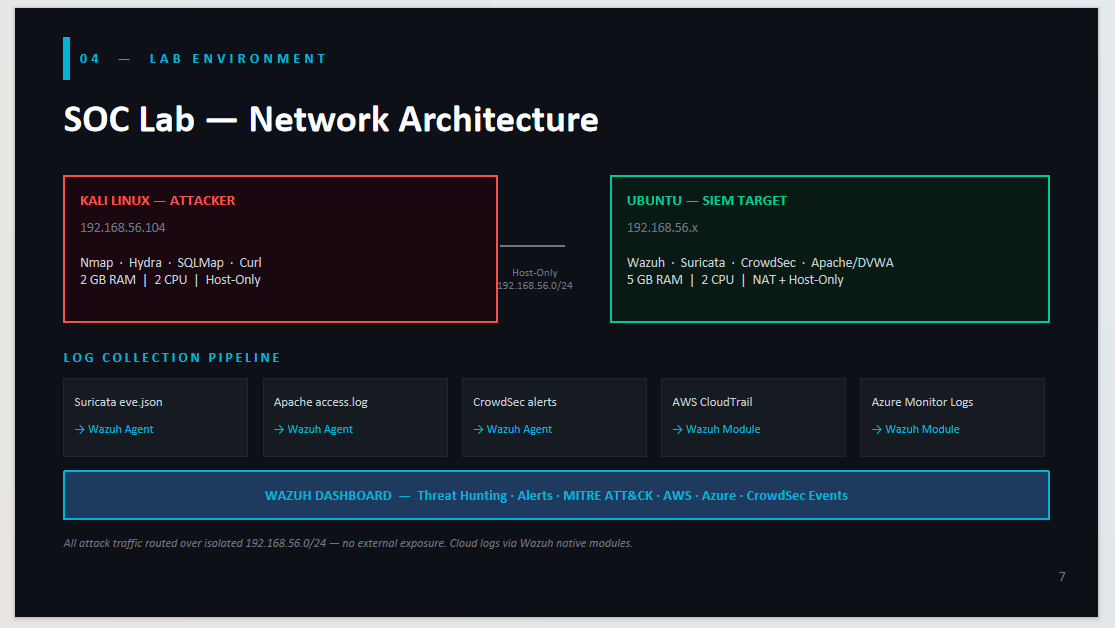
The SignalHunt SOC architecture is organized into four layers: Log Sources, Detection Layer, Response & Automation, and Visibility & Reporting. All on-premise traffic flows over an isolated Host-Only network (192.168.56.0/24). Cloud telemetry flows via Wazuh native modules.

Data Flow
The complete log pipeline from source to alert is as follows:
Raw event occurs on endpoint (SSH fail, HTTP request, network packet)
Local tool captures it: sshd writes to auth.log, Apache to access.log, Suricata to eve.json, CrowdSec to crowdsec.log
Wazuh agent on Ubuntu reads configured log paths via <localfile> directives in ossec.conf
Agent forwards normalized events to Wazuh Manager over encrypted channel
Wazuh Manager runs decoders then matches rules — assigns rule ID and severity level
Matched alerts indexed to Wazuh Indexer (OpenSearch) for storage and querying
Wazuh Dashboard renders alerts in real time — Threat Hunting, MITRE ATT&CK, agent views
Tool Justification

Lab Environment Setup — Full Commands
Virtual Machine Specifications

Both VMs share the vboxnet0 Host-Only adapter on network 192.168.56.0/24. The Kali attacker IP is 192.168.56.104. All attack simulation traffic remains on this isolated network — no external exposure.
Network Adapter Configuration
Ubuntu (fireops) — Adapter 1 (NAT, internet access), Set to NAT in VirtualBox settings — provides outbound internet for package downloads

Figure: Ubuntu (fireops) VM — Adapter 1 configured as NAT
Ubuntu (fireops) — Adapter 2 (Host-Only, isolated lab network)
Set to Host-Only Adapter, attached to vboxnet0. This is the interface Suricata monitors and where all attack traffic flows.

Figure: Ubuntu (fireops) VM — Adapter 2 configured as Host-Only (vboxnet0)
Kali Linux — Adapter 1 (NAT) + Adapter 2 (Host-Only)
Same dual-adapter configuration. Host-Only adapter gives Kali direct connectivity to the fireops VM.

Figure: Kali Linux VM — Adapter 1 configured as NAT

Figure: Kali Linux VM — Adapter 2 configured as Host-Only
Initial System Updates

Tool Installation & Configuration
DVWA — Damn Vulnerable Web Application
DVWA is installed on the Ubuntu (fireops) VM as the web attack target. It runs on Apache and simulates a vulnerable payment portal.
Install DVWA using automated script:
# Download the DVWA installation script
wget https://raw.githubusercontent.com/IamCarron/DVWA-Script/main/Install-DVWA.sh
# Make it executable
chmod +x Install-DVWA.sh
# Run as root
sudo ./Install-DVWA.sh
Configure Apache to serve DVWA as default site:
sudo nano /etc/apache2/sites-available/000-default.conf
*# Add these lines inside the <VirtualHost :80> block:**
DocumentRoot /var/www/html/DVWA
<Directory /var/www/html/DVWA>
Options Indexes FollowSymLinks
AllowOverride All
Require all granted
</Directory>
# Rename default Apache page so it doesn’t override DVWA
mv /var/www/html/index.html /var/www/html/index.html.bak
# Restart Apache
sudo systemctl restart apache2
# Verify DVWA is accessible
curl http://<UBUNTU_IP>
Set DVWA security level to ‘Low’ in the DVWA Security settings page before running attack simulations. This exposes the vulnerable SQL injection endpoint.
Wazuh SIEM
Wazuh is installed as an all-in-one deployment on the Ubuntu (fireops) VM. This single command installs the Wazuh Manager, Wazuh Indexer (OpenSearch), and Wazuh Dashboard.
Install Wazuh all-in-one:
curl -sO https://packages.wazuh.com/4.14/wazuh-install.sh && sudo bash ./wazuh install.sh -a
After installation, the terminal outputs credentials:

Retrieve all passwords from install archive:
sudo tar -O -xvf wazuh-install-files.tar wazuh-install-files/wazuh-passwords.txt
Access the dashboard:

Service management commands:
sudo systemctl restart wazuh-manager
sudo systemctl restart wazuh-indexer
sudo systemctl restart wazuh-dashboard
sudo systemctl status wazuh-manager
sudo systemctl status wazuh-indexer
sudo systemctl status wazuh-dashboard
Suricata IDS
Suricata is installed on the Ubuntu (fireops) VM and integrated with Wazuh to provide network-layer threat detection.
Step 1 — Install Suricata:
sudo apt-get update
sudo apt-get install suricata -y
Download Emerging Threats ruleset:
cd /tmp/ && curl -LO
https://rules.emergingthreats.net/open/suricata-6.0.8/emerging.rules.tar.gz
sudo tar -xvzf emerging.rules.tar.gz
sudo mkdir /etc/suricata/rules
sudo mv rules/*.rules /etc/suricata/rules/
sudo find /etc/suricata/rules -name ‘*.rules’ -exec chmod 777 {} \;
Configure /etc/suricata/suricata.yaml:


Restart Suricata:
sudo systemctl restart suricata
sudo systemctl status suricata
Configure Wazuh agent to read Suricata logs:
Add the following block to /var/ossec/etc/ossec.conf on the Ubuntu agent:

Restart Wazuh to apply:
sudo systemctl restart wazuh-manager wazuh-indexer wazuh-dashboard
CrowdSec (Replaces Fail2Ban)
CrowdSec provides behavioral-based automated IP blocking with collaborative threat intelligence. It replaces Fail2Ban for the following reasons:
Community-sourced blocklists — known attacker IPs blocked before they even connect
Behavioral analysis instead of fixed thresholds — fewer false positives for dynamic fintech IPs
Multi-service protection — SSH, HTTP, APIs protected simultaneously
Native JSON output — direct Wazuh ingest without custom decoder complexity
Reports attacker IPs to global CrowdSec network — collaborative defence
Install CrowdSec and iptables bouncer:
Add CrowdSec repository
curl -s https://packagecloud.io/install/repositories/crowdsec/crowdsec/script.deb.sh | sudo bash
Install CrowdSec and the iptables firewall bouncer
sudo apt install crowdsec crowdsec-firewall-bouncer-iptables -y
Verify installation
sudo cscli version
Install SSH collection and scenario:
sudo cscli collections install crowdsecurity/linux
sudo cscli scenarios install crowdsecurity/ssh-bf
sudo cscli scenarios install crowdsecurity/http-sqli
sudo cscli scenarios install crowdsecurity/http-probing
# Restart CrowdSec to load new scenarios
sudo systemctl restart crowdsec
Integrate CrowdSec with Wazuh (agent config):
Add the following to /var/ossec/etc/ossec.conf:

CrowdSec operational commands:

UFW — Firewall


Apache Web Server (for SQL Injection Detection)
Configure Wazuh to monitor Apache access logs:
Add to /var/ossec/etc/ossec.conf:

Kali Attack Tools (Pre-installed on Kali Linux)

Threat Detection & Alerting Configuration
Detection Architecture
Wazuh uses a two-stage pipeline: decoders first extract structured fields from raw log lines, then rules match against those fields and assign severity levels. Custom decoders and rules were written for CrowdSec integration.
CrowdSec Custom Decoder
Create /var/ossec/etc/decoders/crowdsec_decoder.xml on the Wazuh Manager:


CrowdSec Custom Alert Rules
Create /var/ossec/etc/rules/crowdsec_rules.xml on the Wazuh Manager:

Alert Severity Levels

Key Detection Rules Reference


Attack Simulations & Evidence
Three attack scenarios were simulated from the Kali Linux VM (192.168.56.104) targeting the Ubuntu fireops VM. All attacks were conducted on the isolated Host-Only network.
Attack 1 — Nmap Reconnaissance

Command executed from Kali:

What Nmap discovered:
Port 22/tcp — open — SSH (OpenSSH)
Port 80/tcp — open — HTTP (Apache httpd 2.4)
Port 443/tcp — open — HTTPS
1 host up, scan completed in ~11 seconds
Detection evidence:
Suricata’s Emerging Threats ruleset flagged the high-frequency SYN packets characteristic of a port scan
Rule 86601 fired: SURICATA HTTP Response excessive header repetition
4 Suricata alerts appeared in Wazuh Threat Hunting dashboard at 08:19:24 UTC
All alerts attributed to agent ‘fireops’, filterable by manager.name:fireops in Wazuh DQL

Figure: Left: Nmap scan from Kali (ports 22, 80 discovered). Right: Wazuh detects the scan — 4 Suricata alerts, Rule 86601, at 08:19:24 UTC
Attack 2 — SQL Injection

Command executed from Kali:

Detection evidence:
Wazuh agent monitored /var/log/apache2/access.log
Apache logged all incoming HTTP GET requests including the malformed SQL query strings
Wazuh Rule 31152 matched: ‘Multiple SQL Injection attempts from same source IP’
14 alert hits at severity Level 10 between 08:34:50 and 08:49:03 UTC
All alerts attributed to agent ‘fireops’, visible in Wazuh Threat Hunting with DQL filter
DQL query to view SQLi alerts in Wazuh:
rule.id: 31152 AND agent.name: fireops

Figure: Left: SQLMap testing injection techniques against DVWA. Right: Wazuh records 14 SQLi hits, Rule 31152, Level 10
Attack 3 — SSH Brute Force + CrowdSec Auto-Block

Command executed from Kali

SSH setup on Ubuntu (required pre-condition):

Detection evidence:
sshd daemon logged every failed authentication attempt to /var/log/auth.log
Wazuh Rule 5710 fired 11 times: ‘sshd: Attempt to login using non-existent user’ at 08:53:46 UTC
CrowdSec crowdsecurity/ssh-bf scenario threshold triggered after 3 failures in the defined window
CrowdSec iptables bouncer automatically blocked 192.168.56.104 — confirmed with: cscli
decisions list
CrowdSec ban event logged to /var/log/crowdsec.log — forwarded to Wazuh — Rule 100300 fired
Verify CrowdSec ban from fireops VM:

Manually verify iptables block is active:


Figure: Left: Hydra SSH brute force from Kali (0 valid passwords). Right: Wazuh logs 11 failed-login alerts, Rule 5710, Level 5
Screenshot placeholder: the CrowdSec ban confirmation goes here. Capture it by running ‘sudo cscli decisions list’ and ‘sudo cscli alerts list’ after the brute force, showing 192.168.56.104 banned via the crowdsecurity/ssh-bf scenario.
Dashboard & Reporting Framework
Wazuh Dashboard Capabilities

Figure: Wazuh dashboard overview — severity summary (Critical/High/Medium), Endpoint Security and Threat Intelligence modules

Key Metrics from Testing Session

Figure: Wazuh Threat Hunting dashboard — 1,039 total events, 17 auth failures, 111 auth successes, with MITRE ATT&CK technique breakdown

Useful DQL Queries for Wazuh Threat Hunting
# All events from fireops agent
agent.name: fireops
# Filter to SQL injection alerts only
rule.id: 31152
# Filter to SSH brute force alerts
rule.id: 5710
# Filter to CrowdSec ban events
rule.id: 100300
# Show all Suricata alerts
rule.groups: suricata
# Filter by source IP
data.srcip: 192.168.56.104
# All high-severity events (level 10+)
rule.level: [10 TO 15]
# AWS CloudTrail events
rule.groups: amazon
# Azure Monitor events
rule.groups: azure
Generating Reports from Wazuh
Wazuh supports on-demand PDF and CSV report generation from the Threat Hunting view:
Navigate to Threat Intelligence > Threat Hunting
Apply relevant filters (time window, agent, rule ID)
Click ‘Generate report’ in the top-right of the dashboard
Select PDF or CSV format
Download report for executive or technical audience distribution
For scheduled automated reporting, Wazuh supports integration with email and webhook via the Wazuh
Manager integrations configuration.
Incident Response Workflow & Playbooks
Universal 8-Phase IR Workflow


Playbook A — SSH Brute Force (CrowdSec-Assisted)
Trigger: Wazuh Rule 5710 fires 3+ times from same IP within 10 minutes

Playbook B — SQL Injection / Web Application Attack
Trigger: Wazuh Rule 31152 fires — multiple SQLi patterns from same source IP

Playbook C — Cloud Infrastructure Anomaly (AWS / Azure)
Trigger: Wazuh Rule 80400 (AWS Root Usage) or Rule 87100 (Azure Impossible Travel)

Security Controls Validation
Validation Test Results

Sample Log Evidence
Suricata eve.json — Nmap detection entry:

Apache access.log — SQL injection entry:

CrowdSec ban log entry:

Cloud Infrastructure Detection
AWS CloudTrail Integration
AWS CloudTrail records all API calls made to AWS services. Wazuh’s built-in aws-s3 module reads
CloudTrail logs from an S3 bucket and generates alerts using AWS-specific detection rules.
Architecture flow:
Enable CloudTrail in AWS account — configure to log all regions
CloudTrail delivers logs to an S3 bucket (e.g. fireops-cloudtrail-logs)
Wazuh aws-s3 module polls the bucket on a 10-minute interval
Events are parsed and matched against AWS Wazuh rules (80xxx series)
Alerts appear in Wazuh Dashboard under Cloud Security > Amazon Web Services
Wazuh ossec.conf configuration:

Key AWS Detection Scenarios

Azure Monitor Integration
Azure Monitor collects activity logs from all Azure resources. Wazuh’s azure-logs module ingests these via the Azure Monitor REST API.
Wazuh ossec.conf configuration:

Key Azure Detection Scenarios

Data Retention & Access Control
Log Retention Policy


Access Control Policy

Wazuh user roles are managed via the Wazuh Dashboard under Server Management > Security > Roles. Each role maps to OpenSearch index-level permissions — analysts cannot write or delete indexed data.
Lessons Learned & Limitations
Lessons Learned
CrowdSec behavioral analysis significantly reduces false positives versus Fail2Ban — critical for a fintech with dynamic IPs across multiple African countries.
Suricata’s Emerging Threats ruleset provided effective out-of-the-box detection for Nmap scans with zero custom rule authoring.
Apache log integration with Wazuh is the critical link for web attack detection — without it, SQL injection is completely invisible at the network layer.
The Host-Only VirtualBox network adapter correctly isolated all attack traffic — no external exposure during any simulation.
Wazuh’s MITRE ATT&CK dashboard mapping gives incident responders instant technique context — not just a rule ID.
CrowdSec community blocklists provide zero-configuration day-one protection from known malicious IPs across the global network.
Wazuh decoder regex must be validated carefully before deployment — an incorrect regex silently fails and produces no alerts.
The Suricata af-packet interface setting must match the correct Host-Only adapter name (check with: ip addr show).
Limitations
Self-signed TLS certificate on the Wazuh dashboard requires a browser security exception.
Production deployment must use a CA-issued certificate.
No remote Wazuh agents deployed in this lab — all monitoring is local to the Ubuntu VM. Full FireOps deployment requires agents on every monitored endpoint.
Cloud monitoring configured at module level only — full validation requires live AWS and Azure accounts with real CloudTrail/Monitor data.
Log retention lifecycle policies not formally enforced on Wazuh Indexer — required for PCI-DSS and fintech regulatory compliance.
CrowdSec HTTP collection scenarios (http-sqli, http-probing) installed but not triggered in this lab iteration — future test should include web-based CrowdSec blocking.
Recommended Next Steps for FireOps Production
Deploy Wazuh agents on all payment servers, API gateways, and employee workstations
Activate CrowdSec HTTP collection for web application brute force and SQLi auto-blocking
Configure Wazuh Indexer index lifecycle management — enforce 90-day hot / 1-year cold retention
Enable AWS CloudTrail across all regions and all AWS accounts in the FireOps organization
Configure Azure Monitor diagnostic settings on all resource types — VMs, Key Vaults, Storage, Azure AD
Replace self-signed Wazuh TLS certificate with a CA-issued certificate
Install Wazuh agents on AWS EC2 instances and Azure VMs for host-level endpoint detection
Establish a formal vulnerability management process using Wazuh’s Vulnerability Detector module
메타데이터
- post_id
- 7b8ed734b4d4
- slug
- security-operations-center-7b8ed734b4d4
- url
- https://medium.com/@expadoxlabs/security-operations-center-7b8ed734b4d4
- canonical_url
- https://medium.com/@expadoxlabs/security-operations-center-7b8ed734b4d4
- author_url
- https://medium.com/@expadoxlabs
- status
- ok
- fetched_at
- 2026-06-09 15:37:30