Adobe Acrobat Pro: Ultimate PDF Editing & E-Signature Tool (Windows & Mac)
Whether you’re a student submitting an assignment, a freelancer applying for a new job, or a busy professional managing documents, Adobe…
Adobe Acrobat Pro: Ultimate PDF Editing & E-Signature Tool (Windows & Mac)
Whether you’re a student submitting an assignment, a freelancer applying for a new job, or a busy professional managing documents, **Adobe Acrobat Pro **is the modern solution for all things PDF. It runs on Windows (even Windows 8.1 and 10) and on Mac computers , so you can use it on whatever device you have. Think of it as an all-in-one PDF toolkit: you can create, edit, sign, and share your documents easily.
Seamless PDF Editing
One standout feature is how easy it makes editing PDFs. You can open a PDF in Acrobat Pro and fix typos, change fonts, swap images, crop pages, or adjust layouts just by clicking on them . For example, if you spot a spelling error or want to update a chart in a contract, you don’t need to hunt down the original file — you just edit it right in the PDF. Acrobat Pro even handles scans: it can recognize the text in a scanned image and turn it into editable, searchable content.
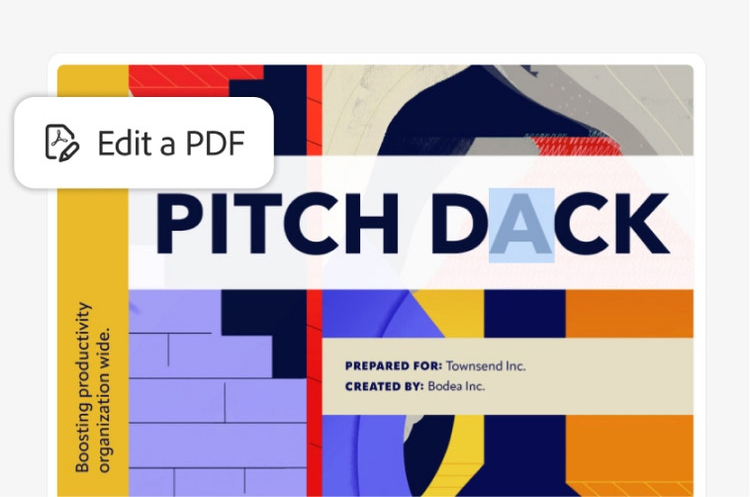
A user easily editing a PDF document in Adobe Acrobat Pro, correcting text and images on screen
All of this editing happens directly in Acrobat without needing any complicated extra software. You can find & replace words, move paragraphs, or swap graphics seamlessly. As Adobe puts it, Acrobat lets you “take full creative control of your PDF” , which in practice means spending more time on your content and less on hopping between programs.
Effortless E-Signatures and Form Filling
Acrobat Pro shines at handling forms and signatures. You can open a PDF form and fill it out quickly with the built-in tools: the software automatically recognizes text fields, checkboxes, and buttons, so you just type or click to complete the form . When it’s time to sign, Acrobat lets you create a digital signature once and then add your signature to the PDF with a single click.

Two business people using Acrobat Pro to electronically sign a digital invoice on a tablet.
Instead of printing a contract or permission slip, you can sign it electronically in seconds. For example, imagine approving a lease or permission form — just click “Fill & Sign”, add your signature and date, and send it back. Acrobat Pro can even collect signatures from others: upload the document and request e-signatures, and it tracks who has signed and reminds them if needed . No more printing or scanning.
Exporting and Converting Files
Working with different file types can be a hassle, but Acrobat Pro smooths the process. If you need to update a budget spreadsheet or a written report, you don’t have to retype it. Acrobat Pro can instantly convert your PDF into an editable Word document, Excel sheet, or PowerPoint presentation. The reverse is true too: any Word doc, Excel chart, or PowerPoint slide deck can be turned into a neatly formatted PDF. Adobe explicitly notes that you can “convert your PDFs into Microsoft file formats like Word, PowerPoint, and Excel — or vice versa”.
This convenience saves a lot of time. For example, if a colleague sends you a PDF of a flyer they made in Word, you can convert it back to Word to make quick edits. Or if your teacher sends notes as a PDF, you can switch it to Word to highlight and comment. By eliminating tedious reformatting, Acrobat Pro keeps your projects moving smoothly.
Secure and Protect Your Documents
Security is built into Acrobat Pro. You can password-protect any PDF so only people with the password can open it. Adobe highlights that you can “add passwords and permissions to PDFs so only the people you want to view your file can see it” . This is invaluable for personal or business documents — think tax forms, contracts, or project plans that should stay confidential.

Using Acrobat Pro’s “Protect a PDF” feature on a passport application, securing it with password protection.
Acrobat Pro also lets you redact sensitive information. That means you can permanently black out words, numbers, or images you don’t want anyone to see. For example, you could block out sensitive information in a document before sharing it. Once redacted, that information is gone. Combined with password protection, these tools give you tight control over who sees what in your PDFs.
Share, Collaborate, and Comment
Acrobat Pro is built for teamwork, not just solo work. You can share a PDF with teammates directly from the app: just click Share, enter their emails, and allow comments. Recipients can open the PDF in their web browser (no software required) and leave comments, highlights, or sticky notes on the document . You’ll get notifications when they comment, so all feedback ends up in one place.
Cloud-based collaboration cuts out email juggling. Everyone works on the same copy of the file, so you don’t end up with different versions and lost edits . You can even see who opened the file and how many times. For example, a project manager can upload a draft proposal and have team members annotate different sections. Each person’s comments appear in real time, whether they’re in the office or across the globe. It’s like having a conversation in the margins of your PDF.
Helpful AI Assistant for PDF Insights
Acrobat Pro includes an AI-powered assistant (as an add-on) to help you digest information faster. One feature is the Generative Summary: it analyzes a PDF and creates an outline of the key points. It then lets you ask questions about the content and gives you answers. According to Adobe, you can “ask questions and get clear answers from your documents” using this AI assistant .
Imagine reading a long report or contract. Instead of scrolling for the main ideas, you get a brief summary of each section. Then if you need more detail, you can ask a question like “What are the deadlines mentioned?” and the AI will highlight the answer. This saves time and helps you catch important details that might otherwise get lost in walls of text.
Why Acrobat Pro Boosts Your Productivity
All these features add up to big time-savings and convenience. The interface is user-friendly and walks you through tasks step by step. You don’t need to be a tech expert to fix a typo, sign a document, or lock a PDF. Acrobat Pro is widely used in businesses, schools, and government for a reason: it makes digital document work simpler and faster.
Remote Contract Signing: Finalize a contract digitally in minutes — no printing or scanning needed.
On-the-Go Resume Edit: Edit your CV on the go: change text and format directly in Acrobat from anywhere, no retyping required.
Team Review Session: Everyone adds comments on a shared PDF draft, so you see all feedback instantly in one place instead of juggling multiple files.
In short, Adobe Acrobat Pro turns PDF headaches into a smooth workflow. You get enormous value through saved time and fewer mistakes. It’s designed to help you focus on your work, not on wrestling with file format.
(This post contains affiliate links. As an affiliate, I may earn a small commission if you make a purchase through the links in this article. Thanks for supporting the site!)
메타데이터
- post_id
- 7bb35982fc7b
- slug
- adobe-acrobat-pro-ultimate-pdf-editing-e-signature-tool-windows-mac-7bb35982fc7b
- url
- https://medium.com/@sinhamona.5/adobe-acrobat-pro-ultimate-pdf-editing-e-signature-tool-windows-mac-7bb35982fc7b
- canonical_url
- https://medium.com/@sinhamona.5/adobe-acrobat-pro-ultimate-pdf-editing-e-signature-tool-windows-mac-7bb35982fc7b
- author_url
- https://medium.com/@sinhamona.5
- status
- ok
- fetched_at
- 2026-08-02 21:04:15