Beyond Functional Testing: Mastering Visual Testing & Accessibility Testing with Playwright: —
“A button may still click… but the UI may already be broken.”
Beyond Functional Testing: Mastering Visual Testing & Accessibility Testing with Playwright: —
“A button may still click… but the UI may already be broken.”
In modern web applications, functional testing alone is not enough.
Your test may verify that:
- login works
- API returns correct data
- buttons trigger actions
But what if:
- the layout breaks?
- the logo disappears?
- colors become unreadable?
- the UI becomes inaccessible to disabled users?
Traditional tests miss these issues.
That’s why modern Software Testers, QA Engineers, and SDETs combine:
Functional Testing Visual Testing Accessibility Testing
Let’s explore how to implement both using Playwright with real code examples.
What is Visual Testing?
Visual testing ensures the UI appearance stays consistent across releases.
It works by comparing:
- current UI screenshots
- baseline snapshots (golden images)
If there is any visual difference, the test fails.
Visual regression testing helps detect:
- layout shifts
- missing UI elements
- broken CSS
- incorrect colors
- visual bugs across browsers
It acts as a visual safety net for UI changes.
Why Visual Testing Matters in Modern Applications
Modern web applications use frameworks like:
- React
- Angular
- Vue
- Next.js
Small CSS changes can cause unexpected UI shifts.
Visual testing helps teams detect issues such as:
• broken layouts • overlapping components • missing images • inconsistent rendering across browsers
Without visual testing, these bugs often reach production.
Visual Testing with Playwright
Playwright provides built-in visual regression testing capabilities.
It compares screenshots against baseline images.
Full Page Visual Comparison (Code Example)
Example Playwright test:
import { test, expect } from '@playwright/test';test('homepage visual regression test', async ({ page }) => { await page.goto('https://example.com'); // Capture full page screenshot and compare with baseline
expect(await page.screenshot()).toMatchSnapshot('homepage.png');});What happens here?
• Playwright captures a screenshot of the page • It compares it with the stored baseline image • If any visual difference appears → test fails
Element-Level Visual Testing
Sometimes you only want to validate a specific component.
Example: verify that a logo or UI component remains unchanged.
import { test, expect } from '@playwright/test';test('logo visual validation', async ({ page }) => { await page.goto('https://example.com'); const logo = page.locator("img[alt='Company Logo']"); // Capture element screenshot
expect(await logo.screenshot()).toMatchSnapshot('logo.png');});Benefits
• More precise testing • Less visual noise • Faster comparisons
Element-level snapshots are perfect for:
- buttons
- logos
- navigation menus
- charts
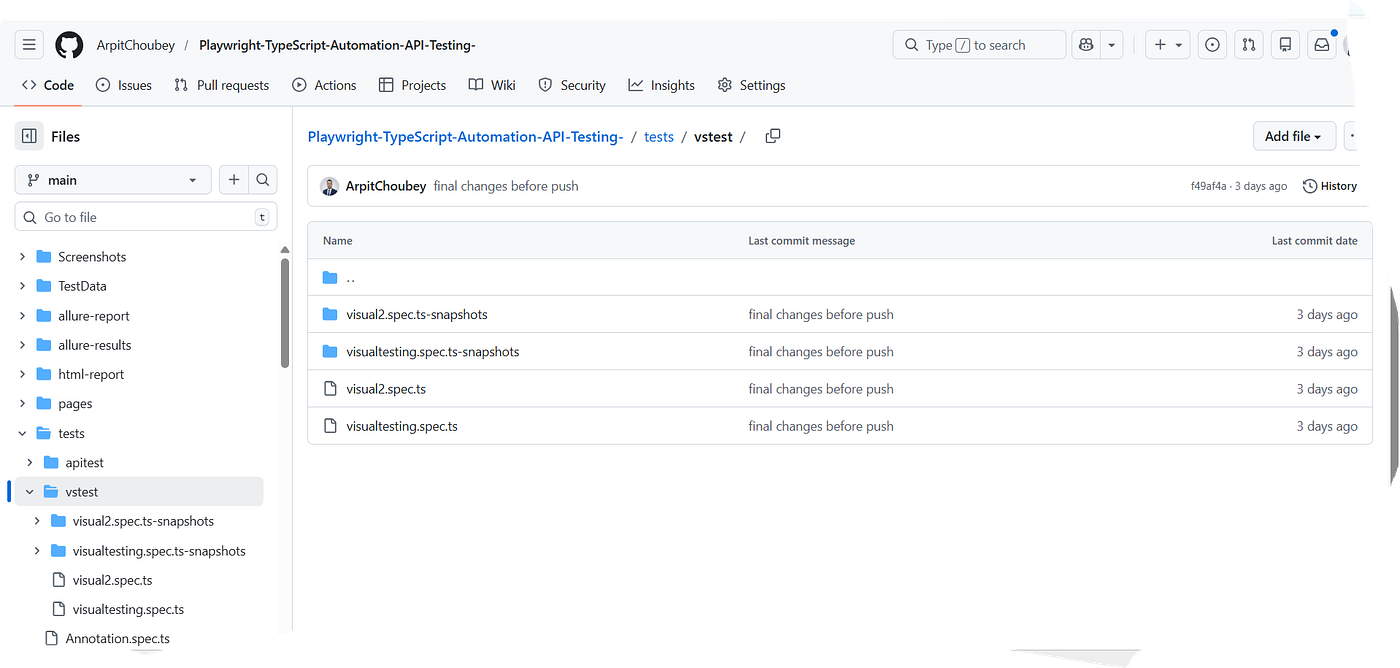
My Github Link — — https://github.com/ArpitChoubey/Playwright-TypeScript-Automation-API-Testing-/tree/main/tests/vstest
Automatic Screenshot Assertion (Recommended)
Playwright also provides an easier method.
import { test, expect } from '@playwright/test';test('automatic screenshot comparison', async ({ page }) => { await page.goto('https://example.com'); // Automatically capture and compare screenshot
await expect(page).toHaveScreenshot();});Playwright automatically:
• captures screenshot • compares it with baseline • highlights visual differences
Managing Snapshot Images
When visual tests run for the first time:
Playwright creates baseline snapshot images.
Example snapshot files:
homepage-chromium.png
homepage-firefox.png
homepage-webkit.png
These are stored in the snapshot folder.
On later runs, Playwright compares new screenshots against them.
Updating Baseline Images
When UI changes are intentional, update snapshots:
npx playwright test --update-snapshotsThis replaces old baseline images with new ones.
Real Example: Detecting a UI Regression
During one project, a CSS update caused:
- header alignment issues
- button overlap
- broken mobile layout
Functional tests still passed.
But visual regression tests immediately detected the problem.
The team fixed the issue before it reached production.
That’s the power of visual testing.
What is Accessibility Testing?
Accessibility testing ensures web applications are usable for people with disabilities.
It validates compliance with WCAG (Web Content Accessibility Guidelines).
Accessibility checks detect issues such as:
• missing ALT text on images • poor color contrast • missing labels on form inputs • inaccessible keyboard navigation • screen reader incompatibility
Accessible applications improve both usability and inclusivity.
Why Accessibility Testing is Critical
Millions of users rely on assistive technologies like:
- screen readers
- keyboard navigation
- voice controls
Ignoring accessibility can lead to:
- poor user experience
- legal compliance risks
- lost customers
Accessibility testing ensures software is usable by everyone.
Installing Accessibility Testing in Playwright
Playwright integrates easily with the Axe accessibility engine.
Install the plugin:
npm install @axe-core/playwrightThis adds powerful accessibility scanning capabilities.
Accessibility Testing Code Example
Example Playwright test using Axe:
import { test, expect } from '@playwright/test';
import AxeBuilder from '@axe-core/playwright';
test('accessibility scan test', async ({ page }) => { await page.goto('https://example.com'); // Run accessibility scan
const accessibilityScanResults = await new AxeBuilder({ page }).analyze(); console.log(accessibilityScanResults); // Assert no violations
expect(accessibilityScanResults.violations.length).toEqual(0);});What this does
• scans page for accessibility issues • identifies WCAG violations • fails test if issues exist
Scan Specific WCAG Rules
Accessibility scans can be customized.
Example:
import { test, expect } from '@playwright/test';
import AxeBuilder from '@axe-core/playwright';
test('wcag specific scan', async ({ page }) => { await page.goto('https://example.com'); const results = await new AxeBuilder({ page })
.withTags(['wcag2a', 'wcag2aa'])
.analyze(); expect(results.violations.length).toEqual(0);});This validates compliance with specific WCAG levels.
Attach Accessibility Reports to Test Results
Example:
import { test, expect } from '@playwright/test';
import AxeBuilder from '@axe-core/playwright';
test('accessibility report attachment', async ({ page }, testInfo) => { await page.goto('https://example.com'); const results = await new AxeBuilder({ page }).analyze(); await testInfo.attach('Accessibility Report', {
body: JSON.stringify(results, null, 2),
contentType: 'application/json'
});});This attaches accessibility results to test reports.
Very useful in CI pipelines.
Visual Testing + Accessibility Testing Together
Combining both creates complete UI validation.
Functional testing checks:
✔ application behavior
Visual testing checks:
✔ UI appearance
Accessibility testing checks:
✔ inclusive usability
Together they ensure high-quality user experiences.
Best Practices for Automation Engineers
Follow these practices when implementing visual and accessibility testing.
• Run visual tests in CI pipelines • Focus snapshots on critical UI components • Avoid unnecessary full-page snapshots • Automate accessibility scans regularly • Review accessibility reports frequently • Update snapshots when intentional UI changes occur
These practices maintain stable automation suites.
Why SDETs Should Master These Skills
Modern SDETs are responsible for more than functional validation.
They must ensure:
- UI consistency
- accessibility compliance
- cross-browser compatibility
- performance reliability
Visual testing and accessibility automation help achieve these goals.
Final Thoughts
Software quality goes beyond functionality.
An application may technically work but still fail users if:
- UI layout breaks
- elements disappear
- users with disabilities cannot interact with it
Visual regression testing protects UI integrity.
Accessibility testing ensures inclusive design.
Together, they transform automation testing into true quality engineering.
For Software Testers and SDETs, mastering these techniques is essential for building future-ready automation frameworks.
Follow My Github link — https://github.com/ArpitChoubey/Playwright-TypeScript-Automation-API-Testing-/blob/main/tests/accessibility.spec.ts

메타데이터
- post_id
- 7d9a265f6e5a
- slug
- beyond-functional-testing-mastering-visual-testing-accessibility-testing-with-playwright-7d9a265f6e5a
- url
- https://medium.com/@ArpitChoubey9/beyond-functional-testing-mastering-visual-testing-accessibility-testing-with-playwright-7d9a265f6e5a
- canonical_url
- https://medium.com/@ArpitChoubey9/beyond-functional-testing-mastering-visual-testing-accessibility-testing-with-playwright-7d9a265f6e5a
- author_url
- https://medium.com/@ArpitChoubey9
- status
- ok
- fetched_at
- 2026-06-28 14:26:31