Google Spanner Database Schema Changes — CI/CD with GitHub Actions
A CI/CD pipeline for managing Google Cloud Spanner database schema migrations using Liquibase and GitHub Actions. This project automates…
Google Spanner Database Schema Changes — CI/CD with GitHub Actions
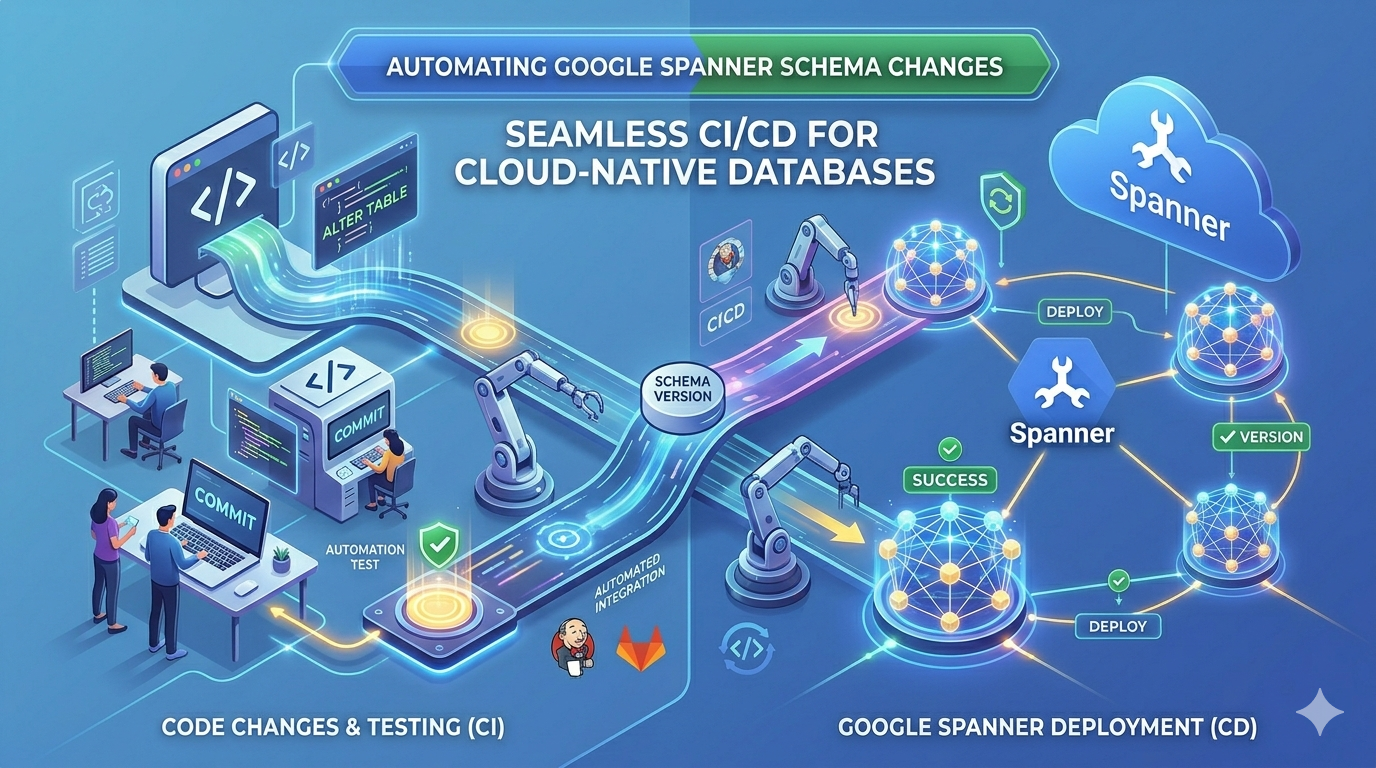
A CI/CD pipeline for managing Google Cloud Spanner database schema migrations using Liquibase and GitHub Actions. This project automates schema deployment to Spanner via ChangeSets defined in XML, with a local emulator for testing and a production-like GCP instance for staging.
Prerequisites
Before you begin, ensure the following tools are installed on your machine:
- Docker — Version 20.10+ — Install:
brew install --cask docker **gcloudCLI** — Version 450+ — Install:brew install --cask google-cloud-sdk**curl** — Any version — Pre-installed on macOS / Linux
You also need a GCP project (gcp-spannerdb-cicd) with the Cloud Spanner API enabled.
Getting Started — Clone the Repository
To run the code locally, first clone the repository and navigate into the project directory:
# Clone the repository
git clone https://github.com/suneelkandali/gcp-spanner-schemachanges-cicd.git
# Navigate into the project directory
cd gcp-spanner-schemachanges-cicdIf the repository is in a different location or uses SSH, use the appropriate URL:
# Using SSH (if you have SSH access configured)
git clone git@github.com:suneelkandali/gcp-spanner-schemachanges-cicd.git
# Navigate into the project directory
cd gcp-spanner-schemachanges-cicdAfter cloning, verify the project files are present:
ls -laYou should see:
database/— Containschangelog.xmlandchangelog-v1.0.0.xml.liquibase.properties— Liquibase configuration.github/workflows/deploy-migrations.yaml— CI/CD workflowREADME.md— This documentation file
Once cloned, you can proceed to Part 1 (local emulator testing) or Part 2 (GCP instance testing) to run the migration.
Project Structure
gcp-spanner-schemachanges-cicd/
├── .github/
│   └── workflows/
│       └── deploy-migrations.yaml    # GitHub Actions CI/CD workflow
├── database/
│   ├── changelog.xml                  # Root Liquibase changelog
│   └── changelog-v1.0.0.xml          # Version-specific changeSet definitions
├── .liquibase.properties              # Liquibase configuration (driver, changelog)
├── .gitignore                         # Ignores .jar, secrets, IDE files
└── README.md
Key Files Explained
**.liquibase.properties** — Tells Liquibase which changelog file to use (database/changelog.xml) and which JDBC driver to load (com.google.cloud.spanner.jdbc.JdbcDriver).**database/changelog.xml** — The root changelog that includes versioned changelogs. This is the entry point Liquibase reads.**database/changelog-v1.0.0.xml** — Contains the actual schema definitions. Each<changeSet>is an atomic migration unit with a uniqueidandauthor. Liquibase tracks which changeSets have been applied in a built-inDATABASECHANGELOGtable.**.github/workflows/deploy-migrations.yaml— Triggers on pushes tomainthat modify files under `database/. Uses Workload Identity Federation for GCP authentication, downloads the Spanner JDBC driver JAR, and runsliquibase update` inside a Docker container.
Part 1: Testing with a Local Spanner Emulator
The Spanner emulator lets you validate schema changes locally before pushing to GCP. It runs as a Docker container and emulates the Spanner API on localhost.
Step 1: Start the Spanner Emulator Container
docker run -d -p 9010:9010 -p 9020:9020 --name spanner-emulator gcr.io/cloud-spanner-emulator/emulatorWhat this does:
- Starts the emulator in detached mode (
-d) so it runs in the background. - Maps port
9010(gRPC) and port9020(REST API). - Names the container
spanner-emulatorfor easy management.
Verify it is running:
docker ps | grep spanner-emulatorYou should see output showing the image gcr.io/cloud-spanner-emulator/emulator with ports 9010:9010 and 9020:9020.
Step 2: Configure a Local gcloud Context
# Create or activate the spanner-local configuration
gcloud config configurations create spanner-local || gcloud config configurations activate spanner-local
# Disable authentication (the emulator needs no credentials)
gcloud config set auth/disable_credentials true# Set a fictitious project name (required by gcloud, not used by the emulator)
gcloud config set project mock-project# Override the Spanner API endpoint to point at the local emulator
gcloud config set api_endpoint_overrides/spanner http://localhost:9020/What this does:
- Creates a dedicated gcloud configuration named
spanner-localso emulator settings are completely isolated from your default GCP config. - Disables authentication since the emulator does not require credentials.
- Redirects all
gcloud spannercommands to talk to the emulator on port 9020.
Step 3: Create the Emulator Instance and Database
# Create a Spanner instance in the emulator
gcloud spanner instances create test-instance \
    --config=emulator-config \
    --description="Local Testing" \
    --nodes=1
# Create a database inside the instance
gcloud spanner databases create test-db --instance=test-instanceWhat this does:
- Creates a single-node instance called
test-instanceusing the built-inemulator-configconfiguration. - Creates an empty database called
test-dbwhere Liquibase will apply migrations.
Verify the instance and database exist:
gcloud spanner instances list
gcloud spanner databases list --instance=test-instance
Step 4: Download the Spanner Liquibase JDBC Driver
curl -L https://github.com/cloudspannerecosystem/liquibase-spanner/releases/download/4.27.0/liquibase-spanner-4.27.0-all.jar \
    -o liquibase-spanner-all.jar
What this does:
- Downloads the Spanner JDBC driver (bundled with Liquibase support) into your workspace.
- This JAR is mounted into the Liquibase Docker container at runtime.
Note: The
.gitignorealready excludes `.jar` files, so this downloaded JAR will not be committed to version control.*
Step 5: Run the Liquibase Migration Against the Emulator
From the project root directory (where database/ and .liquibase.properties are located):
docker run --rm \
  -v "$PWD":/liquibase/workspace \
  -v "$PWD/liquibase-spanner-all.jar":/liquibase/internal/lib/liquibase-spanner-all.jar \
  --net=host \
  liquibase/liquibase:4.27 \
  --defaults-file=/liquibase/workspace/.liquibase.properties \
  --search-path=/liquibase/workspace \
  --url="jdbc:cloudspanner:/projects/mock-project/instances/test-instance/databases/test-db;autoConfigEmulator=true" \
  update
What each flag does:
**--rm** — Automatically removes the container after execution**-v "$PWD":/liquibase/workspace** — Mounts the project directory so Liquibase can read the changelogs**-v "$PWD/liquibase-spanner-all.jar":/liquibase/internal/lib/liquibase-spanner-all.jar** — Injects the Spanner JDBC driver into Liquibase's classpath**--net=host** — Lets the container access the emulator onlocalhost:9020**--defaults-file=...** — Points to.liquibase.propertiesfor driver and changelog config**--search-path=...** — Tells Liquibase where to look for changelog files**--url=jdbc:cloudspanner:...** — The JDBC connection URL withautoConfigEmulator=trueto auto-detect the emulator endpoint**update** — Executes all pending changeSets
What Liquibase does internally:
- Connects to the emulator via the JDBC URL.
- Creates a
DATABASECHANGELOGtable (if it does not exist) to track applied changeSets. - Creates a
DATABASECHANGELOGLOCKtable to prevent concurrent migrations. - Reads
database/changelog.xml, which includesdatabase/changelog-v1.0.0.xml. - Applies each changeSet that has not yet been executed.
Step 6: Verify the Schema Was Created
gcloud spanner databases execute-sql test-db --instance=test-instance \
    --sql="SELECT table_name FROM information_schema.tables WHERE table_schema = ''"
Expected output:
TABLE_NAME
----------
Accounts
DATABASECHANGELOG
DATABASECHANGELOGLOCK
You can also verify the column structure of the Accounts table:
gcloud spanner databases execute-sql test-db --instance=test-instance \
    --sql="SELECT column_name, spanner_type, is_nullable FROM information_schema.columns WHERE table_name = 'Accounts'"
Expected output:
COLUMN_NAME          SPANNER_TYPE    IS_NULLABLE
AccountId            STRING(36)      NO
AccountName          STRING(255)     NO
OwnerEmail           STRING(255)     NO
CreatedTimestamp     TIMESTAMP       YES
Step 7: Clean Up — Stop the Emulator and Restore gcloud
# Stop and remove the emulator container
docker stop spanner-emulator
docker rm spanner-emulator
# Switch gcloud back to the default configuration
gcloud config configurations activate default# Unset the emulator-specific overrides
gcloud config unset api_endpoint_overrides/spanner
gcloud config unset auth/disable_credentials# Set your GCP project
gcloud config set project gcp-spannerdb-cicdWhat this does:
- Stops and removes the emulator Docker container.
- Restores your gcloud CLI to the default configuration so you can interact with real GCP resources.
- Re-enables authentication and removes the API endpoint override.
Re-running Migrations on the Emulator
If you want to test incremental changes, you can either:
Option A: Drop and recreate the database (clean slate)
gcloud spanner databases delete test-db --instance=test-instance --quiet
gcloud spanner databases create test-db --instance=test-instance
# Then re-run the Liquibase Docker command from Step 5
Option B: Let Liquibase apply only new changeSets (incremental)
- Simply modify or add changeSet entries in
database/and re-run the Docker command from Step 5. - Liquibase’s
DATABASECHANGELOGtable tracks what has already been applied, so only new or unapplied changeSets will execute.
Troubleshooting the Emulator
**docker: Error response from daemon: port is already allocated** — Rundocker psand stop any existingspanner-emulatorcontainer, or use different port mappings.**gcloudcommands return404 Not Found** — Ensureapi_endpoint_overrides/spanneris set to[http://localhost:9020/.](http://localhost:9020/.)**Connection refusedwhen running Liquibase** — Verify the emulator is running withdocker ps, and that--net=hostis set.**DRIVER_NOT_FOUNDerror** — Ensure theliquibase-spanner-all.jarvolume mount path is correct and the file exists in your working directory.- Liquibase reports
liquibase.exception.LockException— A previous migration may have crashed, leaving a lock inDATABASECHANGELOGLOCK. Delete and recreate the database (Option A above).
Part 2: Testing with a GCP Cloud Spanner Instance
This section covers creating a production-like Spanner instance in GCP and running Liquibase migrations against it using your local machine with Application Default Credentials.
Step 1: Authenticate with Google Cloud
# Log in with your Google Cloud account
gcloud auth login
# Log in with Application Default Credentials (used by the JDBC driver in Docker)
gcloud auth application-default login# Set the target project
gcloud config set project gcp-spannerdb-cicdWhat this does:
gcloud auth login— Authenticates the gcloud CLI for managing GCP resources (instances, databases, IAM).gcloud auth application-default login— Creates Application Default Credentials (ADC) at~/.config/gcloud/application_default_credentials.json, which the Spanner JDBC driver inside Docker will use for authentication.- Sets the active GCP project to
gcp-spannerdb-cicd.
Step 2: Enable Required APIs (if not already enabled)
gcloud services enable spanner.googleapis.com
gcloud services enable iamcredentials.googleapis.com --project=gcp-spannerdb-cicd
What this does:
- Enables the Cloud Spanner API so you can create instances and databases.
- Enables the IAM Credentials API (
iamcredentials.googleapis.com) which is required for Workload Identity Federation. Without this API, thegcloud iam service-accountsand workload identity pool commands will fail.
Step 3: Create a Spanner Instance in GCP
gcloud spanner instances create prod-like-instance \
    --config=regional-us-central1 \
    --description="GitOps Migration Test Instance" \
    --processing-units=100
What this does:
- Creates a Spanner instance named
prod-like-instancein theus-central1region. - Uses 100 processing units (1/10 of a node), which is the minimum for a cost-effective test instance.
Verify the instance was created:
gcloud spanner instances listExpected output:
NAME                    DISPLAY_NAME                      NODE_COUNT  PROCESSING_UNITS  STATE
prod-like-instance      GitOps Migration Test Instance    0           100               READY
Step 4: Create the Target Database
gcloud spanner databases create target-app-db \
    --instance=prod-like-instance \
    --database-dialect=GOOGLE_STANDARD_SQL
Verify the database was created:
gcloud spanner databases list --instance=prod-like-instanceExpected output:
DATABASE_ID
target-app-db
Step 5: Download the Spanner Liquibase JDBC Driver
If you did not already download it during local testing:
curl -L https://github.com/cloudspannerecosystem/liquibase-spanner/releases/download/4.27.0/liquibase-spanner-4.27.0-all.jar \
    -o liquibase-spanner-all.jar
Step 6: Dry Run — Preview SQL Without Executing
Before applying changes to the GCP instance, you can preview what SQL Liquibase would execute:
docker run --rm \
  -v "$PWD":/liquibase/workspace \
  -v "$PWD/liquibase-spanner-all.jar":/liquibase/internal/lib/liquibase-spanner-all.jar \
  -v "$HOME/.config/gcloud/application_default_credentials.json":/liquibase/gcp-creds.json \
  -e GOOGLE_APPLICATION_CREDENTIALS=/liquibase/gcp-creds.json \
  --net=host \
  liquibase/liquibase:4.27 \
  --defaults-file=/liquibase/workspace/.liquibase.properties \
  --search-path=/liquibase/workspace \
  --url="jdbc:cloudspanner:/projects/gcp-spannerdb-cicd/instances/prod-like-instance/databases/target-app-db" \
  update-sql
What update-sql does:
- Generates the SQL statements that Liquibase would execute for each pending changeSet.
- Prints them to stdout without actually executing them.
- This is useful for code review and auditing before applying changes to a real database.
Key differences from the emulator command:
- No
autoConfigEmulator=truein the JDBC URL (this is a real Spanner instance). - Mounts
application_default_credentials.jsoninto the container and sets theGOOGLE_APPLICATION_CREDENTIALSenvironment variable for authentication. - Uses
update-sqlinstead ofupdatefor a dry run.
Step 7: Apply Migrations to the GCP Instance
After reviewing the dry run output, apply the changes for real:
docker run --rm \
  -v "$PWD":/liquibase/workspace \
  -v "$PWD/liquibase-spanner-all.jar":/liquibase/internal/lib/liquibase-spanner-all.jar \
  -v "$HOME/.config/gcloud/application_default_credentials.json":/liquibase/gcp-creds.json \
  -e GOOGLE_APPLICATION_CREDENTIALS=/liquibase/gcp-creds.json \
  --net=host \
  liquibase/liquibase:4.27 \
  --defaults-file=/liquibase/workspace/.liquibase.properties \
  --search-path=/liquibase/workspace \
  --url="jdbc:cloudspanner:/projects/gcp-spannerdb-cicd/instances/prod-like-instance/databases/target-app-db" \
  update
What this does:
- Connects to the real GCP Spanner instance using Application Default Credentials.
- Applies all pending changeSets to the
target-app-dbdatabase.
Step 8: Verify the Schema in GCP
# List tables
gcloud spanner databases execute-sql target-app-db --instance=prod-like-instance \
    --sql="SELECT table_name FROM information_schema.tables WHERE table_schema = ''"
# List columns of the Accounts table
gcloud spanner databases execute-sql target-app-db --instance=prod-like-instance \
--sql="SELECT column_name, spanner_type, is_nullable FROM information_schema.columns WHERE table_name = 'Accounts'"# Check applied changeSets in Liquibase's tracking table
gcloud spanner databases execute-sql target-app-db --instance=prod-like-instance \
--sql="SELECT id, author, filename, dateexecuted, orderexecuted FROM DATABASECHANGELOG"Cleanup — Remove the GCP Instance (Optional)
To avoid ongoing costs, delete the test instance when you are done:
# Delete the database first
gcloud spanner databases delete target-app-db --instance=prod-like-instance --quiet
# Then delete the instance
gcloud spanner instances delete prod-like-instance --quietTroubleshooting GCP Instance Testing
**PermissionDenied: ... has not been granted** — Ensure your account hasroles/spanner.databaseAdminorroles/spanner.databaseUseron the project.**FAILED_PRECONDITION: ... API not enabled** — Rungcloud services enable spanner.googleapis.com.**UNAUTHENTICATEDor credential errors inside Docker** — Ensure you rangcloud auth application-default loginand that the volume mount forapplication_default_credentials.jsonuses the correct path.**AlreadyExists: Database or instance already exists** — Use a different instance/database name, or delete the existing one first.- Liquibase
LockExceptionon GCP — This usually means a previous migration crashed. Liquibase'sDATABASECHANGELOGLOCKtable is stuck. You can manually clear it by running:gcloud spanner databases execute-sql target-app-db --instance=prod-like-instance --sql="DELETE FROM DATABASECHANGELOGLOCK WHERE ID = 1"
Part 3: CI/CD Pipeline (GitHub Actions)
The GitHub Actions workflow automatically applies schema migrations when changes are pushed to the main branch.
How It Works
- Trigger: A push to
mainthat modifies files underdatabase/**. - Authentication: Uses Workload Identity Federation (no service account keys stored as secrets).
- Driver Download: Downloads the
liquibase-spanner-4.27.0-all.jarintoliquibase-libs/. - Migration: Runs
liquibase updateinside aliquibase/liquibase:4.27Docker container, targetingprod-like-instance/target-app-db.
GCP Service Account Setup (Required Before First Run)
Before running these commands, ensure the IAM Credentials API is enabled:
gcloud services enable iamcredentials.googleapis.com --project=gcp-spannerdb-cicdRun these commands once to set up the service account and Workload Identity Federation:
# 1. Create the service account
gcloud iam service-accounts create spanner-migrator \
    --description="Service account for GitHub Actions Spanner migrations" \
    --display-name="Spanner Migrator"
# 2. Grant Database Admin role on Spanner
gcloud projects add-iam-policy-binding gcp-spannerdb-cicd \
--member="serviceAccount:spanner-migrator@gcp-spannerdb-cicd.iam.gserviceaccount.com" \
--role="roles/spanner.databaseAdmin"# 3. Create a Workload Identity Pool for GitHub
gcloud iam workload-identity-pools create github-pool \
--location="global" \
--display-name="GitHub Actions Pool"# 4. Create an OIDC provider within the pool
gcloud iam workload-identity-pools providers create-oidc github-provider \
--location="global" \
--workload-identity-pool="github-pool" \
--display-name="GitHub Provider" \
--attribute-mapping="google.subject=assertion.sub,attribute.repository=assertion.repository" \
--attribute-condition="assertion.repository == 'suneelkandali/gcp-spanner-schemachanges-cicd'" \
--issuer-uri="https://token.actions.githubusercontent.com"# 5. Bind the service account to the GitHub repository via Workload Identity
gcloud iam service-accounts add-iam-policy-binding spanner-migrator@gcp-spannerdb-cicd.iam.gserviceaccount.com \
--role="roles/iam.workloadIdentityUser" \
--member="principalSet://iam.googleapis.com/projects/947330204934/locations/global/workloadIdentityPools/github-pool/attribute.repository/suneelkandali/gcp-spanner-schemachanges-cicd"Workflow File Reference
The complete workflow at .github/workflows/deploy-migrations.yaml is shown below, followed by a detailed breakdown of each step.
name: Execute Spanner Migrationson:
push:
branches: [ "main" ]
paths:
- 'database/**'jobs:
run-migration:
runs-on: ubuntu-latest
permissions:
contents: 'read'
id-token: 'write' steps:
- name: Checkout Code
uses: actions/checkout@v4 - name: Authenticate to Google Cloud
id: auth
uses: google-github-actions/auth@v2
with:
workload_identity_provider: 'projects/1234567890/locations/global/workloadIdentityPools/github-pool/providers/github-provider'
service_account: 'spanner-migrator@gcp-spannerdb-cicd.iam.gserviceaccount.com' - name: Download Cloud Spanner Liquibase Extension
run: |
mkdir -p liquibase-libs
curl -L https://github.com/cloudspannerecosystem/liquibase-spanner/releases/download/4.27.0/liquibase-spanner-4.27.0-all.jar -o liquibase-libs/liquibase-spanner-all.jar - name: Run Liquibase Migration
uses: docker://liquibase/liquibase:4.27
env:
GOOGLE_APPLICATION_CREDENTIALS: ${{ steps.auth.outputs.credentials_file_path }}
with:
args: >
--changelog-file=database/changelog.xml
--search-path=${{ github.workspace }}
--classpath=${{ github.workspace }}/liquibase-libs/liquibase-spanner-all.jar
--url=jdbc:cloudspanner:/projects/gcp-spannerdb-cicd/instances/prod-like-instance/databases/target-app-db
updateDetailed Breakdown of Each Workflow Step
The following explains every configuration option and its relationship to the project, Spanner instance, and database name.
Trigger Configuration
on:
  push:
    branches: [ "main" ]
    paths:
- 'database/**'**branches** —["main"]— The workflow only runs when code is pushed to themainbranch.**paths— `["database/"]— The workflow only triggers when files under thedatabase/directory are changed (e.g.,database/changelog.xml,database/changelog-v1.0.0.xml`).
Why this matters: This means schema changes are automatically deployed on every push to main that touches a changelog file. A push that only changes .github/ or other files will not trigger the migration.
You must update the paths filter if you add other directories that contain migration files (e.g., migrations/**).
Job Configuration
jobs:
  run-migration:
    runs-on: ubuntu-latest
    permissions:
      contents: 'read'
id-token: 'write'**runs-on** —ubuntu-latest— The workflow runs on the latest Ubuntu GitHub-hosted runner.**permissions.contents** —read— The workflow can read the repository (e.g., checkout code).**permissions.id-token—write— Required for Workload Identity Federation.** This allows the runner to request an OIDC token from GitHub, which is exchanged for a GCP access token.
Step 1: Checkout Code
- name: Checkout Code
uses: actions/checkout@v4What it does:
- Clones the repository to the runner’s workspace.
- The repository root becomes
${{ github.workspace }}(e.g.,/home/runner/work/gcp-spanner-schemachanges-cicd/gcp-spanner-schemachanges-cicd/). - This checkout includes all
database/files that were changed in the push.
Why it’s needed:
- Liquibase needs access to
database/changelog.xmland all referenced changelog files (database/changelog-v1.0.0.xml). - The
.liquibase.propertiesfile is also needed.
Step 2: Authenticate to Google Cloud
    - name: Authenticate to Google Cloud
      id: auth
      uses: google-github-actions/auth@v2
      with:
        workload_identity_provider: 'projects/1234567890/locations/global/workloadIdentityPools/github-pool/providers/github-provider'
service_account: 'spanner-migrator@gcp-spannerdb-cicd.iam.gserviceaccount.com'**id** —auth— A step identifier used to reference the auth output later (e.g.,${{ steps.auth.outputs.credentials_file_path }}).**uses** —google-github-actions/auth@v2— The official Google GitHub Action for GCP authentication.**workload_identity_provider—projects/1234567890/locations/global/workloadIdentityPools/github-pool/providers/github-provider— The full resource path of the OIDC provider that GitHub Actions uses to authenticate with GCP. Replace1234567890with your GCP project number.****service_account** —spanner-migrator@gcp-spannerdb-cicd.iam.gserviceaccount.com— The GCP service account that the workflow impersonates. This service account must haveroles/spanner.databaseAdminon the project.
How Workload Identity Federation works (no keys needed):
- GitHub Actions generates an OIDC token for the workflow run.
- The
authaction sends this OIDC token to GCP. - GCP validates the token against the OIDC provider (
github-provider) and the pool (github-pool). - If valid, GCP issues a short-lived access token for the
spanner-migratorservice account. - The access token is stored as
steps.auth.outputs.credentials_file_path(a temporary credential file).
This is why id-token: write permission is required in the job configuration.
Step 3: Download the Spanner Liquibase Extension
    - name: Download Cloud Spanner Liquibase Extension
      run: |
        mkdir -p liquibase-libs
curl -L https://github.com/cloudspannerecosystem/liquibase-spanner/releases/download/4.27.0/liquibase-spanner-4.27.0-all.jar -o liquibase-libs/liquibase-spanner-all.jarWhat it does:
- Creates a
liquibase-libs/directory in the workspace. - Downloads the
liquibase-spanner-4.27.0-all.jarfrom GitHub Releases. - This JAR contains the Spanner JDBC driver that Liquibase needs to connect to Spanner.
Why it’s a separate step:
- The Liquibase Docker image (
liquibase/liquibase:4.27) does not include the Spanner driver by default. - Without this JAR, Liquibase will fail with a
DRIVER_NOT_FOUNDerror because it cannot loadcom.google.cloud.spanner.jdbc.JdbcDriver.
JAR version alignment:
- The workflow uses
4.27.0to match the Docker imageliquibase/liquibase:4.27. - The JAR is the
allvariant (bundled with all dependencies).
Step 4: Run Liquibase Migration
    - name: Run Liquibase Migration
      uses: docker://liquibase/liquibase:4.27
      env:
        GOOGLE_APPLICATION_CREDENTIALS: ${{ steps.auth.outputs.credentials_file_path }}
      with:
        args: >
          --changelog-file=database/changelog.xml
          --search-path=${{ github.workspace }}
          --classpath=${{ github.workspace }}/liquibase-libs/liquibase-spanner-all.jar
          --url=jdbc:cloudspanner:/projects/gcp-spannerdb-cicd/instances/prod-like-instance/databases/target-app-db
update**uses** —docker://liquibase/liquibase:4.27— Runs the official Liquibase Docker image directly (no need for a separatedocker runcommand).**env.GOOGLE_APPLICATION_CREDENTIALS** —${{ steps.auth.outputs.credentials_file_path }}— Points the JDBC driver to the temporary credential file generated by the auth step. This is how the driver authenticates with Spanner.**--changelog-file** —database/changelog.xml— The root changelog file that Liquibase reads. This is relative to the repository root.**--search-path** —${{ github.workspace }}— The directory where Liquibase searches for changelog files and other resources. Points to the repository root on the runner.**--classpath** —${{ github.workspace }}/liquibase-libs/liquibase-spanner-all.jar— Adds the Spanner JDBC driver JAR to Liquibase's classpath so it can loadcom.google.cloud.spanner.jdbc.JdbcDriver.**--url—jdbc:cloudspanner:/projects/gcp-spannerdb-cicd/instances/prod-like-instance/databases/target-app-db— The JDBC connection URL that specifies the project (gcp-spannerdb-cicd), instance (prod-like-instance), and database** (target-app-db).**update** — Tells Liquibase to apply all pending changeSets.
How the JDBC URL is structured:
jdbc:cloudspanner:/projects/gcp-spannerdb-cicd/instances/prod-like-instance/databases/target-app-db
 │        │         │                          │                          │
 │        │         │                          │                          └── Database name
 │        │         │                          └── Instance name
 │        │         └── GCP Project ID
 │        └── Database protocol
└── JDBC driver scheme- Project:
gcp-spannerdb-cicd— The GCP project that owns the Spanner instance. - Instance:
prod-like-instance— The Spanner instance created in Part 2, Step 3. - Database:
target-app-db— The database created in Part 2, Step 4.
What happens when the migration runs:
- The Liquibase container starts inside the GitHub Actions runner.
- It authenticates using the temporary GCP credentials.
- It reads
database/changelog.xml, which includesdatabase/changelog-v1.0.0.xml. - It connects to the
target-app-dbdatabase in theprod-like-instanceinstance. - It checks for any unapplied changeSets by querying the
DATABASECHANGELOGtable. - For each unapplied changeSet, it executes the corresponding SQL statements.
- Records each applied changeSet in the
DATABASECHANGELOGtable. - Exits with status 0 (success) or nonzero (failure).
Steps Required to Customize deploy-migrations.yaml for Your Project
When setting up this workflow for your own GCP Spanner project, you must update the following values:
- GCP Project ID — Location in YAML:
--url=jdbc:cloudspanner:/projects/<PROJECT_ID>/...— Rungcloud config get projectto get your project ID. - GCP Project Number — Location in YAML:
workload_identity_provider: 'projects/<PROJECT_NUMBER>/...'— Rungcloud projects describe <PROJECT_ID> --format='value(projectNumber)'to get the numeric project number. - Spanner Instance Name — Location in YAML:
--url=.../instances/<INSTANCE_NAME>/...— Rungcloud spanner instances listto get the instance name. The workflow usesprod-like-instanceby default. - Database Name — Location in YAML:
--url=.../databases/<DATABASE_NAME>— Rungcloud spanner databases list --instance=<INSTANCE_NAME>to get the database name. The workflow usestarget-app-dbby default. - Service Account Email — Location in YAML:
service_account: '<SA>@<PROJECT_ID>.iam.gserviceaccount.com'— The email of the service account created withgcloud iam service-accounts create. - Workload Identity Pool Name — Location in YAML:
workload_identity_provider: '.../workloadIdentityPools/<POOL_NAME>/...'— The pool name created withgcloud iam workload-identity-pools create. - GitHub Repository — Location in YAML:
attribute-condition: "assertion.repository == '<OWNER>/<REPO>'"— The full GitHub repository path (e.g.,suneelkandali/gcp-spanner-schemachanges-cicd).
Example: Customizing for a Different Instance and Database
If you want to target a different Spanner instance (e.g., staging-instance) and database (e.g., staging-db), update the --url argument in the workflow:
- name: Run Liquibase Migration
  uses: docker://liquibase/liquibase:4.27
  env:
    GOOGLE_APPLICATION_CREDENTIALS: ${{ steps.auth.outputs.credentials_file_path }}
  with:
    args: >
      --changelog-file=database/changelog.xml
      --search-path=${{ github.workspace }}
      --classpath=${{ github.workspace }}/liquibase-libs/liquibase-spanner-all.jar
      --url=jdbc:cloudspanner:/projects/gcp-spannerdb-cicd/instances/staging-instance/databases/staging-db
      update
Important: The instance (staging-instance) and database (staging-db) must already exist in GCP before the workflow runs. The workflow does not create instances or databases — it only applies schema changes.
Mapping the Workflow to the Local Emulator
To understand how the workflow maps to the local emulator testing in Part 1, here is the equivalent mapping:
**--url** — Workflow:jdbc:cloudspanner:/projects/gcp-spannerdb-cicd/instances/prod-like-instance/databases/target-app-db— Emulator:jdbc:cloudspanner:/projects/mock-project/instances/test-instance/databases/test-db;autoConfigEmulator=true**GOOGLE_APPLICATION_CREDENTIALS** — Workflow: Required — Emulator: Not needed (emulator has no auth)**--classpath** — Workflow:liquibase-libs/liquibase-spanner-all.jar— Emulator:-v "$PWD/liquibase-spanner-all.jar":/liquibase/internal/lib/liquibase-spanner-all.jar**--search-path** — Workflow:${{ github.workspace }}— Emulator:-v "$PWD":/liquibase/workspace+--search-path=/liquibase/workspace**--changelog-file** — Workflow:database/changelog.xml— Emulator:--defaults-file=/liquibase/workspace/.liquibase.properties
The key differences between the workflow and local testing are:
- Authentication: The workflow uses
GOOGLE_APPLICATION_CREDENTIALSwith Workload Identity-fed credentials; the emulator uses no credentials. - URL: The workflow uses the real GCP Spanner JDBC URL; the emulator uses
autoConfigEmulator=true. - Execution: The workflow runs in a GitHub-hosted runner; local testing runs in a Docker container on your machine.
Making New Schema Changes
Follow this workflow when adding or modifying database schemas:
- Create or edit a changelog file in the
database/directory. For a new version, createdatabase/changelog-v1.1.0.xmland include it fromchangelog.xml:
<include file="database/changelog-v1.1.0.xml"/>
- Define your changeSets with unique
idvalues and anauthortag:
<changeSet id="20260616-01" author="platform-eng"> <createTable tableName="Orders"> <column name="OrderId" type="VARCHAR(36)"> <constraints primaryKey="true" nullable="false"/> </column> <column name="AccountId" type="VARCHAR(36)"/> <column name="Amount" type="INT64"/> </createTable> </changeSet>
- Test locally with the emulator (see Part 1).
- Test against GCP with a dry run (see Part 2, Step 6).
- Commit and push to
mainto trigger the CI/CD pipeline:
git add database/ git commit -m "feat: add Orders table schema" git push origin main
- Verify in the GitHub Actions tab that the migration succeeded, and confirm the schema in GCP.
Quick Reference — Common Commands
- Start emulator —
docker run -d -p 9010:9010 -p 9020:9020 --name spanner-emulator gcr.io/cloud-spanner-emulator/emulator - Stop emulator —
docker stop spanner-emulator && docker rm spanner-emulator - Create emulator instance —
gcloud spanner instances create test-instance --config=emulator-config --description="Local Testing" --nodes=1 - Create emulator database —
gcloud spanner databases create test-db --instance=test-instance - Download JDBC driver —
curl -L https://github.com/cloudspannerecosystem/liquibase-spanner/releases/download/4.27.0/liquibase-spanner-4.27.0-all.jar -o liquibase-spanner-all.jar - Run migration (emulator) —
docker run --rm -v "$PWD":/liquibase/workspace -v "$PWD/liquibase-spanner-all.jar":/liquibase/internal/lib/liquibase-spanner-all.jar --net=host liquibase/liquibase:4.27 --defaults-file=/liquibase/workspace/.liquibase.properties --search-path=/liquibase/workspace --url="jdbc:cloudspanner:/projects/mock-project/instances/test-instance/databases/test-db;autoConfigEmulator=true" update - Dry run (GCP) — Same as above but with
--url="jdbc:cloudspanner:/projects/gcp-spannerdb-cicd/instances/prod-like-instance/databases/target-app-db", add credential mounts, and useupdate-sql - Run migration (GCP) — Same as dry run but use
updateinstead ofupdate-sql - List tables —
gcloud spanner databases execute-sql <db> --instance=<instance> --sql="SELECT table_name FROM information_schema.tables WHERE table_schema = ''" - Switch back to default gcloud —
gcloud config configurations activate default && gcloud config unset api_endpoint_overrides/spanner && gcloud config unset auth/disable_credentials && gcloud config set project gcp-spannerdb-cicd - Delete GCP test instance —
gcloud spanner instances delete prod-like-instance --quiet
메타데이터
- post_id
- 7e60fcc8288c
- slug
- google-spanner-database-schema-changes-ci-cd-7e60fcc8288c
- url
- https://medium.com/@suneelr.kandali/google-spanner-database-schema-changes-ci-cd-7e60fcc8288c
- canonical_url
- https://medium.com/@suneelr.kandali/google-spanner-database-schema-changes-ci-cd-7e60fcc8288c
- author_url
- https://medium.com/@suneelr.kandali
- status
- ok
- fetched_at
- 2026-06-26 03:39:16